
1. Introduction
This manual provides detailed instructions for the ASHATA Live Sound Card, Model ASHATA25e4fra97o34805. This device is designed to enhance audio for live streaming, podcasting, gaming, and recording, offering superior sound quality and a variety of sound effects.
The ASHATA Live Sound Card features an internal quad-core DSP chip for noise reduction, stable signal transmission, clear sound, and heavy bass without latency. It also includes an ambient light function that synchronizes with music, offering various modes and sound effects to complement your environment.
2. Setup
Follow these steps to set up your ASHATA Live Sound Card:
- Charging the Device: Connect the sound card to a 5V=1A power source using the provided USB charging cable. The device can be used while charging.
- Connecting to a PC/Mobile Device: Use the OTG/PC Live port to connect the sound card to your computer, laptop, or mobile phone. This connection facilitates both audio transmission and charging.
- Microphone Connection: Connect your condenser microphones to the 'Condenser mic1' or 'Condenser mic2' ports. For dynamic microphones, use the dedicated 'Dynamic microphone' port.
- Headphone/Earphone Connection: Plug your headphones or earphones into the 'Headset' or 'Earphone' ports for real-time audio monitoring.
- Accompaniment Input: Connect an external audio source (e.g., a phone playing music) to the 'Accompany' port using an auxiliary cable to provide background music.
- Live Output: Use the 'Live1' and 'Live2' ports to connect to additional recording or streaming devices.

Figure 2.1: Rear view of the sound card highlighting charging and various input/output ports.
Video 2.1: An overview of the sound card's features and connection points, demonstrating its use in a live setup.
3. Operating Instructions
Familiarize yourself with the controls and functions of your ASHATA Live Sound Card:
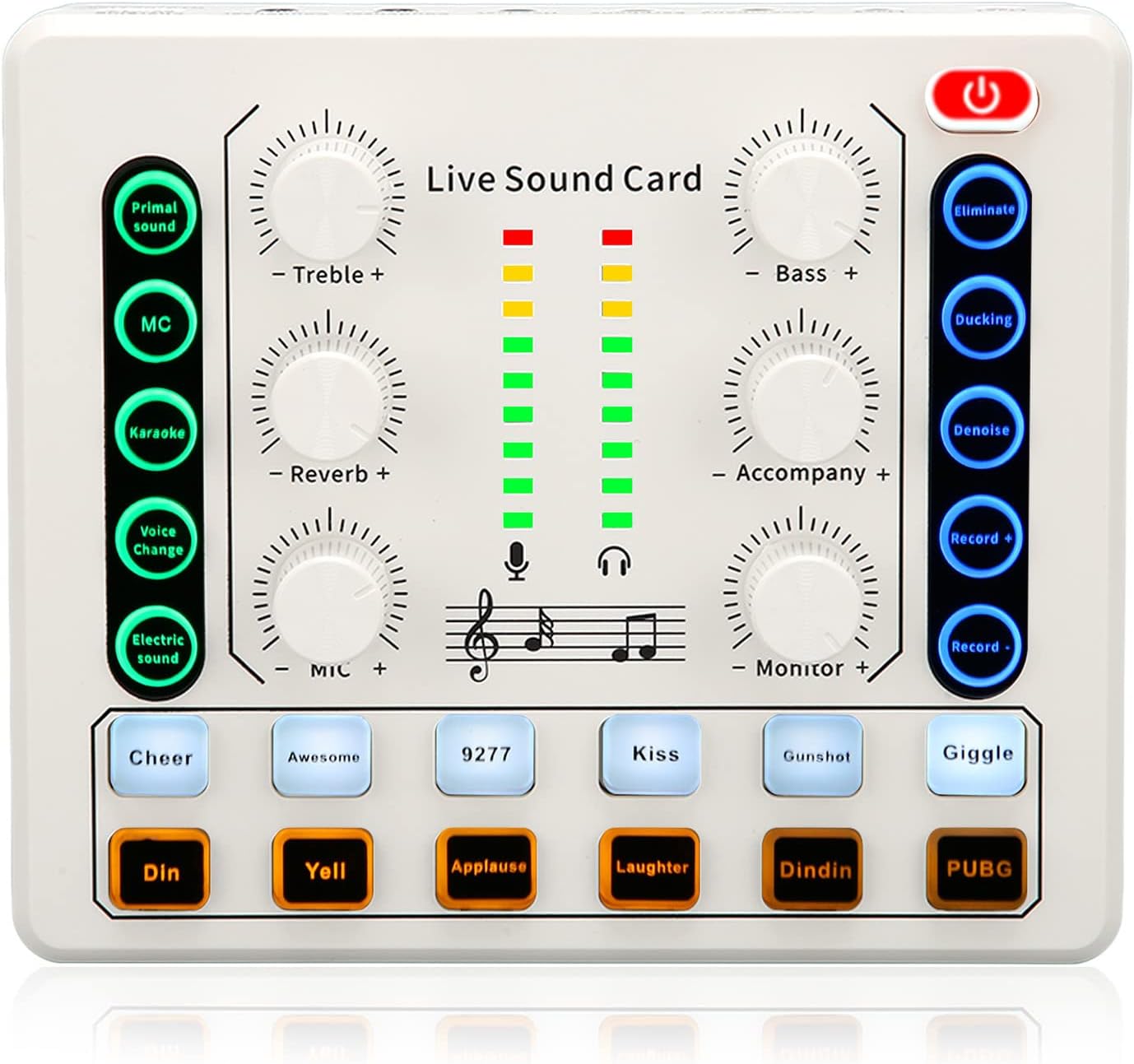
Figure 3.1: Front panel layout of the ASHATA Live Sound Card, showing all controls.
3.1. Main Controls (Knobs)
- Treble: Adjusts the high-frequency components of your voice.
- Bass: Adjusts the low-frequency components of your voice.
- Reverb: Controls the amount of reverberation effect applied to your audio.
- Accompaniment: Adjusts the volume of the background music connected via the 'Accompany' port.
- Mic: Controls the input volume of your microphone.
- Monitor: Adjusts the volume of the audio you hear through your headphones/earphones.

Figure 3.2: Close-up of the treble and bass adjustment knobs, indicating independent control for sound polishing.
3.2. Function Buttons (Left Side)
- Primal Sound: Activates the original sound mode.
- MC: Activates MC mode for clear vocal delivery.
- Karaoke: Optimizes audio for karaoke performances.
- Voice Change: Cycles through various voice changing effects.
- Electric Sound: Applies electronic sound effects.
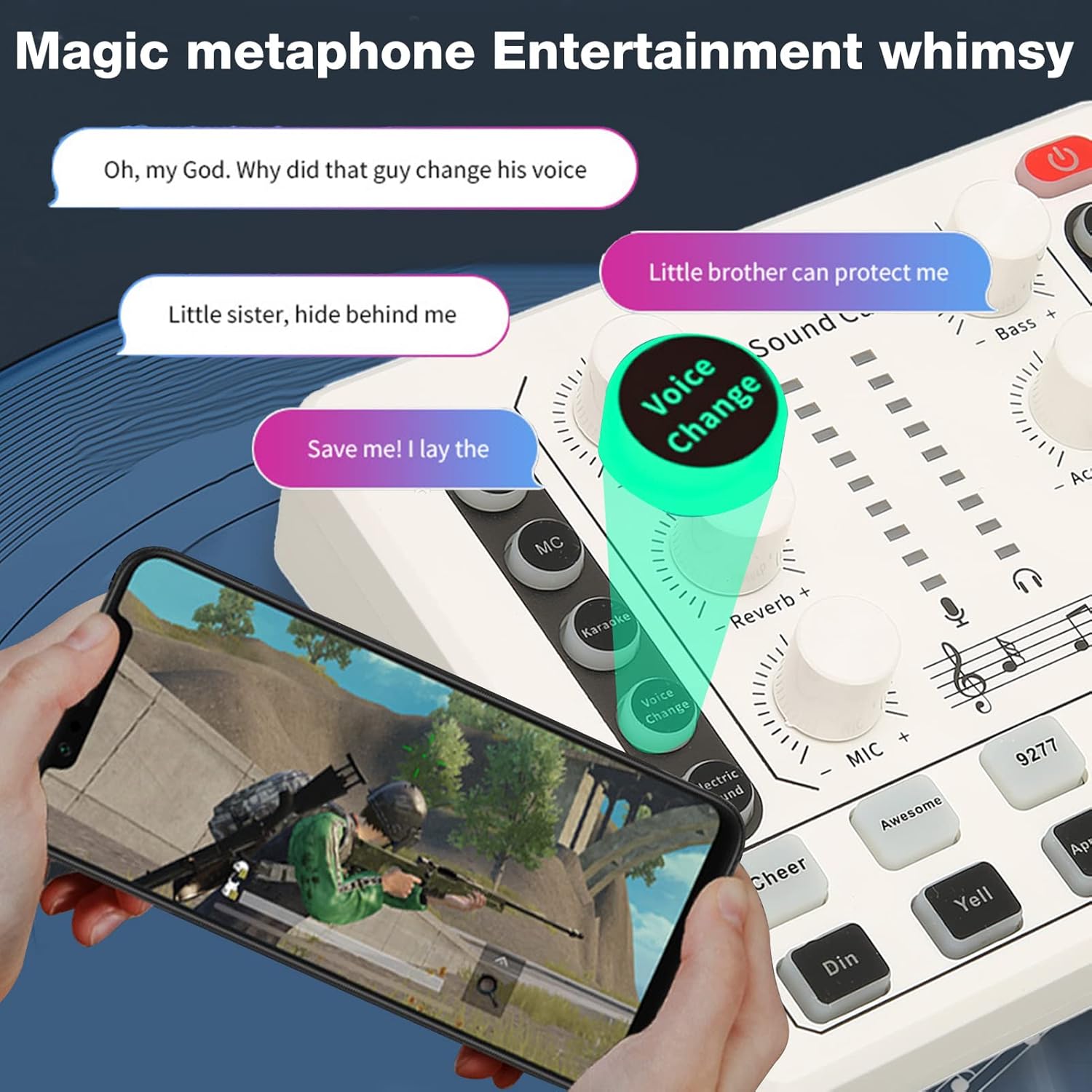
Figure 3.3: Illustration of the voice changer function, showing different voice effects.
3.3. Function Buttons (Right Side)
- Eliminate: Removes vocal parts from music, allowing for instrumental accompaniment.
- Ducking: Automatically lowers background music volume when speech is detected.
- Denoise: Activates intelligent one-button noise reduction to minimize ambient noise.
- Record +/-: Adjusts recording volume levels.

Figure 3.4: The Denoise button and its effect on audio, demonstrating intelligent noise reduction.
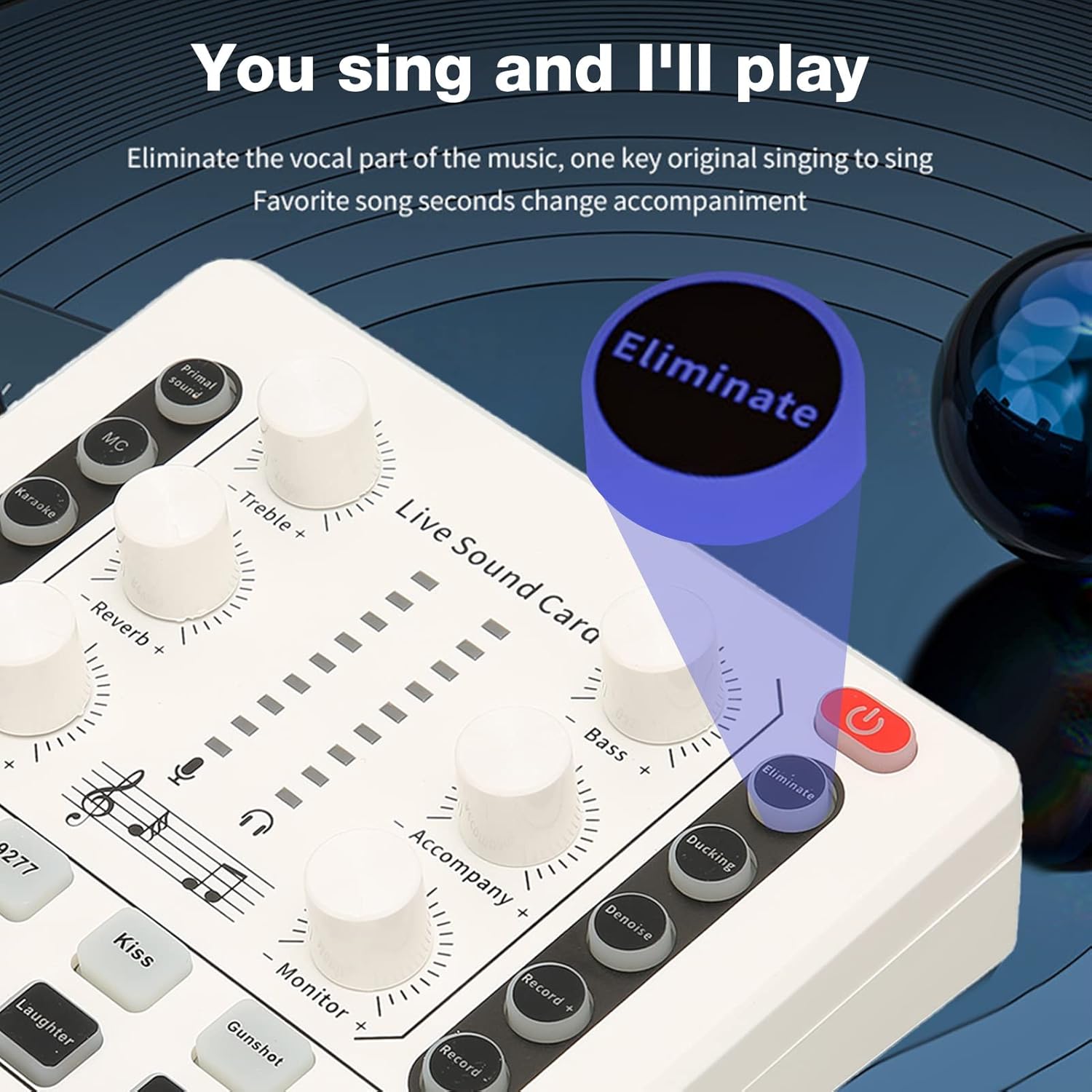
Figure 3.5: The Eliminate button, used for removing vocals from music for accompaniment.
3.4. Sound Effects Pads
The bottom section features various sound effect pads for live atmosphere enhancement:
- Cheer, Awesome, 9277, Kiss, Gunshot, Giggle, Din, Yell, Applause, Laughter, Dindin, PUBG: Press these pads to trigger corresponding sound effects during your live sessions.

Figure 3.6: The sound effect pads, illustrating their use for creating a dynamic live atmosphere.
3.5. Bluetooth Wireless Accompaniment
The sound card supports Bluetooth for wireless accompaniment:
- Turn on the sound card.
- Activate Bluetooth on your mobile phone.
- Search for 'M8' in your phone's Bluetooth device list and select to pair.
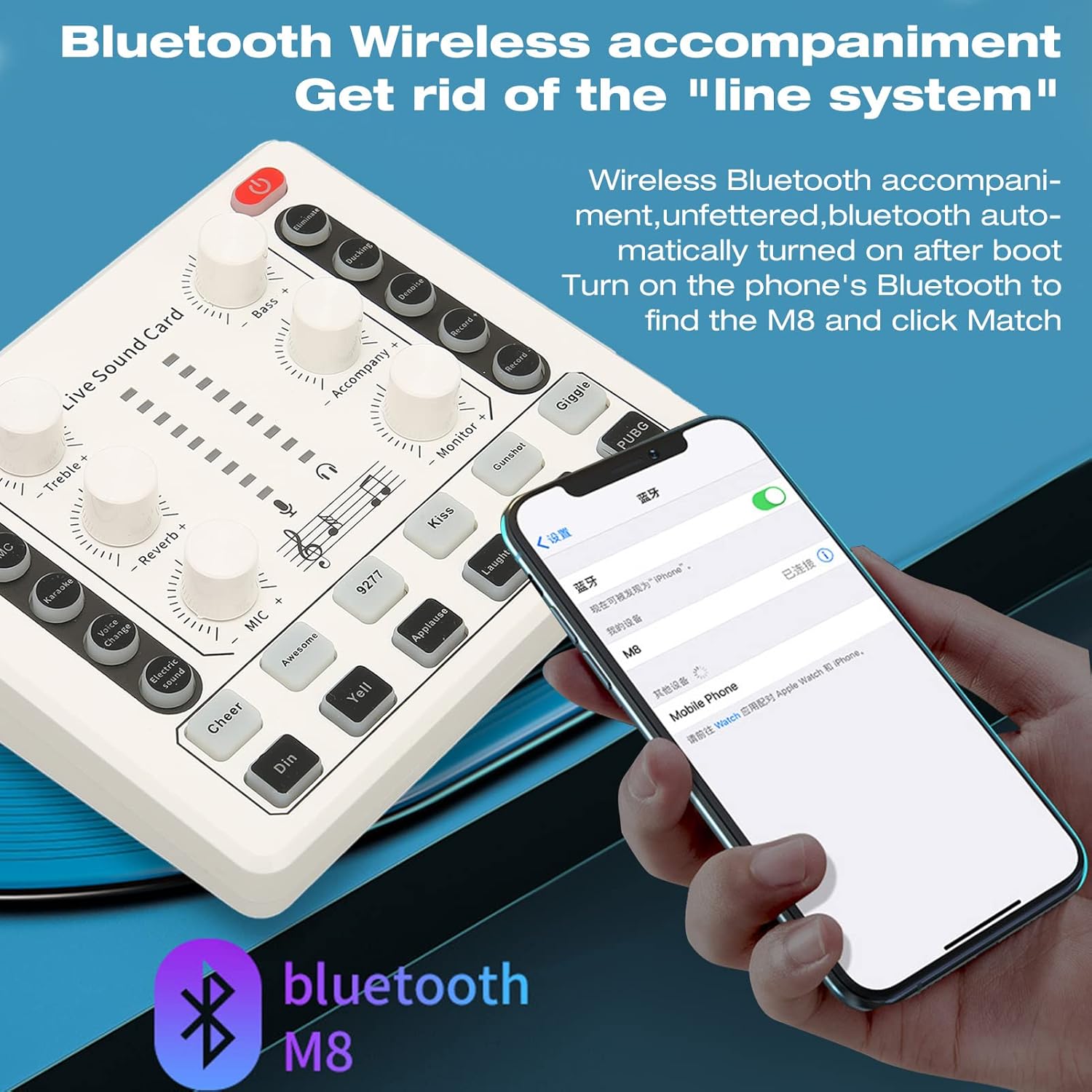
Figure 3.7: Demonstrating Bluetooth connectivity for wireless music accompaniment.
3.6. Smart Bel Canto 12-Order Electric Tone
Personalize your electronic sound adjustments with 12 different electric tones (A, Bb, B, C, C#, D, Dd, Eb, E, F, F#, G, Gb, G#):
- Press the 'Electric Sound' button to cycle through the available tones.
- Select the tone that best suits your vocal style for live performances.

Figure 3.8: The display showing the 12-order electric tone options for vocal adjustment.
4. Key Features
- Superior Sound Quality: Internal quad-core DSP chip ensures noise reduction, stable signal, clear sound, and heavy bass with no latency.
- Ambient Light Function: Dynamic ambient lighting changes with music, offering various modes and sound effects to enhance the atmosphere.
- Versatile Application: Suitable for DJ mixing, music studio recording, condenser podcast microphones, online karaoke, podcast mixing, and general microphone use.
- Wide Compatibility: Compatible with various devices including cell phones, PCs, computers, tablets, PS4, Xbox, Switch, iOS, and Android.
- Durable Construction: Made from ABS material, ensuring durability, wear resistance, and anti-drop protection for a long service life.
5. Specifications
| Feature | Detail |
|---|---|
| Brand | ASHATA |
| Model Number | ASHATA25e4fra97o34805 |
| Package Dimensions | 7.25 x 5 x 2.25 inches |
| Item Weight | 11.2 ounces (0.32 Kilograms) |
| Number of Channels | 4 |
| Connectivity Technology | Auxiliary |
| Power Source | Battery Powered |
| ASIN | B0BJW7BTZZ |
6. Maintenance
- Cleaning: Use a soft, dry cloth to clean the surface of the sound card. Avoid using liquid cleaners or abrasive materials.
- Storage: Store the device in a cool, dry place away from direct sunlight and extreme temperatures.
- Handling: Handle the sound card with care to prevent drops or impacts, which could damage internal components.
7. Troubleshooting
- No Sound Output:
- Check all cable connections to ensure they are secure.
- Verify that the volume knobs (Mic, Monitor, Accompaniment) are not set to minimum.
- Ensure the sound card is powered on and charged.
- Confirm that the correct audio input/output device is selected on your connected PC or mobile device.
- Poor Sound Quality/Distortion:
- Adjust the Mic, Treble, and Bass knobs to find optimal settings.
- Activate the 'Denoise' function to reduce ambient noise.
- Ensure your microphone is functioning correctly and is not too close to the sound source, causing clipping.
- Voice Changer/Sound Effects Not Working:
- Ensure the respective function buttons are pressed and illuminated.
- Check if any conflicting modes are active.
- Bluetooth Connectivity Issues:
- Ensure the sound card's Bluetooth is active and discoverable.
- Delete previous 'M8' pairings from your phone and try reconnecting.
- Move the sound card closer to your mobile device to ensure a strong signal.
8. Warranty and Support
For warranty information and technical support, please refer to the documentation included with your product or contact ASHATA customer service directly. Keep your purchase receipt for warranty claims.