1. Introduction
This user manual provides detailed instructions for the ORICO USB-C Triple Monitor Docking Station. It is designed to expand the connectivity of your laptop, allowing for multiple external displays, high-speed data transfer, network access, and power delivery through a single USB-C connection. Please read this manual thoroughly before using the product to ensure proper operation and longevity.
2. Product Overview
2.1 Package Contents
- ORICO USB-C Triple Monitor Docking Station
- USB-C to USB-C Cable
- User Manual
2.2 Device Layout and Ports
The ORICO docking station features a comprehensive array of 15 ports to meet diverse connectivity needs. Below is an overview of the device and its various interfaces.

Image: The ORICO USB-C Triple Monitor Docking Station, showcasing its cylindrical design and various front-facing ports, alongside an included USB-C cable.

Image: A detailed diagram labeling each of the 15 ports on the ORICO docking station, including DP, HDMI, USB 2.0, RJ45, USB-C (PD 100W), TF/SD card slots, USB 3.0, and 3.5mm Audio.
- 3 x HDMI Ports: For connecting external monitors, supporting up to 4K@60Hz resolution.
- 1 x DisplayPort (DP): For connecting an external monitor, supporting up to 4K@60Hz resolution.
- 3 x USB 3.0 Ports: For high-speed data transfer up to 5Gbps, suitable for external hard drives, flash drives, etc.
- 4 x USB 2.0 Ports: For connecting peripherals like keyboards, mice, and other low-bandwidth devices.
- 1 x USB-C Port (Data): For connecting USB-C devices.
- 1 x USB-C Port (PD 100W): For power delivery to your laptop, supporting up to 100W. (Power adapter not included)
- 1 x RJ45 Gigabit Ethernet Port: For stable and fast wired network connection up to 1000Mbps.
- 1 x SD Card Slot: For reading SD memory cards.
- 1 x TF (Micro SD) Card Slot: For reading Micro SD memory cards.
- 1 x 3.5mm Audio Port: For connecting headphones or speakers.
3. Setup
3.1 Initial Connection
- Connect the provided USB-C to USB-C cable from the docking station's USB-C (Host) port to your laptop's USB-C port.
- If you wish to power your laptop through the docking station, connect your laptop's power adapter to the docking station's 100W PD USB-C input port.
- Connect your external monitors, Ethernet cable, and other peripherals to the corresponding ports on the docking station.

Image: The ORICO docking station connected to a laptop via USB-C, with a power adapter plugged into the docking station, illustrating the power delivery function.
3.2 Driver Installation (for macOS)
For macOS users, especially those with M1/M2 chip Macs, DisplayLink drivers are required to enable triple monitor display and extended desktop functionality. Follow these steps:
- Visit the official DisplayLink website: www.displaylink.com/downloads
- Search for and download the latest DisplayLink Manager software compatible with your macOS version.
- Install the software following the on-screen instructions. You may need to grant screen recording permissions in your Mac's Security & Privacy settings.

Image: The ORICO docking station connected to a MacBook and an external monitor, with text indicating support for Mac Series M1/M2 and instructions for Apple M1 Driver Installation via displaylink.com/downloads.
4. Operating Instructions
4.1 Connecting External Displays
The docking station supports connecting up to three external monitors simultaneously via its HDMI and DisplayPort interfaces. Ensure your monitors are powered on and connected to the docking station.
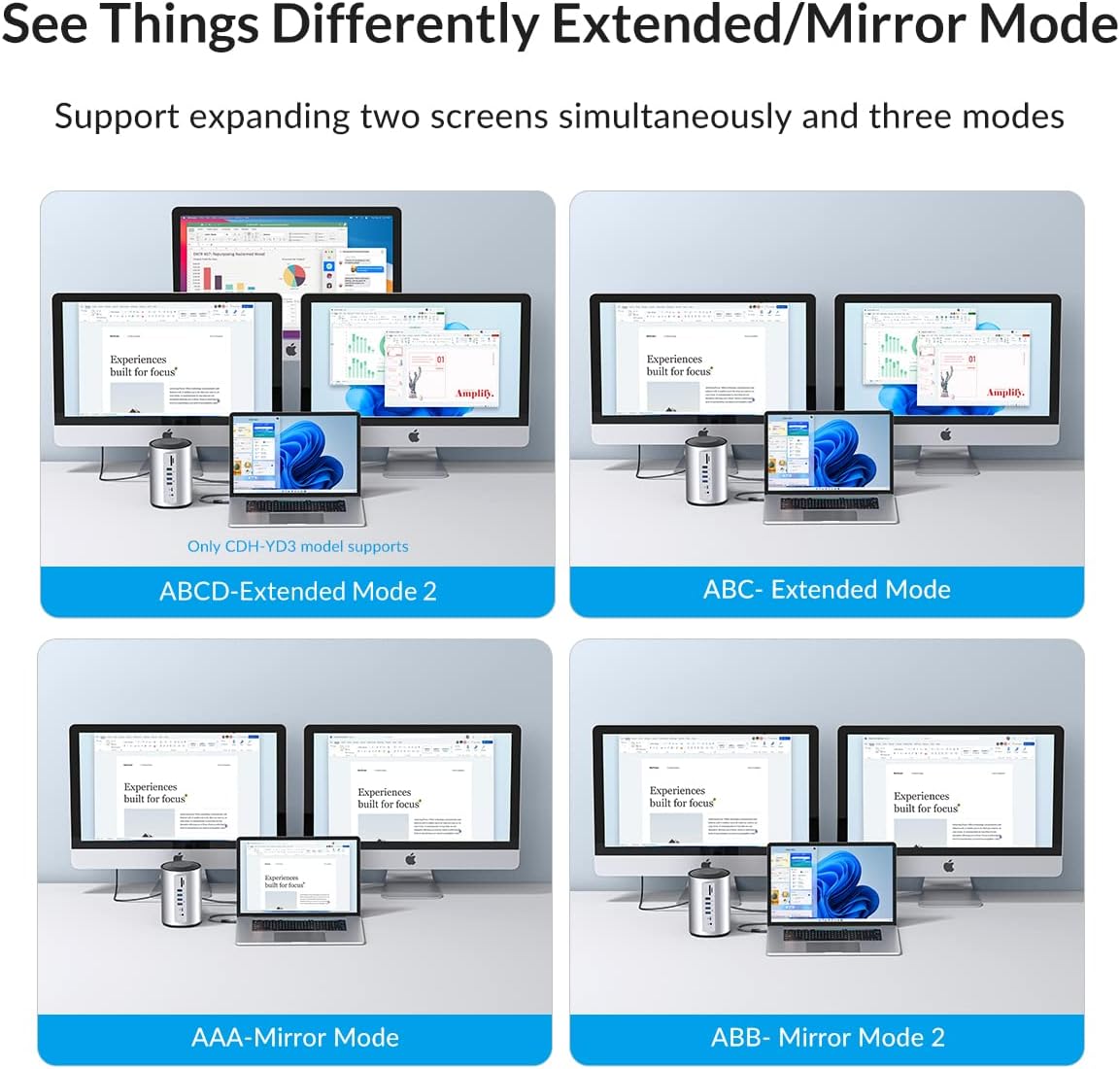
Image: Four different display configurations (ABCD-Extended Mode 2, ABC-Extended Mode, AAA-Mirror Mode, ABB-Mirror Mode 2) demonstrating the docking station's ability to support extended and mirror modes across multiple screens.

Image: A visual representation of 'Extend Mode' (displaying different content across multiple screens) and 'Mirror Mode' (duplicating content across screens) using the docking station.

Image: Another diagram illustrating 'Mirror Mode' and 'Extend Mode' configurations, specifically for setups involving two external monitors.
Display Modes:
- Extended Mode: Allows you to display different content on each connected monitor, expanding your desktop workspace.
- Mirror Mode: Duplicates your laptop's display onto all connected external monitors.
Resolution Support:

Image: A table detailing supported resolutions and refresh rates for single, dual, and triple video outputs under USB-C DP Alt Mode (DP1.4) MST and (DP1.2HBR2).
4.2 Power Delivery (PD)
The dedicated 100W PD USB-C port allows you to charge your laptop while using the docking station. Connect your laptop's original power adapter to this port on the docking station. This ensures your laptop remains powered even under heavy workload.

Image: A laptop screen displaying a charging indicator, with the ORICO docking station connected and receiving 100W power delivery from a wall adapter.
4.3 Data Transfer
Utilize the USB 3.0 ports for high-speed data transfer up to 5Gbps, ideal for external hard drives, SSDs, and large file transfers. The USB 2.0 ports are suitable for connecting standard peripherals like keyboards, mice, and webcams.

Image: The ORICO docking station with icons representing various devices (mouse, keyboard, printer, hard drive, USB flash drive, phone) that can be connected to its USB-A ports, highlighting increased productivity.

Image: A graphic illustrating the high-speed 5Gbps data transfer capability of the docking station, with icons representing various data types like cloud, video, and documents.
4.4 Ethernet Connection
For a stable and reliable internet connection, connect an Ethernet cable from your router or modem to the RJ45 Gigabit Ethernet port on the docking station. This provides speeds up to 1000Mbps, ideal for online gaming, streaming, and large downloads.

Image: The ORICO docking station with an Ethernet cable connected, highlighting its 1000Mbps Super-speed Ethernet capability for fast and stable wired network access.

Image: A laptop connected to the ORICO docking station, which in turn is connected to an Ethernet cable, emphasizing the Gigabit Ethernet Port (RJ45 1000Mbps).
4.5 SD/TF Card Reader
Insert your SD or TF (Micro SD) memory cards into the corresponding slots on the docking station to access photos, videos, and other files directly from your camera or mobile devices.

Image: The ORICO docking station with an SD card inserted, highlighting its USB 2.0 TF&SD Card Reader function with a transfer speed of 480Mbps.
4.6 Audio Port
Connect your headphones, earphones, or speakers to the 3.5mm audio jack for audio output.
5. Compatibility
The ORICO USB-C Triple Monitor Docking Station is compatible with a wide range of devices and operating systems, including:
- Operating Systems: Windows, macOS (DisplayLink drivers required for M1/M2 Macs), Linux.
- Compatible Devices: MacBook Pro 2020/2019/2018/2017, MacBook 2018/2017/2016/2015, iPad Pro 2020/2018, Pixelbook, and many other smartphones, laptops, and tablets with a compatible USB-C port.

Image: A compatibility chart showing various devices (mouse, keyboard, printer, camera, SSD, phone, card reader, flash drive, USB fan) and operating systems (Windows, Linux, Mac OS) compatible with the ORICO docking station.
5.1 Important Note: Check Your Laptop's USB-C Port
Before purchase and use, please ensure your laptop's USB-C port supports the necessary functions for the docking station to operate fully. Your USB-C port should support:
- Power Delivery (PD): For charging your laptop.
- DisplayPort Alt Mode (DP Alt Mode): For video output to external monitors.
- Data Transfer: For connecting USB devices.

Image: A diagram illustrating different types of USB-C ports and their supported protocols: Thunderbolt, Data+Power Delivery+DisplayPort Alt, Data+Power Delivery, Data Only, and Data+DisplayPort Alt (without Power Delivery).
6. Maintenance
To ensure the longevity and optimal performance of your ORICO docking station, follow these maintenance guidelines:
- Cleaning: Use a soft, dry cloth to wipe the surface of the docking station. Avoid using liquid cleaners or aerosols, as they may damage the device.
- Storage: Store the docking station in a cool, dry place away from direct sunlight and extreme temperatures.
- Handling: Handle the device with care. Avoid dropping it or exposing it to strong impacts.
- Heat Dissipation: The docking station is constructed from aluminum alloy, which aids in fast heat dissipation. Ensure adequate airflow around the device during operation to prevent overheating.
Video: An overview of the ORICO Triple Monitor Docking Station, highlighting its aluminum alloy construction for fast heat dissipation and its various applications in different professional settings.
7. Troubleshooting
If you encounter issues with your ORICO docking station, please refer to the following common problems and solutions:
- No Display on External Monitor:
- Ensure the docking station is properly connected to your laptop and the monitors.
- Check that the monitors are powered on and set to the correct input source.
- For macOS, verify that DisplayLink drivers are installed and permissions are granted.
- Test with different cables or monitors if possible.
- Ensure your laptop's USB-C port supports DisplayPort Alt Mode.
- Laptop Not Charging:
- Confirm your laptop's power adapter is connected to the docking station's 100W PD USB-C port.
- Ensure your laptop's USB-C port supports Power Delivery.
- Check the power adapter and cable for damage.
- USB Devices Not Recognized or Slow Data Transfer:
- Reconnect the USB device.
- Try a different USB port on the docking station.
- Ensure your laptop's USB-C port supports data transfer.
- For optimal speed, use USB 3.0 ports for high-bandwidth devices.
- No Ethernet Connection:
- Check that the Ethernet cable is securely connected to both the docking station and your router/modem.
- Verify network settings on your laptop.
- Restart your router/modem and laptop.
8. Specifications
| Feature | Detail |
|---|---|
| Product Dimensions | 5.1 x 5.1 x 8.26 inches |
| Item Weight | 1.17 pounds |
| Item Model Number | ORICO-CDH-YD3-SV-BP-US |
| Brand | ORICO |
| Color | Silver |
| Hardware Interface | USB Type C, Ethernet, HDMI, USB 3.0 |
| Special Feature | Portable |
| Compatible Devices | MacBook Pro (and other compatible USB-C laptops/devices) |
| Manufacturer | ORICO Technologies Co.,Ltd |
| Country of Origin | China |
9. Warranty and Support
ORICO products come with a standard manufacturer's warranty. For specific warranty terms and conditions, please refer to the warranty card included with your product or visit the official ORICO website. If you require technical assistance or have any questions regarding your ORICO USB-C Triple Monitor Docking Station, please contact ORICO customer support through their official channels.


