
Introduction
Thank you for choosing the ORIGBELIE External USB 3.0 CD/DVD Drive. This device provides a versatile solution for reading and writing CDs and DVDs, along with expanded connectivity options through its integrated USB hub and card reader. This manual will guide you through the installation, operation, and maintenance of your new device.
Package Contents
Please check the package contents upon unboxing to ensure all items are present:
- 1 x ORIGBELIE External CD/DVD Drive (Model BT669)
- 1 x USB A to USB C Power Cable
- 1 x Carrying Case
- 1 x User Manual
- 1 x Unit Pouch

Image: All components included in the ORIGBELIE External CD/DVD Drive package.
Product Features
- External CD/DVD Drive: Designed for laptops and PCs without an integrated optical drive.
- High-Speed USB 3.0: Offers data transfer speeds up to 5 Gbps, backward compatible with USB 2.0/1.1.
- CD/DVD Read and Write Support: Supports reading and writing of CD±R/RW, CD-ROM, DVD±R/RW, DVD-RAM, VCD, and SVCD.
- 8-in-1 USB Hub: Includes 1x USB 3.0 port, 3x USB 2.0 ports, 1x TF card slot, 1x SD card slot, and 1x USB C port for expanded connectivity.
- Ultra-Slim and Portable Design: Compact and lightweight for easy transport.
- Plug and Play: No additional drivers required for most operating systems.
- Anti-Slip Design: Features rubber pads on the bottom to prevent sliding.

Image: The external drive highlighting its 8-in-1 hub functionality.

Image: The drive's slim profile, measuring 0.59 inches thick and weighing 0.75 lbs.
Setup Instructions
- Connect the Drive:
Connect the integrated USB cable from the external CD/DVD drive to an available USB 3.0 port on your computer (laptop or desktop). The drive is compatible with both USB-A and USB-C ports using the provided adapter.

Image: Connecting the drive to a laptop.
- Power Supply (if needed):
For some older laptops or desktop computers, or when using multiple power-intensive USB devices simultaneously, additional power may be required. Use the provided USB A to USB C power cable to connect the drive to another USB port or a 5V power adapter (not included).
- Driver Installation:
The drive is designed for plug-and-play functionality. Your operating system (Windows 11/10/8/7/XP, Vista 7/8, Linux, Mac OS 10.6 or later) should automatically detect and install the necessary drivers. No manual driver installation is typically required.
- Verification:
Once connected, the drive should appear in "My Computer" (Windows) or "Finder" (Mac) as an optical drive. The indicator light on the drive will illuminate.
Operating Instructions
Inserting and Ejecting Discs
- Inserting a Disc:
Press the eject button on the front of the drive. The disc tray will open. Carefully place a CD or DVD onto the tray with the label side facing up. Gently push the tray back into the drive until it clicks into place.
- Ejecting a Disc:
You can eject a disc by pressing the eject button on the drive or by using the software eject function in your operating system (e.g., right-click the drive icon and select "Eject").
- Forced Ejection:
In case of power failure or if the eject button does not work, locate the small hole on the front panel of the drive. Insert a straightened paperclip into this hole and push gently to manually open the disc tray.
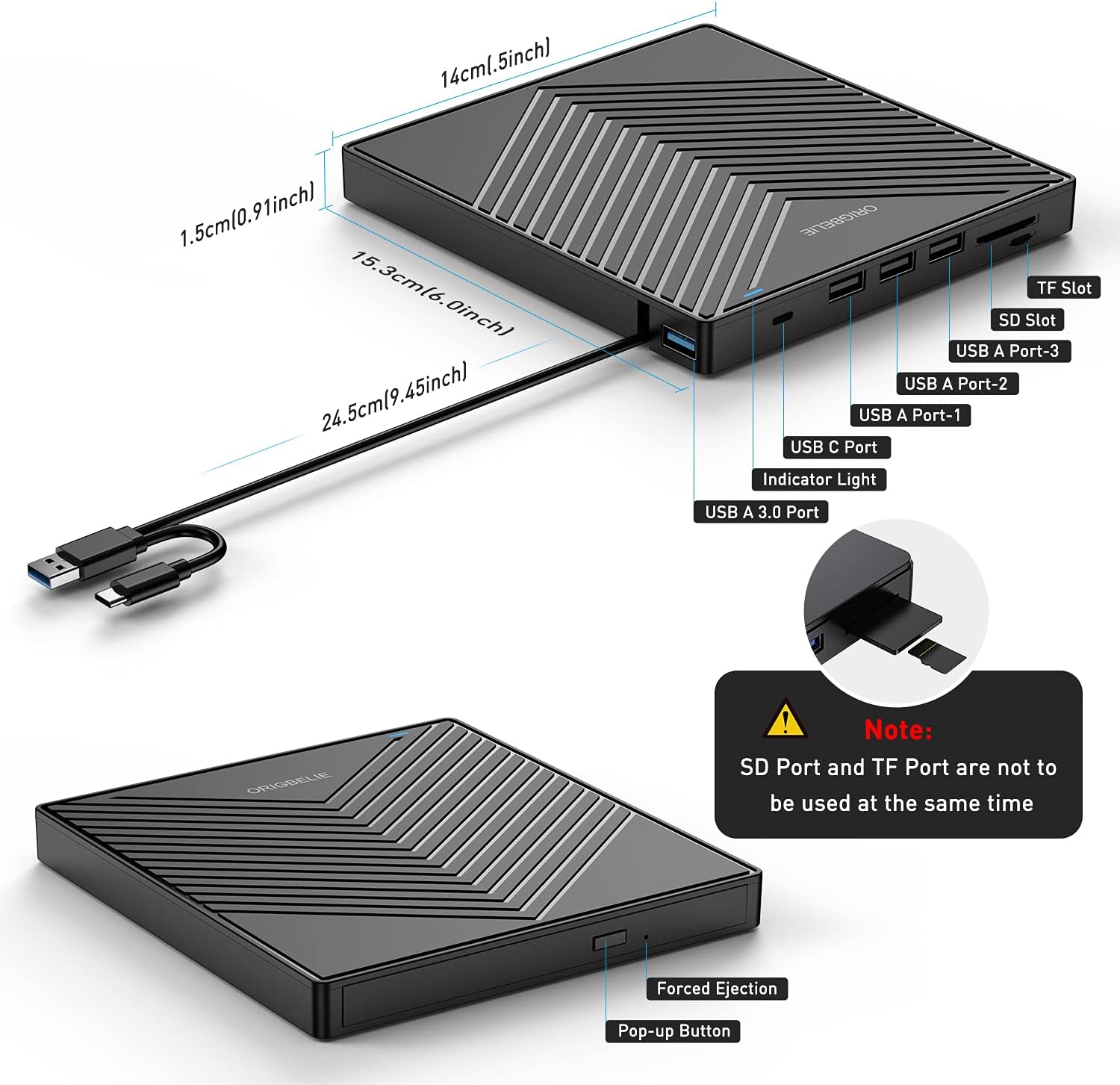
Image: Front panel features including the pop-up button and forced ejection hole.
Using the Drive for Media and Data
- Playing Music CDs/Movie DVDs: Insert the disc. Your computer's default media player should automatically detect and play the content. If not, open your preferred media player (e.g., VLC Media Player) and select the optical drive.
- Burning CDs/DVDs: Use your computer's built-in burning software or a third-party application to write data to blank recordable discs.
- Installing Software/Games: Insert the installation disc. The setup program should typically launch automatically. Follow the on-screen instructions.
- Data Backup: Copy files from your computer to a blank recordable disc for backup purposes.

Image: Drive functions including playing media, data backup, and burning discs.
Using the Integrated USB Hub and Card Reader
- USB Ports: Connect USB devices such as flash drives, mice, keyboards, or external hard drives to the available USB 3.0 and USB 2.0 ports.
- TF/SD Card Slots: Insert TF (Micro SD) or SD cards into the corresponding slots to transfer photos and videos.Note: The TF and SD card slots cannot be used simultaneously.
Compatibility
The ORIGBELIE External CD/DVD Drive is compatible with a wide range of operating systems and devices:
- Operating Systems: Windows 11, Windows 10, Windows 8, Windows 7, Windows XP, Vista 7/8, Linux, Mac OS 10.6 or later.
- Devices: Macbook, iMac, Laptops, Desktop PCs.

Image: Broad compatibility with operating systems and computer types.
Maintenance
- Cleaning: Use a soft, dry cloth to clean the exterior of the drive. Do not use liquid cleaners or abrasive materials. For the optical lens, use a specialized CD/DVD lens cleaning kit if necessary.
- Storage: When not in use, store the drive in its provided carrying case or pouch to protect it from dust and scratches.
- Handling Discs: Always handle discs by their edges to avoid fingerprints and scratches, which can affect playback and burning quality.
- Environmental Conditions: Avoid exposing the drive to extreme temperatures, humidity, or direct sunlight.

Image: Anti-slip design on the bottom of the drive.
Troubleshooting
| Problem | Possible Cause | Solution |
|---|---|---|
| Drive not recognized by computer. | Insufficient power supply; Loose USB connection; Driver issue. | Ensure the USB cable is securely connected. Try a different USB port. Connect the additional power cable if available. Restart your computer. |
| Disc cannot be read or played. | Disc is dirty or scratched; Incorrect disc format; No media player software installed. | Clean the disc with a soft cloth. Try a different disc. Ensure your computer has appropriate media playback software (e.g., VLC Media Player). |
| Disc burning fails. | Faulty blank disc; Insufficient disk space; Burning software issue. | Try a different blank disc. Ensure sufficient free space on your computer. Use reliable burning software. |
| Eject button not working. | Software conflict; Mechanical issue. | Try ejecting the disc through your operating system. Use the forced ejection hole with a paperclip. |
| SD/TF card not detected. | Card inserted incorrectly; Card slot in use; Card is faulty. | Ensure the card is fully and correctly inserted. Remember that SD and TF slots cannot be used simultaneously. Try a different card. |
Specifications
| Model Number | BT669 |
| Dimensions (L x W x H) | 15.24 x 14.22 x 1.78 cm (6.0 x 5.6 x 0.7 inches) |
| Weight | 317.51 grams (0.7 lbs) |
| Material | Acrylonitrile Butadiene Styrene (ABS) |
| Interface | USB 3.0 (Type-A, Type-C compatible) |
| Data Transfer Rate | Up to 5 Gbps (USB 3.0) |
| Optical Write Speed | 24x (CD), 8x (DVD) |
| Optical Read Speed | 625 MB/s (DVD) |
| Cache Size | 2 MB |
| Special Features | Error Correction, Plug & Play, Backward Compatible, Noise Reduction Technology |
| Compatible OS | Windows 11/10/8/7/XP, Vista 7/8, Linux, Mac OS 10.6 or later |
| Compatible Devices | Laptops, Desktop PCs, Macbooks, iMacs |
| USB Hub Ports | 1x USB 3.0, 3x USB 2.0, 1x TF Card Slot, 1x SD Card Slot, 1x USB C |
Warranty Information
The ORIGBELIE External USB 3.0 CD/DVD Drive comes with a 90-day warranty from the date of purchase. This warranty covers manufacturing defects and malfunctions under normal use. It does not cover damage caused by misuse, accidents, unauthorized modifications, or external factors.
Please retain your proof of purchase for warranty claims.
Customer Support
If you encounter any issues or have questions regarding your ORIGBELIE External USB 3.0 CD/DVD Drive that are not addressed in this manual, please contact our customer support team for assistance.
For the most up-to-date support information, please visit the official ORIGBELIE website or refer to the contact details provided with your purchase documentation.
We are committed to providing excellent customer service and support.


