
MAIWO 2.5"/3.5" SATA Enclosure
MAIWO External Hard Drive Enclosure User Manual
Model: 2.5"/3.5" SATA Enclosure
1. Introduction
This manual provides instructions for the MAIWO External Hard Drive Enclosure, designed to house 2.5-inch and 3.5-inch SATA HDDs and SSDs. It features USB C 3.1 GEN2 connectivity for high-speed data transfer and includes integrated USB hub ports for extended functionality. Please read this manual thoroughly before use to ensure proper installation and operation.

Image 1.1: Overview of the MAIWO External Hard Drive Enclosure, including the main unit, power adapter, and USB-C to USB-A data cable.
2. Package Contents
- 1x 2.5/3.5 inch SATA Hard Drive Enclosure
- 1x USB-C to USB-A Data Cable
- 1x 12V 3A Power Adapter
- 1x Screw Driver
- Screws
3. Setup Guide
Follow these steps to install your 2.5-inch or 3.5-inch SATA HDD/SSD into the enclosure.

Image 3.1: Visual representation of the installation process.
- Step 1: Remove the Bracket. Gently slide out the internal bracket from the enclosure.
- Step 2: Insert Hard Drive. Align your 2.5-inch or 3.5-inch SATA HDD/SSD with the connectors on the bracket and firmly insert it. Ensure the drive is securely seated.
- Step 3: Secure the Drive. Use the provided screws and screwdriver to fix the hard drive to the bracket. Once secured, slide the bracket with the installed drive back into the enclosure until it clicks into place.
- Step 4: Connect Power and Data. First, connect the 12V 3A power adapter to the enclosure and then to a power outlet. Next, connect the USB-C to USB-A data cable from the enclosure's PC port to your computer.
4. Operating Instructions
4.1 Power On/Off
Use the physical ON/OFF switch located on the rear panel of the enclosure to power the device. Ensure the power adapter is connected before turning on the unit.
4.2 Data Transfer
The enclosure supports USB C 3.1 GEN2 with UASP, offering theoretical transfer speeds up to 10Gbps. Actual speeds may vary based on your hard drive, operating system (Windows 8.1 or above recommended for UASP support), and computer's USB port capabilities. The maximum transfer speed for 2.5"/3.5" SATA drives is 6Gbps.
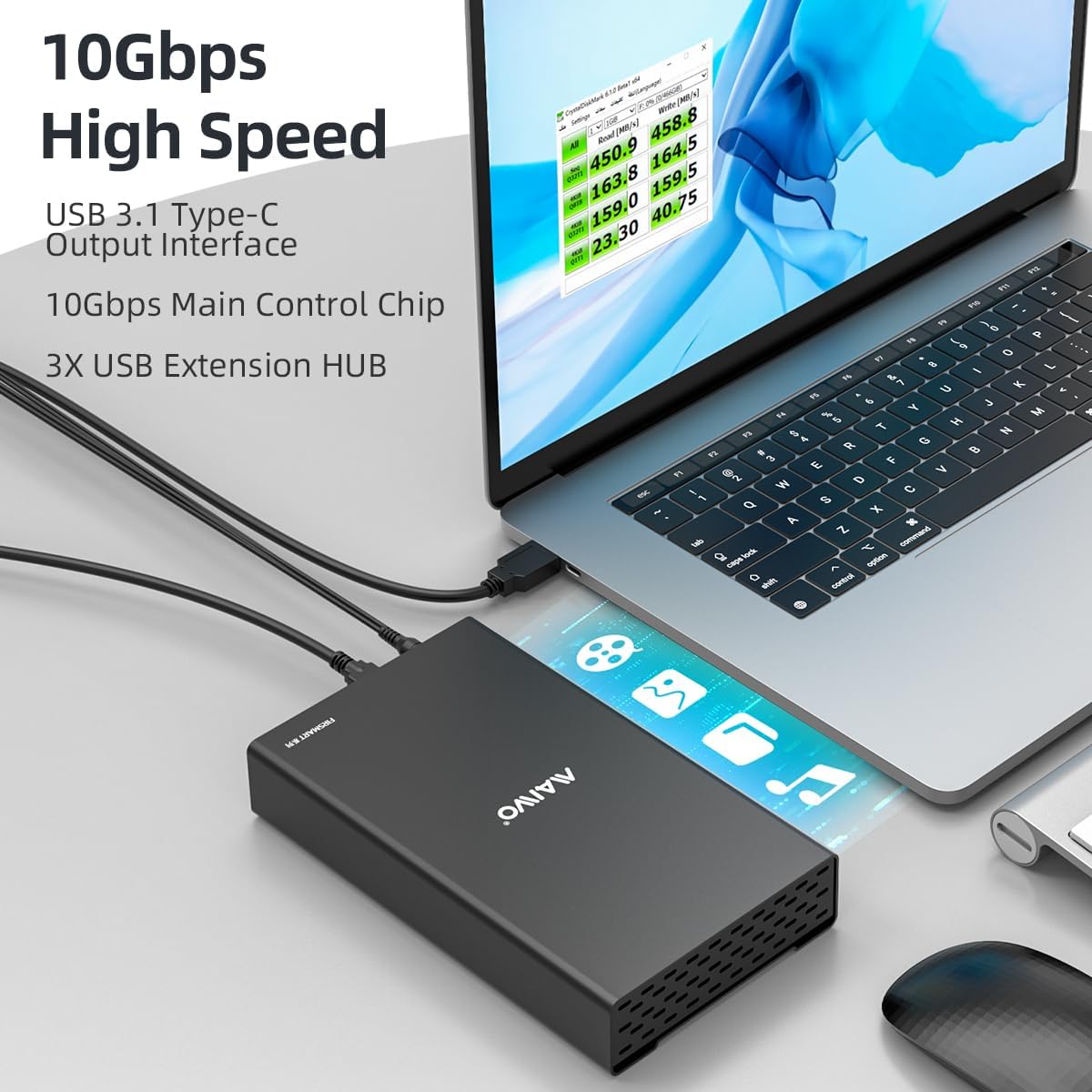
Image 4.1: Illustration of the enclosure connected to a laptop, demonstrating high-speed data transfer.
4.3 USB Hub Extension
The enclosure features two 10Gbps USB 3.1 Type-A hub ports and one 10Gbps USB 3.1 Type-C hub port. These ports support data transfer and charging for external devices.

Image 4.2: Close-up view of the enclosure's rear panel, highlighting all ports and indicators.

Image 4.3: Example of a smartphone charging using the enclosure's USB hub functionality.
4.4 Power Indicator
- Power On: The LED indicator turns red.
- Reading & Writing: The LED indicator flashes, indicating data activity.
4.5 Compatibility
The enclosure is compatible with Windows, macOS, and Linux operating systems. It supports 2.5-inch and 3.5-inch SATA I/II/III HDDs and SSDs of various thicknesses (7mm, 9.5mm, 12.5mm, 15mm, 26mm).

Image 4.4: Visual guide to supported hard drive types (2.5"/3.5" SATA) and unsupported types (IDE).
4.6 Large Storage Expansion
The enclosure supports up to 24TB capacity per unit. Multiple enclosures can be stacked and daisy-chained to expand storage for your devices.
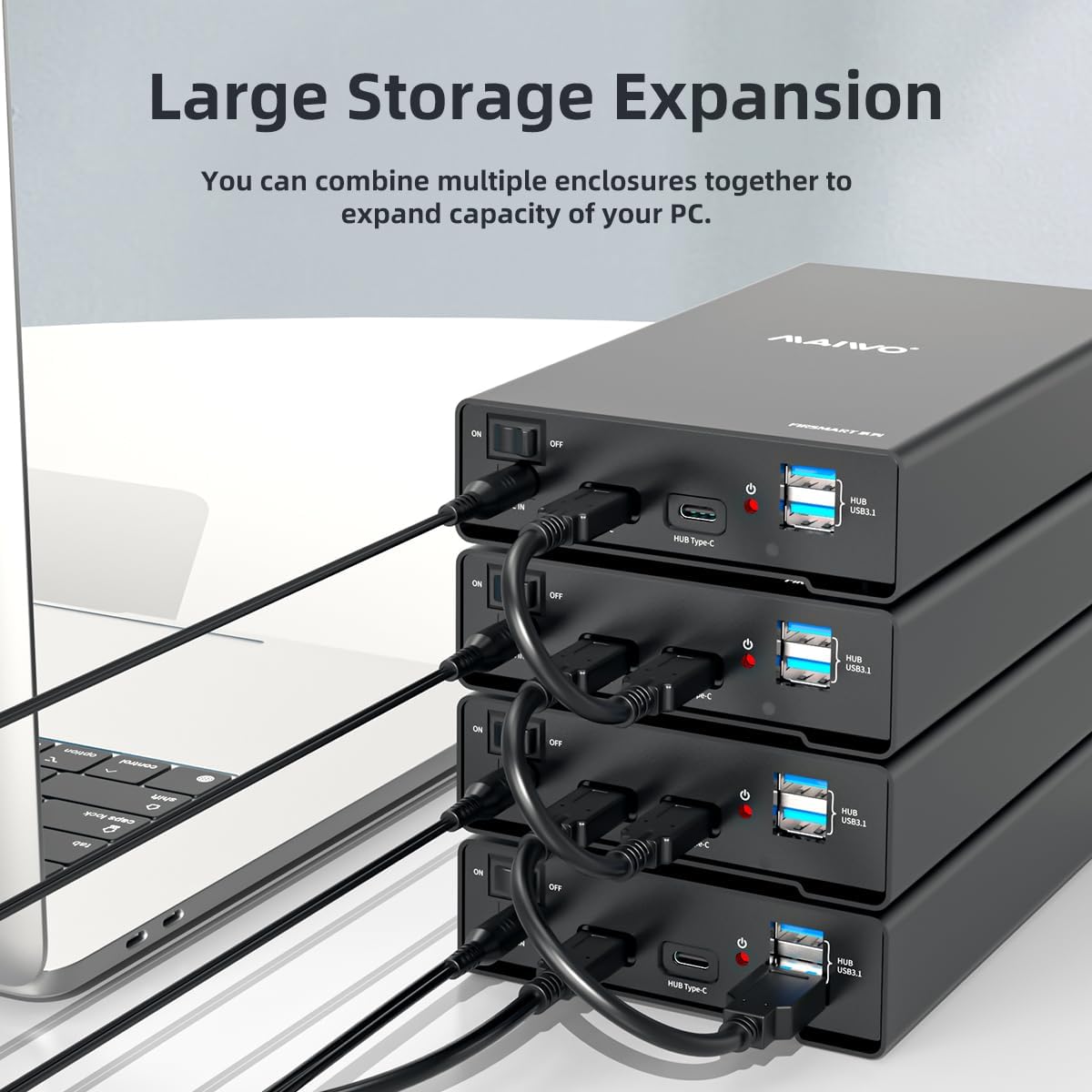
Image 4.5: Example of multiple enclosures stacked for expanded storage capacity.
5. Maintenance
The enclosure features an aluminum alloy case and ABS bracket, designed for effective heat dissipation. To ensure optimal performance and longevity:
- Keep the enclosure in a well-ventilated area to prevent overheating.
- Avoid exposing the device to extreme temperatures or humidity.
- Clean the exterior with a soft, dry cloth. Do not use liquid cleaners.
- Ensure all cables are securely connected during operation.
6. Troubleshooting
- Device Not Detected:
- Ensure the power adapter is correctly connected and the enclosure is powered on.
- Verify the USB data cable is securely connected to both the enclosure and your computer.
- Try connecting to a different USB port on your computer.
- Test with a different USB-C to USB-A data cable, as some included cables may be unreliable or slow.
- Check if the hard drive is properly seated within the enclosure.
- For new hard drives, ensure they are initialized and formatted in your operating system's Disk Management (Windows) or Disk Utility (macOS).
- Slow Data Transfer Speeds:
- Ensure your computer's USB port supports USB 3.1 GEN2 (10Gbps) and UASP.
- Verify your operating system supports UASP (Windows 8.1 or later).
- Use a high-quality USB-C to USB-A data cable rated for 10Gbps.
- Enclosure Powers Off Automatically:
- The enclosure may have an automatic power-off feature after a period of inactivity (e.g., 15 minutes). To resume operation, you may need to physically press the power button on the unit. This feature is typically not user-configurable.
- Hard Drive Not Accessible (Existing Data):
- If a hard drive with existing data is not recognized, ensure the drive's file system is compatible with your operating system. In some cases, reformatting the disk within the enclosure might be necessary after backing up existing data.
7. Specifications
| Brand | MAIWO |
| Model Number | 2.5"/3.5" SATA Enclosure |
| Compatible Drives | 2.5" and 3.5" SATA I/II/III HDDs and SSDs |
| Max Capacity | 24 TB |
| Data Transfer Rate | 10 Gbps (USB 3.1 GEN2) |
| Hardware Interface | USB 3.1 Type C |
| USB Hub Ports | 2x USB 3.1 Type-A (10Gbps), 1x USB 3.1 Type-C (10Gbps) |
| Power Adapter | 12V 3A |
| Material | Aluminum Alloy Shell, ABS Plastic Bracket |
| Product Dimensions | 7.48 x 4.33 x 1.38 inches |
| Item Weight | 1.37 pounds |
8. Warranty and Support
Warranty information for your MAIWO External Hard Drive Enclosure is typically provided with the product packaging or can be found on the official MAIWO website. Please retain your proof of purchase for warranty claims.
For technical support or further inquiries, please refer to the contact information provided by MAIWO in your product documentation or visit their official support channels.
Related Documents - 2.5"/3.5" SATA Enclosure
 |
MAIWO External Hard Drive Enclosure User Manual User manual for the MAIWO External Hard Drive Enclosure, detailing its features, specifications, and usage instructions for 3.5 and 2.5 inch SATA SSD HDDs. |
 |
MAIWO K2510 2.5-inch HDD/SSD Enclosure User Manual User manual for the MAIWO K2510 external hard drive enclosure. Provides instructions on installation, formatting new hard drives (HDD/SSD), and warranty information. Supports SATA interfaces and Type-C connection for Windows, macOS, and Linux. |
 |
MAIWO Dual Bay External Hard Drive Docking Station with Offline Clone - User Manual User manual for the MAIWO dual bay external hard drive docking station, featuring offline cloning, USB 3.0, UASP support, and capacity for 2.5/3.5 inch SATA HDDs/SSDs up to 36TB. |
 |
MAIWO K25272 Dual Bay 2.5-inch HDD/SSD Enclosure User Manual Comprehensive user manual for the MAIWO K25272 Dual Bay 2.5-inch SATA HDD/SSD Enclosure. Learn about installation, RAID configurations (RAID 0, RAID 1, JBOD, Normal), specifications, and troubleshooting. |
 |
Ewent EW7044 2.5-inch SATA HDD/SSD Screwless Enclosure Quick Install Guide Step-by-step installation guide for the Ewent EW7044 2.5-inch SATA HDD/SSD Screwless Enclosure, detailing how to open, connect the drive, close, and attach to your computer. Includes multilingual instructions and warranty information. |
 |
MAIWO Dual Bay Hard Drive Docking Station with Offline Clone - User Guide Comprehensive guide for the MAIWO Dual Bay Hard Drive Docking Station, covering setup, offline cloning, and USB 3.0 connectivity for 2.5/3.5 inch SATA HDDs/SSDs, CF, and SD cards. |
Ask a question about this manual
Ask about setup, troubleshooting, compatibility, parts, safety, or missing instructions. Manuals+ will review the question and use this page’s manual context to help answer it.