
1. Introduction
This manual provides essential information for setting up, operating, and maintaining your DOOGEE X98 Pro smartphone. Please read it carefully to ensure proper use and to maximize the device's performance and longevity.

Figure 1: Overview of DOOGEE X98 Pro key features.
2. Package Contents
Verify that all items are present in your product package:
- DOOGEE X98 Pro Mobile Phone
- USB Type-C Cable
- Protective Film (pre-applied or in box)
- SIM Card Pin Ejector
- 5V/2A Charger
- User Manual (this document)
3. Device Layout
Familiarize yourself with the physical components of your DOOGEE X98 Pro.

Figure 2: Rear design of the DOOGEE X98 Pro.
The device features a minimalist design with precision-engineered rounded edges for a comfortable grip. Key components include:
- Power Button: Located on the side, used to turn the device on/off or wake/sleep the screen.
- Volume Buttons: Located near the power button, used to adjust media and call volume.
- USB Type-C Port: At the bottom, for charging and data transfer.
- 3.5mm Headphone Jack: For connecting wired headphones.
- Dual Rear Camera Module: Located on the back, includes the 12MP AI main camera and 2MP portrait camera with triple LED flash.
- Front Camera: Located at the top of the display, an 8MP AI Beautify camera.
- SIM/SD Card Tray: On the side, for inserting Nano SIM cards and a microSD card.
4. Setup
4.1. Inserting SIM and SD Cards
- Locate the SIM card tray on the side of your phone.
- Insert the SIM ejector pin into the small hole on the tray to open it.
- Carefully pull out the tray.
- Place your Nano SIM card(s) and/or microSD card into the designated slots on the tray. Ensure the gold contacts face downwards. The phone supports dual Nano SIMs or one Nano SIM and one microSD card up to 1TB.
- Gently push the tray back into the phone until it clicks into place.
4.2. Initial Power On
- Press and hold the Power button on the side of the phone until the DOOGEE logo appears.
- Follow the on-screen instructions to complete the initial setup, including language selection, Wi-Fi connection, Google account setup, and security settings.
4.3. Charging the Battery
Before first use, it is recommended to fully charge the device. Use the provided 5V/2A charger and Type-C USB cable.
- Connect the Type-C end of the USB cable to the phone's charging port.
- Connect the USB-A end of the cable to the power adapter.
- Plug the power adapter into a wall outlet.
- The charging indicator will appear on the screen.
The 4200mAh battery supports 10W fast charging.
5. Operating Instructions
5.1. Basic Navigation
The DOOGEE X98 Pro runs on Android 12.0, offering an intuitive user experience. Navigation is primarily touch-based:
- Tap: Select an item or open an app.
- Swipe: Scroll through lists, home screens, or app drawers.
- Pinch: Zoom in or out on photos and web pages.
- Long Press: Access contextual menus or move icons.
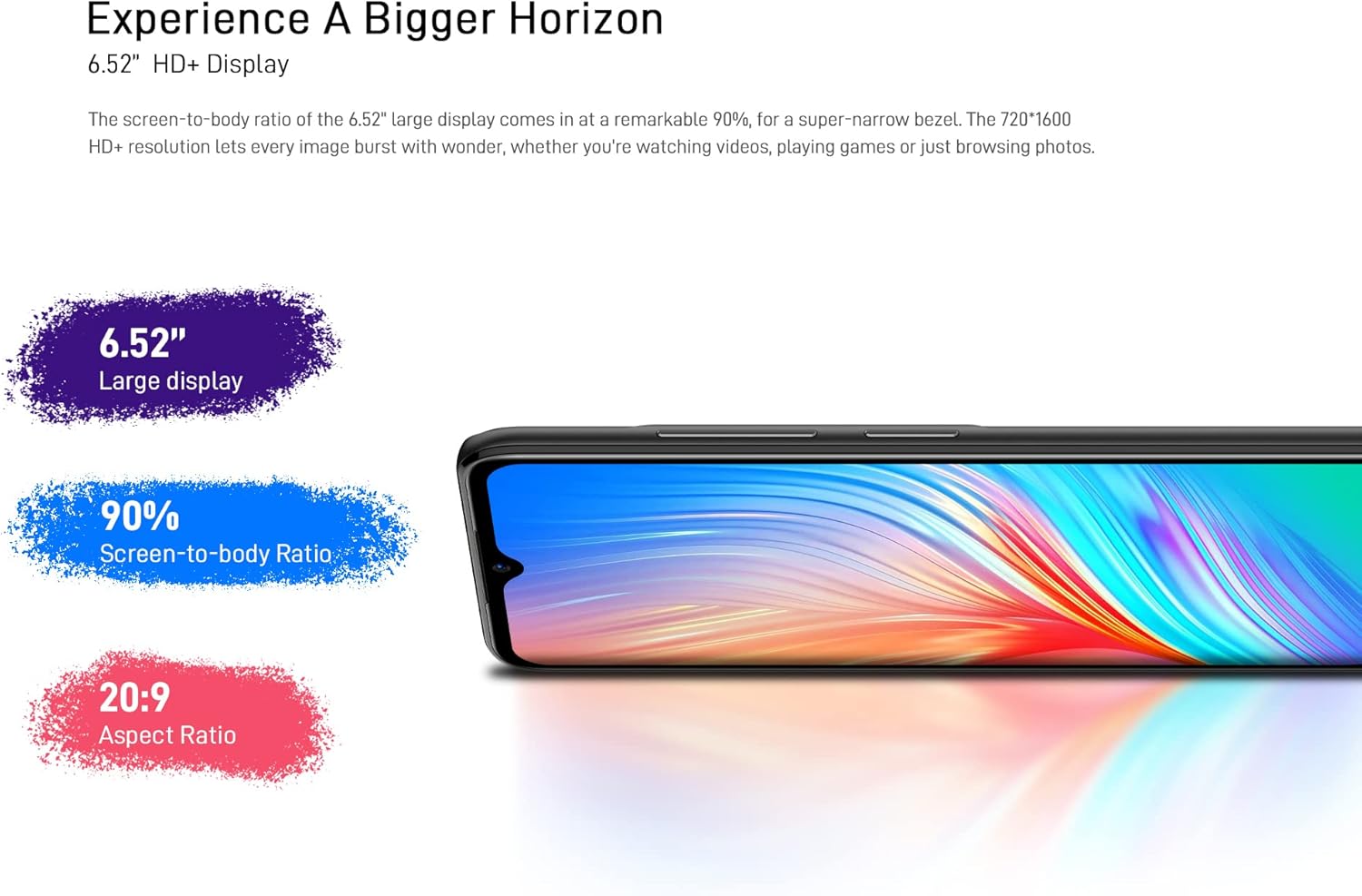
Figure 3: The 6.52-inch HD+ display.
5.2. Face Unlock
The device supports face recognition for quick and secure unlocking.
- Go to Settings > Security > Face Unlock.
- Follow the on-screen prompts to register your face.
- Ensure good lighting conditions during registration for optimal performance.
5.3. Camera Usage
The DOOGEE X98 Pro features a 12MP AI Dual Rear Camera and an 8MP Front Camera.
Rear Camera (12MP AI Dual Camera)

Figure 4: Rear camera specifications.
Open the Camera app to access various modes:
- Photo: Standard mode for capturing still images. Features include AI Beauty, HDR, and a 78.1° visual angle with F1.8 aperture.
- Portrait: Utilizes the 2MP portrait camera for depth effects.
- Night Mode: Enhances clarity in low-light conditions.
- Slow Motion: Records videos in slow motion.

Figure 5: Example of Night Mode photography.
Front Camera (8MP AI Beautify)
The 8MP front camera is designed for clear selfies and video calls, featuring AI Beautify mode.
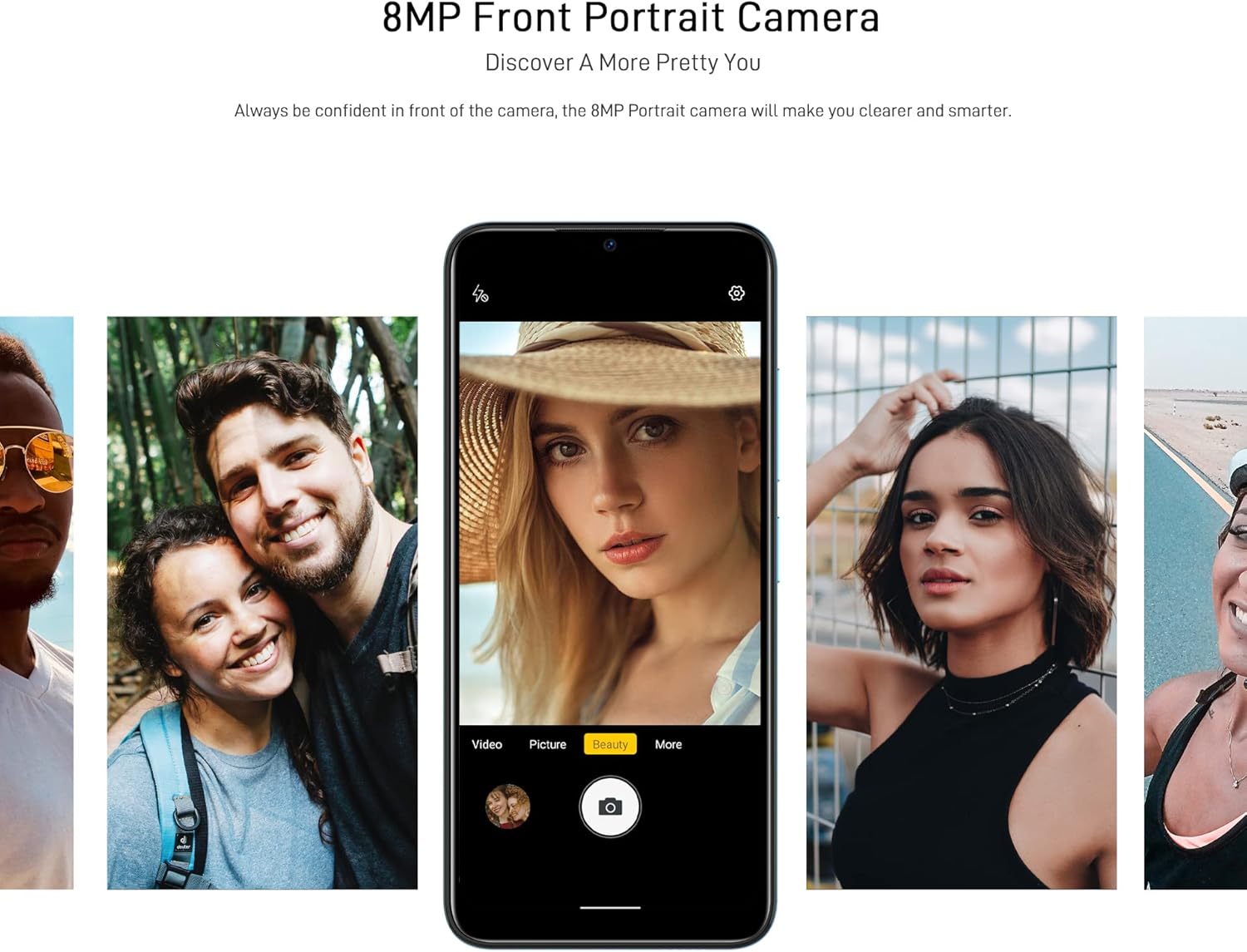
Figure 6: Front camera in use for portraits.
5.4. Connectivity
- Wi-Fi: Connect to wireless networks via Settings > Network & internet > Wi-Fi. Supports 2.4G (b/g/n).
- Bluetooth: Pair with other Bluetooth devices via Settings > Connected devices > Bluetooth. Supports BT5.0.
- Mobile Data: Enable or disable mobile data via Settings > Network & internet > Mobile network. Supports 2G/3G/4G LTE.
- GPS: The device supports GPS, Glonass, Galileo, and Beido for accurate navigation.
- OTG: On-The-Go (OTG) functionality allows connecting USB peripherals like flash drives.
5.5. Storage Management
The phone comes with 64GB of internal storage, expandable up to 1TB using a microSD card. To manage storage, go to Settings > Storage.
6. Maintenance
6.1. Cleaning Your Device
Use a soft, lint-free cloth to clean the screen and body of your phone. Avoid using harsh chemicals or abrasive materials.
6.2. Software Updates
Regularly check for system updates to ensure your device has the latest features and security patches. Go to Settings > System > System update.
6.3. Battery Care
- Avoid exposing the phone to extreme temperatures.
- Do not let the battery completely drain frequently.
- Use only the original or certified compatible charger and cable.
7. Troubleshooting
If you encounter issues with your DOOGEE X98 Pro, try the following solutions:
- Device not turning on: Ensure the battery is charged. Connect the charger and wait a few minutes before attempting to power on again.
- Apps crashing or freezing: Close the app and reopen it. If the issue persists, restart the phone. Clear the app's cache via Settings > Apps > [App Name] > Storage & cache > Clear cache.
- Poor battery life: Reduce screen brightness, disable unused features like Wi-Fi or Bluetooth, and close background apps. Check battery usage in Settings > Battery to identify power-hungry apps.
- Connectivity issues (Wi-Fi/Bluetooth/Mobile Data): Toggle the respective connection off and on. Restart your phone or the router/paired device.
- Face Unlock not working: Ensure your face is well-lit and unobstructed. Re-register your face if necessary.
For persistent issues, consider performing a factory reset (Settings > System > Reset options > Erase all data (factory reset)). Warning: This will erase all data on your phone. Back up important data before proceeding.
8. Specifications
Detailed technical specifications for the DOOGEE X98 Pro:
| Feature | Specification |
|---|---|
| Model | X98 Pro |
| Operating System | Android 12.0 |
| Processor | MediaTek Helio G25 Octa Core, 2.3 GHz, 12nm |
| GPU | IMG-GE8320, up to 650 MHz |
| RAM | 4GB |
| Internal Storage | 64GB |
| Expandable Storage | TFlash/microSD card up to 1TB |
| Display | 6.52-inch HD+ Waterdrop Screen, 720*1600 resolution, 90% screen-to-body ratio |
| Rear Camera | 12MP SONY AI Dual Camera (f/1.8, 78.1° visual angle) + 2MP Portrait Camera, Triple LED Flash |
| Front Camera | 8MP AI Beautify Camera |
| Battery | 4200mAh, 10W Type-C Fast Charge |
| SIM Card | Dual Nano SIM (or 1 Nano SIM + 1 microSD) |
| Network Bands | 2G GSM, 3G, 4G LTE |
| Wi-Fi | 2.4G (b/g/n) |
| Bluetooth | BT5.0 |
| Navigation | GPS, Glonass, Galileo, Beido |
| Sensors | Face Unlock, G-sensor, Proximity Sensor, Ambient Light Sensor, Compass (Magnetic), Geomagnetism |
| Ports | Type-C, 3.5mm Headphone Jack |
| Dimensions | 165.3mm x 76.3mm x 8.8mm |
| Weight | 205g (including battery) |

Figure 7: MediaTek Helio G25 Octa-core Processor.

Figure 8: Optimized performance for gaming.
9. Safety Information
Please observe the following safety guidelines:
- Do not disassemble, repair, or modify the device yourself.
- Avoid exposing the device to extreme temperatures, direct sunlight, or high humidity.
- Use only approved accessories (charger, cable, etc.).
- Keep the device away from water and other liquids.
- Dispose of the device and its battery responsibly according to local regulations.
10. Warranty and Support
For warranty information, please refer to the warranty card included in your product package or visit the official DOOGEE website. For technical support or service inquiries, please contact DOOGEE customer service through their official channels.


