
Introduction
This manual provides detailed instructions for the installation, operation, and maintenance of your XTRONS 10.1-inch QLED Android 14 Car Navigation System (Model: TX122L-ISO). Please read this manual thoroughly before using the product to ensure proper and safe operation. This system features a rotatable monitor, allowing for both horizontal and vertical display, powered by a robust 8-core processor with 4GB RAM and 64GB ROM for smooth performance.
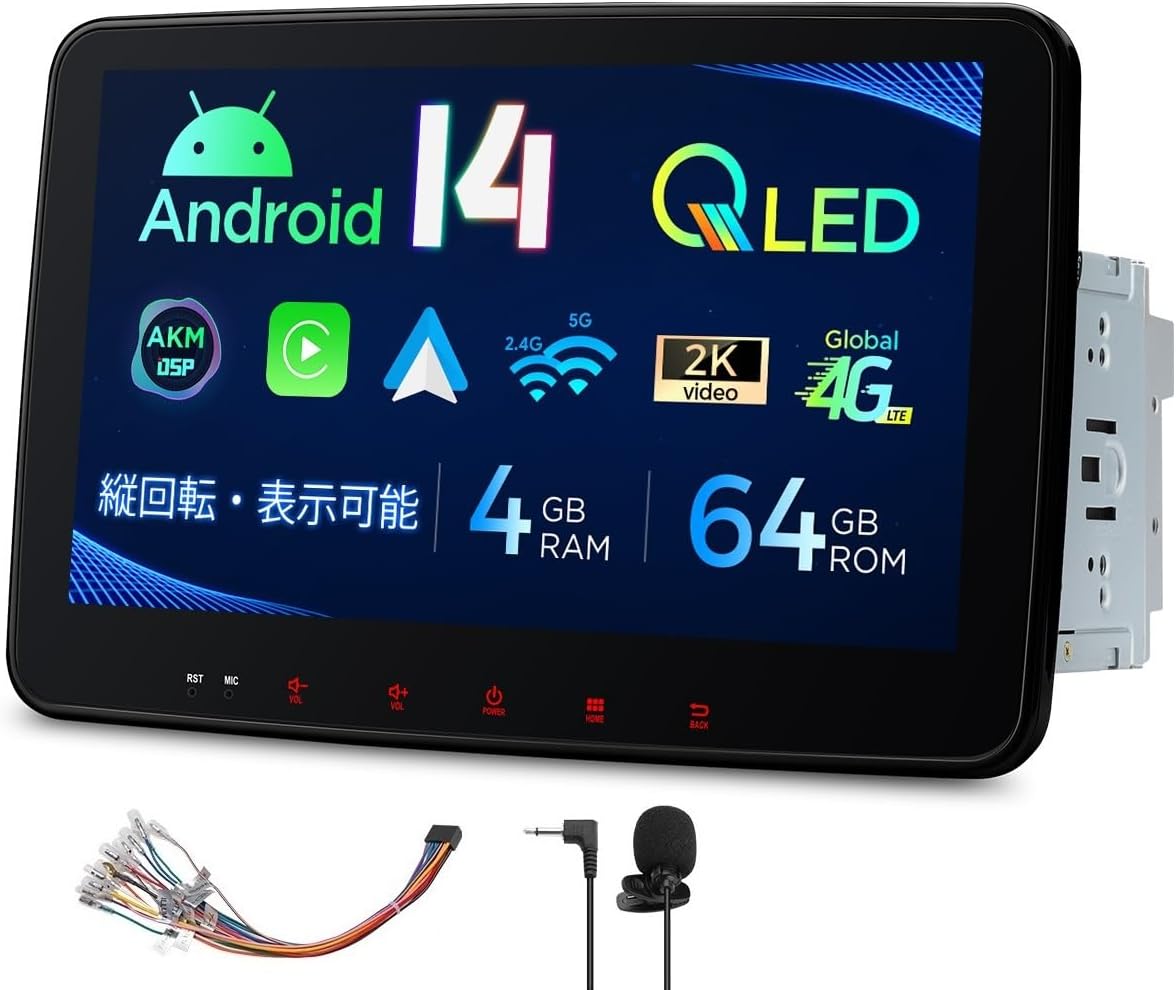
Figure 1: XTRONS 10.1-inch QLED Android 14 Car Navigation System with accessories.
Key Features
- Rotatable QLED Display: Industry-first rotatable 10.1-inch QLED screen (1280x720 resolution) supporting both horizontal and vertical display modes. Features adjustable up/down slide and front/back angle for optimal viewing from the driver's seat.
- Android 14 OS: Equipped with the latest Android 14 operating system, an 8-core processor, 4GB RAM, and 64GB ROM for fast application startup and smooth video playback.
- Smartphone Integration: Supports wireless Apple CarPlay and wireless/wired Android Auto. Screen mirroring functionality allows synchronization of smartphone content (photos, music, videos) to the unit.
- Advanced Connectivity: Built-in 4G communication module (requires micro SIM card), Wi-Fi tethering, and USB tethering for easy internet access.
- Rich Multimedia Support: Bluetooth 5.0 for hands-free calling and music streaming, USB/SD card support up to 64GB, video input, and support for 1080P and 2K video playback.
- Additional Functions: OBD2 and DVR function support, various LED lighting options, and full Japanese language display.
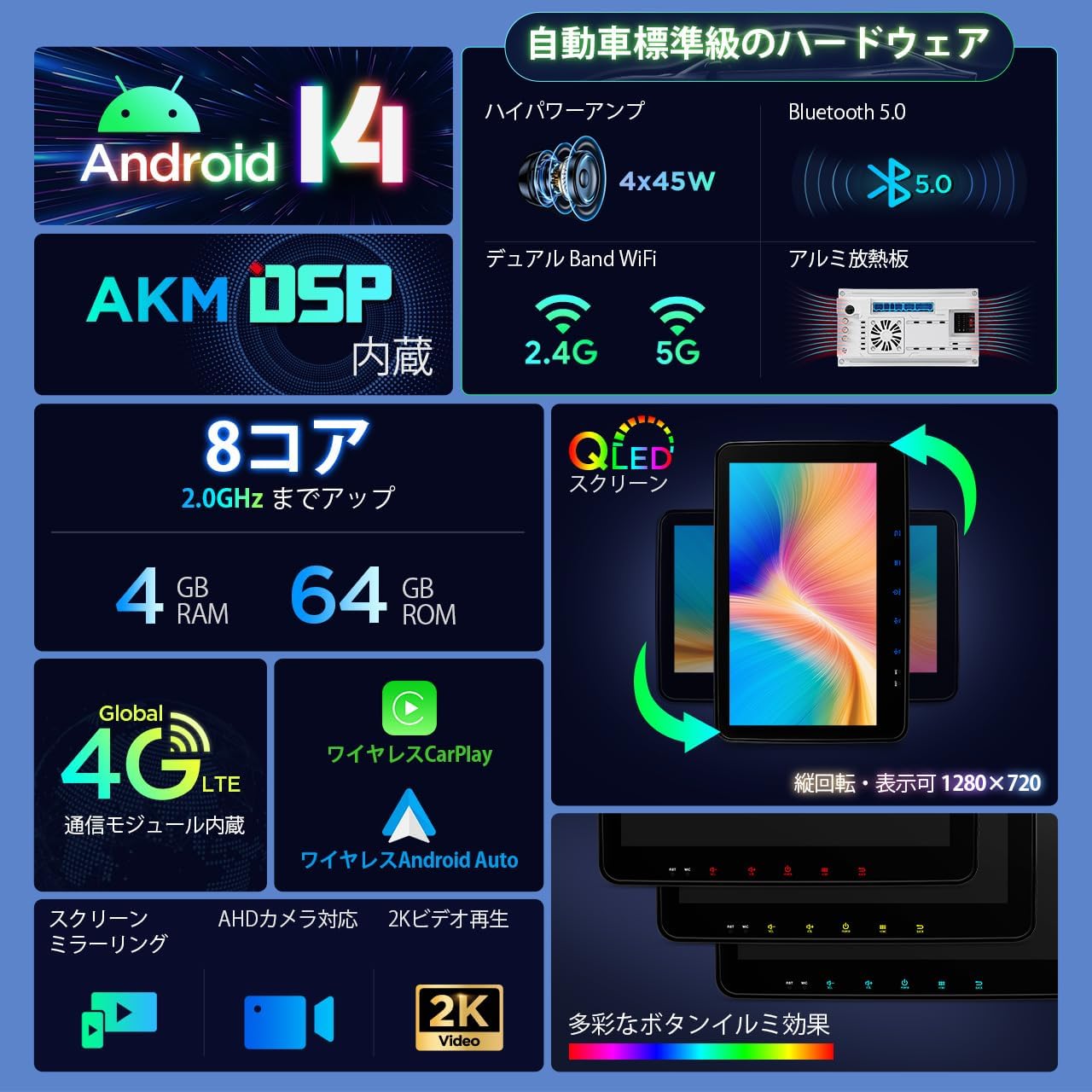
Figure 2: Overview of key hardware and software features.

Figure 3: The rotatable monitor allows for flexible viewing angles and orientations.

Figure 4: High-resolution QLED display and stable Bluetooth 5.0 connectivity.
Setup and Installation
Proper installation is crucial for the optimal performance and safety of your car navigation system. It is recommended that installation be performed by a qualified professional.
Package Contents
Before installation, verify that all components are present:
- 1 x ISO Cable
- 1 x 4G Antenna
- 1 x Camera Cable
- 1 x WiFi Antenna
- 1 x SIM Card Slot
- 2 x USB Cables
- 1 x External Microphone (3M)
- 1 x GPS Antenna
- 1 x JT2HD Harness
- 1 x User Manual (English, Japanese PDF downloadable)
- 8 x Mounting Screws
- 2 x Mounting Brackets
- 1 x CANbus Cable (if applicable)

Figure 5: Included accessories for the TX122L-ISO unit.
Dimensions
Refer to the diagram below for the unit's dimensions to ensure compatibility with your vehicle's dashboard.
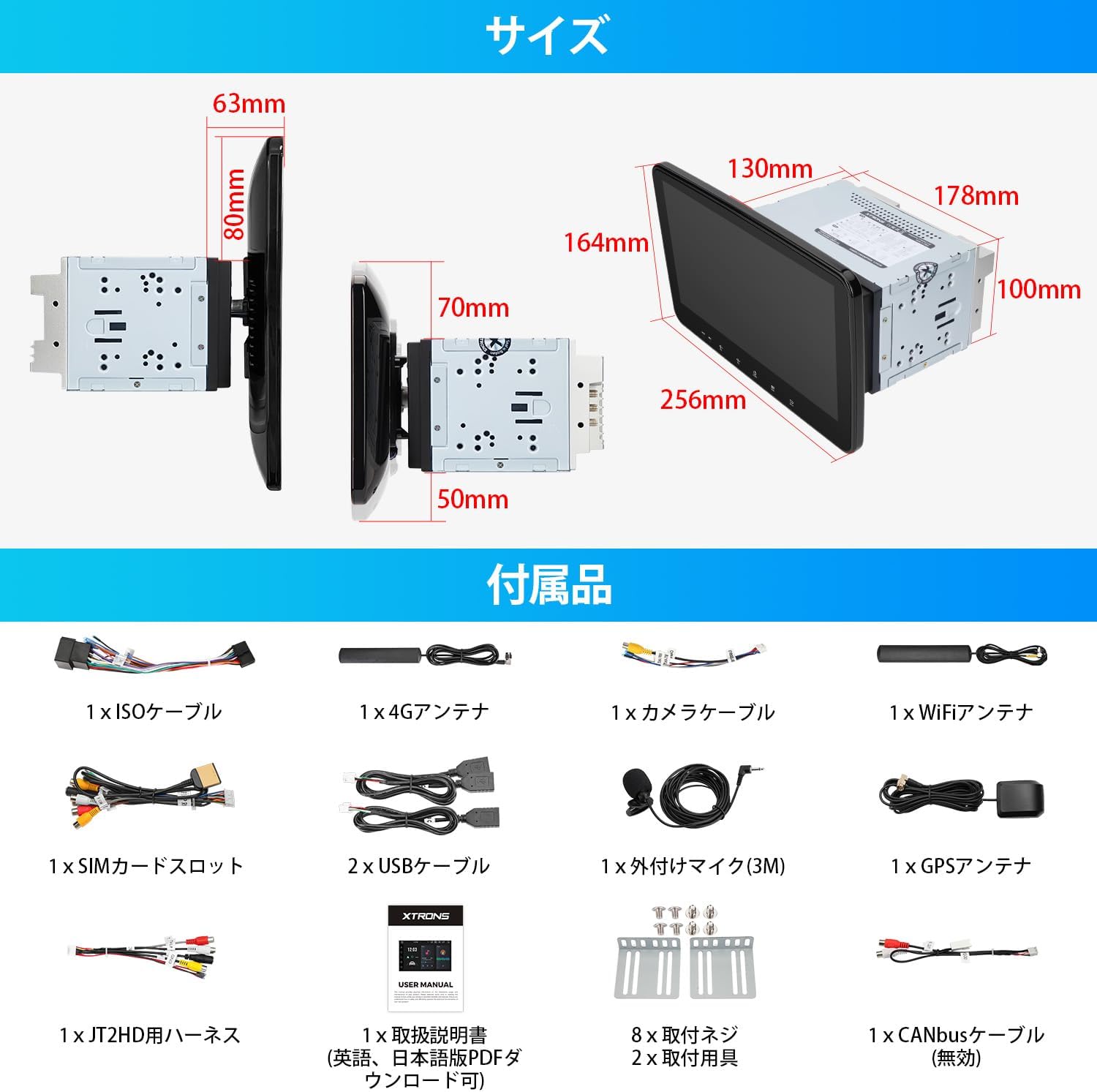
Figure 6: Unit dimensions for installation planning.
Wiring Diagram
The following diagram illustrates the connections for the various cables and ports on the unit. Ensure all connections are secure and correctly matched.

Figure 7: Comprehensive wiring diagram for the system.
- Radio Antenna Port
- WiFi Antenna
- 4G Antenna
- GPS Antenna
- USB Port 1
- USB Port 2
- USB Port 3
- Backup Camera Input
- Reverse Signal Wire
- Bluetooth Antenna
- Brake Signal Wire
- TV-12V
- GND
- TV-ACC
- JT2HD Video Input
- JT2HD Audio Input (Right)
- JT2HD Touch Control
- JT2HD Audio Input (Left)
- Subwoofer Output
- Amp Control
- External Microphone Terminal
- DVR Video Input
- Video Output
- Audio Input (Left)
- Audio Input (Right)
- Audio Output (Front Left)
- Audio Output (Front Right)
- SIM Card Slot
- Illumination
- Steering Wheel Control KEY2 (5V)
- Steering Wheel Control KEY1 (5V)
- Reverse Signal Wire
- Auto Antenna
- ISO Power Cable
Operating Instructions
Basic Operation
The unit features a user-friendly interface with a dark background UI designed by XTRONS to minimize distraction while driving. Power on the unit by pressing the power button. Adjust volume using the dedicated volume controls.
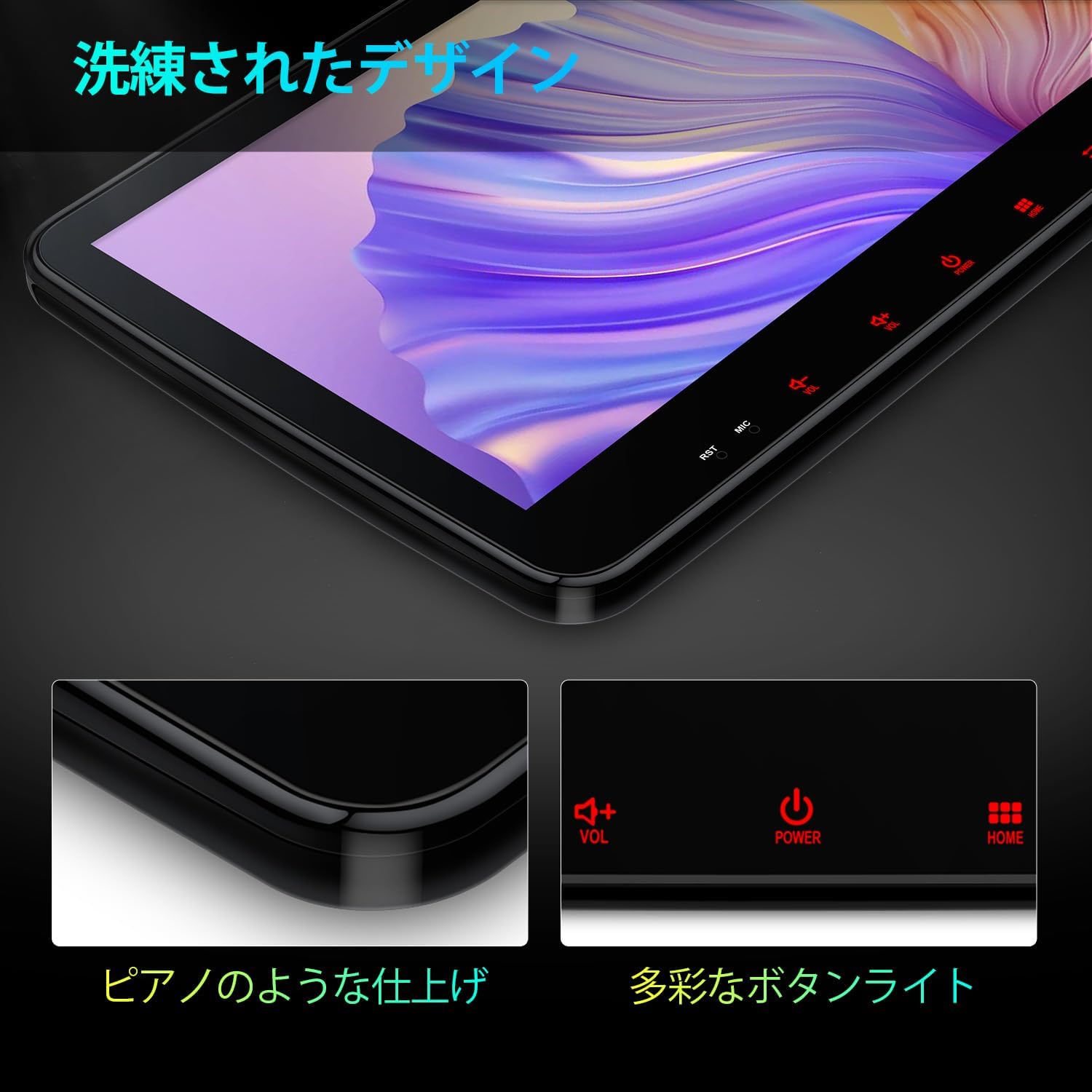
Figure 8: Refined design with accessible controls.
Connectivity Features
Your XTRONS unit offers multiple ways to stay connected:
- 4G Communication: Insert a micro SIM card into the dedicated slot to enable direct 4G internet access on the unit.
- Wi-Fi Tethering: Connect the unit to your smartphone's Wi-Fi hotspot for internet access.
- USB Tethering: Connect your smartphone via USB to share its internet connection with the unit.
Once connected to the internet, you can download and use various applications from the built-in Play Store, such as Google Maps and YouTube.
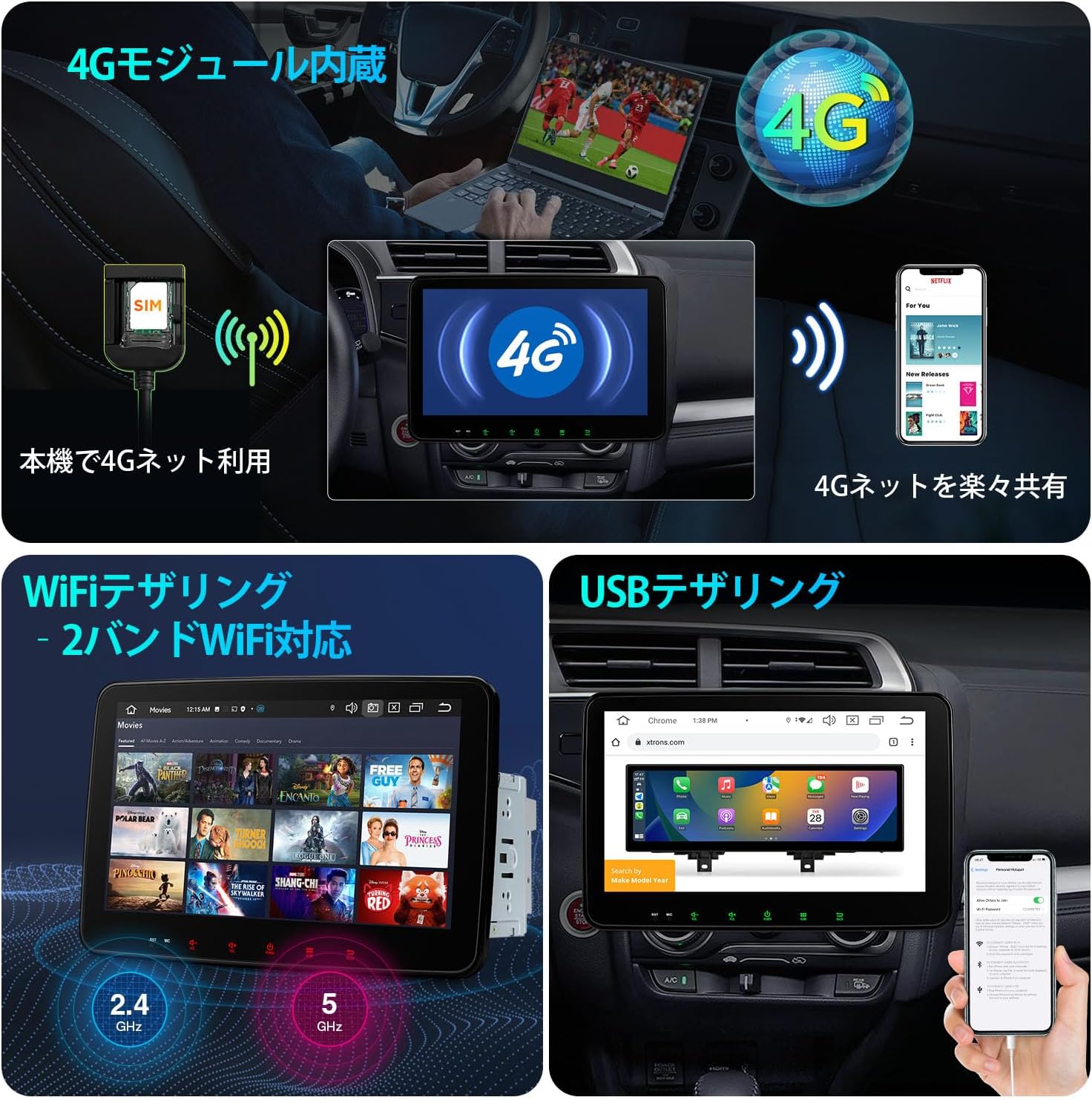
Figure 9: Internet connectivity options: 4G, Wi-Fi, and USB tethering.
Smartphone Integration (CarPlay, Android Auto, Mirroring)
The unit seamlessly integrates with your smartphone for enhanced functionality:
- Apple CarPlay: Connect your iPhone wirelessly to access navigation, music, messages, and more directly on the unit's screen.
- Android Auto: Connect your Android smartphone wirelessly or via USB to use Android Auto features.
- Screen Mirroring: Wirelessly mirror your smartphone's display (photos, videos, apps) onto the unit's screen via Wi-Fi.
Note: Some applications may not be displayable depending on their specifications.
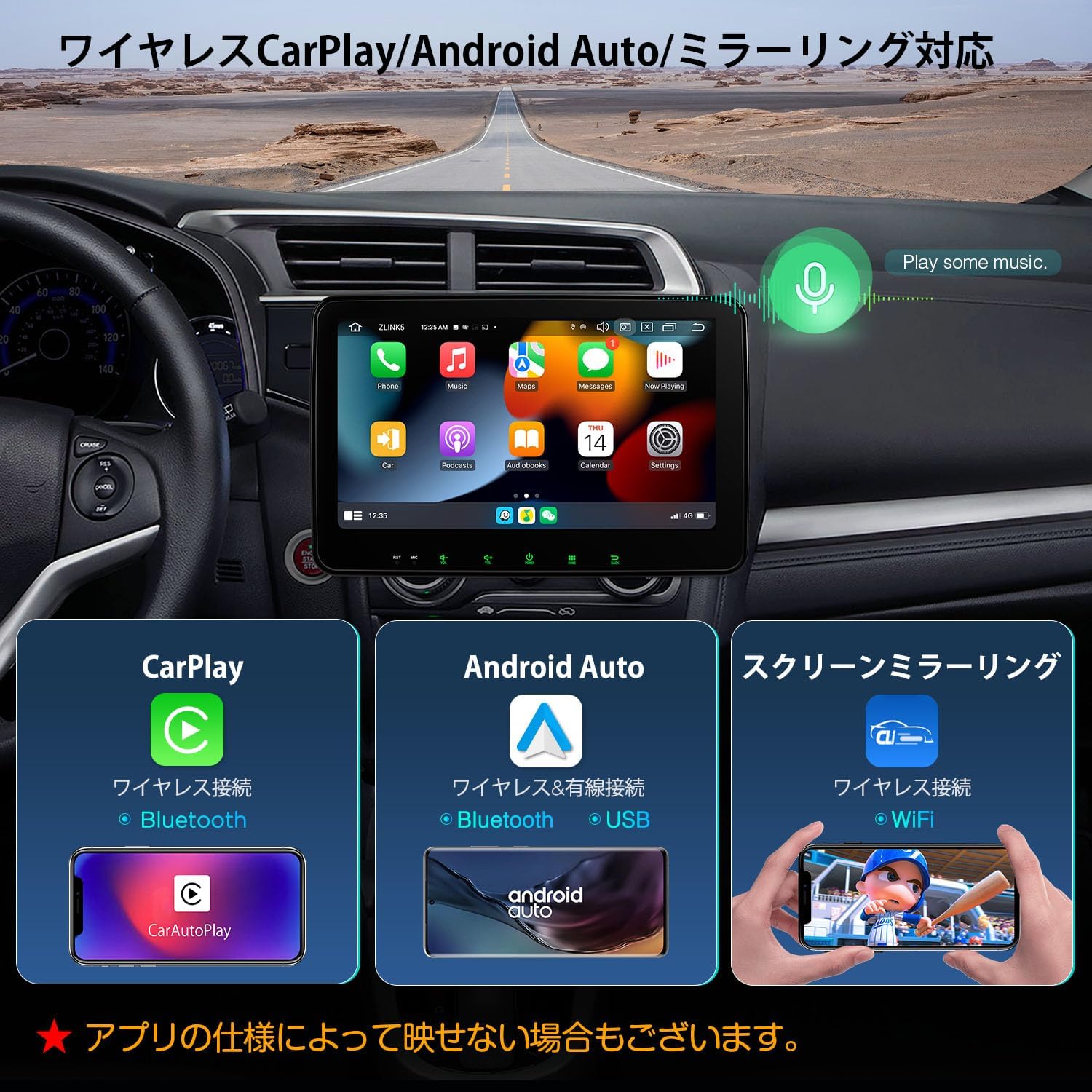
Figure 10: Smartphone integration options.
Multi-Window Display
The multi-window feature allows you to run two applications simultaneously on the screen, enhancing multitasking convenience.
Maintenance
To ensure the longevity and optimal performance of your XTRONS car navigation system, follow these general maintenance guidelines:
- Cleaning the Screen: Use a soft, lint-free cloth to gently wipe the QLED touchscreen. For stubborn smudges, slightly dampen the cloth with water or a screen-safe cleaner. Avoid abrasive materials or harsh chemicals.
- Dust Removal: Regularly clean dust from the unit's vents and surrounding areas using a soft brush or compressed air to prevent overheating.
- Software Updates: Periodically check for and install software updates to ensure the system runs efficiently and has the latest features and security patches.
- Cable Connections: Occasionally check all cable connections to ensure they are secure and free from damage.
- Avoid Extreme Temperatures: Do not expose the unit to extreme hot or cold temperatures for extended periods, as this can affect its electronic components.
Troubleshooting
If you encounter issues with your XTRONS car navigation system, refer to the following common troubleshooting steps. For more complex problems, consult the full PDF manual or contact customer support.
| Problem | Possible Cause | Solution |
|---|---|---|
| Unit does not power on | Loose power connection, blown fuse, vehicle battery issue. | Check power cables and fuse. Ensure vehicle battery is charged. |
| No sound | Volume too low, mute activated, speaker wiring issue. | Increase volume, check mute setting, verify speaker connections. |
| Touchscreen unresponsive | System freeze, calibration issue. | Restart the unit. If issue persists, perform a factory reset (refer to PDF manual). |
| GPS signal lost/weak | GPS antenna obstruction or faulty connection. | Ensure GPS antenna has a clear view of the sky and is securely connected. |
| CarPlay/Android Auto not connecting | Incorrect settings, phone compatibility, cable issue (for wired). | Check phone settings, ensure app is updated, try a different USB cable (if wired). Restart both phone and unit. |
Specifications
Detailed technical specifications for the XTRONS TX122L-ISO unit:
| Feature | Specification |
|---|---|
| Brand | XTRONS |
| Model Name | 2DIN XTRONS (TX122L-ISO) |
| Screen Size | 10.1 inches |
| Display Type | QLED (1280x720 pixels) |
| Operating System | Android 14 |
| Processor | 8-core, up to 2.0GHz |
| RAM | 4 GB |
| Internal Storage | 64 GB |
| Connectivity | Bluetooth 5.0, Wi-Fi (2.4G/5G Dual Band), 4G LTE (built-in module) |
| Smartphone Integration | Wireless CarPlay, Wireless/Wired Android Auto, Screen Mirroring |
| Audio Output Mode | Stereo |
| Map Type | Online navigation apps (e.g., Google Maps), optional offline map cards |
| Mounting Type | Panel Mount |
| Compatible Vehicle Type | Passenger Car |
| Special Features | Bluetooth, USB/SD music/video, Steering wheel control function, Backup camera input, Various LED colors |
Warranty and Support
XTRONS provides comprehensive support for its products.
Warranty Service
This product comes with a 1-year warranty service. Please retain your proof of purchase for warranty claims.
User Manual and Contact
A PDF version of the Japanese user manual is available for download from the official XTRONS community website:
https://user-manuals.xtrons.com/community/index.php/user-manuals-japanese/
For any questions or unclear points regarding the product, please contact XTRONS customer support via email. They aim to respond promptly to inquiries.


