Introduction
This manual provides essential information for the setup, operation, maintenance, and troubleshooting of your Aiwa 43-inch Android Full HD Smart TV (Model: AWS-TV-43-BL-02-A). Please read this manual thoroughly before using your television and retain it for future reference.
Important Safety Information
Always follow basic safety precautions when using this television to reduce the risk of fire, electric shock, and injury. Keep the television away from water and moisture. Do not block ventilation openings. Use only attachments/accessories specified by the manufacturer. Unplug the television during lightning storms or when unused for long periods.
Blue Protect Technology
Your Aiwa Smart TV features Blue Protect technology, designed to filter harmful blue light emissions from the screen. This helps reduce eye strain and fatigue, providing a more comfortable viewing experience for you and your family.

Image: Diagram illustrating the Blue Protect technology, showing how harmful blue light is filtered to protect vision.
Setup Guide
1. Unpacking and Included Components
Carefully remove the television from its packaging. Ensure all components are present:
- 1x Aiwa 43-inch LCD Television
- 2x Pedestals (TV Stands)
- 1x Power Cable
- 1x A/V Cable
- 1x Remote Control
- 2x AAA Batteries (for remote)
- 6x Screws (for stand assembly)
- 1x Instruction Manual (this document)
Inspect the TV for any damage before proceeding with installation.
2. Stand Installation
Your television is designed for table-top mounting using the included pedestals. Place the TV screen-down on a soft, flat surface to prevent scratches. Attach the two pedestals to the designated slots on the bottom of the TV using the provided screws. Ensure they are securely fastened.

Image: Diagram showing the dimensions of the Aiwa 43-inch Smart TV, including height, width, and depth with the stand, useful for placement planning.
3. Connecting Peripherals
All connection ports are conveniently located on one side of the television for easy access.
- HDMI Ports (2x): Connect Blu-ray players, game consoles, cable boxes, etc.
- USB Ports (2x): Connect USB drives for media playback or external devices.
- RF Input: Connect an antenna for over-the-air broadcasts.
- AV In: Connect older devices using the provided A/V cable.
- Optical Out: For digital audio output to sound systems.
- Ethernet (REDE): For wired internet connection.
- Wi-Fi: For wireless internet connection.
- Bluetooth: For wireless audio devices like soundbars or headphones.

Image: A detailed view of the side panel of the Aiwa Smart TV, highlighting the various input and output ports including HDMI, USB, Optical, AV In/Out, and TV Antenna, along with Wi-Fi and Bluetooth indicators.
4. Power Connection
Connect the power cable to the TV and then to a suitable electrical outlet. Your TV supports 110V and 220V power sources.
5. Initial Power On and First-Time Setup
Press the power button on the remote control or the TV. Follow the on-screen instructions to complete the initial setup, including language selection, network connection (Wi-Fi or Ethernet), and Google account login for Android TV features.
Operating Instructions
Remote Control Functions
The included remote control allows you to navigate the TV's interface and access various features. Insert the two AAA batteries into the remote control, ensuring correct polarity.

Image: The Aiwa Smart TV remote control, featuring dedicated buttons for streaming services and a microphone button for voice commands, compatible with Google Assistant.
Android TV Interface
Your Aiwa Smart TV runs on the Android TV operating system, providing access to a wide range of streaming services and applications. Navigate using the directional pad on your remote. The home screen displays recommended content, installed apps, and settings.

Image: The Android TV interface on the Aiwa Smart TV, showcasing popular streaming applications such as Netflix, Prime Video, YouTube, Disney+, HBO Max, Star+, and Globoplay, indicating access to over 10,000 apps.
Voice Control
Utilize the voice control feature by pressing the microphone button on your remote control. Speak clearly into the remote to search for movies, TV shows, news, weather forecasts, and more, hands-free.
Chromecast Built-in
The integrated Chromecast allows you to cast content directly from your smartphone, tablet, or computer to your TV screen. Open a compatible app on your device and tap the Cast icon to begin streaming. You can continue using your device for other tasks during casting.

Image: A user's smartphone screen mirroring content to the Aiwa Smart TV via Chromecast Built-in, demonstrating seamless content transmission.
Bluetooth Connectivity
Pair your Bluetooth-enabled audio devices, such as headphones, soundbars, or home theater systems, with your TV for an enhanced audio experience. Access the Bluetooth settings in the TV's menu to pair new devices.
Picture and Sound Settings
Access the TV's settings menu to adjust picture modes (e.g., Standard, Vivid, Movie), brightness, contrast, color, and sound modes (e.g., Standard, Music, Movie). Your TV features HDR10 for enhanced color and contrast, and Dolby Audio for immersive surround sound.
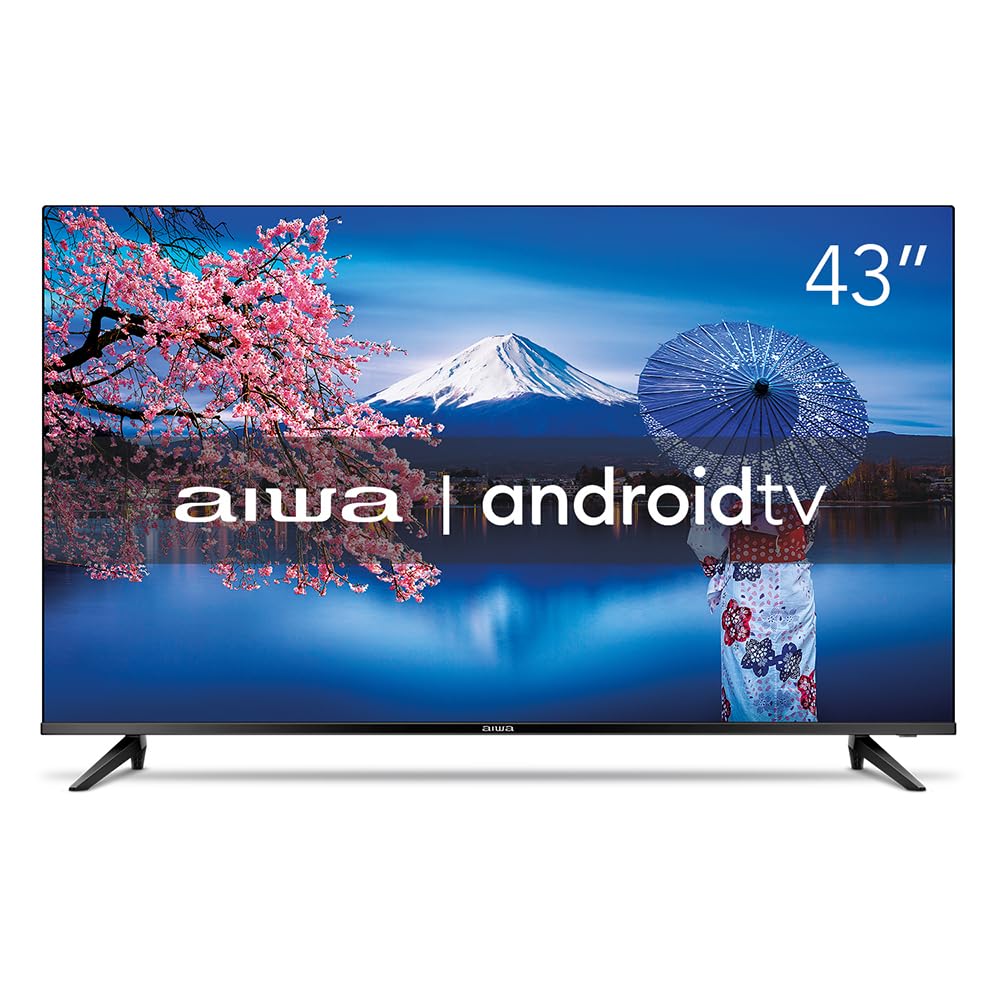
Image: The Aiwa 43-inch Smart TV showcasing a high-dynamic-range image, illustrating the enhanced colors and contrast provided by HDR10 technology.

Image: A family enjoying content on the Aiwa Smart TV, with a visual representation of sound waves emanating from the screen, symbolizing the immersive surround sound experience delivered by Dolby Audio.
Maintenance
Cleaning the Screen
Gently wipe the screen with a soft, lint-free cloth. For stubborn marks, lightly dampen the cloth with water or a specialized screen cleaner. Never spray liquid directly onto the screen.
Cleaning the Cabinet
Use a soft, dry cloth to wipe the TV cabinet. Avoid using abrasive cleaners or solvents that could damage the finish.
Ventilation
Ensure the ventilation openings on the back of the TV are not blocked. Proper airflow is crucial to prevent overheating and ensure the longevity of your television.
Troubleshooting
If you encounter issues with your television, refer to the following common solutions:
- No Power: Check if the power cable is securely connected to both the TV and the power outlet. Ensure the outlet is functional.
- No Picture/Sound: Verify that the correct input source is selected. Check all cable connections (HDMI, AV, etc.).
- Remote Control Not Working: Replace the batteries in the remote control. Ensure there are no obstructions between the remote and the TV's IR sensor.
- Poor Picture Quality: Adjust picture settings (brightness, contrast, sharpness). For antenna connections, check antenna positioning.
- Internet Connection Issues: For Wi-Fi, ensure the router is on and within range. For Ethernet, check the cable connection. Try restarting your router and TV.
- Apps Not Responding: Close and reopen the app. If the issue persists, try clearing the app's cache or reinstalling it from the Google Play Store.
For more complex issues, please refer to the support section or contact Aiwa customer service.
Specifications
| Brand | Aiwa |
| Model | AWS-TV-43-BL-02-A |
| Screen Size | 43 Inches |
| Display Technology | LED, IPS |
| Resolution | 1920 x 1080 Pixels (Full HD) |
| Refresh Rate | 60 Hz |
| Operating System | Android |
| Processor | Quad Core |
| HDR Support | HDR10 |
| Audio Technology | Dolby Audio, 2.0 + surround channels |
| Supported Audio Formats | AC3/EAC3/AC4/DTS/DOLBY DIGITAL/DOLBY DIGITAL PLUS |
| Connectivity | Bluetooth, HDMI (2), USB (2), RF, Wi-Fi |
| Special Features | Chromecast Built-in, Voice Control Remote, Blue Protect, Ultra-thin Bezel (1.4mm) |
| Voltage | 110, 220 Volts |
| Power Source | Electrical |
| Energy Efficiency | High |
| Dimensions (with stand) | 20.2 x 95.9 x 60.8 cm (Depth x Width x Height) |
| Product Weight | 8.96 Kilograms |
| Included Components | TV, 2 Pedestals, Power Cable, A/V Cable, Remote Control, 2 Batteries, 6 Screws, Instruction Manual |

Image: A visual representation of the Aiwa Smart TV's ultra-thin bezel (1.4mm) and an illustration of the Quad Core processor, emphasizing its design and performance features.
Warranty Information
Your Aiwa Smart TV comes with a 12-month manufacturer's warranty from the date of purchase. This warranty covers manufacturing defects and malfunctions under normal use. Please retain your proof of purchase for warranty claims. The warranty does not cover damage caused by misuse, accidents, unauthorized repairs, or normal wear and tear.
Customer Support
If you require further assistance, have questions not covered in this manual, or need to make a warranty claim, please contact Aiwa customer support. Refer to the official Aiwa website or your purchase documentation for contact details.
When contacting support, please have your TV model number (AWS-TV-43-BL-02-A) and serial number ready.


