1. Product Overview
The Seventour 12.4-inch Android 4K Car TV Headrest Monitor is designed to provide in-car entertainment for rear-seat passengers. Featuring an Android 10.0 operating system, a 1920x1080 IPS touchscreen, and various connectivity options, it enhances travel experiences.
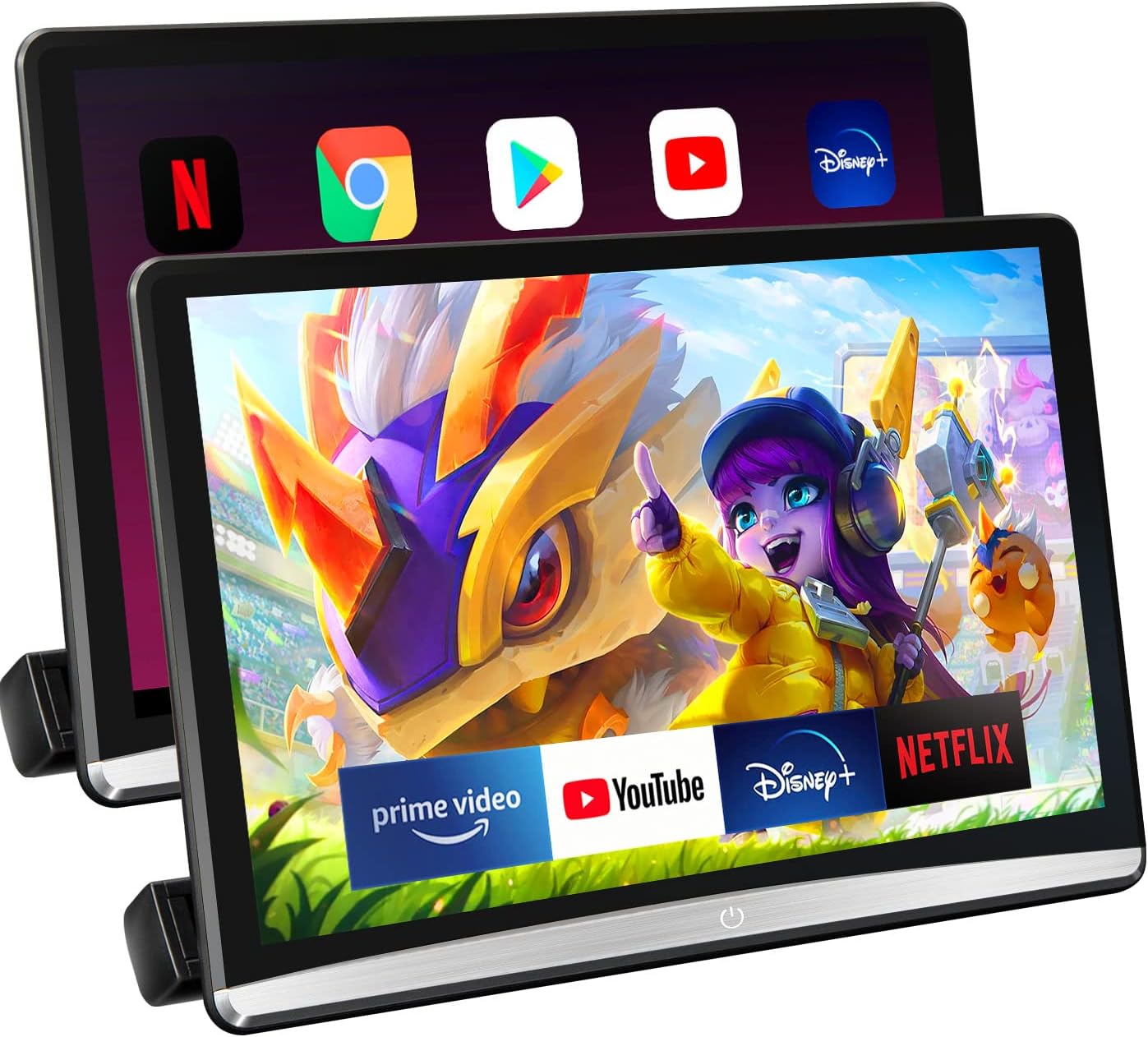
Image 1.1: Front view of the Seventour 12.4-inch Android 4K Car TV Headrest Monitor.

Image 1.2: The headrest monitor installed in a vehicle, displaying content.
2. Package Contents
Verify that all items are present in the package before proceeding with installation:
- Headrest Monitor (x2 for this model)
- Mount Bracket (x2)
- Car Charger Power Cable (2-port, 9.8 ft length)
- DC 12V Adapter (x2, for home use)
- HDMI Cable (x1)
- USB Flash Drive (x2, 32GB)

Image 2.1: Visual representation of the items included in the product package.
3. Setup and Installation
Follow these steps to install your headrest monitor in your vehicle.
3.1 Mounting the Monitor
- Ensure your car's headrest posts are round. This system is compatible with over 98% of car models with round headrest posts. It is not compatible with square posts or headrests without posts.
- Attach the mounting bracket to the headrest posts. Secure it firmly.
- Slide the headrest monitor onto the secured mounting bracket until it clicks into place.

Image 3.1: Illustration of the universal mounting bracket installation process, highlighting compatibility with round headrest poles.
3.2 Power Connection
The monitor can be powered in two ways:
- In-Car Use: Connect the car charger power cable to the monitor's DC 12V power port and plug the other end into your vehicle's cigarette lighter socket.
- Home Use: Use the provided DC 12V adapter to power the monitor from a standard wall outlet.
4. Operating Instructions
This section details how to operate your Seventour headrest monitor.
4.1 Initial Power On and Android System
- After connecting power, press the power button on the monitor to turn it on.
- The monitor will boot into the Android 10.0 operating system.
- Navigate the interface using the 12.4-inch IPS touchscreen.
4.2 Network Connectivity (WiFi)
To access online content and apps, connect the monitor to a WiFi network:
- Go to Settings > Network & Internet > Wi-Fi.
- Turn Wi-Fi on and select your desired network (supports 5G/2.4 GHz).
- Enter the password if prompted. You can also connect to a mobile phone's personal hotspot.
4.3 App Installation
The monitor supports downloading and installing applications:
- Use the pre-installed APKPure app to download various video streaming services like Prime Video.
- Access the Google Play Store for a wider range of applications.
4.4 Wireless Phone Connection (Mirror Link)
Mirror your smartphone screen to the monitor:
- iOS AirPlay: For Apple devices, use the AirPlay function to cast content wirelessly.
- Android Miracast: For Android devices, use Miracast for screen mirroring.
- MyCar Link App: Download the MyCar Link app on your smartphone to wirelessly control and operate the car TV from the driver's seat.
4.5 Multiple Expansion Ports and HDMI Connectivity
The monitor features various ports for expanded functionality:
- HDMI Input: Connect external devices such as PS4/PS5, Fire TV stick, TV box, or computers to use the monitor as a display.
- HDMI Output: Connect two monitors via an HDMI cable for lossless transfer of images, allowing synchronized viewing.
- USB Port: Supports USB drives up to 1TB for media playback.
- Micro SD Card Slot: For additional storage and media playback.

Image 4.1: Overview of connectivity options including phone mirroring, HDMI input/output, and various audio methods.
4.6 Multiple Audio Playback Methods
Enjoy audio through several options:
- Built-in Speakers: The monitor includes high-quality integrated speakers.
- Wireless Bluetooth Headset: Connect Bluetooth headphones for private listening.
- Wired Headset: Use the headphone port for wired audio devices.
- FM Transmission: Tune your car radio and the monitor's FM transmitter to the same channel to play the monitor's audio through your car's speakers.
4.7 OTA Updates
The Android Headrest TV features an OTA (Over-The-Air) cloud system for push updates. When new system updates are available, they will be automatically pushed to your device, ensuring you have the latest features and improvements.
5. Maintenance
Proper care ensures the longevity and optimal performance of your headrest monitor.
5.1 Cleaning
- Use a soft, lint-free cloth to gently wipe the screen and exterior surfaces.
- For stubborn smudges, slightly dampen the cloth with water or a screen-safe cleaning solution. Avoid harsh chemicals or abrasive materials.
- Ensure the monitor is powered off and unplugged before cleaning.
5.2 Software Updates
Regularly check for and install OTA updates to maintain system stability and access new features. The system will typically notify you when an update is available.
6. Troubleshooting
This section addresses common issues you might encounter.
6.1 Power Issues
- Monitor does not turn on: Ensure the power cable is securely connected to both the monitor and the power source (car cigarette lighter or wall outlet). Verify the car's cigarette lighter socket is functioning.
6.2 Connectivity Issues
- Cannot connect to Wi-Fi: Double-check the Wi-Fi password. Ensure the Wi-Fi signal is strong enough. Try restarting the monitor and your Wi-Fi router/hotspot.
- Screen mirroring not working: Ensure both devices are on the same Wi-Fi network. Verify that AirPlay/Miracast is enabled on your smartphone and the monitor. For the MyCar Link app, ensure it is installed and properly configured on both devices.
- HDMI input/output not displaying: Check all HDMI cable connections. Ensure the external device is powered on and set to output video. Select the correct HDMI input source on the monitor.
6.3 App and Playback Issues
- Apps not downloading or functioning correctly: Ensure you have a stable internet connection. Clear the app's cache and data in Settings > Apps. Some apps may have specific device compatibility requirements or regional restrictions.
- Video playback issues (e.g., Disney+, Hulu): Some streaming services may have DRM (Digital Rights Management) restrictions that prevent playback on certain devices or require specific app versions. Ensure the app is updated to the latest version. If issues persist, contact the app's support or try alternative streaming methods.
- USB/SD card media not playing: Ensure the media files are in a supported format. Check that the USB drive or SD card is properly inserted and not corrupted. The monitor supports up to 1TB USB drives.
6.4 Mounting Issues
- Monitor not fitting headrest bars: Confirm your headrest posts are round. The universal mount is designed for round posts and may not fit square posts or vehicles without headrest posts.
7. Specifications
| Feature | Detail |
|---|---|
| Brand | Seventour |
| Model Number | 12.4" 2G ram+32G rom |
| Screen Size | 12.4 Inches |
| Display Type | IPS |
| Resolution | 1920x1080 |
| Operating System | Android 10.0 |
| RAM | 2GB |
| Internal Storage | 32GB |
| Connectivity | WiFi (5G/2.4 GHz), Bluetooth |
| Ports | HDMI In, HDMI Out, USB 2.0, Micro SD Card, Headphone Port, DC 12V Power |
| Supported USB Drive | Up to 1TB |
| Product Dimensions | 12.3 x 7.8 x 0.3 inches |
| Item Weight | 9.53 pounds |
| Color | Black |
8. Warranty and Support
Seventour is committed to providing quality products and customer satisfaction.
8.1 Warranty Information
- 6-Month Replacement: Product quality issues within 6 months of purchase are eligible for a new product replacement.
- 1-Year Repair: Free repair service is provided for product issues within 1 year of purchase.
8.2 Customer Support
For any inquiries, technical assistance, or warranty claims, please contact Seventour professional after-sales support:
- Phone: +1 833 - 853 - 8881
- Email: help@seventour.vip
Customer service representatives aim to reply to all emails within 12 hours.

Image 8.1: Seventour customer service and warranty information.


