
1. Introduction
The iSDT BattAir Plugin BAP4-0.4 is designed to enhance battery management by allowing real-time monitoring of charging status, battery parameters, and usage records. This plugin converts a standard battery into a smart battery, providing valuable data to compatible iSDT chargers.
2. Key Features
- Real-time Monitoring: Provides live data on battery charging status.
- Parameter Recognition: Identifies battery parameters and usage history.
- Balance Port Compatibility: Fully compatible with existing balance port structures.
- Smart Battery Upgrade: Transforms a standard battery into a smart battery.
- Buckle Structure Design: Ensures secure connection.
- XH2.54 Universal Port: Standardized connection.
- Press and Show Function: Allows for quick status check.
- Plug & Play: Simple and immediate operation.
3. Compatibility
This BattAir Plugin is currently supported by the following iSDT chargers:
- iSDT Air8
- iSDT K4
- iSDT K2Air
Note: Ensure your charger's firmware is up to date for optimal performance.
4. Setup Instructions
- Identify Battery Balance Port: Locate the balance port on your LiFe, LiPo, LiHv, or ULiHv battery. The BattAir Plugin supports 3-4S batteries.
- Connect BattAir Plugin: Carefully align the BattAir Plugin's XH2.54 universal port with your battery's balance port. Ensure the buckle structure engages securely.
- Connect to Charger: Plug the battery (with the BattAir Plugin attached) into a compatible iSDT charger (Air8, K4, or K2Air).
- Initialization: The plugin may require initial calibration or initialization upon first use. Follow any on-screen prompts from your iSDT charger.
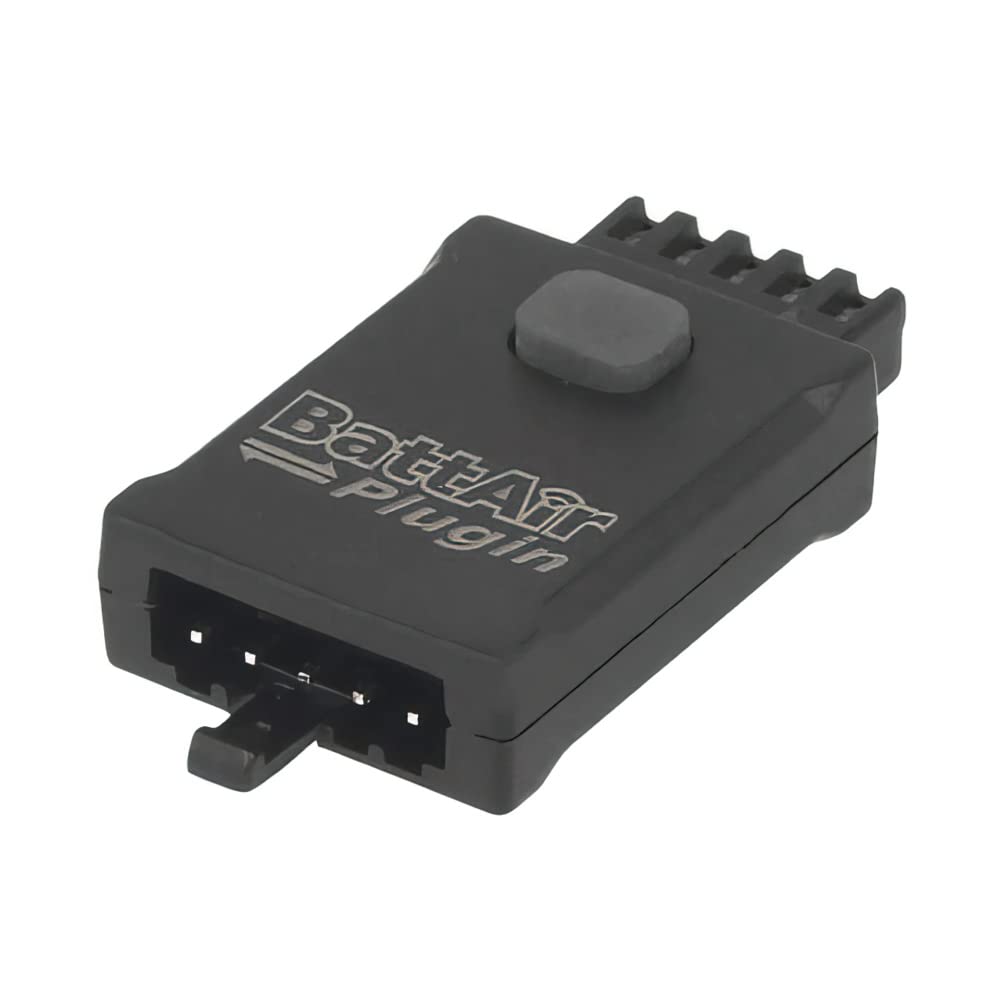
Image 1: The iSDT BattAir Plugin BAP4-0.4, showing its balance port connector. This plugin connects directly to your battery's balance port.
5. Operation and LED Functions
Once connected, the BattAir Plugin operates automatically with compatible iSDT chargers. It will transmit battery data for real-time monitoring.
5.1. Press and Show Function
The plugin features a button for quick status checks without a charger connection. Press the button to activate the LED indicator.
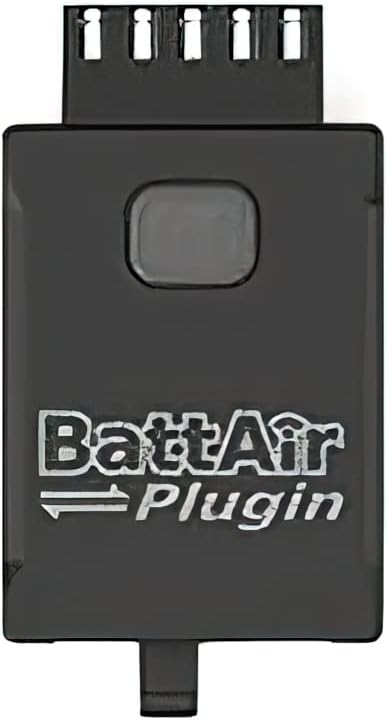
Image 2: Top view of the iSDT BattAir Plugin BAP4-0.4, highlighting the central button used for the "Press and Show" function.
5.2. LED Indicator Functions
The LED on the BattAir Plugin provides visual feedback on its status:
- No Light: BattAir Plugin is not calibrated or an error has occurred.
- Slow Blink: BattAir Plugin is not initialized.
- Solid Light (Green/Blue): Indicates battery power level between 20% and 90%.
- Rapid Blink (Red): Battery power is below 20% or is currently discharging.
Note: Specific LED colors may vary slightly depending on the firmware version. Refer to your charger's manual for detailed interpretations.
6. Maintenance
- Cleaning: Keep the plugin clean and free from dust and debris. Use a soft, dry cloth for cleaning.
- Storage: Store the plugin in a dry, cool environment when not in use.
- Inspection: Periodically inspect the connectors for any signs of damage or wear.
- Firmware Updates: Ensure your compatible iSDT charger's firmware is updated regularly, as this may include updates for BattAir Plugin functionality.
7. Troubleshooting
| Problem | Possible Cause | Solution |
|---|---|---|
| Plugin not recognized by charger. | Incorrect connection, incompatible charger, outdated charger firmware. | Ensure plugin is securely connected. Verify charger compatibility (Air8, K4, K2Air). Update charger firmware. |
| LED shows no light. | Plugin not calibrated or error state. | Connect to a compatible iSDT charger for calibration. If error persists, contact support. |
| LED shows slow blink. | Plugin not initialized. | Connect to a compatible iSDT charger to initialize the plugin. |
| Inaccurate battery readings. | Plugin not properly calibrated or battery issue. | Ensure plugin is calibrated. Check the battery's health independently. |
8. Specifications
- Supported Battery Type: LiFe, LiPo, LiHv, ULiHv
- Supported Battery Cells: 3-4S
- Dimensions: 36 x 19 x 9 mm
- Quiescent Current: 50uA
- Weight: 3.8g
- Connector Type: XH2.54 Universal port
- Material: Plastic
9. Warranty and Support
For warranty information and technical support, please refer to the official ISDT website or contact your authorized dealer. Keep your proof of purchase for warranty claims.
For additional resources, you may find the official ISDT BattAir Plugin User Guide video helpful. (Note: Video not embedded due to lack of direct embeddable URL in provided data.)
Visit the ISDT Store on Amazon for more products and information.

