
1. Introduction
The Douk Audio Q4 is an upgraded Mini Bluetooth 5.0 Headphone Amplifier and USB DAC designed to enhance your audio experience. It functions as a stereo receiver, USB DAC player, and D/A audio converter, offering multiple input and output options for versatile connectivity with most home audio systems. The device supports bit-perfect 24Bit / 192KHz HD low-jitter signal transfer and incorporates an output protection circuit for reliable performance.
Key features include PC-USB and USB memory inputs, dual analog outputs, and tone controls for bass and treble adjustment. Its compact design and comprehensive functionality make it a practical addition to any audio setup.
2. Package Contents
Before setup, please ensure all items are present in the package:
- Douk Audio Q4 Unit
- Remote Control (2*AAA batteries not included)
- USB Power Cable
- USB Data Cable
- Optical Cable
- Bluetooth Antenna

Image: Douk Audio Q4 package contents, showing the main unit, remote control, USB power cable, USB data cable, optical cable, and Bluetooth antenna. Dimensions and weight are also indicated.
3. Setup Instructions
Follow these steps to set up your Douk Audio Q4:
- Connect Power: Connect the provided USB power cable to the DC 5V Type-C input on the rear panel of the Q4 and plug the other end into a suitable 5V power source (e.g., USB wall adapter, computer USB port).
- Attach Bluetooth Antenna: Screw the included Bluetooth antenna into the 'BT' port on the rear panel.
- Connect Audio Output:
- RCA Output: Connect RCA cables from the L/R RCA outputs on the Q4 to your amplifier or active speakers.
- Headphone Output: Plug your headphones into the 3.5mm headphone jack on the front panel. The Q4 can drive most 16-300Ω headphones.
- Connect Audio Input (Choose one or more):
- Bluetooth: Ensure the Bluetooth antenna is attached.
- PC-USB: Connect the USB data cable from your computer (or OTG-enabled smartphone/tablet) to the 'PC-USB' input on the rear panel. For Android, an OTG cable is required. For iOS, a camera kit is required.
- USB Memory: Insert a USB flash drive (up to 64GB, formatted with MP3/WMA/APE/WAV/FLAC files) into the 'USB' input on the rear panel.
- Optical (OPT): Connect an optical cable from your audio source (e.g., TV, CD player) to the 'OPT' input.
- Coaxial (COAX): Connect a coaxial cable from your audio source to the 'COAX' input.
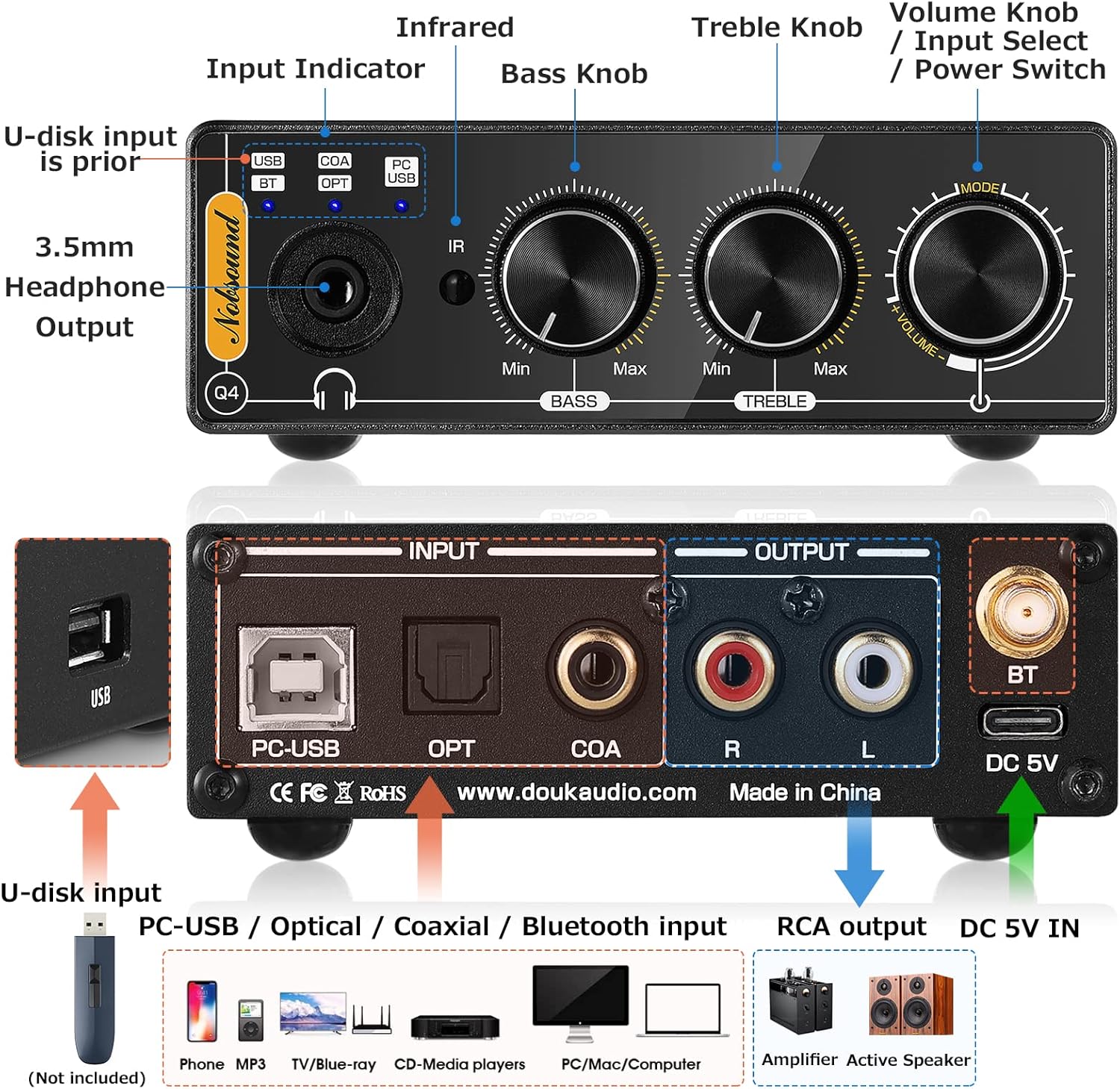
Image: Detailed diagram of the Douk Audio Q4's front and rear panels, illustrating all input and output ports (USB, PC-USB, Optical, Coaxial, Bluetooth, RCA, 3.5mm Headphone) and control knobs (Volume, Bass, Treble, Input Select).
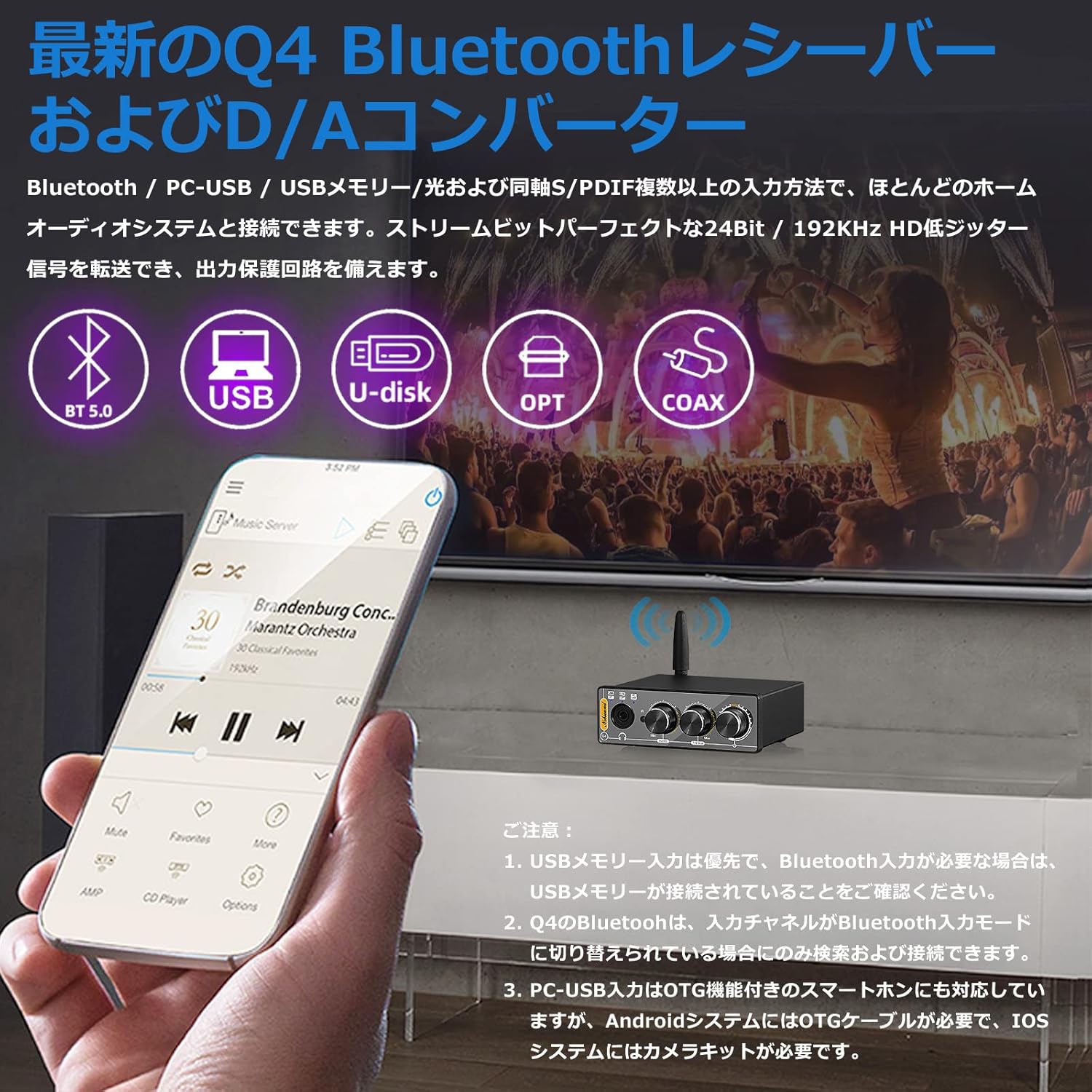
Image: The Douk Audio Q4 unit demonstrating its multiple input capabilities, including Bluetooth 5.0, USB, U-disk, Optical, and Coaxial connections, with a smartphone displaying music playback.

Image: The Douk Audio Q4 connected to a computer via PC-USB, with headphones plugged into the front jack. The image also illustrates RCA outputs connecting to an amplifier or active speakers, and the device being used in a car setup.
4. Operating Instructions
Once connected, operate your Douk Audio Q4 as follows:
- Power On/Off: Rotate the Volume knob clockwise to turn on the device. Rotate counter-clockwise until it clicks to turn off.
- Input Selection: Press the 'Input Select' button (integrated with the Volume knob) on the front panel, or use the 'SELECT' button on the remote control, to cycle through the available inputs (USB, BT, OPT, COAX, PC-USB). The independent input indicators on the front panel will light up to show the active input.
- Volume Control: Rotate the 'Volume' knob on the front panel or use the 'VOL+' / 'VOL-' buttons on the remote control to adjust the output volume.
- Tone Control: Use the 'BASS' and 'TREBLE' knobs on the front panel to adjust the low and high frequencies to your preference (±6dB range).
- Bluetooth Pairing:
- Switch the input mode to 'BT' (Bluetooth). The Bluetooth indicator will flash.
- On your device (smartphone, tablet, computer), search for Bluetooth devices and select 'Q4' to pair.
- Once paired, the Bluetooth indicator will remain solid.
- USB Memory Playback: Insert a USB flash drive into the 'USB' port. The device will automatically prioritize USB memory input if connected. Use the remote control for playback functions (play/pause, next/previous track).

Image: The Douk Audio Q4 unit showcasing its Bass, Treble, and Volume control knobs, allowing users to fine-tune their audio output. A music player interface is visible in the background.

Image: The Douk Audio Q4 unit on a desk, demonstrating its remote control functionality and the independent input indicators on the front panel that show the current operating status.
5. Maintenance
To ensure the longevity and optimal performance of your Douk Audio Q4, follow these maintenance guidelines:
- Cleaning: Use a soft, dry cloth to clean the exterior of the device. Avoid using liquid cleaners, aerosols, or solvents, as they may damage the finish or internal components.
- Placement: Place the unit on a stable, flat surface away from direct sunlight, heat sources, and excessive moisture. Ensure adequate ventilation around the device.
- Handling: Handle the unit with care. Avoid dropping or subjecting it to strong impacts.
- Power: Disconnect the power adapter if the unit will not be used for an extended period.
6. Troubleshooting
If you encounter issues with your Douk Audio Q4, refer to the following common problems and solutions:
- No Sound Output:
- Ensure the unit is powered on and the volume is not set to minimum or muted.
- Verify that the correct input source is selected (check input indicators).
- Check all cable connections (input and output) are secure.
- Test with different audio sources and output devices (headphones/speakers).
- Bluetooth Connection Issues:
- Ensure the Q4's input channel is switched to 'BT' mode. The Bluetooth indicator should be flashing for pairing.
- Make sure no USB memory stick is connected, as USB memory input has priority over Bluetooth.
- Ensure your Bluetooth device is within range and not connected to another device.
- Try unpairing and re-pairing the Q4 from your device's Bluetooth settings.
- USB Memory Playback Not Working:
- Ensure the USB memory stick is properly inserted and contains supported audio formats (MP3/WMA/APE/WAV/FLAC).
- Check if the USB memory capacity exceeds 64GB.
- Verify the input is set to 'USB'.
- PC-USB Input Not Recognized:
- Ensure the USB data cable is securely connected to both the Q4 and your computer/smartphone.
- For Android smartphones, an OTG cable is required. For iOS devices, a camera kit is necessary.
- No drivers or software are typically required for PC-USB connection.
- Distorted Sound:
- Reduce the volume level on both the Q4 and your audio source.
- Check for loose cable connections.
- Ensure the audio source is providing a clean signal.
7. Specifications
| Feature | Specification |
|---|---|
| Audio Inputs | Bluetooth 5.0, PC-USB, USB Memory, Coaxial, Optical Fiber |
| Audio Outputs | Stereo L/R RCA, 3.5mm Headphone Jack |
| PC-USB Sampling Rate | 96KHz / 24Bit |
| Optical/Coaxial Sampling Rate | 192KHz / 24Bit |
| USB Memory Supported Formats | MP3, WMA, APE, WAV, FLAC |
| USB Memory Max Capacity | 64GB |
| Treble/Bass Adjustment Range | ±6dB |
| Frequency Response | 20Hz-22KHz (±0.5dB) |
| PC-USB Supported OS | XP, W7, W8, W10, MAC, Linux |
| Distortion | 0.0057% |
| Signal-to-Noise Ratio (SNR) | ≥113dB |
| Headphone Output Max Power | 110mW @32Ω |
| Headphone Matching Impedance | 16-300Ω |
| RCA Output Level | 1.9V |
| Operating Voltage | DC 5V (Type-C) |
| Dimensions (W*D*H) | 95 * 78 * 32mm / 3.74 * 3.07 * 1.26in |
| Net Weight | 235g / 0.52lb |
| Package Weight | 500g / 1.10lb |
8. Warranty and Support
Warranty information for the Douk Audio Q4 is not provided in the available product data. Please refer to the retailer or manufacturer's official website for details regarding warranty coverage and customer support.
For technical assistance or further inquiries, please contact Douk Audio customer service through their official channels.


