
1. Product Overview
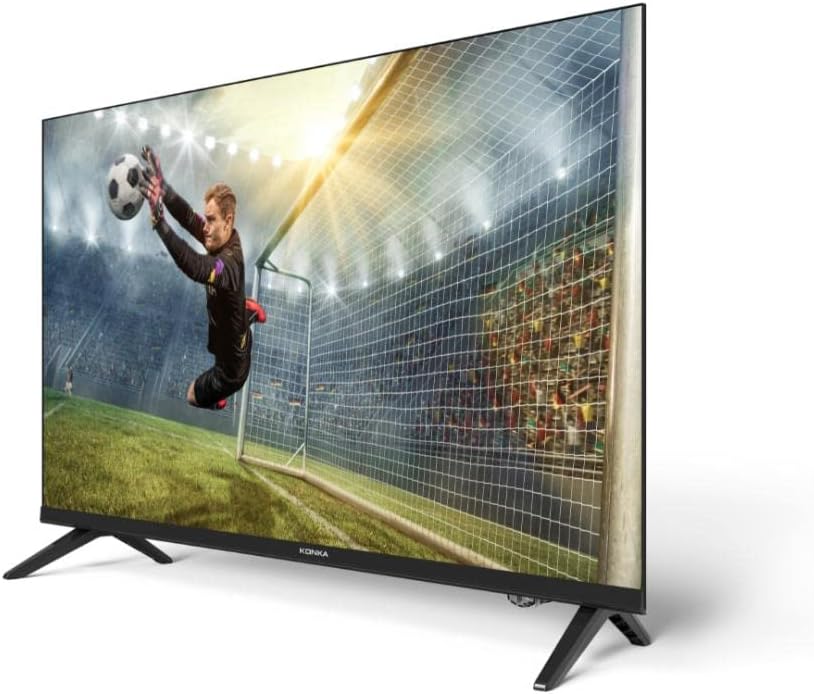
The Konka Smart TV LED 32" KDG32RR680LN offers a complete entertainment experience with its borderless design and smart features. Powered by Android TV, it integrates Google Assistant for voice control and Chromecast built-in for seamless content streaming. Enjoy vibrant HD images with HDR technology and smooth performance thanks to its quad-core processor.
Key Features:
- Android TV System: Access thousands of compatible applications from the Google Play Store.
- Google Assistant: Control your TV with voice commands for app launching, settings adjustments, and more.
- Google Chromecast Built-in: Mirror and control content from your smartphone, tablet, or laptop directly to the TV.
- HDR (High Dynamic Range): Experience vivid colors, enhanced brightness, and contrast for realistic images.
- Quad-Core Processor (CA55): Ensures smooth navigation and multitasking across applications.
- Borderless Design: Provides an immersive viewing experience.
- Connectivity: Features HDMI, USB, Wi-Fi, and Bluetooth connections.
Product Images:



2. Setup Guide
2.1 Unboxing and Initial Placement
Carefully remove the TV from its packaging. It is recommended to have two people for this process. Place the TV on a stable, flat surface or mount it on a wall using a compatible VESA mount (not included). Ensure adequate ventilation around the TV.
2.2 Attaching the Stands
If using the included stands, align them with the designated slots on the bottom of the TV. Secure them firmly with the provided screws. Refer to the quick start guide included in the box for specific instructions and screw types.
2.3 Connecting Power
Plug the power cord into the TV's power input, then plug the other end into a wall outlet. Ensure the power outlet is easily accessible.
2.4 Connecting External Devices
- HDMI Devices: Connect Blu-ray players, game consoles, or set-top boxes to the HDMI ports. This TV features multiple HDMI inputs.
- USB Devices: Insert USB drives for media playback or software updates into the USB ports. This TV has 2 USB inputs.
- Antenna/Cable: Connect an antenna or cable TV coaxial cable to the RF input for broadcast channels.
- Bluetooth Devices: Pair Bluetooth headphones, soundbars, or other compatible accessories via the TV's Bluetooth settings.
2.5 Initial Power On and Setup Wizard
Press the power button on the remote control or the TV. The TV will guide you through the initial setup wizard, which includes:
- Language selection.
- Network connection (Wi-Fi setup).
- Google account sign-in (optional, but recommended for full Android TV features).
- Channel scanning (for antenna/cable).
- Accepting terms and conditions.
3. Operating Instructions
3.1 Remote Control Usage
The included remote control provides full functionality for navigating the Android TV interface. It typically includes:
- Power Button: Turns the TV on/off.
- Navigation Pad (Directional Buttons & OK): For menu navigation and selection.
- Back/Home Buttons: To return to the previous screen or the home screen.
- Volume Up/Down: Adjusts audio volume.
- Channel Up/Down: Changes TV channels.
- App Shortcut Buttons: Direct access to popular streaming services (e.g., Netflix, YouTube, Prime Video).
- Google Assistant Button: Activates voice control.
3.2 Android TV Interface Navigation
The Android TV home screen provides quick access to your favorite apps, live TV, and recommended content. Use the navigation pad on your remote to scroll through sections and select items.
3.3 Using Google Assistant
Press the Google Assistant button on your remote control. Speak clearly into the remote's microphone. You can ask questions, search for content, control smart home devices, and manage TV settings using voice commands. For full functionality, ensure your TV is connected to the internet and you are signed into a Google account.
3.4 Chromecast Built-in
To cast content from your smartphone, tablet, or computer:
- Ensure your mobile device and the TV are connected to the same Wi-Fi network.
- Open a Chromecast-enabled app (e.g., YouTube, Netflix, Google Photos) on your device.
- Tap the Cast icon (a rectangle with a Wi-Fi signal in the corner) within the app.
- Select your Konka TV from the list of available devices.
- The content will begin playing on your TV.
3.5 App Management
Access the Google Play Store from the home screen to download new applications. You can also manage installed apps, including updating or uninstalling them, through the TV's settings menu.
4. Maintenance
4.1 Cleaning the Screen
To clean the screen, gently wipe it with a soft, lint-free cloth. For stubborn marks, slightly dampen the cloth with water or a screen-specific cleaning solution. Do not spray liquid directly onto the screen. Avoid using abrasive cleaners, alcohol, or ammonia-based products.
4.2 Cleaning the TV Body
Wipe the TV's frame and back panel with a soft, dry cloth. If necessary, use a slightly damp cloth, then immediately dry the surface.
4.3 Software Updates
Ensure your TV is connected to the internet to receive automatic software updates. Updates can improve performance, add new features, and fix bugs. You can also manually check for updates in the TV's settings menu (Settings > Device Preferences > About > System update).
4.4 General Care
- Avoid placing the TV in direct sunlight or near heat sources.
- Do not block the ventilation openings on the back of the TV.
- Protect the power cord from being walked on or pinched.
- Unplug the TV during lightning storms or when unused for long periods.
5. Troubleshooting
This section addresses common issues you might encounter with your Konka Smart TV. If the problem persists after trying these solutions, please contact customer support.
| Problem | Possible Cause / Solution |
|---|---|
| No Power / TV Does Not Turn On | Ensure the power cord is securely plugged into both the TV and a working wall outlet. Try a different outlet. Check if the remote control batteries are dead. |
| No Picture / Black Screen | Check the input source (HDMI, AV, TV) is correctly selected. Ensure external devices are powered on and connected properly. Try restarting the TV. |
| No Sound | Check the volume level. Ensure Mute is not activated. Verify audio cables for external sound systems are connected correctly. Check TV audio output settings. |
| Wi-Fi Connection Issues | Ensure your router is on and working. Restart the TV and router. Re-enter the Wi-Fi password. Move the TV closer to the router or consider a Wi-Fi extender. |
| Apps are Slow or Freeze | Close unused applications. Clear app cache (Settings > Apps > [App Name] > Clear cache). Ensure sufficient internet speed. Perform a system update. |
| TV Turns Off Randomly | Check sleep timer or auto-off settings. Ensure proper ventilation to prevent overheating. Perform a factory reset as a last resort (this will erase all settings and data). |
| Voice Control Not Working | Ensure the remote control is paired with the TV. Check remote batteries. Ensure the TV is connected to the internet and you are signed into your Google account. |
6. Specifications
| Feature | Detail |
|---|---|
| Brand | KONKA |
| Model Number | KDG32RR680LN |
| Screen Size | 32 Inches / 82 cm |
| Display Technology | LED |
| Resolution | 1366x768 (HD) Pixels / 720p |
| Aspect Ratio | 16:9 |
| Refresh Rate | 60 Hz |
| Contrast Ratio | 1200:1 |
| Response Time | 8 Milliseconds |
| Operating System | Android TV |
| Processor | CA55 Quad Core |
| Audio Output | 8W*2 |
| Connectivity | Bluetooth, Wi-Fi, HDMI (multiple), USB (2 ports) |
| Special Features | Flat Screen, Google Assistant, Chromecast Built-in, HDR |
| Power Source | AC/DC |
| Energy Efficiency Label (ENCE) | A+ |
| Product Dimensions (LxWxH) | 2 x 111 x 70 cm (approximate, based on package dimensions and diagonal) |
| Product Weight | 5.6 Kilograms |
7. Warranty and Support
7.1 Manufacturer's Warranty
The Konka Smart TV LED 32" KDG32RR680LN comes with a 1-year manufacturer's warranty. This warranty covers defects in materials and workmanship under normal use. Please retain your proof of purchase for warranty claims.
7.2 Customer Support
For technical assistance, troubleshooting beyond this manual, or warranty claims, please contact Konka customer support. Refer to the contact information provided in your product packaging or visit the official Konka website for the most up-to-date support details.
When contacting support, please have your TV's model number (KDG32RR680LN) and serial number ready. The serial number is typically located on a sticker on the back of the TV.


