1. Product Overview
The Hosyond 3.5-inch TFT LCD resistive touch screen offers a 480x320 resolution, providing a clear display for various Raspberry Pi applications. This display panel is designed for direct connection to Raspberry Pi boards, eliminating the need for an external power supply. It includes a touch pen for easy interaction and is compatible with multiple operating systems, including Raspbian, Ubuntu, and Kali Linux.

2. Compatibility
This 3.5-inch touch screen is specifically designed for direct plug-and-play compatibility with a wide range of Raspberry Pi models. Supported versions include:
- Raspberry Pi 5
- Raspberry Pi 4B
- Raspberry Pi 3B+
- Raspberry Pi 3
- Raspberry Pi 2
- Raspberry Pi 1 (A, B, A+, B+)
- Raspberry Pi Zero
- Raspberry Pi Zero W
3. Setup Instructions
3.1 Hardware Connection
- Ensure your Raspberry Pi is powered off before connecting the display.
- Align the 26-pin or 40-pin GPIO header on the display with the corresponding pins on your Raspberry Pi board.
- Gently press the display onto the Raspberry Pi's GPIO header until it is securely seated. No external power supply is required for the display itself, as it draws power directly from the Raspberry Pi.

3.2 Software Installation (Driver)
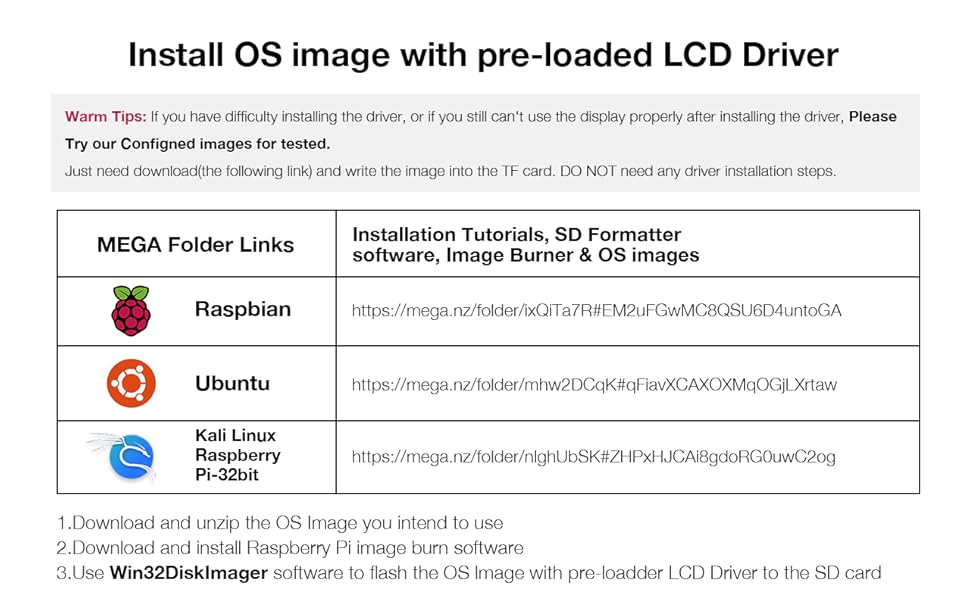
For the display and touch functionality to work correctly, specific drivers must be installed on your Raspberry Pi's operating system. It is highly recommended to use the pre-configured OS images provided by Hosyond to simplify this process.
- Download Pre-loaded OS Image: Access the provided links to download the desired operating system image (e.g., Raspbian, Ubuntu, Kali Linux) that includes the pre-installed LCD drivers. These links are typically found in the product documentation or support page.
- Prepare SD Card: Download and install an image burning software (e.g., Raspberry Pi Imager, Win32DiskImager) on your computer.
- Flash OS Image: Use the image burning software to flash the downloaded pre-loaded OS image onto your Raspberry Pi's microSD card.
- Insert SD Card: Insert the prepared microSD card into your Raspberry Pi and power it on. The display should now function correctly.
If you encounter difficulties or prefer manual installation, refer to the detailed driver installation tutorials available from the manufacturer's support resources. Note that manual driver installation can be complex and may require advanced Linux command-line knowledge.


4. Operating Instructions
Once the display and drivers are successfully installed, the 3.5-inch screen will function as your primary or secondary display for the Raspberry Pi. The resistive touch screen allows for direct interaction with the graphical user interface (GUI).
- Touch Input: Use your finger or the provided touch pen to navigate menus, select icons, and interact with applications. The touch pen offers greater precision for smaller elements.
- Display Orientation: Depending on your driver configuration, the display orientation may be adjusted through software settings within your Raspberry Pi's operating system.

5. Specifications
Detailed technical specifications for the Hosyond 3.5-inch TFT LCD SPI Display Panel:

| Feature | Value |
|---|---|
| Product Dimensions | 1.34 x 1.34 x 4.61 inches |
| Item Weight | 2.46 ounces |
| Manufacturer | Hosyond |
| Item Model Number | Hosyond-3.5-480x320 |
| Standing Screen Display Size | 3.5 Inches |
| Aspect Ratio | 16:9 |
| Voltage | 5 Volts |
| Resolution | 480 x 320 pixels |
| Screen Surface Description | Glossy |
5.1 Pinout and Interfaces


6. Troubleshooting
This section addresses common issues you might encounter during the setup and operation of your Hosyond 3.5-inch display.
- Display shows only white or no image:
- Ensure the display is securely connected to the Raspberry Pi's GPIO pins.
- Verify that the display drivers are correctly installed. Using the pre-loaded OS images is the most reliable method.
- Check your Raspberry Pi's power supply. A power supply above 5V 2.5A is recommended to ensure stable operation for both the Pi and the display.
- Touch functionality is not working:
- Confirm that the correct touch drivers are installed as part of the display driver package.
- Ensure the display is firmly seated on the GPIO pins, as loose connections can affect touch input.
- Calibrate the touch screen if your operating system provides this option.
- Graphical User Interface (GUI) issues after driver installation:
- If the GUI becomes unresponsive or fails to start after driver installation, it may indicate a driver conflict or incorrect installation. It is often best to re-flash the SD card with a fresh, pre-loaded OS image.
- Avoid mixing driver installation methods. Stick to either the pre-loaded images or a single, verified manual installation guide.
- Low frame rate or video artifacts:
- Due to the SPI connection, the display's refresh rate may be limited. This is a characteristic of the SPI interface and not a defect.
- Optimize your Raspberry Pi's software settings for display performance if possible.
7. Maintenance
To ensure the longevity and optimal performance of your Hosyond 3.5-inch display, follow these maintenance guidelines:
- Cleaning: Use a soft, lint-free cloth slightly dampened with water or a screen-cleaning solution to clean the display surface. Avoid abrasive materials or harsh chemicals.
- Handling: Handle the display by its edges to avoid touching the screen surface or damaging the electronic components on the back.
- Storage: When not in use, store the display in a dry, dust-free environment, preferably in its original packaging or an anti-static bag.
- Power: Always power down your Raspberry Pi before connecting or disconnecting the display to prevent electrical damage.
8. Warranty and Support
Hosyond provides technical support for this product. If you encounter any problems or require assistance, please contact Hosyond customer service through the platform where the product was purchased. Specific warranty details are subject to the terms and conditions provided at the time of purchase.


