
1. Introduction
The GTMEDIA V8 Finder Pro is a portable, combined signal meter designed for precise installation and adjustment of satellite, terrestrial, and cable antennas. It supports DVB-S2X/S2/S/T2/T/C standards and features advanced MPEG-2/4 H.264/H.265 (10 bit) hardware decoding. This device provides real-time signal strength and quality analysis, making it an essential tool for both professional installers and enthusiasts.
2. Product Overview
2.1 Key Features
- Compatibility: DVB-S2X/S2/S/T2/T/C standards.
- Decoding: MPEG-2/4 H.264/H.265 (10 bit) hardware decoding.
- Display: 4.3-inch TFT High Definition LCD screen with 1080P resolution.
- Outputs: HDMI and AV output for external display.
- Signal Analysis: Integrated fusion, fiber measurement, spectral analysis, compass, and audible signal lock indicator.
- Search Modes: Supports cyclic search, automatic, blind, manual, and NIT scanning.
- Angle Calculation: Automatic calculation of Azimuth (AZ) and Elevation (EL) angles.
- Protection: LNB short-circuit protection.
- Power Management: Real-time power display and low battery reminder.
- Connectivity: Supports 2.4G USB WiFi network for wireless connectivity.
- Software Updates: Software upgradeable via USB port.
- PVR Functionality: Supports PVR option and external hard drive connection via USB.
2.2 Package Contents
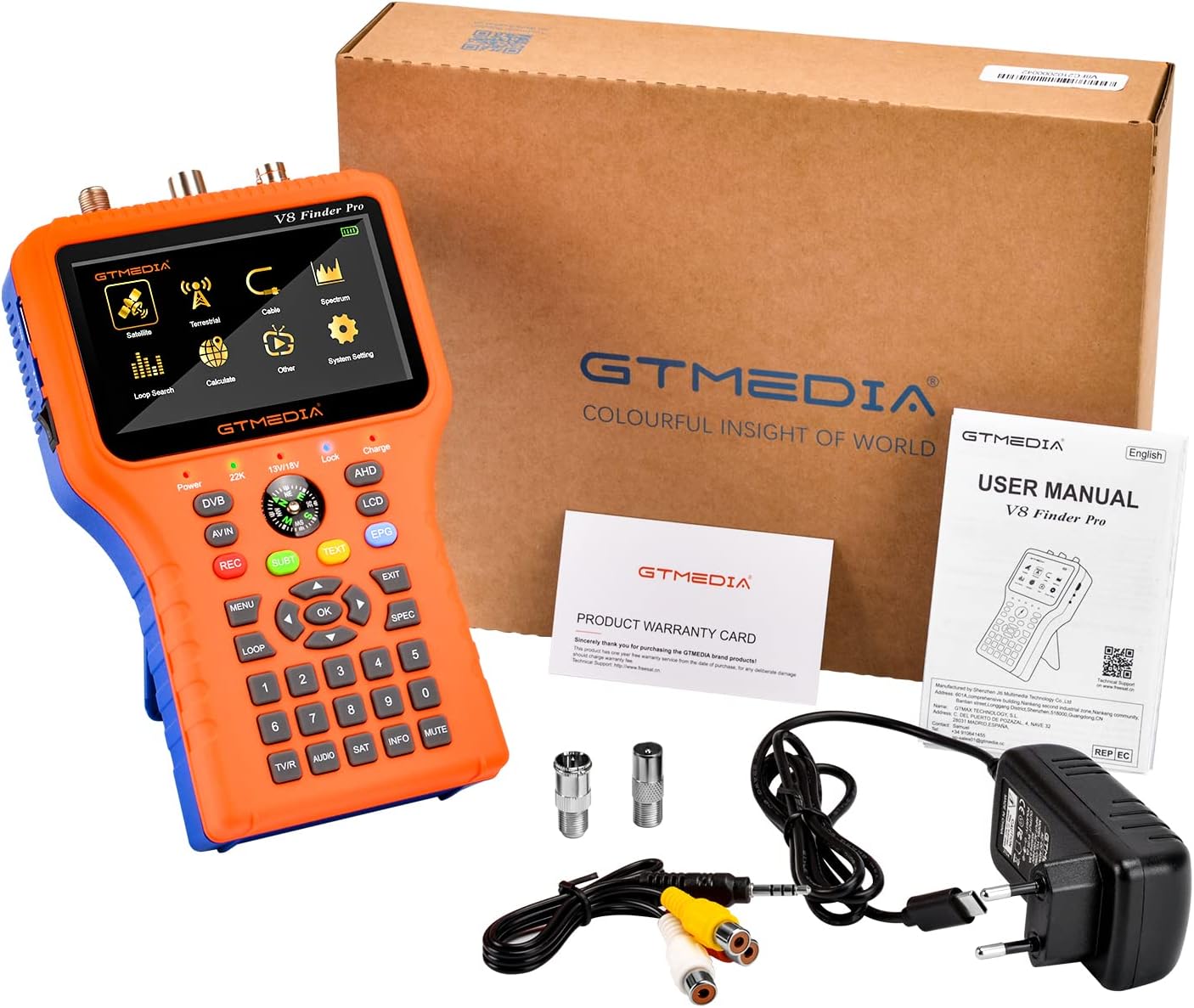
The package typically includes the GTMEDIA V8 Finder Pro unit, a power adapter, AV cable, F-type connectors, and a user manual.
2.3 Device Layout and Ports

Front view of the V8 Finder Pro, displaying the 4.3-inch LCD screen, navigation buttons, numeric keypad, and a built-in compass for alignment assistance.

Top Panel:
LNB IN: For connecting to a satellite LNB to receive satellite signals.
ANT IN: For connecting to a terrestrial or cable antenna to receive DVB-T/T2/C signals.
AHD: Supports 12V 1.5A AHD monitoring.
Left Side:
USB 3.0: For software updates, PVR recording with external storage, and connecting a 2.4G USB WiFi dongle.
PD: Power Delivery port.
ON/OFF: Power switch.
Right Side:
HD OUT: HDMI output for connecting to an external display.
AV OUT: Analog video/audio output.
AV IN: Analog video/audio input.

The back of the device features a built-in speaker for audible signal lock indication and a real-time battery level display on the screen.
3. Setup
3.1 Charging the Device
Before first use, fully charge the V8 Finder Pro using the provided power adapter. Connect the adapter to the PD port on the left side of the device and plug it into a power outlet. The battery indicator on the screen will show charging status.
3.2 Powering On/Off
To power on the device, slide the ON/OFF switch located on the left side to the 'ON' position. To power off, slide the switch to 'OFF'.
3.3 Initial Configuration
Upon first power-on, you may be prompted to select your preferred language and region settings. Use the navigation buttons (up/down/left/right) and the 'OK' button to make selections.
4. Operating Instructions
4.1 Satellite Signal Search (DVB-S/S2/S2X)
- Connect LNB: Connect the LNB cable from your satellite dish to the LNB IN port on the top of the V8 Finder Pro.
- Select Satellite Mode: From the main menu, navigate to and select the 'Satellite' icon.
- Choose Satellite: Select the desired satellite from the pre-programmed list. If your satellite is not listed, you may need to add it manually or update the firmware.
- Configure LNB: Set the correct LNB frequency, DiSEqC settings (if applicable), and 22KHz tone.
- Select Transponder: Choose a transponder (TP) frequency for the selected satellite.
- Align Dish: Adjust your satellite dish's Azimuth (horizontal) and Elevation (vertical) angles. Use the signal strength and quality bars displayed on the screen, along with the audible tone, to optimize alignment. A higher tone and higher bar levels indicate a stronger signal. The built-in compass can assist with initial directional alignment.
- Scan Channels: Once a strong signal is achieved, you can perform a channel scan (Auto, Blind, Manual, or NIT) to find available channels.

The V8 Finder Pro assists in aligning satellite dishes by providing real-time signal strength and quality feedback.

Screenshots illustrating the menu navigation for satellite selection, LNB configuration, and transponder search results.
4.2 Terrestrial/Cable Signal Search (DVB-T/T2/C)
- Connect Antenna/Cable: Connect your terrestrial antenna or cable TV line to the ANT IN port.
- Select Mode: From the main menu, select the 'Terrestrial' or 'Cable' icon.
- Scan Channels: Initiate an automatic channel scan. The device will detect and display available channels.
- Optimize Signal: Adjust your terrestrial antenna's direction or cable connection to maximize signal strength and quality.
4.3 Using HDMI/AV Output
You can connect the V8 Finder Pro to an external TV or monitor using the HDMI OUT or AV OUT ports to view channels on a larger screen. This is useful for verifying channel reception or for general viewing.
4.4 PVR Functionality
To record programs (PVR), connect a USB external hard drive or flash drive to the USB 3.0 port. Access the PVR menu through the system settings to configure recording options and schedule recordings.
5. Maintenance
5.1 Cleaning
Wipe the device with a soft, dry cloth. Do not use liquid cleaners or solvents, as they may damage the screen or internal components.
5.2 Battery Care
To prolong battery life, avoid fully discharging the device frequently. Charge the battery regularly, even if the device is not in use for extended periods. Store the device in a cool, dry place.

The device features a rechargeable battery for portable operation. Proper battery care ensures longevity.
5.3 Software Updates
Periodically check for firmware updates to ensure optimal performance and compatibility with new standards. Updates can typically be downloaded from the official GTMEDIA website (www.freesat.cn) and installed via the USB port.
6. Troubleshooting
6.1 No Signal or Low Signal
- Check Connections: Ensure all cables (LNB, ANT, AV) are securely connected to the correct ports.
- Verify LNB Power: Confirm that the LNB power setting is enabled in the device menu if using a satellite dish.
- Re-align Antenna: Carefully re-adjust the satellite dish or terrestrial antenna direction using the signal strength and quality indicators.
- Check Transponder Settings: Ensure the correct satellite and transponder frequencies are selected.
- LNB Short Circuit: If an LNB short circuit warning appears, disconnect the LNB and check the cable for damage.
6.2 Device Not Powering On
- Charge Battery: Ensure the device battery is sufficiently charged. Connect to the power adapter.
- Power Switch: Verify the ON/OFF switch is in the 'ON' position.
6.3 Screen Issues (No Display, Flickering)
- Restart Device: Power off and then power on the device.
- Check Brightness: Adjust screen brightness settings if the display is too dim.
7. Specifications
| Brand | GTMEDIA |
| Model Number | V8 Finder PRO |
| Manufacturer | GT MEDIA |
| Product Dimensions | 20.4 x 12.3 x 4.5 cm (8.03 x 4.84 x 1.77 inches) |
| Item Weight | 600 grams |
| Display | 4.3-inch TFT LCD, 1080P Full HD |
| DVB Compatibility | DVB-S2X/S2/S/T2/T/C |
| Video Decoding | MPEG-2/4 H.264/H.265 (10 bit) |
| Connectivity | USB 3.0, HDMI Out, AV Out, AV In, 2.4G USB WiFi support |
| ASIN | B0BJ75B91J |

Physical dimensions of the GTMEDIA V8 Finder Pro.

A comparison highlighting the enhanced features of the V8 Finder Pro over previous models.
8. Warranty and Support
GTMEDIA products typically come with a standard manufacturer's warranty. For specific warranty details, please refer to the warranty card included in your package or visit the official GTMEDIA website. For technical assistance, troubleshooting, or product inquiries, please contact GTMEDIA's professional technical support team. Contact information can usually be found on the official website or in the product documentation.


