
1. Introduction
Welcome to the user manual for your new TECLAST P30S Android 12 Tablet. This guide provides detailed instructions on setting up, operating, maintaining, and troubleshooting your device to ensure optimal performance and user experience. Please read this manual thoroughly before using your tablet.

Image: Front and back view of the TECLAST P30S Android 12 Tablet, showcasing its sleek design and camera placement.
2. Product Overview
The TECLAST P30S is a 10-inch Android 12 tablet designed for smooth performance and versatile use. Familiarize yourself with its components and features.
2.1 Key Features
- Display: 10.1-inch IPS Wide Viewing Angle Display with 1920x1200 HD Resolution.
- Processor: MediaTek MT8183 8-Core Processor (up to 2.0GHz).
- Memory & Storage: 4GB LPDDR4X RAM + 64GB eMMC ROM, expandable via Micro SD (up to 1TB).
- Operating System: Android 12 with new UI and enhanced privacy features.
- Cameras: 5MP Rear Camera with Autofocus and LED Flash, 2MP Front Camera for HD video.
- Audio: PureSound Audio with K9 Digital Amplifier Chip, Dual Speakers.
- Connectivity: 2.4G & 5G Wi-Fi, Bluetooth 5.0.
- Navigation: 3-Mode GPS Satellite Positioning.
- Battery: 6000mAh Large Capacity Battery with Type-C Fast Charging.
- Design: Thin and Light Metal Body with Sea Blue finish and Rounded Edges.
- Security: Face Recognition unlocking.
2.2 Package Contents
Ensure all items are present in the box:
- TECLAST P30S Tablet
- Power Adapter
- USB Type-C Charging Cable
- Startup Guide
- Instruction Manual (this document)

Image: Diagram showing the tablet's ports (speakers, 3.5mm headset, Micro SD, power, volume, reset, Type-C) and the included accessories: charger, charging cable, startup guide, and instruction manual.
2.3 Physical Components
Refer to the diagram below for the location of buttons, ports, and cameras.

Image: Visual overview of the TECLAST P30S tablet highlighting key features such as the 8-core MT8183 processor, Android 12 UI, 10.1-inch IPS display, dual speakers, 5MP rear/2MP front cameras, metal body, 4GB+64GB storage, 2.4G/5G WiFi, Bluetooth 5.0, GPS, Face Recognition, 6000mAh battery, and Type-C 3.5mm headset interface.
- Power Button: Located on the top edge, used to power on/off or wake/sleep the device.
- Volume Buttons: Located on the top edge, used to adjust volume.
- USB Type-C Port: Located on the side, for charging and data transfer.
- 3.5mm Headset Jack: Located on the side, for connecting headphones.
- Micro SD Card Slot: Located on the side, for expanding storage.
- Front Camera: Located on the top bezel when held horizontally, for video calls and selfies.
- Rear Camera & Flash: Located on the back, for taking photos and videos.
- Speakers: Dual speakers located on the sides for enhanced audio output.
3. Setup
3.1 Initial Charging
Before first use, fully charge your tablet. Connect the provided USB Type-C cable to the tablet's Type-C port and the power adapter to a wall outlet. The charging indicator will show the charging status. It is recommended to charge for at least 30 minutes before turning on for the first time.

Image: The TECLAST P30S tablet being charged via its Type-C port, illustrating its 6000mAh large battery capacity.
3.2 Powering On/Off
- To Power On: Press and hold the Power button until the TECLAST logo appears on the screen.
- To Power Off: Press and hold the Power button until a power menu appears. Select "Power off" and confirm.
- To Restart: From the power menu, select "Restart".
- To Sleep/Wake: Briefly press the Power button to put the tablet to sleep or wake it up.
3.3 Initial Setup Wizard
Upon first power-on, the tablet will guide you through the initial setup process:
- Language Selection: Choose your preferred language.
- Wi-Fi Connection: Connect to an available Wi-Fi network to access the internet.
- Google Account: Sign in with your Google account or create a new one. This is essential for downloading apps from the Google Play Store and syncing data.
- Date & Time: Set the correct date and time, or allow the network to set it automatically.
- Security: Set up a screen lock (PIN, pattern, password, or Face Recognition).
- Google Services: Review and accept Google services terms.
4. Operating Your Tablet
4.1 Android 12 Features
Your TECLAST P30S runs on Android 12, offering a personalized, secure, and effortless user experience with an intuitive UI and optimized system logic.
- Dynamic Color: The system UI colors adapt to your wallpaper.
- App Widgets: Redesigned widgets provide more information at a glance.
- Privacy Dashboard: A central hub to see which apps have accessed your camera, microphone, and location.
- Extra Dim: Reduces screen brightness below the minimum setting for comfortable viewing in low light.
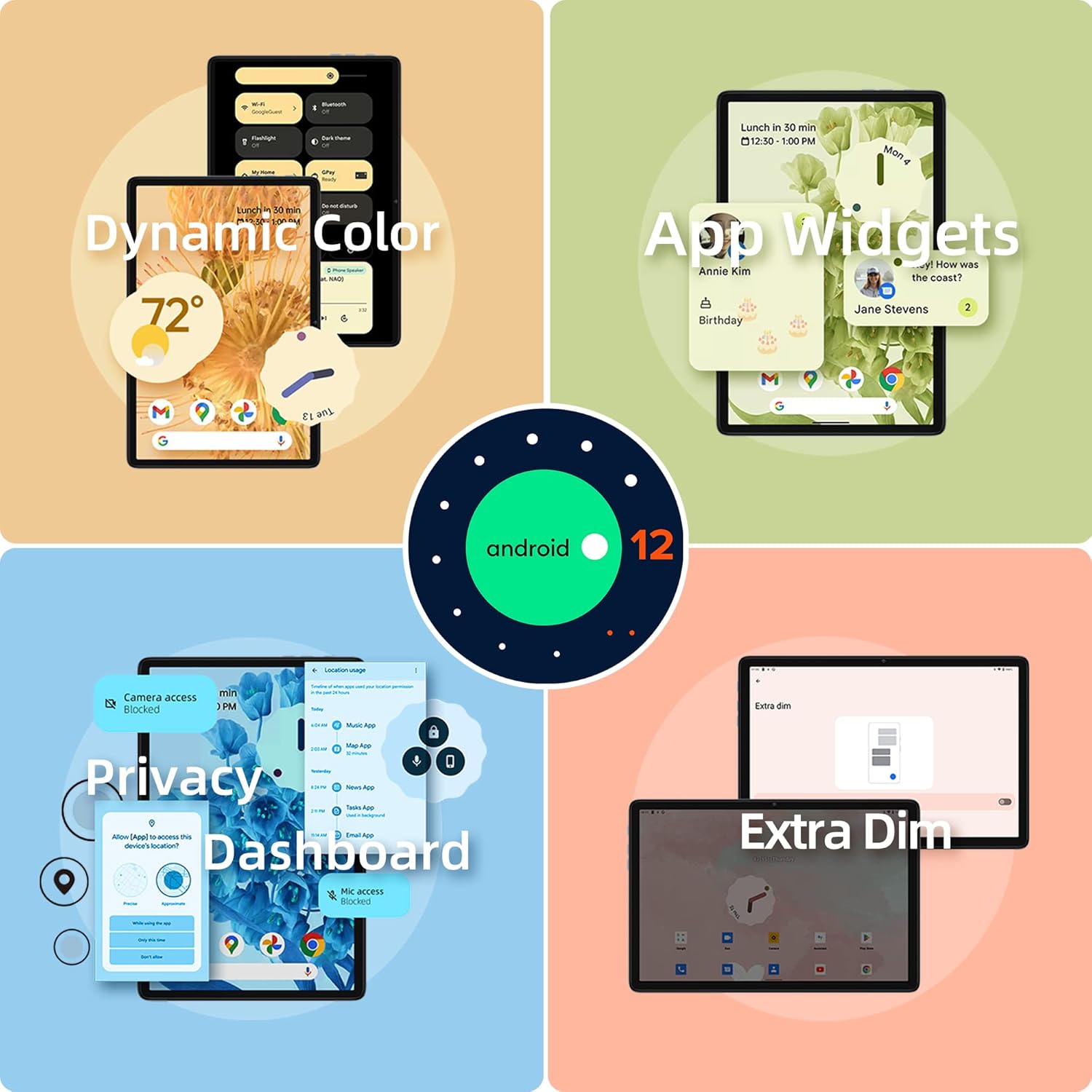
Image: Visual representation of Android 12 features including Dynamic Color, App Widgets, Privacy Dashboard, and Extra Dim mode.
4.2 Connectivity
- Wi-Fi: Supports 2.4G and 5G Wi-Fi for stable and fast internet connection. Go to Settings > Network & internet > Wi-Fi to connect.
- Bluetooth 5.0: Connect wireless headphones, speakers, keyboards, and other Bluetooth devices. Go to Settings > Connected devices > Connection preferences > Bluetooth.

Image: The tablet displaying Wi-Fi and Bluetooth icons, indicating its support for 2.4G+5G ac Wi-Fi and BT5.0 for efficient transmission and connection to external devices like keyboards and game controllers.
4.3 Multimedia and Entertainment
- Display: Enjoy a great visual experience with the 10.1-inch IPS display, ideal for games, videos, and reading.
- Audio: The PureSound Audio system with K9 Digital Amplifier Chip and dual speakers provides immersive sound.
- Storage: With 64GB of internal storage and support for up to 1TB Micro SD expansion, you have ample space for photos, videos, apps, and documents.

Image: The tablet displaying various media content, including YouTube videos, video calls, music streaming, and TV shows, highlighting its 4GB LPDDR4X RAM, 64GB eMMC storage, and Micro SD expansion capabilities.
4.4 Cameras
Capture moments with the tablet's cameras:
- Rear Camera: 5MP with autofocus and LED flash for clear photos even in low light.
- Front Camera: 2MP HD camera for video calls and selfies.

Image: Close-up of the tablet's 5MP rear camera with autofocus and flashlight, and the 2MP front camera for HD video. Also shows the 3-Mode GPS satellite positioning feature in a car navigation scenario.
4.5 GPS Navigation
The TECLAST P30S supports 3-Mode GPS satellite positioning, allowing for accurate navigation even without an internet connection (with pre-downloaded maps).
4.6 Special Features
- Face Recognition: Unlock your tablet quickly and securely using your face. Set this up in Settings > Security & privacy > Device unlock.
- Split-screen Function: Multitask by splitting the screen into two, allowing you to use two apps simultaneously.
- Wireless Projection: Cast your tablet's screen to a compatible display or TV.
- Parental Control: Manage screen time, set learning tasks, and control app access for children.
4.7 Official Product Videos
Video: A short promotional video showcasing the TECLAST P30S Android 12 Tablet's design, processor, display, and operating system features.
Video: A product display video for the TECLAST Android P30S, highlighting its physical appearance and user interface.
5. Maintenance
5.1 Battery Care
- Avoid extreme temperatures (hot or cold) as they can degrade battery life.
- Do not let the battery completely drain frequently.
- Use only the provided charger and cable or certified alternatives.
- For long-term storage, charge the tablet to about 50% and power it off.
5.2 Cleaning Your Device
Use a soft, lint-free cloth to clean the screen and body of the tablet. For stubborn smudges, slightly dampen the cloth with water or a screen cleaner. Avoid using harsh chemicals or abrasive materials.
5.3 Software Updates
Regularly check for system updates to ensure your tablet has the latest features, security patches, and performance improvements. Go to Settings > System > System update.
6. Troubleshooting
If you encounter issues with your TECLAST P30S tablet, try the following solutions:
6.1 Common Issues and Solutions
- Tablet not turning on:
- Ensure the tablet is sufficiently charged. Connect it to the charger for at least 30 minutes.
- Perform a hard reboot: Press and hold the Power button for about 10-15 seconds until the device restarts.
- Wi-Fi connection issues:
- Toggle Wi-Fi off and on in Settings.
- Restart your Wi-Fi router.
- Forget the network and reconnect.
- Slow performance or freezing:
- Close unused apps running in the background.
- Clear cache for problematic apps (Settings > Apps > [App Name] > Storage & cache > Clear cache).
- Restart the tablet.
- If issues persist, consider a factory reset (backup your data first).
- Face Recognition not working:
- Ensure you are in a well-lit environment.
- Make sure your face is clearly visible to the front camera.
- Re-register your face data in Settings > Security & privacy > Device unlock.
- Charging issues (e.g., not charging past 80%):
- Try using a different charging block and cable, ensuring they are compatible and of good quality.
- Ensure the charging port is clean and free of debris.
6.2 Factory Reset
A factory reset will erase all data from your tablet and restore it to its original factory settings. Only perform this if other troubleshooting steps fail and you have backed up all important data.
- Go to Settings > System > Reset options.
- Select "Erase all data (factory reset)".
- Confirm your decision and follow the on-screen prompts.
7. Specifications
| Feature | Specification |
|---|---|
| Brand | TECLAST |
| Model Name | P30S |
| Item Model Number | P30S Android 12 Tablet |
| Operating System | Android 12 |
| Processor | Unisoc (MediaTek MT8183) 8-Core, 2 GHz |
| Standing Screen Display Size | 10 Inches |
| Max Screen Resolution | 1920x1200 |
| Computer Memory Type | DDR4 SDRAM (4GB LPDDR4X) |
| Flash Memory Size | 64 GB (eMMC) |
| Expandable Storage | Micro SD up to 1TB |
| Rear Webcam Resolution | 5 MP |
| Front Webcam Resolution | 2 MP |
| Connectivity | 2.4G & 5G Wi-Fi, Bluetooth 5.0 |
| Battery | 6000mAh |
| Item Weight | 2.03 pounds |
| Product Dimensions (LxWxH) | 10.1 x 6.4 x 0.4 inches |
8. Warranty and Support
8.1 Product Warranty
Your TECLAST P30S Tablet comes with a 1-year warranty valid immediately after purchase. This warranty covers manufacturing defects and ensures product quality.
8.2 Customer Support
For any questions, technical assistance, or warranty claims, please contact TECLAST customer support. We aim to provide professional service and answer all inquiries within one working day. Please refer to the contact information provided on the TECLAST official website or your purchase platform for the most up-to-date support channels.
You can often find support resources and FAQs on the official TECLAST website: www.teclast.com


