
1. Introduction
Welcome to the realme C33 user manual. This guide provides essential information for setting up, operating, maintaining, and troubleshooting your realme C33 smartphone.
The realme C33 is a Dual-SIM 4G/LTE smartphone featuring a 6.5-inch FHD fullscreen display and a 5000mAh battery, designed for reliable daily performance.
2. Important Safety Information
Please read and follow these safety guidelines to ensure proper use and prevent damage to your device or injury to yourself.
- Read all instructions carefully before using the device.
- Do not expose the device to extreme temperatures (above 45°C or below 0°C) or direct sunlight for extended periods.
- Use only realme-approved chargers, batteries, and accessories. Use of unapproved accessories may void your warranty and pose safety risks.
- Avoid dropping or subjecting the device to severe impact, as this can cause internal damage.
- Keep the device away from water, moisture, and other liquids. If the device gets wet, power it off immediately and do not attempt to use it until it is completely dry.
- Do not attempt to disassemble, repair, or modify the device yourself. Refer to authorized service personnel for any repairs.
3. Setup
3.1 Package Contents
Verify that your package contains the following items:
- realme C33 Smartphone
- USB Cable
- Power Adapter
- SIM Ejector Tool
- Quick Start Guide (may vary by region)
3.2 Device Layout
Familiarize yourself with the physical components and button placements of your realme C33.

Image: The realme C33 smartphone, displaying its front screen with the user interface and its textured back panel featuring the dual camera module and realme branding.

Image: A clear front view of the realme C33 smartphone, showing the full display with the Android home screen, app icons, and status bar.
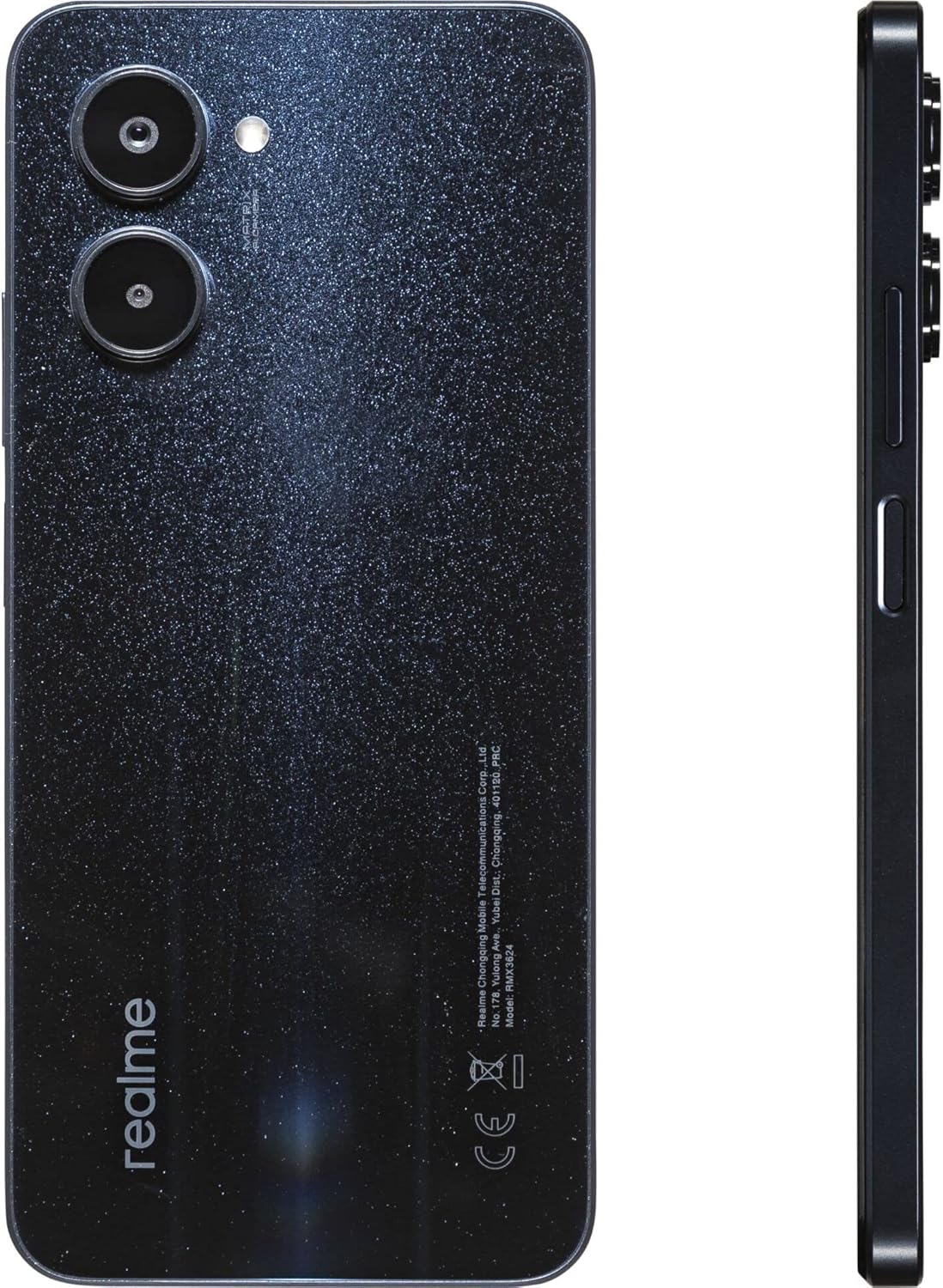
Image: The back and side profile of the realme C33 smartphone, highlighting the dual camera system, the unique textured finish of the back cover, and the side buttons.
3.3 Inserting SIM Cards and microSD Card
The realme C33 supports Dual-SIM functionality and expandable storage via a microSD card.
- Locate the SIM card tray on the side of your device.
- Insert the provided SIM ejector tool into the small hole on the tray and gently push until the tray pops out.
- Carefully place your Nano-SIM cards into the designated SIM slots. If using a microSD card for additional storage, place it in its dedicated slot. Ensure the gold contacts face downwards.
- Gently push the tray back into the phone until it is flush with the device's side.
3.4 Initial Power On and Setup
- Press and hold the Power button (usually on the right side) until the realme logo appears on the screen.
- Follow the on-screen prompts to complete the initial setup process. This typically includes selecting your language, connecting to a Wi-Fi network, accepting terms and conditions, and setting up your Google account.
4. Operating Your realme C33
4.1 Basic Navigation
- Touchscreen Gestures: Interact with the device using taps, swipes, pinch-to-zoom, and long presses.
- Home Screen: The central hub for your apps, widgets, and shortcuts. Swipe left or right to access additional home screens.
- Notification Panel: Swipe down from the top of the screen to view notifications and quick settings toggles (Wi-Fi, Bluetooth, etc.).
- App Drawer: Swipe up from the bottom of the home screen to access all installed applications.
4.2 Making Calls
- Tap the Phone app icon on your home screen or app drawer.
- Enter the phone number using the dial pad, or select a contact from your contacts list.
- Tap the Call icon to initiate the call.
4.3 Sending Messages
- Tap the Messages app icon.
- Tap the New Message icon (usually a plus sign or a speech bubble).
- Enter the recipient's phone number or select a contact.
- Type your message in the text field.
- Tap the Send icon.
4.4 Camera Usage
Capture photos and videos with your realme C33's integrated camera.
- Open the Camera app.
- Select your desired mode (e.g., Photo, Video, Portrait) by swiping across the options.
- Frame your subject and tap the Shutter button to capture a photo or start/stop video recording.
4.5 Connecting to Wi-Fi
- Go to Settings > Network & internet > Wi-Fi.
- Toggle the Wi-Fi switch to the On position.
- Select your desired Wi-Fi network from the list of available networks.
- If prompted, enter the network password and tap Connect.
4.6 Bluetooth Pairing
- Go to Settings > Connected devices > Bluetooth.
- Toggle the Bluetooth switch to the On position.
- Ensure the device you wish to pair with is in pairing mode and discoverable.
- Select the device from the list of available devices and follow any on-screen prompts to complete the pairing process.
5. Maintenance and Care
5.1 Cleaning Your Device
To keep your realme C33 clean and functional:
- Use a soft, lint-free cloth (e.g., microfiber cloth) to gently wipe the screen and body of the device.
- Avoid using abrasive materials, harsh chemicals, or aerosol sprays, as these can damage the screen and finish.
- For stubborn smudges, slightly dampen the cloth with water, but ensure no moisture enters openings.
5.2 Battery Care
The realme C33 is equipped with a 5000mAh Lithium-Polymer battery. To maximize its lifespan:
- Avoid fully discharging the battery frequently. It is best to keep the charge level between 20% and 80%.
- Charge the device using only the original realme charger and USB cable.
- Do not expose the device to extreme heat or cold while charging.
- If the device will not be used for an extended period, charge it to about 50% before storing.
5.3 Software Updates
Regularly check for and install software updates to ensure your device has the latest features, performance enhancements, and security patches.
- Go to Settings > System > System update.
- Follow the on-screen instructions to check for and download any available updates.
5.4 Data Backup
Periodically back up your important data (photos, videos, contacts, documents) to a cloud service (e.g., Google Drive) or a computer to prevent data loss in case of device malfunction or loss.
6. Troubleshooting
This section addresses common issues you might encounter with your realme C33.
6.1 Device Not Turning On
- Ensure the battery is charged. Connect the charger and wait a few minutes before attempting to power on.
- Press and hold the Power button for at least 10-15 seconds to force a restart.
6.2 Apps Crashing or Freezing
- Close the problematic app and reopen it.
- Clear the app's cache: Go to Settings > Apps > [App Name] > Storage & cache > Clear cache.
- Restart the device.
6.3 Poor Network Signal
- Check if SIM cards are correctly inserted in the tray.
- Move to an area with better network coverage.
- Restart the device.
- Ensure your mobile data is enabled if you are trying to use cellular data.
6.4 Battery Draining Quickly
- Reduce screen brightness.
- Close unused apps running in the background.
- Disable Wi-Fi, Bluetooth, and GPS when not in use.
- Check battery usage in Settings to identify power-hungry applications.
7. Specifications
| Feature | Detail |
|---|---|
| Model | C33 (RMX3624NS-64) |
| Brand | realme |
| Operating System | Android 11.0 |
| Screen Size | 6.5 Inches |
| Screen Resolution | 720 x 1600 pixels |
| Processor | 1.8 GHz |
| RAM | 4 GB |
| Internal Storage | 64GB ROM |
| Battery | 5000mAh Lithium-Polymer |
| Cellular Technology | 4G/LTE (GSM Only, No CDMA) |
| SIM Support | Dual-SIM |
| Item Weight | 6.6 ounces |
| Product Dimensions | 19.69 x 19.69 x 11.02 inches |
8. Warranty and Support
For detailed warranty information regarding your realme C33 smartphone, please refer to the warranty card included in your product packaging. You may also visit the official realme website for the most up-to-date warranty terms and conditions.
For further technical assistance, troubleshooting not covered in this manual, or service inquiries, please contact realme customer support through their official channels.
You can find more information and support resources on the official realme Store on Amazon.


