
ZDK GC03
ZDK Mini Projector User Manual
Model: GC03
1. Introduction
Thank you for purchasing the ZDK Mini Projector, Model GC03. This portable projector is designed to provide a versatile and immersive viewing experience, supporting native 1080P Full HD resolution and offering wireless connectivity options. With its compact design and multiple input interfaces, it is ideal for home entertainment, outdoor movie nights, and presentations. Please read this manual thoroughly before operating the device to ensure proper use and to maximize its performance and longevity.

Figure 1: ZDK Mini Projector showcasing its key features including WiFi connectivity, 1080P support, 4K HDMI compatibility, and up to 200-inch display capability.
2. Package Contents
Please check the package contents upon unboxing to ensure all items are present:
- ZDK Mini Video Projector (Model GC03)
- Remote Control
- DC Adapter
- HDMI Cable
- AV Cable
- User Manual (this document)
3. Setup Guide
3.1 Power Connection
- Connect the DC Adapter to the projector's DC IN port.
- Plug the DC Adapter into a power outlet.
- Press the power button on the projector or remote control to turn on the device.
3.2 Placement and Focus Adjustment
Place the projector on a stable, flat surface. The optimal projection distance ranges from 0.8 to 5 meters, yielding a screen size of 30 to 300 inches. Adjust the focus ring on the projector lens until the image appears clear and sharp on the screen or wall.

Figure 2: Visual comparison demonstrating the superior brightness (10000 Lumens) and resolution (1080P) of the ZDK Projector compared to a typical 5000 Lumens, 720P projector.
3.3 Connectivity Options
The ZDK Mini Projector offers various connectivity options for different devices:
- HDMI: Connect TV sticks, laptops, PCs, gaming consoles (PS5), or DVD players using the provided HDMI cable.
- USB: Insert a USB flash disk to play media files directly.
- AV: Use the AV cable to connect older devices with AV output.
- Wi-Fi (Screen Mirroring): Wirelessly connect your iOS or Android smartphone/tablet for screen mirroring.

Figure 3: Overview of the projector's input interfaces and examples of compatible devices, including HDMI, USB, and AV connections.
4. Operating Instructions
4.1 Navigating the Menu
Use the remote control or the buttons on top of the projector to navigate the on-screen menu. The directional arrows allow you to move through options, and the OK/Enter button confirms selections. The Back button returns to the previous screen.
4.2 Selecting Input Source
From the main menu, select the desired input source (e.g., HDMI, USB, AV, Screen Mirroring) corresponding to your connected device.
4.3 Wireless Screen Mirroring (iOS/Android)
To mirror your smartphone or tablet screen wirelessly:
- Select the "Screen Mirroring" or "WiFi Display" option from the projector's input menu.
- Ensure your mobile device and the projector are connected to the same Wi-Fi network.
- On your iOS device, open Control Center and tap "Screen Mirroring" or "AirPlay Mirroring," then select the projector's name.
- On your Android device, go to Settings > Connected devices > Connection preferences > Cast (or similar, depending on your device model), then select the projector's name.
- The mobile device's screen should now be displayed on the projector.

Figure 4: Demonstration of wireless screen mirroring functionality, allowing seamless projection from iOS and Android smartphones.
Note: For cable connection with smartphones, an additional HDMI adapter (Lightning to HDMI for iOS, Micro USB/Type C to HDMI for Android) is required and not included.

Figure 5: Illustrates the necessary adapters for wired smartphone connectivity to the projector. These adapters must be purchased separately.
4.4 Adjusting Projection Size and Aspect Ratio
The projector supports a zoom function to manually adjust the image size from 100% to 75%. This can be done via the projector's menu settings. The standard picture format is 16:9, and it is compatible with 4:3 aspect ratios.
5. Maintenance
5.1 Cleaning the Lens
Use a soft, lint-free cloth specifically designed for optical lenses to gently wipe the projector lens. Avoid using abrasive cleaners or excessive force, as this can scratch the lens.
5.2 Cleaning the Projector Body
Wipe the exterior of the projector with a soft, dry cloth. Do not use liquid cleaners or sprays directly on the projector.
5.3 Ventilation
Ensure the projector's ventilation vents are not blocked to prevent overheating. The projector features an advanced fan cooling system designed for efficient heat dissipation and extended lamp life (up to 60,000 hours).
6. Troubleshooting
| Problem | Possible Cause | Solution |
|---|---|---|
| No image on screen |
|
|
| Image is blurry |
|
|
| No sound |
|
|
| Screen mirroring not working |
|
|
7. Specifications
| Brand | ZDK |
| Model Number | GC03 |
| Product Dimensions | 15.49 x 11.61 x 6.81 cm |
| Item Weight | 898 g (1.10 lb) |
| Display Technology | LCD |
| Native Resolution | 1920 x 1080 Pixels (Full HD Supported) |
| Brightness | 10000 Lumens |
| Projection Size | 30-300 inches |
| Projection Distance | 0.8-5 meters |
| Aspect Ratio | 16:9 (Compatible with 4:3) |
| Connectivity | Wi-Fi, HDMI, USB, AV |
| Lamp Life | Up to 60,000 hours |
| Built-in Speaker | Yes |
| Power Source | Power line (120 Volts) |
| Mounting Options | Ceiling Mount, Wall Mount, Tripod Mount, Tabletop |
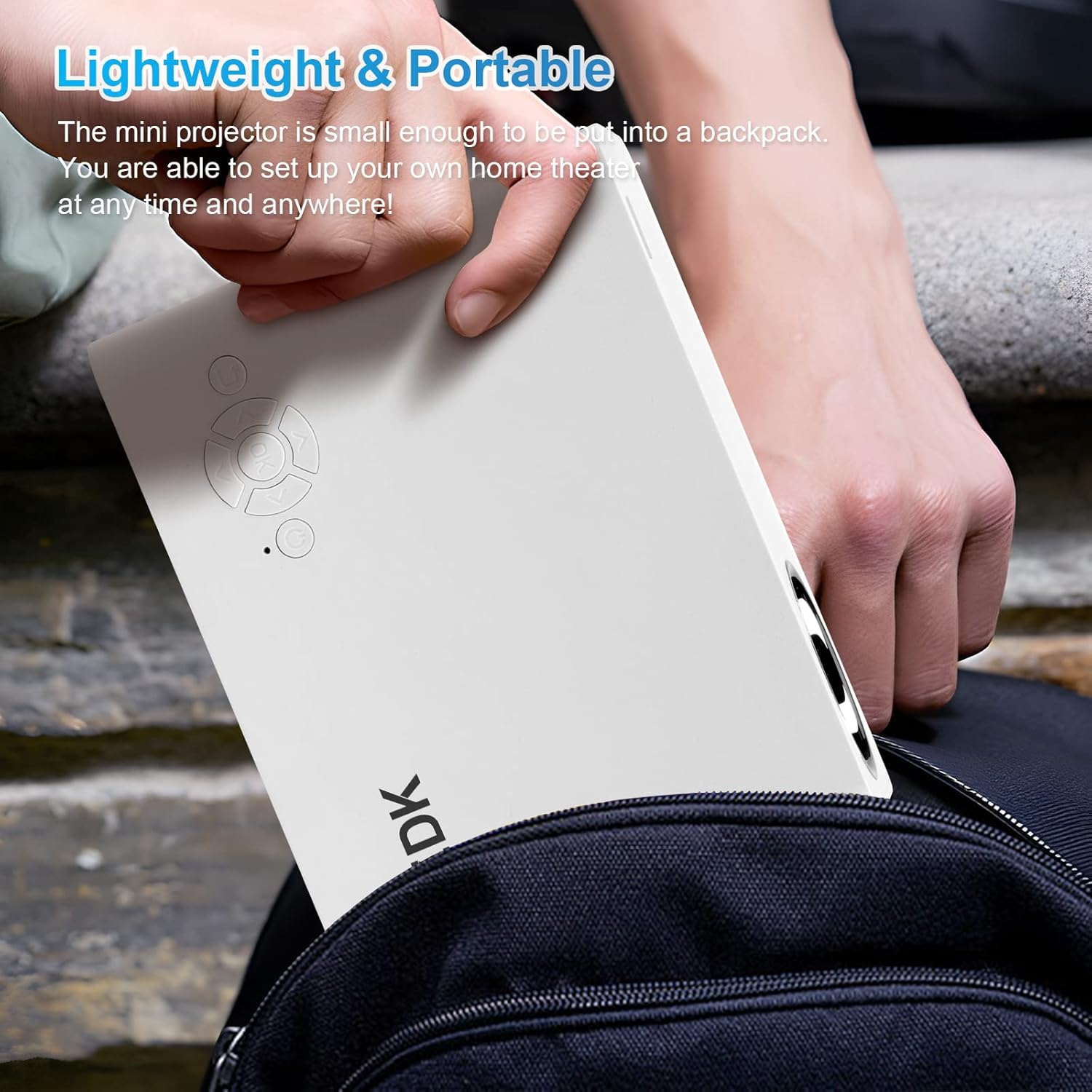
Figure 6: The ZDK Mini Projector's compact and lightweight design makes it highly portable, easily fitting into a backpack for on-the-go entertainment.
8. Warranty and Support
ZDK provides after-sales service for its products. If you encounter any issues or have questions regarding your ZDK Mini Projector, please do not hesitate to contact our customer support team. We are committed to providing assistance and will respond to your inquiries within 24 hours.
For support, please refer to the contact information provided on the product packaging or the official ZDK website.
Related documentsGC03


Ask a question about this manual
Ask about setup, troubleshooting, compatibility, parts, safety, or missing instructions. Manuals+ will review the question and use this page’s manual context to help answer it.