
BDFFLY B0BJ24Z9XC
BDFFLY TV LED Backlight with HDMI 2.0 Sync Box User Manual
Model: B0BJ24Z9XC
Introduction
Thank you for purchasing the BDFFLY TV LED Backlight with HDMI 2.0 Sync Box. This product is designed to enhance your viewing experience by synchronizing LED backlighting with the colors displayed on your TV screen. This manual provides detailed instructions for installation, operation, maintenance, and troubleshooting to ensure optimal performance and enjoyment of your device.
Package Contents
Please check the package carefully to ensure all items are present and in good condition.
- 1 x HDMI Control Box
- 2 x Light Strips (12.5 feet total, in two parts)
- 1 x HDMI Cable
- 1 x Remote Control
- 1 x Power Adapter
- 10 x Clips
- 2 x Solder-free Clips
- 1 x Manual Warranty Card
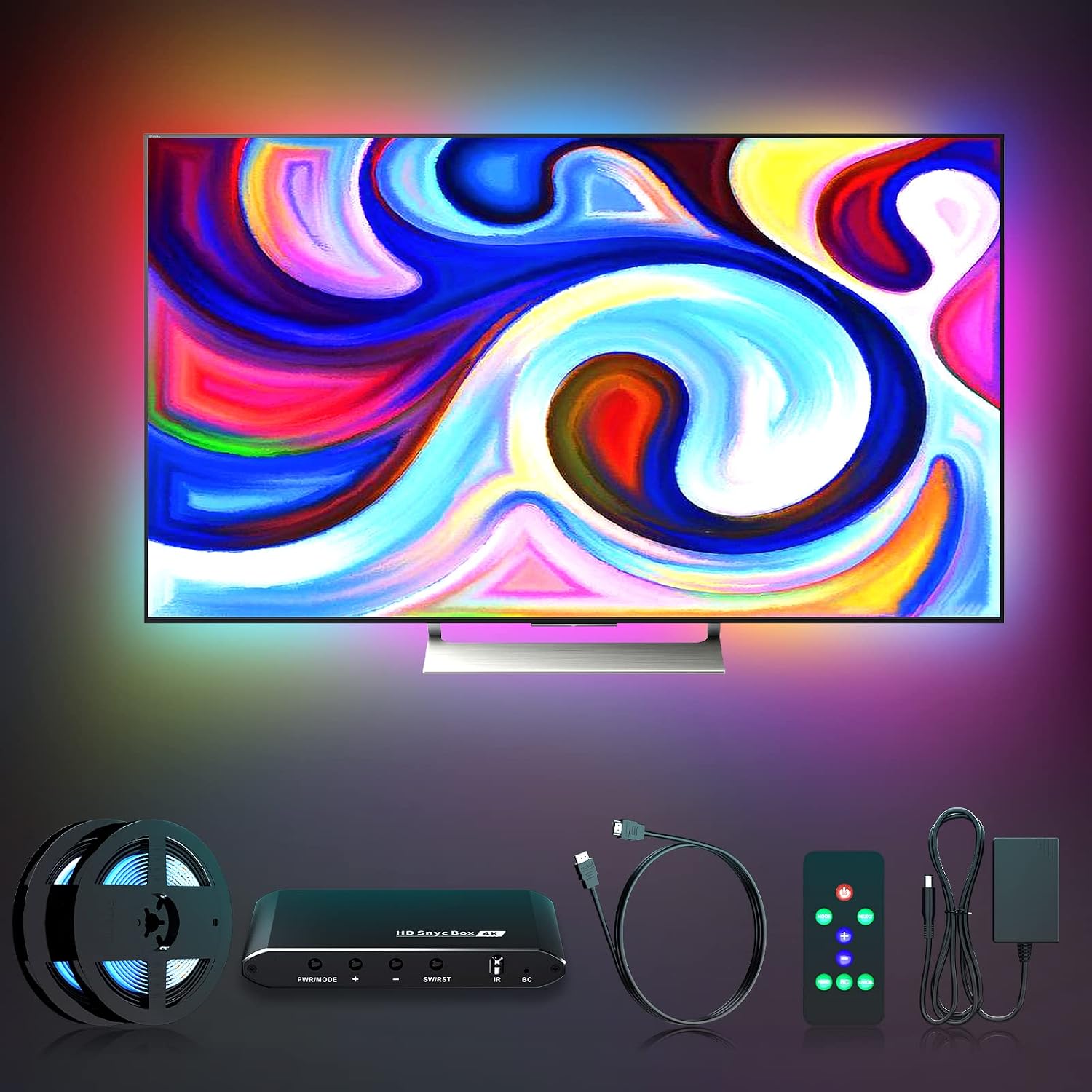
Image: Overview of the BDFFLY TV LED Backlight system components, including the HDMI sync box, two rolls of LED light strips, an HDMI cable, a remote control, and a power adapter.
Safety Information
Please read all safety warnings and instructions carefully before use to prevent injury or damage to the product.
- Do not expose the device to water or excessive humidity.
- Do not attempt to disassemble or modify the device.
- Use only the provided power adapter.
- Ensure proper ventilation around the sync box.
- Keep out of reach of children.
- The LED strips are designed for indoor use only.
Setup and Installation
Follow these steps to properly install your BDFFLY TV LED Backlight system.
1. Prepare the TV Surface
Clean the back of your TV monitor thoroughly to ensure the adhesive on the LED strips adheres properly. Remove any dust, dirt, or grease.

Image: Diagram illustrating the first step of installation: cleaning the back surface of the TV.
2. Attach the Light Strips
Carefully peel off the adhesive backing and paste the light strips in order around the perimeter of your TV. The 12.5-foot light strip consists of two parts and can be securely mounted on all four sides of 55-65 inch monitors using the included clips and adhesive. Each side is connected with a flexible cable. You can adjust the length of the light strip by cutting it between every 3 LEDs.
Image: Diagram showing the second step of installation: attaching the LED light strips to the back of the TV in sequence.
3. Connect the Sync Box
Connect your signal source (e.g., laptop, set-top box, gaming console) to the HD IN port on the HDMI sync box. Then, connect your TV or PC to the HD OUT port. Ensure all connections are secure. Finally, connect the power adapter to the DC 12V port on the sync box and plug it into a power outlet.
Image: Diagram illustrating the third step of installation: connecting input devices to the HDMI sync box's input, the TV to the output, and the power supply.

Image: Detailed diagram of the BDFFLY HDMI Sync Box, showing its various ports (HD IN, HD OUT, DC 12V) and control buttons (SW/RST, +/-, PWR/MODE) with their functions.
Operating Instructions
Powering On/Off
Use the remote control or the PWR/MODE button on the sync box to turn the device on or off.
Color Synchronization
The 4K @ 60Hz HDMI box automatically captures colors from your screen via the HDMI signal and applies them to the TV backlight. This provides full color synchronization with no noticeable delay, creating an immersive viewing experience.
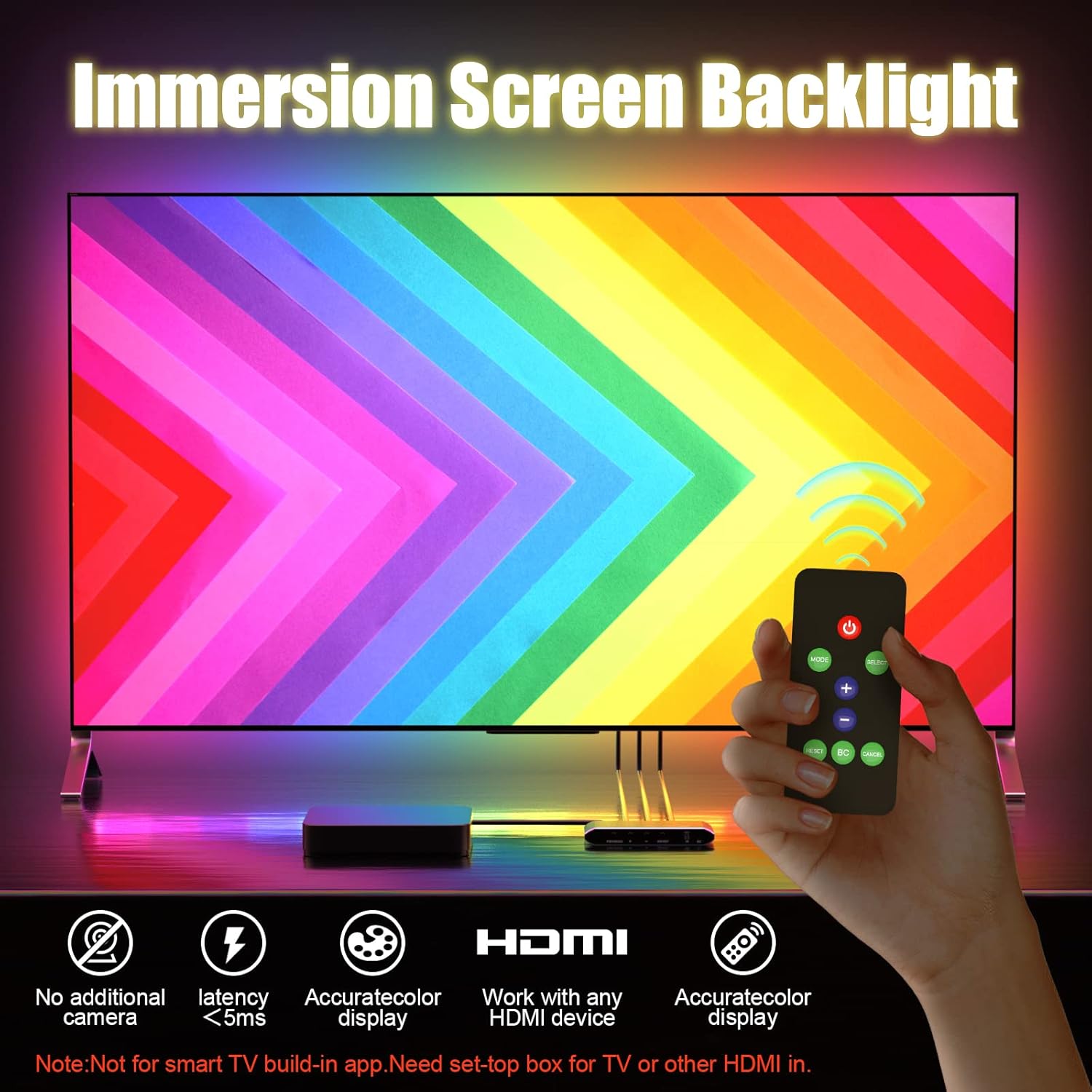
Image: Depiction of the immersive screen backlight feature in action, highlighting its benefits such as low latency and accurate color display without the need for an external camera.

Image: A family enjoying TV with the BDFFLY LED backlight system, demonstrating how the lights synchronize with the on-screen images for an enhanced viewing experience, supporting HDMI 2.0 and 4K@60Hz.
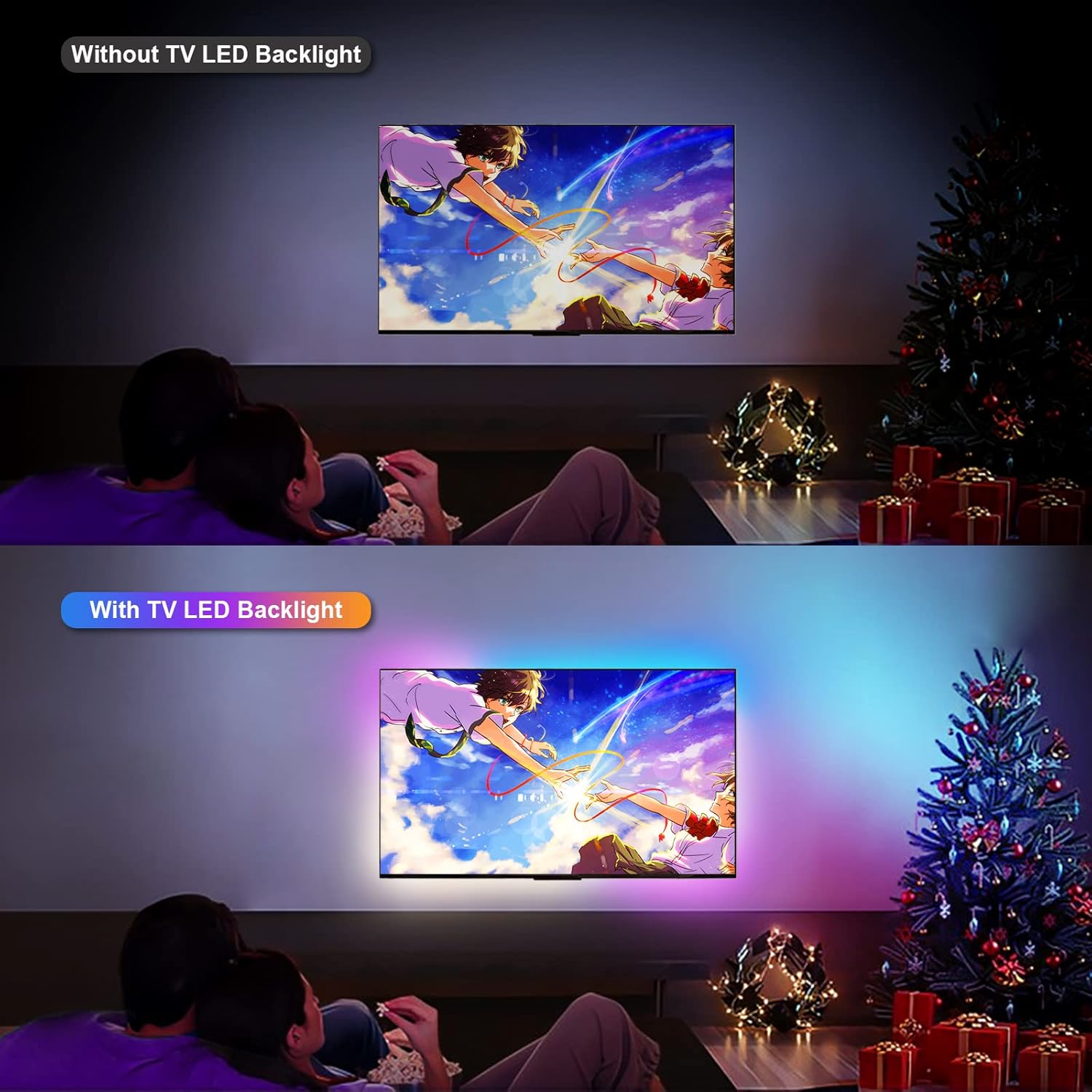
Image: A side-by-side comparison showing a TV setup without LED backlight versus one with the BDFFLY TV LED Backlight, illustrating the significant difference in ambient lighting and immersive effect.
Black Edge Detection
When the device is connected, it automatically detects black edges (the light strip will flash for 2 seconds). If the black border is not detected correctly, you can use the BC button on the HDMI control box to toggle the black border detection function on and off. This ensures an uninterrupted visual experience without interference from black borders.
Remote Control Functions
The included remote control allows you to manage various settings:
- Power Button: Turns the sync box on/off.
- Mode Selection: Cycles through different lighting modes (e.g., sync mode, static colors).
- Brightness Control: Adjusts the intensity of the LED lights.
- Color Selection: For static modes, select desired colors.
- BC Button: Toggles black edge detection.
Maintenance
To ensure the longevity and optimal performance of your BDFFLY TV LED Backlight system, follow these maintenance guidelines:
- Cleaning: Use a soft, dry cloth to clean the sync box and LED strips. Do not use liquid cleaners or abrasive materials.
- Storage: If storing the device for an extended period, disconnect it from power and store it in a cool, dry place.
- Cable Management: Ensure all cables are neatly organized and not under strain to prevent damage.
Troubleshooting
If you encounter any issues with your BDFFLY TV LED Backlight, please refer to the following common problems and solutions:
| Problem | Possible Cause | Solution |
|---|---|---|
| Lights do not turn on. | No power, loose connections, faulty power adapter. |
|
| Lights do not synchronize with screen colors. | Incorrect HDMI connection, sync box in wrong mode, signal issue. |
|
| Lights are flickering or inconsistent. | Loose LED strip connection, power fluctuation, software glitch. |
|
| Black edges are not detected correctly. | Black edge detection setting is off or miscalibrated. |
|
If the problem persists after trying these solutions, please contact BDFFLY customer support for further assistance.
Specifications
| Feature | Detail |
|---|---|
| Brand | BDFFLY |
| Model | B0BJ24Z9XC |
| HDMI Version | HDMI 2.0 (supports 4K@60Hz) |
| Light Source Type | RGBIC LED |
| Number of Light Sources | 48 LEDs (per strip segment, total 48 LEDs mentioned in spec) |
| Power Consumption | 5 Watts |
| Power Source | Corded Electric |
| Controller Type | Remote Control |
| Material | Adhesive |
| Special Feature | Adjustable |
| Item Weight | 640 grams |
| Dimensions (Packaging) | 19.4 x 16.7 x 6.4 cm |
| First Available Date | October 13, 2022 |
Warranty and Support
BDFFLY provides a manual warranty card with your purchase. For warranty claims, technical support, or any inquiries, please refer to the contact information provided on the warranty card or visit the official BDFFLY website.
We are committed to providing friendly after-sales service.
Related documentsB0BJ24Z9XC

Ask a question about this manual
Ask about setup, troubleshooting, compatibility, parts, safety, or missing instructions. Manuals+ will review the question and use this page’s manual context to help answer it.