
1. Introduction
This manual provides comprehensive instructions for the setup, operation, maintenance, and troubleshooting of your SteelSeries Apex Pro TKL (2023) Gaming Keyboard. Please read this manual thoroughly to ensure proper use and to maximize your keyboard's performance.

Image: SteelSeries Apex Pro TKL (2023) Gaming Keyboard. This image displays the full keyboard with its RGB lighting active, showcasing its compact tenkeyless design.
2. Package Contents
Please verify that all items are present in your package:
- SteelSeries Apex Pro TKL (2023) Gaming Keyboard
- Detachable USB-C to USB-A Cable
- Magnetic Wrist Rest
- Product Information Guide (this manual)
3. Setup
3.1 Connecting the Keyboard
- Connect the USB-C end of the provided cable to the port on the back of the Apex Pro TKL keyboard.
- Connect the USB-A end of the cable to an available USB port on your computer.
- The keyboard will automatically be recognized by your operating system.
3.2 Software Installation (SteelSeries GG)
For full customization options, including key remapping, macro creation, RGB lighting effects, and advanced switch settings, download and install the SteelSeries GG software from the official SteelSeries website.
- Visit steelseries.com/gg
- Download and run the installer.
- Follow the on-screen instructions to complete the installation.
4. Operating Instructions
4.1 OmniPoint 2.0 Adjustable HyperMagnetic Switches
The Apex Pro TKL features OmniPoint 2.0 switches, allowing you to customize the actuation point of each key.

Image: Close-up of an OmniPoint 2.0 switch mechanism. This image illustrates the internal components of the switch, highlighting its magnetic actuation technology.
You can adjust the actuation point from 0.1mm to 4.0mm in 0.1mm increments. This can be done directly on the keyboard via the OLED Smart Display or through the SteelSeries GG software.

Image: Visual representation of actuation point adjustment. This graphic shows a scale from 0.1mm to 4.0mm, indicating the customizable actuation depth of the keys.
4.2 Rapid Trigger Mode
Rapid Trigger mode allows for ultra-fast key presses by resetting the actuation point as soon as the key moves upwards, rather than waiting for a fixed reset point. This enables quicker repeated key presses.

Image: Diagram explaining Rapid Trigger mode. This visual demonstrates how key input resets immediately upon upward key movement, allowing for faster consecutive presses.
4.3 2-in-1 Action Keys
Program two different actions to a single key based on how deeply you press it. For example, a light press could trigger one action (e.g., walk), while a deeper press triggers another (e.g., run).

Image: Illustration of 2-in-1 action keys. This graphic shows two distinct key press depths, each associated with a different action icon (e.g., walking and running).
4.4 OLED Smart Display
The integrated OLED Smart Display provides useful information and allows for on-the-fly adjustments without leaving your game.

Image: Close-up of the OLED Smart Display on the keyboard. The display shows actuation settings and is surrounded by RGB-lit keys.
Use the clickable metal roller and media key to navigate the display. Functions include:
- Adjusting actuation points
- Controlling RGB illumination
- Creating and switching profiles
- Viewing notifications from compatible applications (e.g., Discord, Spotify) and games.
4.5 Media Controls and Metal Roller
The clickable metal roller controls volume by default. Pressing it mutes/unmutes audio. The dedicated media key (next to the roller) controls playback (play/pause).
4.6 RGB Illumination
The Apex Pro TKL features per-key RGB illumination. Customize lighting effects, colors, and brightness using the OLED Smart Display or the SteelSeries GG software.
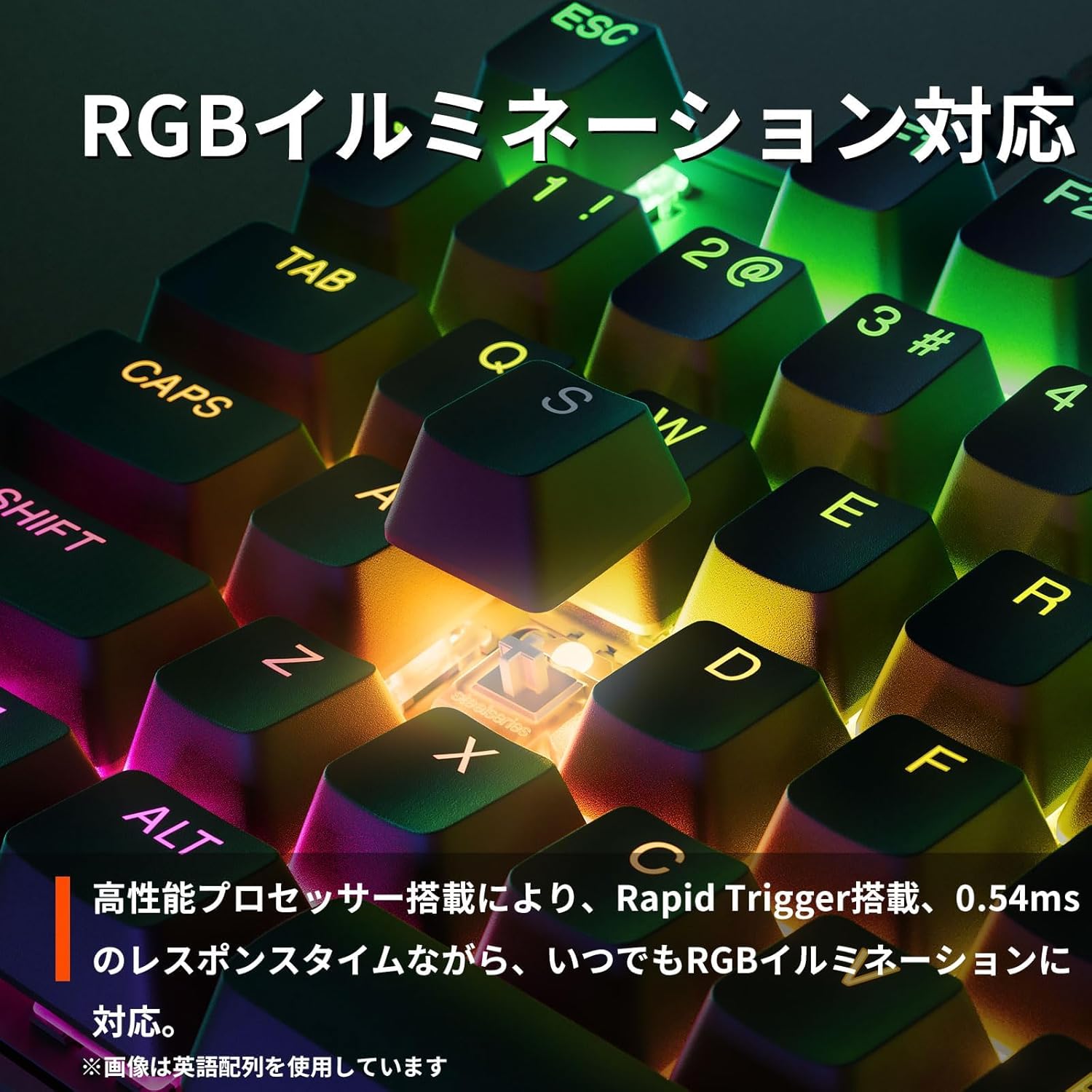
Image: Close-up of keyboard keys with vibrant RGB illumination. The image highlights the individual backlighting of each key, showcasing various colors.
5. Maintenance
5.1 Cleaning the Keyboard
- Disconnect the keyboard from your computer before cleaning.
- Use a soft, lint-free cloth lightly dampened with water or a mild cleaning solution to wipe down the keycaps and chassis.
- Avoid using harsh chemicals, abrasive cleaners, or spraying liquids directly onto the keyboard.
- Use compressed air to remove dust and debris from between the keys.
5.2 Magnetic Wrist Rest Care
Wipe the wrist rest with a damp cloth as needed. Avoid prolonged exposure to direct sunlight or extreme temperatures.
6. Troubleshooting
6.1 Keyboard Not Responding
- Ensure the USB cable is securely connected to both the keyboard and the computer.
- Try connecting the keyboard to a different USB port on your computer.
- Restart your computer.
- If using a USB hub, try connecting the keyboard directly to the computer.
6.2 Keys Not Registering Correctly
- Check for any debris under the keycap that might be obstructing the switch.
- Ensure the actuation point for the affected key is set appropriately (not too high or too low for your preference).
- Update or reinstall the SteelSeries GG software.
6.3 RGB Lighting Not Working
- Check lighting settings via the OLED Smart Display or SteelSeries GG software.
- Ensure the keyboard firmware is up to date through the SteelSeries GG software.
7. Specifications
| Brand | SteelSeries |
| Model Name | Apex Pro TKL (2023) |
| Model Number | 64861 |
| Connectivity | Wired (Detachable USB-C) |
| Key Switches | OmniPoint 2.0 Adjustable HyperMagnetic Switches |
| Actuation Point | 0.1mm to 4.0mm (adjustable) |
| Key Rollover | 104-Key Rollover |
| Anti-Ghosting | 100% |
| On-Board Memory | 5 Custom Profiles |
| Processor | 32-bit ARM |
| Dimensions (L x W x H) | 35.6 cm x 12.8 cm x 4.2 cm |
| Weight | 960 g |
| Frame Material | Aircraft-grade Aluminum Alloy |
| Compatibility | Windows |

Image: Exploded view of the keyboard's internal structure, highlighting the aircraft-grade aluminum alloy frame. This image demonstrates the durable construction of the keyboard.
8. Warranty and Support
8.1 Product Warranty
The SteelSeries Apex Pro TKL (2023) Gaming Keyboard comes with a 1-year manufacturer's warranty from the date of purchase. This warranty covers defects in materials and workmanship under normal use. For full warranty terms and conditions, please refer to the SteelSeries official website or contact customer support.
8.2 Customer Support
For technical assistance, warranty claims, or further information, please visit the official SteelSeries support page: