
REVODATA IF04-P-A-HS
REVODATA HD 5MP Fisheye POE IP Camera User Manual
Model: IF04-P-A-HS | Brand: REVODATA
1. Introduction
This manual provides comprehensive instructions for the setup, operation, and maintenance of your REVODATA HD 5MP Fisheye POE IP Camera. Designed for indoor surveillance, this camera offers high-resolution video, a wide 180° viewing angle, and flexible power options including Power over Ethernet (PoE).

Figure 1: Front view of the REVODATA HD 5MP Fisheye POE IP Camera.
2. Product Features
- HD 5MP Resolution: Captures clear and fluid images/videos at 2880 x 1616P, providing detailed and sharp visuals.
- POE and DC Support: Supports 48V 802.3af Power over Ethernet (PoE) for simplified wiring, and also operates with a standard 12V 2A DC power supply.
- Built-in Microphone: Features an integrated microphone to capture audio around the camera, enhancing security information.
- 1.7mm Fisheye Lens: Offers a wide 180° viewing angle, allowing for comprehensive coverage of a larger area with a single camera.
- H.265/H.264 Dual Encoding: Compatible with both H.264 and H.265 compression, with H.265 requiring half the bandwidth for similar quality, saving storage space.
- IR Night Vision: Equipped with 3 Array LED IR lights for invisible night vision, with a range of 10-20 meters. The camera automatically switches to black and white in low light conditions.
- Motion Detection Alarm: Supports motion detection and P2P cloud function, sending alarm messages to your phone upon human movement detection.
- Remote Access: View and playback surveillance footage remotely via the "Linklemo" APP for smartphones (iOS, Android) and VMS Software for Windows computers.
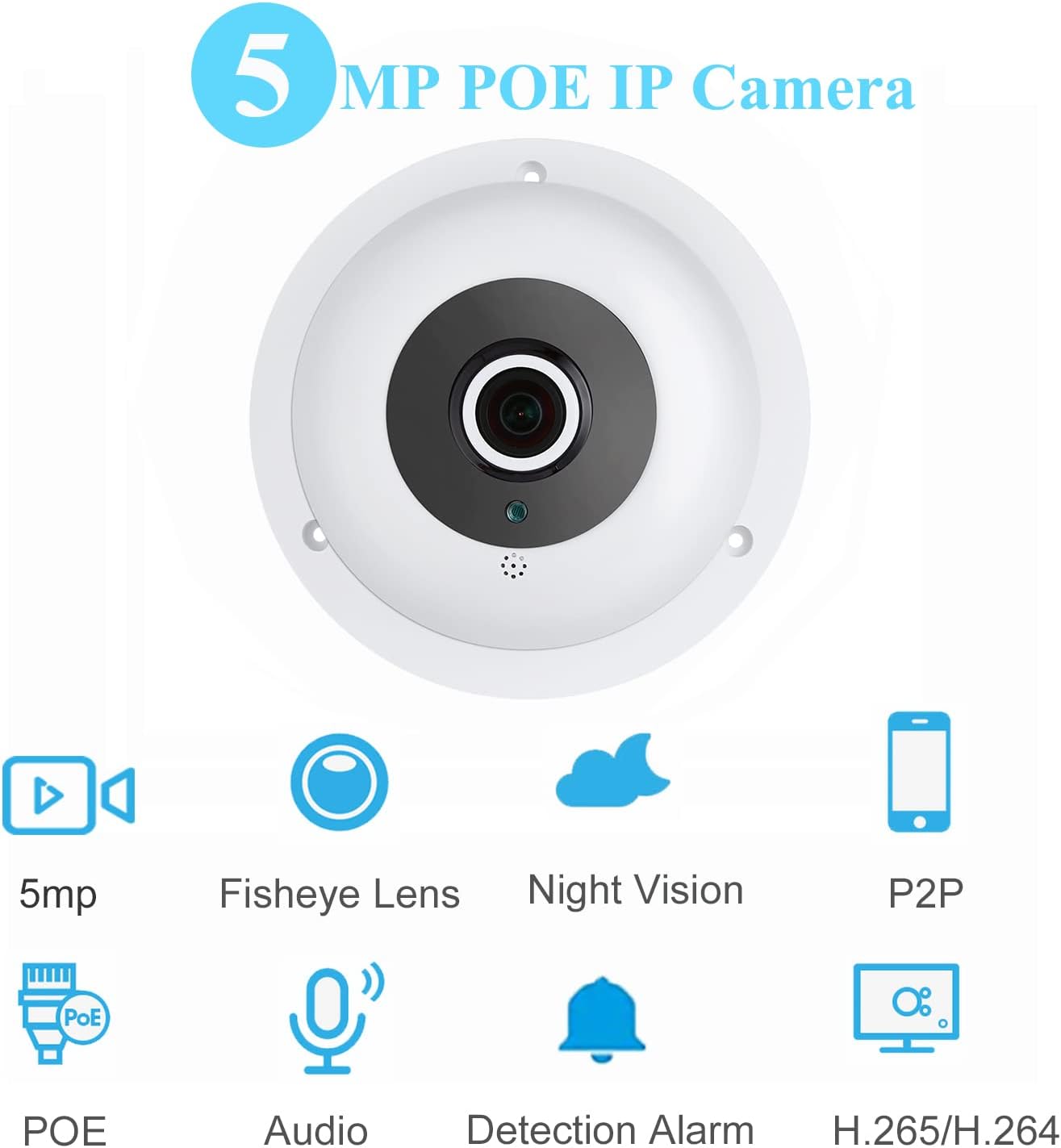
Figure 2: Overview of key features including 5MP resolution, fisheye lens, night vision, P2P, PoE, audio, detection alarm, and H.265/H.264 encoding.

Figure 3: Illustration of the camera's built-in microphone for audio recording.

Figure 4: Details on POE support and the benefits of H.265/H.264 dual encoding for bandwidth and storage saving.

Figure 5: Demonstration of the camera's invisible IR night vision capability and wide viewing angle.
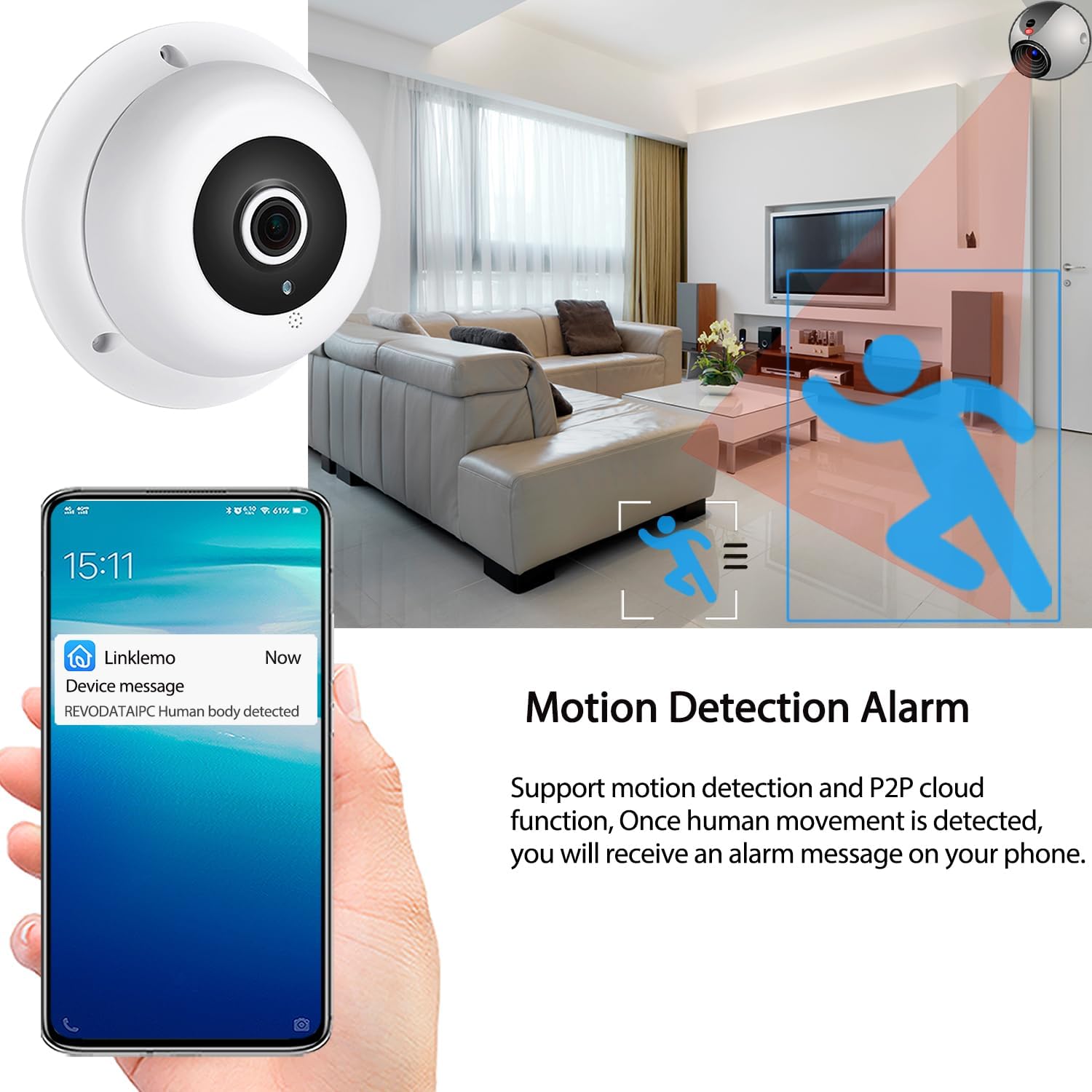
Figure 6: Example of a motion detection alarm notification received on a smartphone.
3. Package Contents
Upon opening the package, please verify that all the following components are included:
- Camera x 1
- Screws set x 1
- User Manual x 1
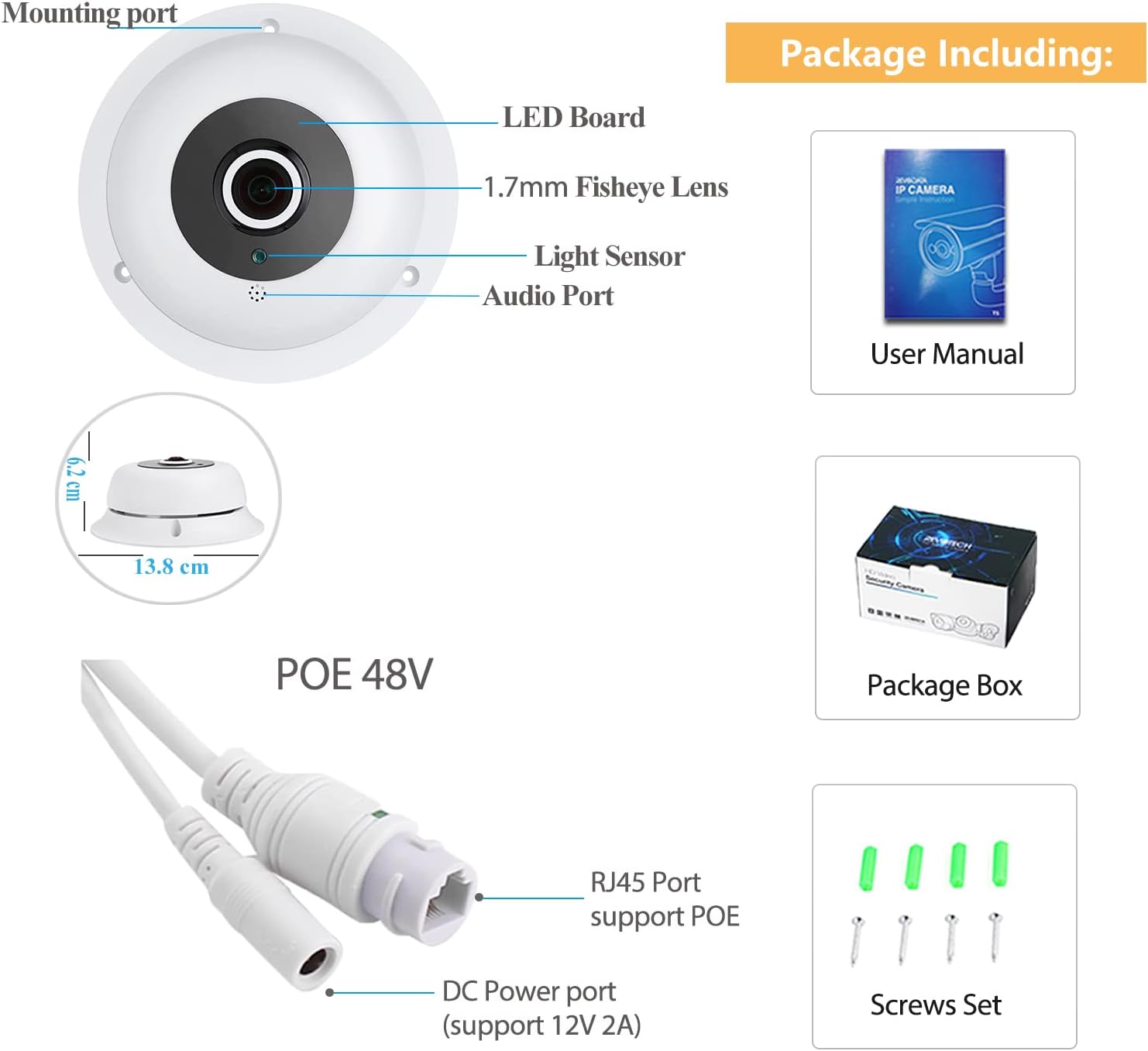
Figure 7: Visual representation of the package contents and camera parts.
4. Setup and Installation
4.1 Powering the Camera
The REVODATA IP Camera supports two power options:
- Power over Ethernet (PoE): Connect an Ethernet cable from a PoE-enabled switch or NVR directly to the camera's RJ45 port. This provides both power and data connectivity through a single cable.
- DC Power: If PoE is not available, connect a standard 12V 2A DC power adapter (not included) to the camera's DC power input port. Then, connect an Ethernet cable from your router or switch to the camera's RJ45 port for network connectivity.
4.2 Mounting the Camera
The camera is designed for wall mounting. Use the provided screws set to securely attach the camera to a suitable indoor surface. Ensure the mounting location provides the desired viewing angle and is within range of your network connection.
5. Operating Instructions
5.1 Connecting to VMS Software (Windows)
To manage and view your camera on a Windows computer, use the VMS software. The software allows for device management, live viewing, playback, and configuration of camera settings.
- Install the VMS software on your Windows computer.
- Launch the VMS software. The default username is admin and the default password is admin.
- Navigate to the Device Manager section to search for and add your camera to the software.
- Once added, you can access live view, adjust settings like video resolution (2880x1616P), frame rate (25fps), audio settings, OSD settings, image settings, and configure alarm management (motion detect, human detect).
- For advanced configuration, you can also access the camera's web interface by entering its dynamic IP address into a web browser. The default username for the web interface is admin and the default password is 123456.
5.2 Connecting to Linklemo APP (iOS/Android)
For convenient mobile access, download and use the "Linklemo" application on your iOS or Android smartphone.
- Download the "Linklemo" app from your device's app store.
- Register or log in to your account.
- Click on "Add Device" or the '+' icon to add your camera. The app may scan for nearby devices.
- Follow the on-screen prompts to complete the pairing process. Ensure your phone and the camera are on the same network during initial setup.
- Once connected, you can view live footage, receive motion detection alerts, and adjust basic camera settings directly from the app.

Figure 8: Comparison of the live view interface on the Linklemo mobile app and the VMS desktop software.
5.3 Video Demonstration: Software and App Connection
Video 1: This video demonstrates the process of connecting the REVODATA IP camera to the VMS software on a computer and the Linklemo smartphone application. It covers logging in, adding devices, and accessing live view and settings within both interfaces.
6. Maintenance
- Cleaning: Gently wipe the camera lens and body with a soft, dry cloth. Avoid using harsh chemicals or abrasive materials.
- Firmware Updates: Periodically check the manufacturer's website or app for available firmware updates to ensure optimal performance and security.
- Environmental Conditions: Ensure the camera is used within its specified indoor environment. Avoid exposing it to extreme temperatures, humidity, or direct water.
7. Troubleshooting
| Problem | Possible Cause / Solution |
|---|---|
| Camera not powering on. |
|
| No video feed in VMS software or app. |
|
| Cannot log in to VMS software or web interface. |
|
| Motion detection alerts not received. |
|
| Poor image quality. |
|
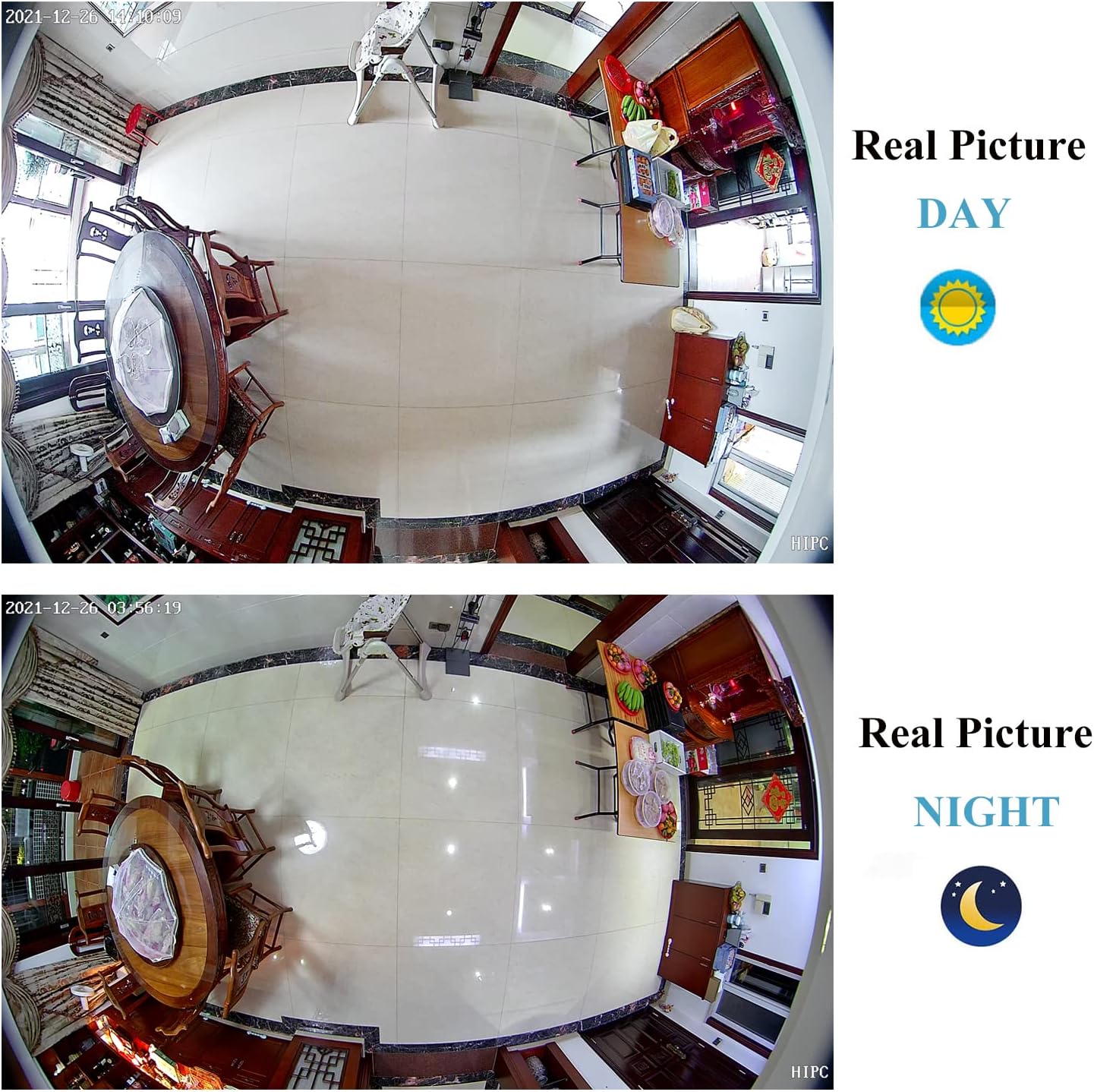
Figure 9: Real-world examples of day and night vision captured by the camera.
8. Specifications
| Feature | Detail |
|---|---|
| Brand | REVODATA |
| Model Number | IF04-P-A-HS |
| Video Resolution | 5.0 Megapixels (2880 x 1616P) |
| Lens | 1.7mm Fisheye Lens |
| Viewing Angle | 180 Degrees |
| Night Vision Range | 10-20 meters (Invisible IR) |
| Audio | Built-in Microphone (1-way audio) |
| Video Compression | H.265/H.264 Dual Encoding |
| Frame Rate | 25 fps |
| Connectivity | Ethernet (LAN) |
| Power Source | Wired (48V PoE or 12V 2A DC) |
| Power Consumption | 1.5 Watts |
| Material | Plastic |
| Dimensions (L x W x H) | 13.8 x 6.2 x 13.8 cm |
| Mounting Type | Wall Mount |
| Supported Platforms | Android, iOS (Linklemo App), Windows (VMS Software) |
9. Warranty and Support
For warranty information and technical support, please refer to the documentation provided with your purchase or contact REVODATA customer service directly. Keep your purchase receipt for warranty claims.
Related documentsIF04-P-A-HS


Ask a question about this manual
Ask about setup, troubleshooting, compatibility, parts, safety, or missing instructions. Manuals+ will review the question and use this page’s manual context to help answer it.