1. Introduction
This manual provides comprehensive instructions for the installation, operation, and maintenance of your Zyxel True WiFi 6 AX1800 Wireless Gigabit Business Access Point. Please read this manual thoroughly before using the device to ensure proper setup and optimal performance. This device is designed to provide robust and secure wireless connectivity for business environments, supporting the latest WiFi 6 (802.11ax) standard.
2. Product Overview
The Zyxel AX1800 Wireless Gigabit Business AP is a high-performance access point featuring WiFi 6 technology, designed for seamless and secure wireless networking. It supports mesh networking, seamless roaming, and includes a captive portal for enhanced network management. This model comes with a CNP+ Security Bundle, offering advanced threat protection and application bandwidth management.

Front view of the Zyxel AX1800 Wireless Access Point, showing the Zyxel logo and LED indicator.
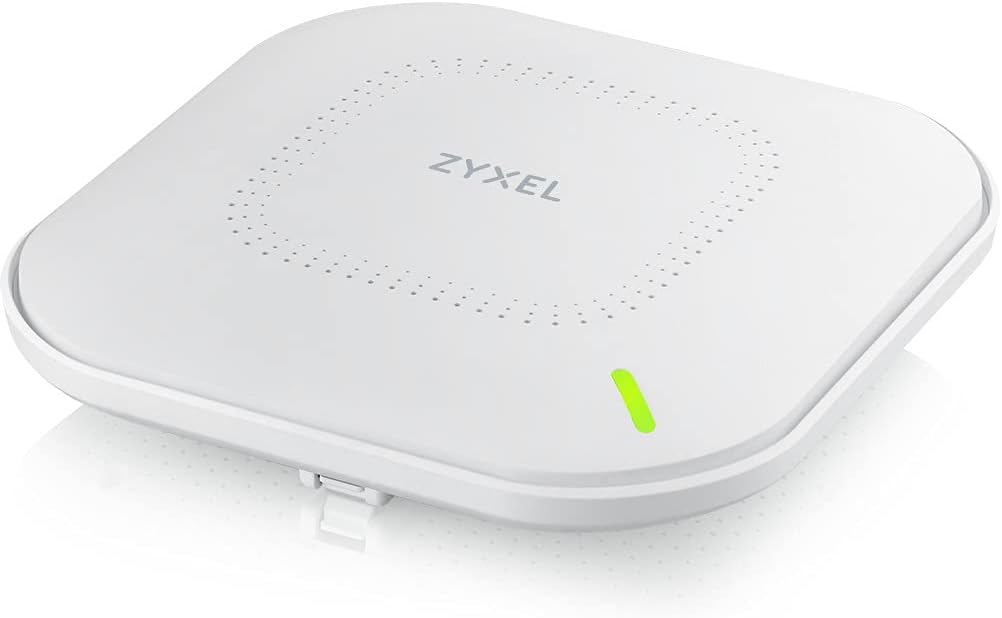
Angled view of the Zyxel AX1800 Wireless Access Point, highlighting its sleek design.

Bottom view of the Zyxel AX1800 Wireless Access Point, showing the UPLINK port and DC 12V power input.
Key Features:
- True WiFi 6 (802.11ax) Performance: Delivers faster speeds and greater capacity.
- Quad-Core CPU: Powered by a Qualcomm 1Ghz A53 CPU for robust performance.
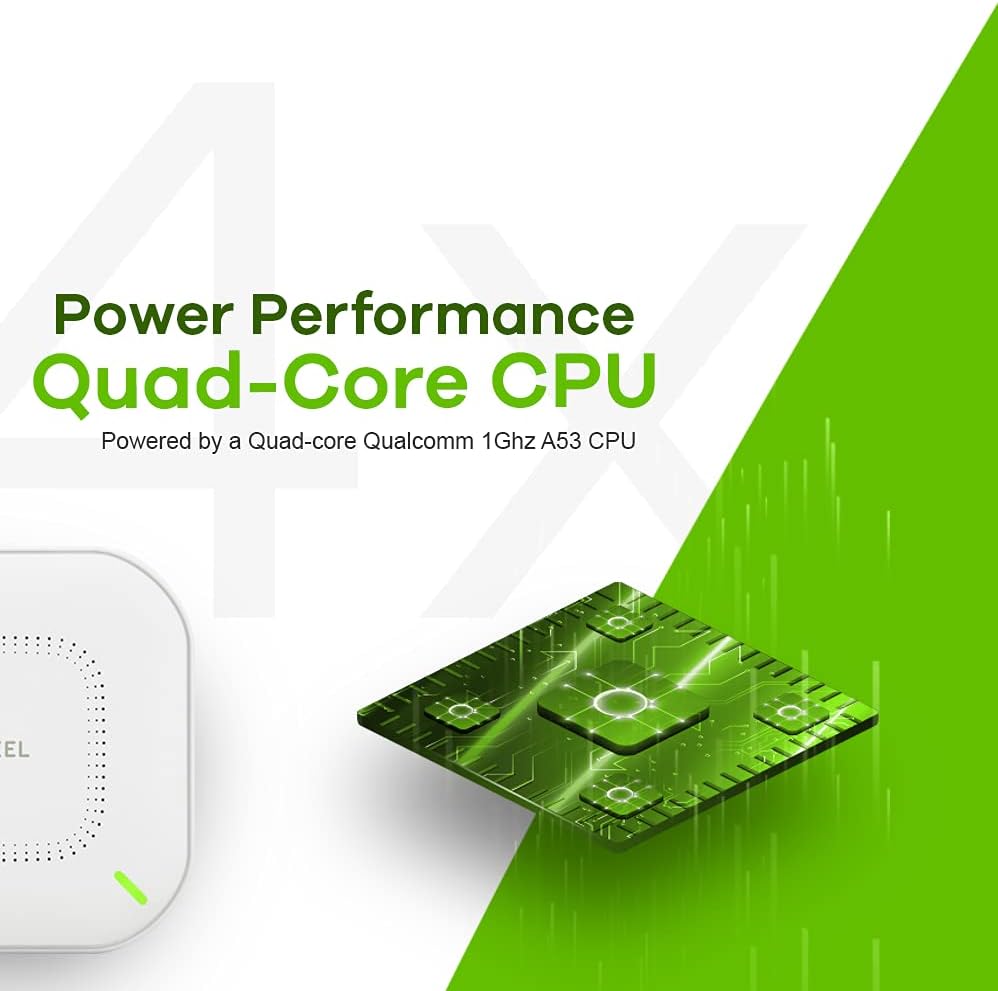
Visual representation of the Quad-Core CPU powering the device.
- NebulaFlex™: Easily switch between traditional standalone mode and the license-free Nebula cloud management platform.
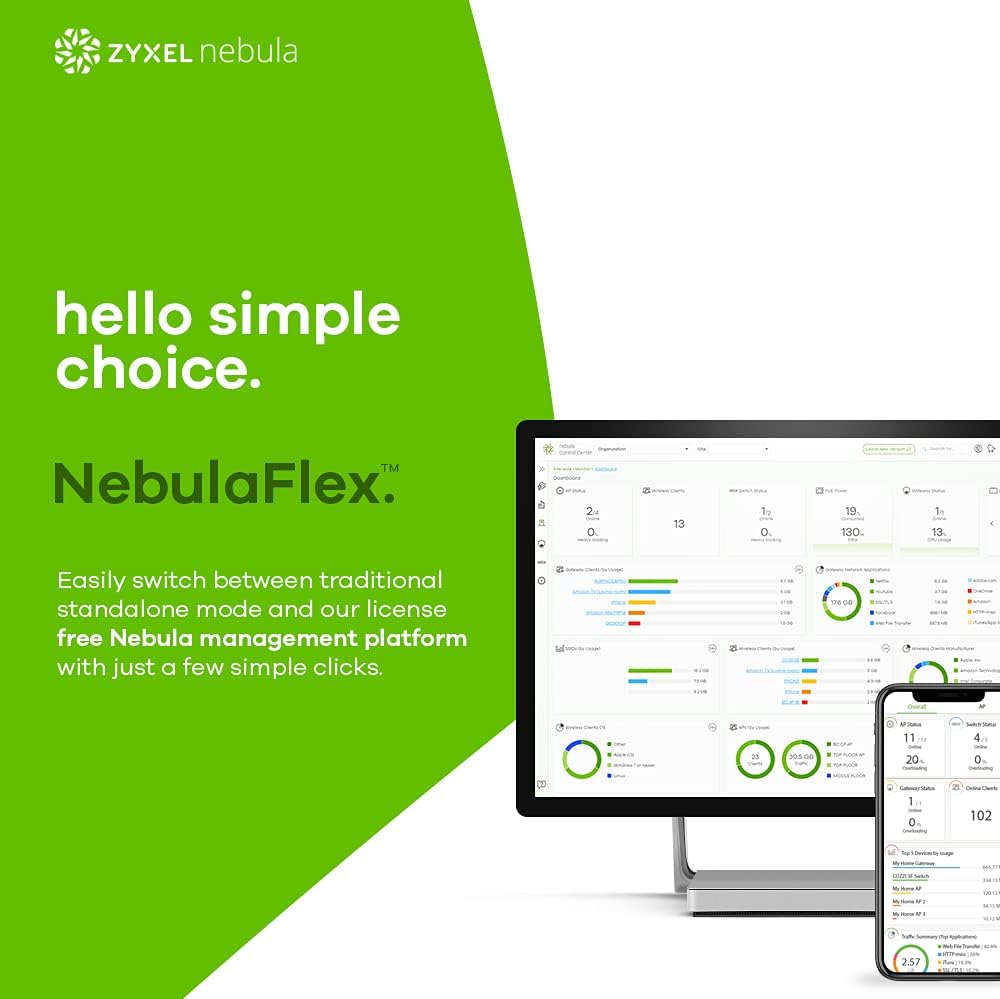
Screenshot illustrating the NebulaFlex interface for easy management.
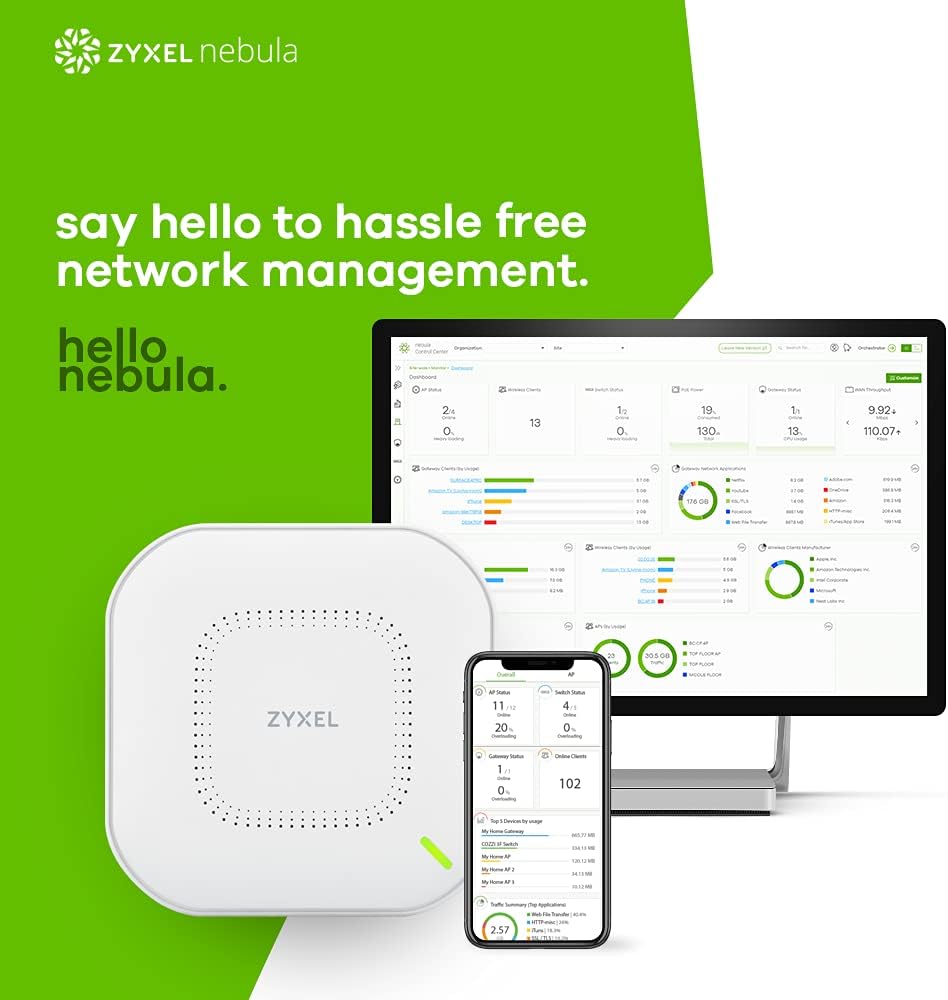
Overview of the Nebula cloud network management dashboard.
- Connect & Protect Plus (CNP+): Includes 1-year WiFi security service for enhanced network defense.

Icon representing the Connect & Protect Plus security service.
- Threat Protection with Application Bandwidth Management: Protects against cybersecurity risks and allows prioritization of crucial business operations.

Diagram illustrating threat protection and application bandwidth management capabilities.
- Hybrid Cloud Management: Flexible deployment options.
- POE+ or AC Powered: Versatile power options, AC adapter included.
3. Package Contents
Verify that your package contains the following items:
- Zyxel AX1800 Wireless Gigabit Business Access Point
- AC Power Adapter
- Mounting Kit (if applicable, for wall/ceiling mounting)
- Quick Start Guide (refer to this manual for detailed instructions)
If any items are missing or damaged, please contact your vendor or Zyxel support immediately.
4. Setup
4.1. Powering the Device
The Zyxel AX1800 can be powered using either Power over Ethernet (PoE+) or the included AC power adapter.
- Using AC Adapter: Connect the included AC power adapter to the "DC 12V" port on the back of the AP and plug the other end into a power outlet.
- Using PoE+: Connect an Ethernet cable from a PoE+ enabled switch or injector to the "UPLINK" port on the back of the AP. The device will power on automatically.
4.2. Network Connection
Connect an Ethernet cable from your network router or switch to the "UPLINK" port on the Zyxel AX1800 AP.
4.3. Initial Configuration
The Zyxel AX1800 supports two primary configuration modes: Standalone and Nebula Cloud Management.
4.3.1. Standalone Mode Configuration
- Ensure the AP is powered on and connected to your network.
- Connect a computer to the same network as the AP.
- Open a web browser and enter the default IP address of the AP (refer to the Quick Start Guide or Zyxel support for the default IP, typically 192.168.1.2).
- Log in using the default username and password (e.g., admin/1234).
- Follow the on-screen wizard to configure your wireless network (SSID, password, security settings).
- Change the default login credentials for security purposes.
4.3.2. Nebula Cloud Management Configuration
For cloud-based management, register your device with the Zyxel Nebula platform.
- Visit the Zyxel Nebula website (https://nebula.zyxel.com) and create an account if you don't have one.
- Log in to your Nebula account.
- Add your Zyxel AX1800 AP to your organization and site by scanning the QR code on the device or entering its MAC address and serial number.
- The AP will automatically connect to the Nebula cloud and download its configuration.
- Manage your wireless network, security settings, and other features directly from the Nebula dashboard.
5. Operating the Device
5.1. Wireless Connectivity
Once configured, the Zyxel AX1800 will broadcast your specified wireless networks (SSIDs). Devices can connect to these networks using the configured passwords.
5.2. LED Indicators
The LED indicator on the front of the AP provides status information:
- Solid Green: Device is powered on and operating normally.
- Flashing Green: Device is booting up or performing a firmware upgrade.
- Solid Amber: Device is in standalone mode and awaiting initial configuration or has a minor issue.
- Flashing Amber: Device has a critical error or is unable to connect to the Nebula cloud (if configured for cloud management).
- Off: Device is powered off.
5.3. Advanced Features
- Mesh Networking: Extend your wireless coverage by deploying multiple Zyxel APs in a mesh configuration. Refer to the Nebula documentation for detailed setup.
- Seamless Roaming: Ensures smooth transitions for wireless clients between APs without interruption.
- Captive Portal: Configure a customizable login page for guest access, often used in public or business environments.
- Security Features (CNP+): Utilize the included security services for threat protection, content filtering, and application control. Access these features via the Nebula dashboard.
6. Maintenance
6.1. Firmware Updates
Regularly update the device firmware to ensure optimal performance, security, and access to new features. Firmware updates can be managed via the standalone web interface or automatically through the Nebula cloud platform.
6.2. Cleaning
Clean the exterior of the device with a soft, dry cloth. Do not use liquid cleaners or aerosols. Ensure the device is powered off before cleaning.
6.3. Resetting to Factory Defaults
To reset the device to its factory default settings, locate the reset button (usually a small pinhole) on the device. With the device powered on, use a paperclip or similar pointed object to press and hold the reset button for approximately 5-10 seconds until the LED indicator changes behavior (e.g., flashes rapidly). Release the button, and the device will reboot with factory defaults.
7. Troubleshooting
| Problem | Possible Cause | Solution |
|---|---|---|
| No power / LED off | Power adapter not connected; PoE+ not active or faulty cable. | Check power adapter connection and outlet. Verify PoE+ switch/injector is active and Ethernet cable is functional. |
| Cannot connect to Wi-Fi network | Incorrect Wi-Fi password; AP not broadcasting SSID; AP not configured. | Verify Wi-Fi password. Check AP configuration via web interface or Nebula. Ensure AP is powered on and LED is solid green. |
| Slow Wi-Fi speeds | Interference; AP placement; outdated firmware; too many connected devices. | Relocate AP away from obstructions/interference sources. Update firmware. Reduce number of active devices or consider adding more APs. |
| Cannot access AP web interface | Incorrect IP address; network connectivity issue; AP in Nebula mode. | Verify AP's IP address. Ensure your computer is on the same subnet. If using Nebula, manage via the cloud platform. Try resetting the AP to factory defaults. |
| Nebula cloud connection issues | Internet connectivity issue; firewall blocking; incorrect Nebula registration. | Check internet connection. Ensure firewall allows outbound connections to Nebula servers. Verify AP is correctly registered in your Nebula account. |
8. Specifications
| Feature | Detail |
|---|---|
| Model Number | AX1800 | WiFi 6 | Bundle |
| Brand | ZYXEL |
| Wireless Standard | 802.11ax (WiFi 6) |
| Frequency Band Class | Dual-Band |
| Data Transfer Rate | Up to 177 Gigabits Per Second (theoretical) |
| Number of Ports | 3 (likely 1x Uplink, 2x Passthrough/LAN, though spec only says 3) |
| Connectivity Technology | Wi-Fi, Ethernet |
| Control Method | App (Nebula Cloud), Web Interface |
| Special Feature | WPS, Mesh, Seamless Roaming, Captive Portal, CNP+ Security Bundle |
| Compatible Devices | Desktop (and other Wi-Fi enabled devices) |
| Recommended Uses | Home (also suitable for small business/office environments) |
| Product Dimensions | 7 x 7 x 7 inches |
| Item Weight | 2.12 pounds |
| Date First Available | November 18, 2022 |
| Manufacturer | Zyxel |
9. Warranty and Support
For warranty information, please refer to the warranty card included with your product or visit the official Zyxel website. Zyxel provides technical support for its products. For assistance, please visit the Zyxel support portal or contact their customer service through the details provided on their official website.
Zyxel Support Website: https://www.zyxel.com/us/en/support


