
Desktronic HomePro
Desktronic HomePro Sit-Stand Desk User Manual
Model: HomePro (140x70 cm, Grey + White)
1. Introduction
This manual provides essential instructions for the assembly, operation, maintenance, and troubleshooting of your Desktronic HomePro electric sit-stand desk. Please read this manual thoroughly before use to ensure safe and efficient operation.
The Desktronic HomePro desk is designed to enhance your workspace with its height-adjustable functionality, dual motors for smooth transitions, and integrated USB/USB-C charging ports. It features a durable 140x70 cm tabletop and memory presets for personalized height settings.

Image: A user demonstrating the standing position at the Desktronic HomePro desk, highlighting its ergonomic benefits.
2. Safety Information
Adherence to the following safety guidelines is crucial for preventing injury and damage to the product:
- Always follow the assembly instructions carefully.
- Keep the desk away from heat sources and liquids.
- Do not use the desk if the power cord is damaged.
- Ensure the desk is stable and does not make unusual noises during operation. If it does, discontinue use and consult support.
- Keep the desk clean and dry.
- Always unplug the desk when not in use or when left unattended.
- Do not allow children or pets to play on or around the desk during operation.
- Ensure there are no obstructions in the desk's path when adjusting height.
3. Package Contents
Before assembly, verify that all components are present. The package should include:
- Desktop (140x70 cm, Grey + White)
- Desk Frame (Dual Motor System)
- Control Panel with Touchscreen and USB/USB-C ports
- Power Adapter and Cable
- Assembly Hardware (screws, tools if provided)
- Instruction Manual
4. Setup and Assembly
Assembly of the Desktronic HomePro desk is designed to be straightforward. It typically takes approximately 30 minutes and does not require drilling.
- Unpack Components: Carefully remove all parts from the packaging and lay them out on a clean, soft surface to prevent scratches.
- Assemble the Frame: Attach the desk legs to the crossbar and feet using the provided screws and tools. Ensure all connections are secure.
- Attach Desktop: Place the desktop upside down on the soft surface. Carefully align the assembled frame with the pre-drilled holes on the underside of the desktop. Secure the frame to the desktop using the designated screws.
- Install Control Panel: Mount the touchscreen control panel to the underside of the desktop in the designated slot. Connect the motor cables and power cable to the control box and then to the control panel.
- Cable Management: Utilize the integrated cable trays to organize and secure all power and data cables, ensuring they do not interfere with the desk's movement.
- Power Connection: Connect the power adapter to the desk and then plug it into a wall outlet.
- Initial Calibration: After assembly and power connection, perform an initial calibration as per the instructions in the operating section to synchronize the motors.

Image: Detailed view of the desk's robust construction, including the dual crossbar and steel frame, ensuring stability.
5. Operating Instructions
The Desktronic HomePro desk features an intuitive touchscreen control panel for easy height adjustments and device charging.
5.1. Basic Height Adjustment
- Raise Desk: Press and hold the "Up" arrow button on the touchscreen until the desk reaches your desired standing height.
- Lower Desk: Press and hold the "Down" arrow button on the touchscreen until the desk reaches your desired sitting height.
- The current height in centimeters will be displayed on the control panel.

Image: Key operational features of the desk, including dual motors and lift speed.
5.2. Memory Presets
The desk allows you to save up to three preferred height settings for quick adjustments.
- Set a Memory Position: Adjust the desk to your desired height using the Up/Down buttons. Press the "M" button, then press one of the numbered buttons (1, 2, or 3) within 3 seconds. The display will confirm the setting is saved.
- Recall a Memory Position: Simply press the corresponding numbered button (1, 2, or 3) to automatically move the desk to the saved height.
5.3. USB/USB-C Charging Ports
The control panel includes integrated USB-A and USB-C ports for convenient charging of your electronic devices.
- Simply plug your device's charging cable into the appropriate port on the control panel.
- These ports provide fast charging capabilities.

Image: The touchscreen control panel with integrated USB-A and USB-C ports, illustrating convenient device charging and height adjustment.
6. Maintenance
Regular maintenance ensures the longevity and optimal performance of your Desktronic HomePro desk.
- Cleaning: Wipe the desktop and frame with a soft, damp cloth. Avoid abrasive cleaners or harsh chemicals that could damage the surface. Ensure the desk is unplugged before cleaning.
- Cable Management: Periodically check that all cables are securely routed and not pinched or tangled, especially those connected to the motors and control panel.
- Stability Check: Occasionally verify that all screws and connections are tight. Retighten if necessary.
- Motor Inspection: Listen for any unusual noises during height adjustment. If abnormal sounds occur, cease operation and consult the troubleshooting section or contact support.
7. Troubleshooting
If you encounter issues with your Desktronic HomePro desk, refer to the following common problems and solutions:
| Problem | Possible Cause | Solution |
|---|---|---|
| Desk does not move. | Power cable disconnected, motor cable loose, overload. | Check power connection. Ensure all motor cables are securely plugged in. Reduce weight on the desk. Perform a reset (refer to manual for specific reset procedure, if applicable). |
| Desk moves unevenly or makes unusual noise. | Obstruction, loose connection, uneven weight distribution. | Remove any obstructions. Check all assembly screws for tightness. Redistribute weight evenly on the desktop. |
| Memory presets not working. | Presets not saved correctly. | Re-save your desired memory positions following the instructions in section 5.2. |
| USB/USB-C ports not charging. | Desk not powered, device cable faulty, device incompatible. | Ensure the desk is powered on. Try a different charging cable or device. |
If the problem persists after attempting these solutions, please contact Desktronic customer support.
8. Specifications
Key technical specifications for the Desktronic HomePro Sit-Stand Desk:
- Model: HomePro
- Brand: Desktronic
- Desktop Dimensions: 140 cm (Width) x 70 cm (Depth)
- Height Range: 62 cm to 127 cm
- Motors: Dual Electric Motors
- Lift Speed: 50 mm/s
- Weight Capacity: Up to 160 kg
- Control: Touchscreen with 3 Memory Presets
- Connectivity: Integrated USB-A and USB-C Charging Ports
- Tabletop Material: 25 mm European Laminate (Scratch and Stain Resistant)
- Frame Material: Heavy Steel Frame with StableWedge Reinforcement
- Product Weight: Approximately 60 kg
- Color: Grey + White (for this variant)
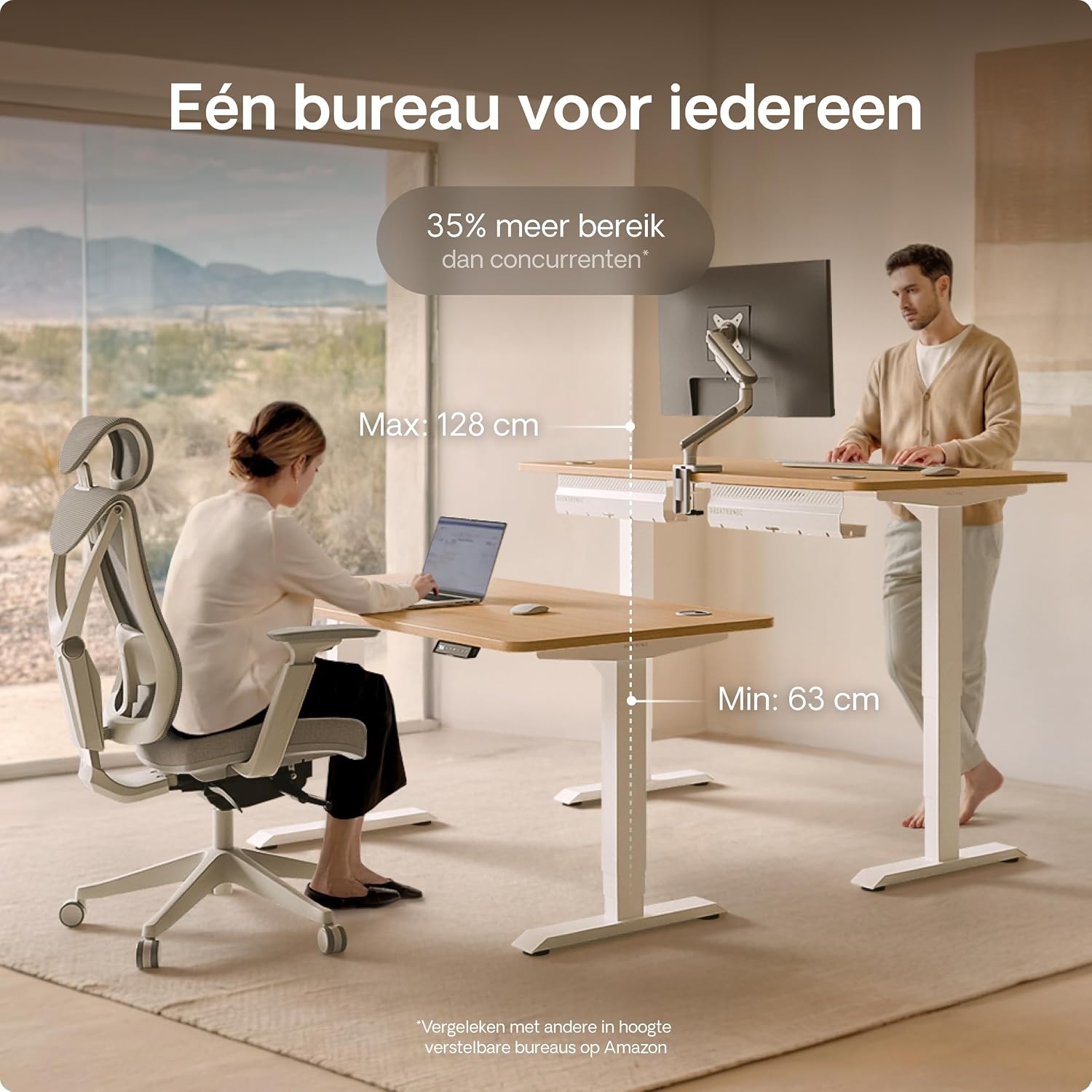
Image: The desk demonstrating its adjustable height range, suitable for various user preferences.

Image: A detailed view of the desk's high-quality European laminate tabletop.
9. Warranty and Support
Desktronic stands behind the quality of its products.
- Warranty: The Desktronic HomePro Sit-Stand Desk comes with a 5-year warranty, ensuring peace of mind regarding its durability and performance.
- Customer Support: For any questions, technical assistance, or warranty claims, please contact our dedicated local support team. Refer to the product packaging or the Desktronic official website for contact details.

Image: Desktronic's quality assurance graphic, emphasizing the 5-year warranty and stability features.
Related documentsHomePro


Ask a question about this manual
Ask about setup, troubleshooting, compatibility, parts, safety, or missing instructions. Manuals+ will review the question and use this page’s manual context to help answer it.