
Bewinner Dilwegyrcfmb8sp862
Bewinner Digital Camera User Manual
Model: Dilwegyrcfmb8sp862
Introduction
Thank you for purchasing the Bewinner Digital Camera. This compact and versatile camera is designed to capture high-quality photos and videos with ease. Featuring 4K Ultra HD video recording, 48MP image resolution, 8x digital zoom, and a 2.7-inch LCD screen, it's perfect for capturing your precious moments. This manual provides detailed instructions on how to set up, operate, and maintain your camera.
Package Contents
Please check the package to ensure all items are present:
- 1 x Bewinner Digital Camera
- 1 x USB Cable
- 1 x User Manual (this document)
- 1 x Storage Bag
- 1 x Wrist Strap

Image: Contents of the Bewinner Digital Camera package.
Product Features
- High Resolution: Supports up to 48MP image resolution and 4K video resolution.
- 8x Digital Zoom: Allows for clear capture of distant objects.
- 2.7-inch LCD Screen: For easy viewing of photos and videos.
- Built-in Fill Light: Improves visibility in low-light conditions.
- Versatile Functions: Includes selfie mode, continuous shooting, and anti-shake.
- Rechargeable Battery: Built-in 550mAh Li-ion battery, rechargeable via USB.
- Expandable Storage: Supports memory cards up to 128GB (not included).

Image: Front view of the Bewinner Digital Camera highlighting its features.
Setup
1. Charging the Battery
The camera comes with a built-in 550mAh lithium battery. Before first use, ensure the battery is fully charged.
- Locate the USB port on the camera.
- Connect the provided USB cable to the camera's USB port.
- Connect the other end of the USB cable to a USB power adapter (not included) or a computer's USB port.
- The charging indicator light will illuminate. Once charging is complete, the light will change or turn off.
2. Inserting a Memory Card
The camera supports memory cards up to 128GB (not included). A memory card is required to save photos and videos.
- Locate the memory card slot on the side of the camera.
- Gently insert the memory card into the slot with the metal contacts facing the correct direction (refer to the diagram on the camera).
- Push the card in until it clicks into place. To remove, push the card again until it springs out.
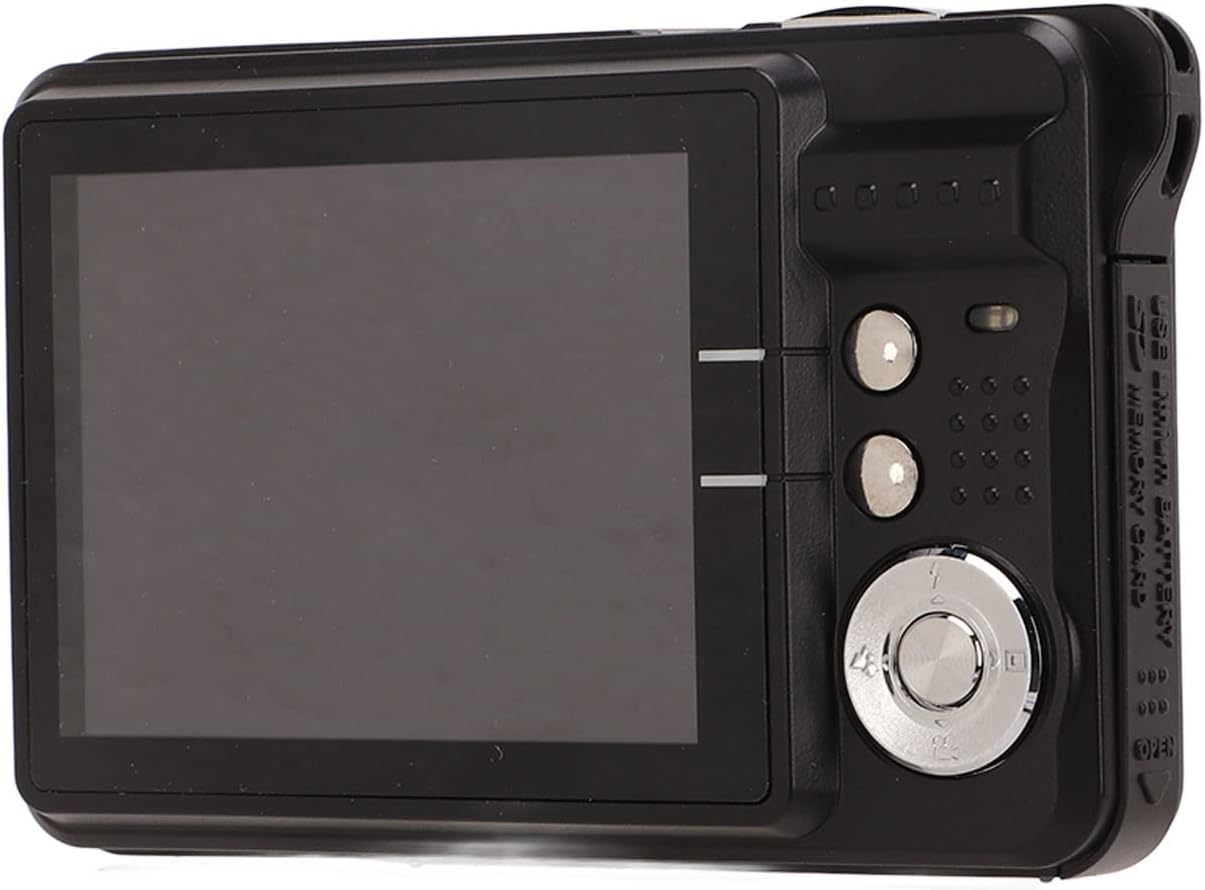
Image: Detail of the USB port and memory card slot for setup.
Operating Instructions
Taking Still Images
- Hold the camera steady and aim it so you can see your subject on the screen.
- Set the shooting menu: Press the A, Flash, or Scene button to adjust flash settings or select a scene mode. Other settings can be accessed and adjusted within the camera's main menu.
- Use the zoom function: Press T to zoom in on a larger subject, or W to widen the field of view.
- Press the shutter button to capture the image.

Image: Rear view of the camera, illustrating the LCD screen and control layout for operation.
Recording Videos
The camera supports video recording up to 4K resolution.
- Switch the camera to video recording mode (if applicable, refer to on-screen icons).
- Frame your shot using the LCD screen.
- Press the record button (usually marked with a red dot or video camera icon) to start recording.
- Press the record button again to stop recording.
Using the Built-in Fill Light
The built-in fill light can be activated in dark environments to improve image brightness.
- Access the camera's menu or dedicated button for flash/fill light settings.
- Select the appropriate fill light mode (e.g., On, Off, Auto) based on your shooting conditions.
Maintenance
- Cleaning: Use a soft, dry cloth to clean the camera body. For the lens, use a specialized lens cleaning cloth and solution. Avoid abrasive materials.
- Storage: When not in use, store the camera in the provided storage bag in a cool, dry place away from direct sunlight and extreme temperatures.
- Battery Care: Recharge the battery regularly, even if the camera is not used frequently, to maintain battery health. Avoid fully discharging the battery for extended periods.
- Avoid Water: This camera is not waterproof. Keep it away from water and high humidity.
Troubleshooting
| Problem | Possible Cause | Solution |
|---|---|---|
| Camera does not turn on. | Battery is depleted or not charged. | Charge the camera battery using the provided USB cable. |
| Cannot take photos/videos. | Memory card is full, not inserted, or corrupted. | Insert a memory card, free up space, or format the card (this will erase all data). |
| Images are blurry. | Camera shake, dirty lens, or incorrect focus. | Hold the camera steady, clean the lens, or ensure proper lighting. |
| Cannot transfer files to computer. | USB cable issue or driver problem. | Ensure USB cable is securely connected. Try a different USB port or computer. |
Specifications
| Feature | Detail |
|---|---|
| Item Type | Digital Camera |
| Material | Plastic and metal |
| Photosensitive Component | CMOS 5MP processor |
| Image Resolution | 48MP (8000x6000), 30MP (6400x4800), 24MP (5600x4200), 20MP (5200x3900), 18MP (4896x3672), 16MP (4608x3456), 12MP (4000x3000), 8MP (3264x2448), 7MP (3072x2304), 5MP (2592x1944), 2MP (1600x1200) |
| Image Format | JPEG |
| Video Resolution | 4K (3840x2160), 2.7K (2688x1520), FHD (1920x1080), HD (1280x720) |
| Video Format | AVI |
| Screen Size | 2.7 inches |
| Digital Zoom | 8x |
| Shutter | Electronic |
| Storage | Maximum support memory card 128GB (not included) |
| Battery | Built-in lithium battery, 550mAh |
| Gross Weight | 164g / 5.8oz |
| Model Number | Dilwegyrcfmb8sp862 |
Warranty and Support
Bewinner products are manufactured to high-quality standards. For warranty information and technical support, please refer to the warranty card included in your package or visit the official Bewinner website. Keep your purchase receipt as proof of purchase.
For further assistance, please contact Bewinner customer service.
Ask a question about this manual
Ask about setup, troubleshooting, compatibility, parts, safety, or missing instructions. Manuals+ will review the question and use this page’s manual context to help answer it.