
1. Overview
The AZDOME M560-3CH Dash Cam is a sophisticated vehicle recording system designed to capture comprehensive footage of your journeys. It features a 3-channel recording system (front, rear, and interior), a 4-inch IPS touchscreen for intuitive control, and built-in 128GB eMMC storage, eliminating the need for an external SD card. Integrated WiFi and GPS functionalities enhance its utility, allowing for easy video management and route tracking. Advanced features like night vision and 24-hour parking monitoring provide continuous security for your vehicle.
2. Package Contents
- AZDOME M560-3CH Dash Cam Unit
- Car Charger
- User Manual
- Rear Camera (with cable)
- Suction Cup Mount
3. Product Features

Figure 3.1: Overview of the AZDOME M560-3CH Dash Cam and its associated mobile application interface, showing GPS tracking and video playback.
3.1. Built-in 128GB eMMC Storage
The M560 dash cam features advanced high-speed eMMC storage with 128GB capacity. This integrated storage offers superior read and write speeds compared to standard SD cards, ensuring efficient data processing and reliable recording without the risk of data loss associated with external memory cards.

Figure 3.2: Illustration of the integrated 128GB eMMC storage, highlighting its internal placement and capacity.
3.2. 3-Channel Recording System
This dash cam provides comprehensive coverage with three recording channels:
- Front Camera: Records in 4K resolution.
- Front + Rear: Records in 2K + 1080P.
- Front + Interior: Records in 2K + 1080P.
- Front + Rear + Interior: Records in 2K + 1080P + 1080P.

Figure 3.3: Visual representation of the 3-channel recording system, showing the wide-angle coverage from the front, cabin, and rear cameras.
3.3. 4-inch IPS Touchscreen
The dash cam is equipped with a 4-inch IPS touch screen, allowing users to access all functions directly from the device. This includes video recording, playback, and settings adjustments, providing an intuitive user experience.

Figure 3.4: A user interacting with the 4-inch IPS touchscreen, demonstrating its ease of use for navigating menus and settings.
3.4. Built-in Wi-Fi
The AZDOME M560 features integrated Wi-Fi connectivity. This allows users to connect their smartphone to the dash cam to view live video feeds, play back recorded footage, and share videos with others.

Figure 3.5: Illustration of the built-in Wi-Fi functionality, showing how the dash cam connects to a smartphone for live viewing, playback, sharing, and downloading videos.
3.5. Built-in GPS
With the integrated GPS, the dash cam records the vehicle's location and speed data. This information can be viewed using the AZDOME GPS player, providing accurate tracking and playback of your driving route and movement, which can be crucial evidence in emergencies.

Figure 3.6: Depiction of the built-in GPS feature, illustrating how location, speed, and route data are recorded and can be viewed on a computer or smartphone.
3.6. Night Vision
The M560 offers excellent night vision capabilities, utilizing the Novatek 96565 processor and GC4653, GC2053, and GC2053 sensors. This technology ensures clear image recording during both day and night conditions.
3.7. 24-Hour Parking Monitoring
The dash cam provides 24-hour parking monitoring with two modes:
- Collision Detection Mode: The G-sensor detects impacts and automatically locks the video footage.
- Time-Lapse Mode: The dash cam can record continuously for 24 hours in time-lapse, capturing events efficiently.
Note: 24-hour parking mode requires connection to a 3-lead hardwire kit (not included, search ASIN: B0BML1DK8W) with an output current of 2.5A.

Figure 3.7: Explanation of the 24-hour parking modes, including collision detection and time-lapse recording.
4. Setup
4.1. Installation
- Mounting the Dash Cam: Attach the suction cup mount to the windshield, ensuring a clear view of the road. Position the dash cam to avoid obstructing your driving view.
- Connecting the Rear Camera: Route the rear camera cable from the main unit to the rear of your vehicle. Secure the rear camera to the rear window.
- Power Connection: Connect the car charger to the dash cam and plug it into your vehicle's cigarette lighter socket. For 24-hour parking monitoring, a hardwire kit (sold separately) is required.
- Cable Management: Neatly tuck away all cables along the windshield trim and dashboard to ensure they do not interfere with driving and maintain a clean appearance.
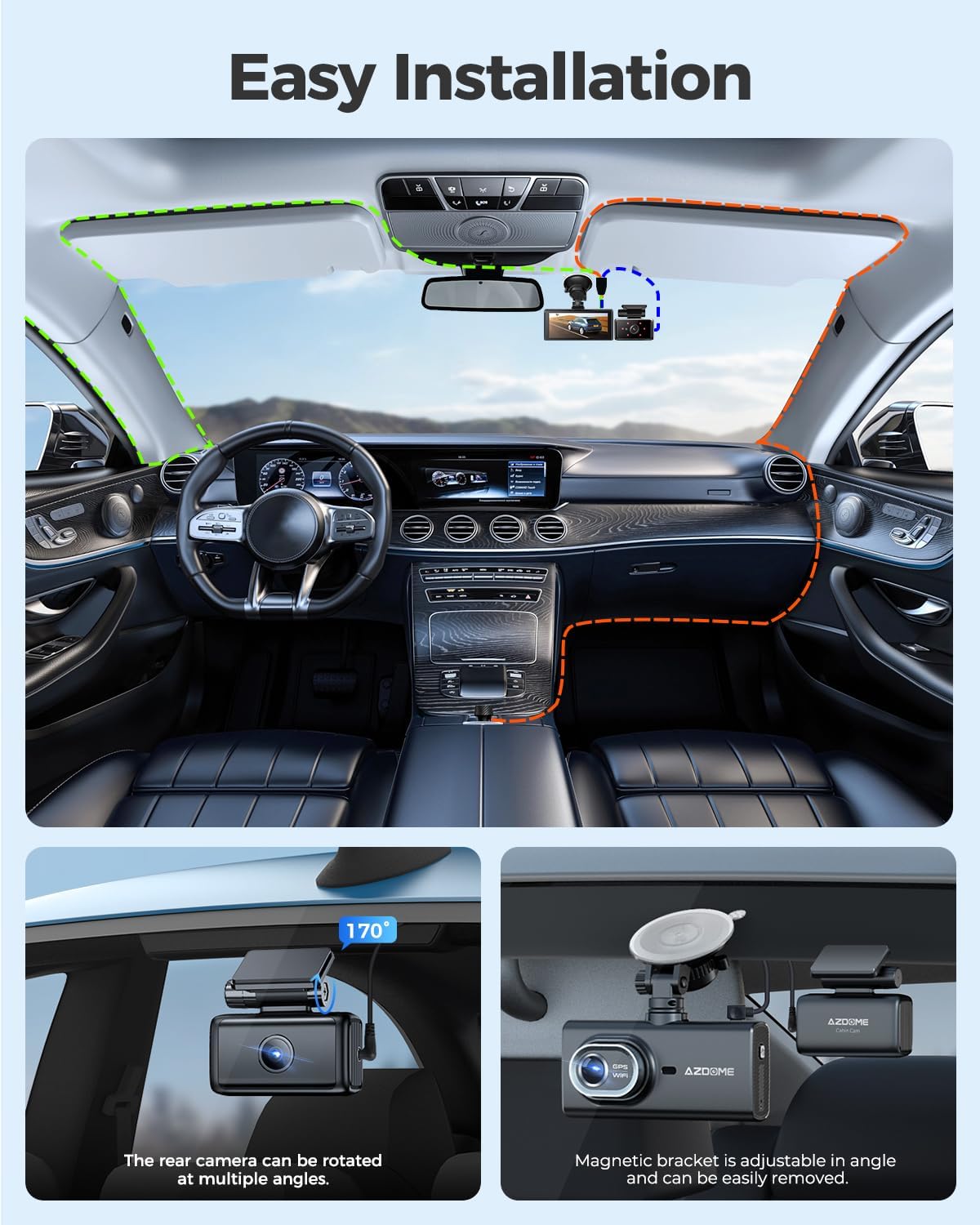
Figure 4.1: Visual guide for the easy installation process, demonstrating proper cable routing and camera placement.
4.2. Initial Settings
Upon first power-on, the dash cam may prompt you to set the date, time, and language. Follow the on-screen instructions using the touchscreen interface. Ensure these settings are accurate for proper video timestamping and GPS data synchronization.
5. Operating Instructions
5.1. Power On/Off
- Automatic: The dash cam will automatically power on and begin recording when your vehicle's ignition is turned on (and power is supplied to the car charger).
- Manual: Press and hold the power button (if available) to manually turn the device on or off.
5.2. Recording Modes
- Loop Recording: The dash cam continuously records video in short segments (e.g., 1, 3, or 5 minutes). When the eMMC storage is full, the oldest unlocked files are overwritten by new recordings.
- Emergency Recording (G-sensor): In the event of a sudden impact or collision, the built-in G-sensor will detect the event and automatically lock the current video segment, preventing it from being overwritten.
5.3. Using the Touchscreen
Navigate through menus, adjust settings, and review footage by tapping and swiping on the 4-inch IPS touchscreen. Icons on the screen represent various functions such as recording, playback, settings, and Wi-Fi activation.
5.4. Wi-Fi Connectivity and App Usage
- Activate Wi-Fi: On the dash cam, enable the Wi-Fi function via the touchscreen menu.
- Connect Smartphone: On your smartphone, search for the dash cam's Wi-Fi network and connect to it. The network name and password are typically displayed on the dash cam screen.
- Use AZDOME App: Open the AZDOME application on your smartphone to access live view, playback recorded videos, download files to your phone, and share them.
5.5. Parking Monitoring Activation
If a hardwire kit is installed, the 24-hour parking monitoring feature will activate automatically when the vehicle is turned off. You can select between collision detection or time-lapse recording modes in the dash cam settings.
6. Maintenance
- Cleaning: Regularly clean the dash cam lens and screen with a soft, lint-free cloth. Avoid using abrasive cleaners.
- Firmware Updates: Check the AZDOME official website periodically for firmware updates. Keeping your dash cam's firmware updated ensures optimal performance and access to new features.
- Data Management: While the eMMC storage is reliable, it is recommended to regularly back up important video files to a computer or cloud storage to prevent accidental loss.
- Temperature: Avoid exposing the dash cam to extreme temperatures for prolonged periods, as this can affect battery life and component longevity.
7. Troubleshooting
- Dash Cam Not Powering On: Ensure the car charger is properly connected and the vehicle's power outlet is functioning. Check the power cable for any damage.
- Recording Issues: Verify that loop recording is enabled. If videos are not saving, ensure the eMMC storage is not full of locked files. Format the eMMC if necessary (this will delete all data).
- Wi-Fi Connection Problems: Ensure Wi-Fi is enabled on the dash cam and your smartphone. Try restarting both devices. Confirm you are connecting to the correct Wi-Fi network and entering the correct password.
- GPS Not Tracking: Ensure the dash cam has a clear view of the sky for GPS signal acquisition. It may take a few minutes for the GPS to lock onto a signal.
- Screen Unresponsive: If the touchscreen is unresponsive, try restarting the dash cam. If the issue persists, contact customer support.
- Poor Video Quality: Clean the camera lenses. Ensure the protective film has been removed from the lenses. Adjust video resolution settings if needed.
8. Specifications
| Feature | Specification |
|---|---|
| Brand | AZDOME |
| Model | M560 |
| Product Dimensions | 2 x 5 x 12 cm |
| Weight | 780 grams |
| Included Memory Size | 128 GB (eMMC) |
| Compatible Devices | Car |
| Additional Features | G Sensor, Night Vision |
| Screen Size | 4 Inches |
| Connectivity Technology | Wi-Fi |
| Installation Type | Windshield Mount |
| Control Method | Touch |
| Vehicle Service Type | Automobile |
9. Warranty and Support
The AZDOME M560-3CH Dash Cam comes with a 12-month warranty. AZDOME also provides 24/7 technical support. Should you encounter any issues or require assistance, please contact AZDOME customer service. The AZDOME R&D team is committed to resolving your concerns within 24 business hours.
For support, please refer to the contact information provided in your product packaging or visit the official AZDOME website.


