
1. Introduction
This manual provides detailed instructions for the setup, operation, maintenance, and troubleshooting of your VEIKK Voila L Graphics Drawing Tablet. Please read this manual thoroughly before using the device to ensure optimal performance and longevity.
2. Package Contents
Verify that all items are present in your package:
- VEIKK Voila L Graphics Drawing Tablet
- P05 Battery-Free Stylus
- USB-C Cable
- Pen Nib Clip
- Replacement Nibs (x20)
- Artist Glove
- OTG Adapter (for Android connection)
- Quick Start Guide
- Additional Keycaps (Orange and Black)

Image: All components included in the VEIKK Voila L Graphics Drawing Tablet package.
3. Setup Instructions
3.1 Driver Installation
- Before connecting the tablet, visit the official VEIKK website (www.veikk.com) to download the latest driver for your operating system.
- Close all drawing software and antivirus programs before installation.
- Run the downloaded driver installer and follow the on-screen prompts.
- Restart your computer after the installation is complete.
Note: For Mac users, an adapter may be required to connect the tablet if your computer does not have a compatible USB port.
3.2 Connecting the Tablet
The VEIKK Voila L tablet supports connection to PC, Mac, and Android devices.
- For PC/Mac: Connect the tablet to your computer using the provided USB-C cable. Ensure the driver is installed as described above.
- For Android Devices: Use the included OTG adapter to connect the tablet to your Android phone or tablet. Ensure your Android device supports OTG functionality.

Image: Connection methods for the VEIKK Voila L tablet to a PC/Mac and an Android mobile phone.
4. Operating the Tablet
4.1 Active Drawing Area
The tablet features a 10 x 6 inch active drawing area, providing ample space for creative work. An ergonomic space is designed alongside the active area to enhance comfort during extended use, reducing hand and wrist strain.

Image: The large active drawing area and ergonomic design of the Voila L tablet.
4.2 Customizable Hotkeys and Quick Dial
The Voila L tablet is equipped with 4 customizable mechanical hotkeys and 1 quick dial. These shortcuts can be configured through the VEIKK driver software to perform various functions, such as zoom in/out, brush size adjustment, or switching tools, enhancing workflow efficiency.
- The quick dial supports 4 switchable functions (D0, D1, D2, D3) which can be assigned in the driver settings.
- The hotkeys provide a tactile, mechanical feedback similar to a keyboard.
- Interchangeable keycaps (orange and black) are included to personalize the appearance of your hotkeys.

Image: Detailed view of the customizable hotkeys and quick dial on the tablet.
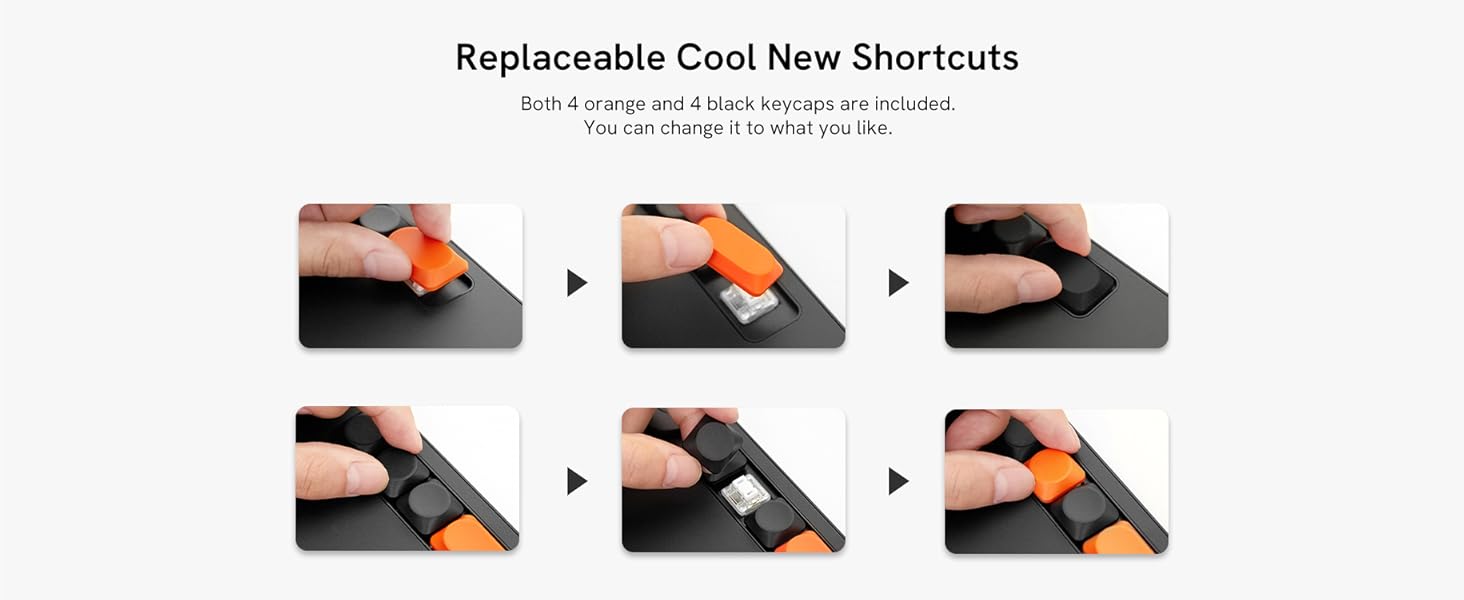
Image: Instructions for replacing the hotkey keycaps.
4.3 P05 Battery-Free Stylus
The P05 stylus offers 8192 levels of pressure sensitivity and supports 60° tilt recognition, allowing for natural and precise drawing. It is battery-free, eliminating the need for charging.
- The stylus has two customizable shortcut buttons, which can be set to functions like Pen/Eraser toggle for quick switching.
- The 60° tilt function allows for shading and varied line strokes, mimicking traditional art tools.

Image: Features of the P05 battery-free stylus, including pressure sensitivity and tilt support.
4.4 Software Compatibility
The VEIKK Voila L tablet is compatible with most major creative software, including but not limited to:
- Adobe Photoshop (Ps)
- Adobe Illustrator (Ai)
- Adobe Lightroom (Lr)
- Adobe Premiere (Pr)
- Clip Studio Paint
- Corel Painter
- GIMP
- Krita
- ZBrush
- 3ds Max
- Maya

Image: Examples of compatible creative software for the tablet.
5. Maintenance
To ensure the longevity and optimal performance of your VEIKK Voila L tablet, follow these maintenance guidelines:
- Cleaning: Use a soft, dry cloth to gently wipe the tablet surface and stylus. Avoid using harsh chemicals, abrasive cleaners, or excessive moisture, as these can damage the device.
- Storage: When not in use, store the tablet and stylus in a clean, dry place away from direct sunlight, extreme temperatures, and humidity.
- Nib Replacement: The stylus nibs will wear down over time. Use the included nib clip to carefully remove worn nibs and insert new ones. Replace nibs as needed to maintain drawing precision.
- Cable Care: Handle the USB-C cable gently. Avoid bending or twisting it sharply, which can damage the internal wires.
6. Troubleshooting
If you encounter issues with your VEIKK Voila L tablet, refer to the following common solutions:
- Tablet Not Responding:
- Ensure the USB-C cable is securely connected to both the tablet and your computer/device.
- Try connecting the tablet to a different USB port.
- Restart your computer and reconnect the tablet.
- Stylus Not Working / No Pressure Sensitivity:
- Verify that the VEIKK driver is correctly installed and running. Reinstall the driver if necessary.
- Check if the stylus nib is properly inserted. Replace the nib if it appears worn or damaged.
- Ensure no other tablet drivers (e.g., Wacom, Huion) are installed on your system, as they can conflict. Uninstall any conflicting drivers.
- Test the stylus in different drawing applications.
- Hotkeys / Quick Dial Not Functioning:
- Open the VEIKK driver software and check the hotkey/dial settings. Ensure they are assigned to desired functions.
- Confirm that the driver is active and not conflicting with other software.
- Mac Compatibility Issues:
- Some Mac users may experience driver instability. Ensure you have the latest driver from the VEIKK website.
- Check macOS Security & Privacy settings to ensure the VEIKK driver has necessary permissions (e.g., Accessibility, Input Monitoring).
- If using a Mac with an M-series chip, ensure the driver explicitly supports your architecture.
- Inaccurate Cursor Movement:
- Recalibrate the working area in the VEIKK driver settings.
- Ensure there are no electromagnetic interferences near the tablet.
If these steps do not resolve your issue, please contact VEIKK customer support.
7. Specifications
| Feature | Specification |
|---|---|
| Model Number | VO1060 |
| Product Dimensions | 12.83 x 8.11 x 0.04 inches |
| Item Weight | 1.18 pounds |
| Active Area | 10 x 6 inches |
| Connectivity Technology | USB-C |
| Pressure Sensitivity | 8192 Levels |
| Tilt Support | 60° |
| Report Rate | 290 PPS (Points Per Second) |
| Stylus | P05 Battery-Free Stylus |
| Hotkeys | 4 Customizable Mechanical Hotkeys |
| Quick Dial | 1 Quick Dial with 4 Switchable Functions |
| Operating System Compatibility | Windows 7 (or later), Mac OS X 10.12 (or later), Android 6.0 (or later), Linux |

Image: Physical dimensions of the VEIKK Voila L tablet.
8. Warranty and Support
8.1 Warranty Information
VEIKK provides a one-year hardware warranty for the Voila L Graphics Drawing Tablet. This warranty covers manufacturing defects and hardware malfunctions under normal use conditions.
8.2 Customer Support
For technical assistance, driver updates, or warranty claims, please contact VEIKK customer support through their official website or the contact information provided in your product packaging. VEIKK offers lifetime free driver updates and professional support for all VEIKK drawing tablets.