
ACECAR C7
ACECAR C7 Digital GPS HUD Speedometer User Manual
Model: C7
Introduction
The ACECAR C7 Digital GPS Heads Up Display (HUD) Speedometer is designed to enhance your driving experience by projecting essential vehicle information directly into your line of sight. Equipped with a high-definition flip screen, it eliminates the need for reflective stickers on the windshield, providing clear and visible readings day or night. This manual provides detailed instructions for setup, operation, maintenance, and troubleshooting to ensure optimal performance of your device.
Product Overview
Key Features
- High-Definition Flip Screen: Read information directly without reflective stickers, ensuring clear visibility in various lighting conditions.
- Multi-Data Switching Function: Monitor speed, time, driving time, driving distance, date, altitude, driving direction, and satellite number.
- Driving Safety Alerts: Includes speeding reminders and fatigue driving reminders to promote safer driving habits.
- Plug and Play Installation: Simple USB power supply connection, compatible with all vehicle types.
- Advanced Processing Chips: Dual running memory and dual-core processor for smooth, real-time data display with minimal delay.
Components
- ACECAR C7 HUD Main Unit
- Projection Reflector Screen
- USB Power Cable
- Non-slip Mat

Image: The ACECAR C7 Heads Up Display unit with its projection screen showing speed and time.
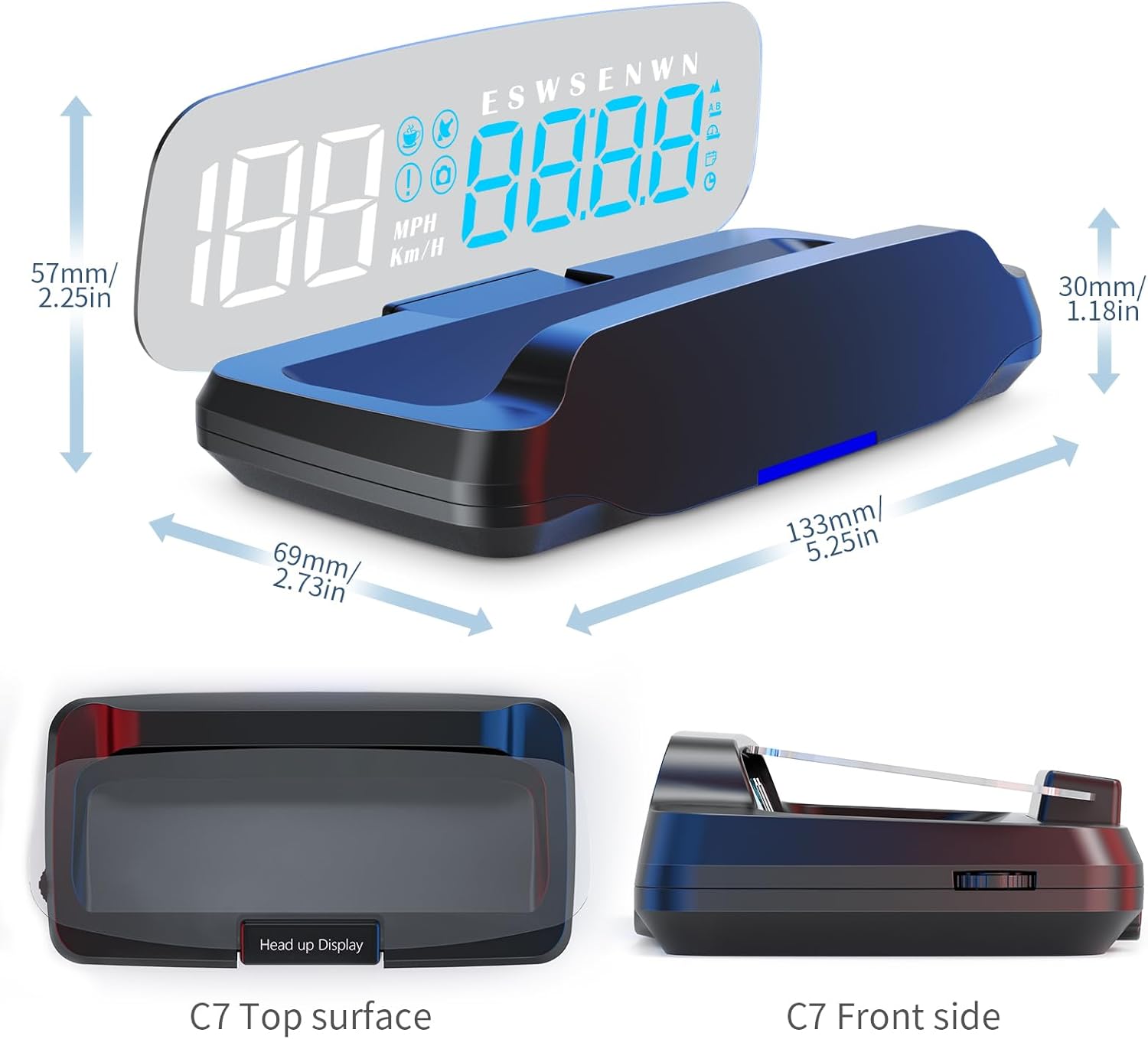
Image: Detailed dimensions of the ACECAR C7 HUD, showing its compact size and various angles.

Image: An exploded view of the ACECAR C7 HUD, highlighting its monitor panel, pulsator button, and optically transparent reflective plate.
Setup Guide
Installation
- Placement: Choose a suitable flat surface on your dashboard where the HUD will not obstruct your view of the road. A non-slip mat is usually included to secure the device.
- Power Connection: Connect the provided USB power cable to the HUD unit and plug the other end into a 5V USB power supply in your vehicle (e.g., car USB port, USB car charger).
- Positioning: Adjust the angle of the HUD and its reflective screen to ensure the projected display is clearly visible and aligned with your line of sight. No reflective film is required on the windshield.
- Power On: The device will automatically power on when it receives power.

Image: The ACECAR C7 HUD installed on a car dashboard, displaying speed and time, with a clear view of the road ahead.
Operation
Power On/Off
- The HUD powers on automatically when connected to a 5V power source and powers off when the power source is removed.
Display Functions
The ACECAR C7 HUD can display various data points simultaneously or individually. Use the pulsator button (control wheel) on the device to cycle through different display modes and settings.
- Speed: Displays current vehicle speed in MPH or KM/H.
- Time: Current time.
- Driving Time: Total time elapsed since the device was powered on for the current trip.
- Driving Distance: Total distance covered since the device was powered on for the current trip.
- Date: Current date.
- Altitude: Current altitude based on GPS data.
- Driving Direction: Compass display (N, E, S, W, NE, NW, SE, SW).
- Satellite Number: Indicates the number of GPS satellites connected, affecting accuracy.
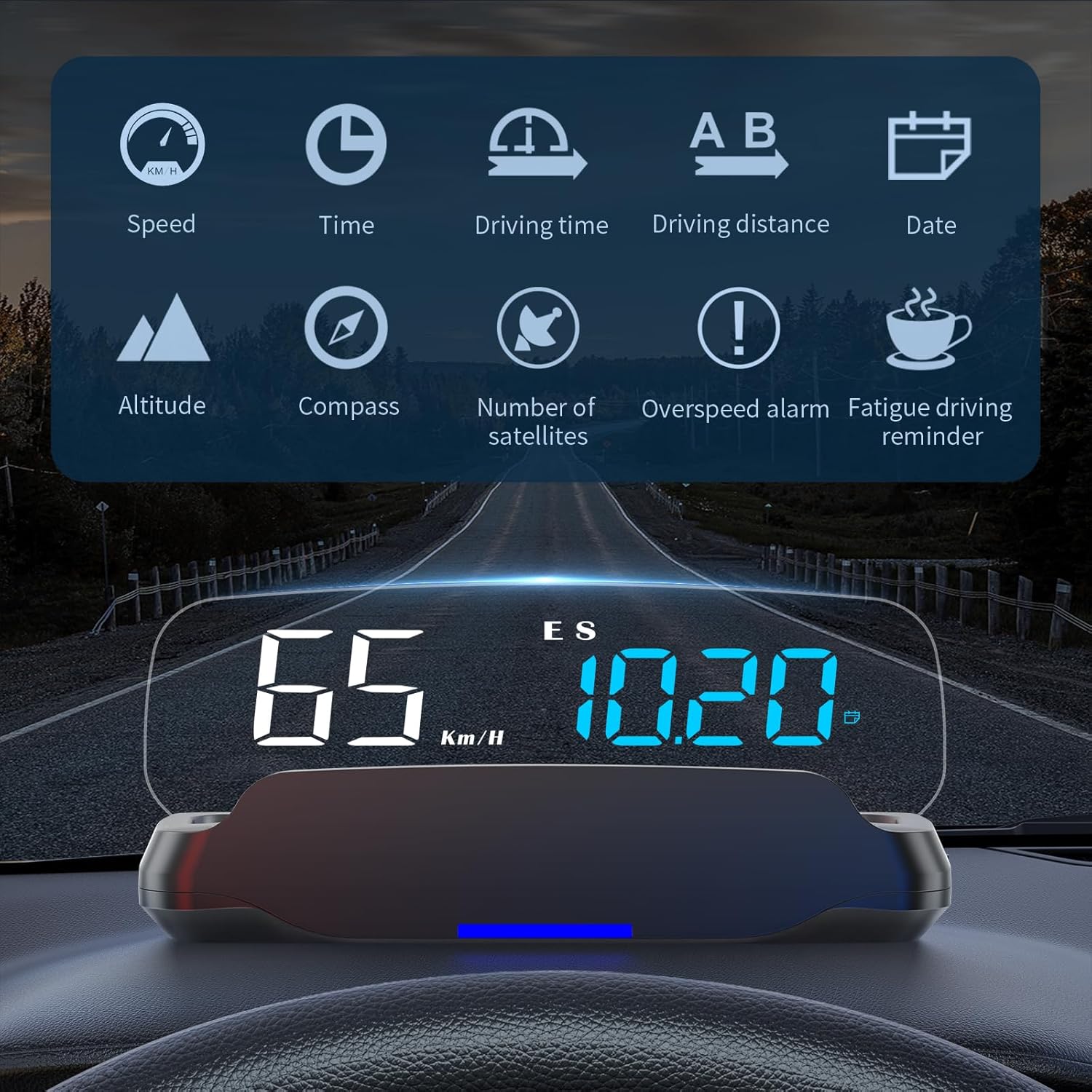
Image: The ACECAR C7 HUD displaying multiple data points including speed, time, driving time, driving distance, date, altitude, compass, number of satellites, overspeed alarm, and fatigue driving reminder.

Image: A detailed view of the ACECAR C7 HUD's display icons and their corresponding functions, such as speed, speed unit, fatigue driving icon, speed alarm icon, satellite icon, and compass.

Image: Examples of the ACECAR C7 HUD's multifunctional display modes, showing combinations of speed with clock, driving distance, driving direction, date, driving time, and altitude.
Alerts and Reminders
- Overspeed Alert: The device will emit an audible ticking sound when your speed exceeds a preset value, prompting you to reduce speed.
- Fatigue Driving Reminder: After 4 hours of continuous driving, the HUD will remind you to take a short break, enhancing driving safety.

Image: The ACECAR C7 HUD displaying visual indicators for speed alarm and fatigue driving reminder, with a red light bar indicating an alert condition.
Settings Adjustment
The device features a pulsator button (control wheel) for navigating settings. To adjust settings such as speed calibration:
- Ensure the vehicle is stopped.
- Press the pulsator button straight in to enter the settings menu.
- Use the pulsator button by pushing it forward or backward to adjust the displayed value (e.g., speed offset) up or down.
- Press the button in again to confirm the setting and exit the menu.
Colored Lights
The HUD features ambient lighting that can change colors (blue, cyan, green, yellow, pink, red) and may also indicate speed changes.

Image: The ACECAR C7 HUD showcasing its colored ambient lights, which can be switched freely and change according to vehicle speed.
Maintenance and Care
- Cleaning: Use a soft, dry cloth to clean the device. Avoid abrasive cleaners or solvents that could damage the screen or casing.
- Temperature: Avoid exposing the device to extreme temperatures, especially prolonged direct sunlight in hot climates, as this may affect the screen's integrity.
- Storage: When not in use for extended periods, store the device in a cool, dry place away from direct sunlight.
- Handling: Handle the device with care to prevent drops or impacts that could cause internal damage.
Troubleshooting
| Problem | Possible Cause | Solution |
|---|---|---|
| Inaccurate Speed Reading | GPS signal interference; Calibration needed. | Ensure clear view of the sky for GPS. Calibrate speed using the settings adjustment feature (refer to 'Settings Adjustment' section). |
| Unit always shows motion when stopped (e.g., 0-3 MPH) | Minor GPS signal drift; Sensitivity setting. | This can be a characteristic of GPS-based devices. Ensure the device has a strong GPS lock. If calibration is available for zero speed, adjust accordingly. |
| Screen peeling/display issues in hot weather | Overheating due to prolonged direct sunlight. | Avoid direct sunlight exposure for extended periods. Consider using a sunshade when parked. If damage has occurred, contact customer support. |
| No Display/No Power | No power supply; Faulty cable/port. | Check USB cable connection. Ensure the vehicle's USB port is active and providing 5V power. Try a different USB port or cable. |
| GPS Signal Not Found/Weak | Obstructed view of sky; Indoor use. | Ensure the device has a clear, unobstructed view of the sky. GPS signals are typically weak or unavailable indoors or in tunnels. |
Technical Specifications
| Attribute | Value |
|---|---|
| Brand | ACECAR |
| Model Number | C7 |
| Material | Plastic |
| Item Dimensions (L x W x H) | 5.25 x 2.73 x 2.25 inches (133 x 69 x 57 mm) |
| Item Weight | 5.3 ounces (150 Grams) |
| Screen Size | 2.73 Inches (7 cm visible diagonal) |
| Power Supply | USB 5V |
| Country of Origin | China |
Warranty and Support
ACECAR products are manufactured to high-quality standards. For specific warranty details, please refer to the product packaging or contact ACECAR customer support directly. Keep your purchase receipt for warranty claims.
For technical assistance, troubleshooting beyond this manual, or warranty inquiries, please visit the official ACECAR website or contact their customer service department. Contact information can typically be found on the product packaging or the brand's official online store.
Ask a question about this manual
Ask about setup, troubleshooting, compatibility, parts, safety, or missing instructions. Manuals+ will review the question and use this page’s manual context to help answer it.