
FeiyuTech Vimble 3SE Grey
FeiyuTech Vimble 3SE Grey Gimbal Stabilizer User Manual
Model: Vimble 3SE Grey | Brand: FeiyuTech
Introduction
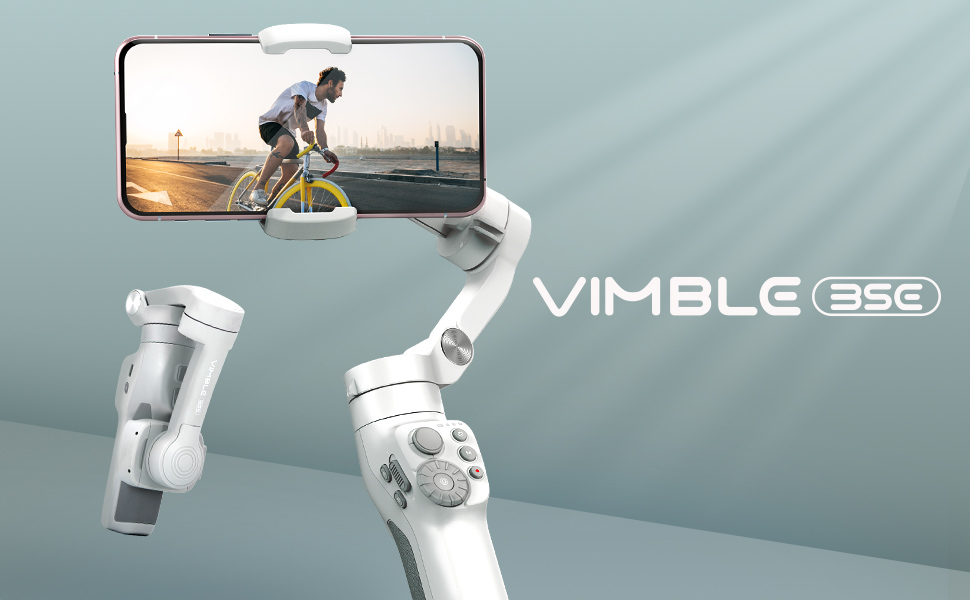
The FeiyuTech Vimble 3SE is a high-precision 3-axis handheld gimbal stabilizer designed to capture smooth, stable video footage with your smartphone. Its compact and foldable design makes it highly portable, while advanced features like intelligent tracking, various shooting modes, and a dual combination zoom control system provide professional-grade results for vlogging, live streaming, and everyday video recording. This manual provides detailed instructions for setting up, operating, maintaining, and troubleshooting your Vimble 3SE.
What's in the Box
Verify that all the following items are included in your package:
- Gimbal x1
- Tripod x1
- USB-C cable x1
- Storage bag x1
Setup
1. Unfolding the Gimbal
The Vimble 3SE features a foldable design for portability. To unfold, gently extend the gimbal arms until they click into place. Ensure all axes are free to move.


2. Installing and Balancing Your Smartphone
Before powering on, securely mount your smartphone in the holder. The gimbal supports phones with a width of 49mm to 88mm and a maximum load of approximately 260g (0.573 lb). Adjust the phone's position in the clamp to achieve a balanced state. The phone should remain level when released, indicating proper balance.

3. Powering On/Off
Press and hold the Power Button (located on the side of the handle) for 3 seconds to power on or off the gimbal. Ensure your phone is properly mounted and balanced before powering on to prevent motor strain.
4. Bluetooth Connection
To unlock the full features of your Vimble 3SE, connect it to your smartphone via Bluetooth. Download the Feiyu On App from your device's app store. Open the app, enable Bluetooth on your phone, and follow the in-app instructions to pair with the Vimble 3SE. The gimbal will auto-connect once paired.
Operating the Gimbal
1. Gimbal Controls Overview
Familiarize yourself with the various buttons and controls on the Vimble 3SE handle:

- Power Button: Press and hold to power on/off.
- Shutter Button: Press once to take a photo, press and hold to record video.
- Mode Button: Tap to switch between different working modes (e.g., Pan Follow, Lock Mode).
- A/B Buttons: Used for setting two points for automated focus and zoom (A/B memory points).
- Zoom Roller/Push Rod: Rotate the roller to adjust focus (clear/faint), slide the push rod to adjust focal length (zoom in/out).
- Upper/Lower Trigger Buttons: Customizable functions within the Feiyu On App.
- Dial Function Switching Button: Switches the function of the multi-function dial.
2. Shooting Modes
The Vimble 3SE offers various modes to enhance your shooting experience:
- Landscape/Portrait Mode: Easily switch between horizontal and vertical shooting orientations with a single tap of the mode button, ideal for different social media platforms.
- Pan Follow Mode: The gimbal follows your horizontal panning movements while keeping the tilt and roll axes locked.
- Lock Mode: All three axes are locked, keeping the camera pointing in a fixed direction regardless of gimbal movement.
- Follow Mode: All three axes follow your movements, providing dynamic and smooth footage.
- Panoramic Mode: Captures multiple images and stitches them together to create a wide panoramic shot.
- Trajectory Time-Lapse Mode: Allows you to set specific points for the gimbal to move through over time, creating dynamic time-lapse videos.
- Gesture Control: Initiate photo or video recording with specific hand gestures (requires Feiyu On App).

3. Smart Tracking (AI Tracking)
The Vimble 3SE features intelligent tracking capabilities. After connecting to the Feiyu On App, you can select a target on your screen (person or object), and the gimbal will automatically track its movement, keeping it centered in the frame. This is ideal for vlogging or capturing dynamic subjects.

4. Using the Feiyu On App
The Feiyu On App unlocks the full potential of your Vimble 3SE. Beyond basic controls, the app provides:
- Auto-connection and firmware updates.
- Motion Time-lapse and Overlapping Image features.
- Light-tracking features for creative effects.
- Calibration and parameter adjustments.
- Direct control of your smartphone's original camera and popular Beautycam APPs.
Maintenance
1. Cleaning
Wipe the gimbal body with a soft, dry cloth. Do not use liquid cleaners or solvents. Keep the motor areas free from dust and debris.
2. Storage
When not in use, fold the gimbal and store it in the provided storage bag to protect it from dust and scratches. Store in a cool, dry place away from direct sunlight and extreme temperatures.
3. Battery Care
The Vimble 3SE uses a Lithium Ion battery. For optimal battery life:
- Charge the battery fully before first use.
- Avoid completely draining the battery.
- If storing for extended periods, charge the battery to about 50-60% every three months.
- Use only the provided USB-C cable for charging.
Troubleshooting
If you encounter issues with your Vimble 3SE, refer to the following common problems and solutions:
| Problem | Possible Cause | Solution |
|---|---|---|
| Gimbal vibrates or makes unusual noises upon startup. | Smartphone not properly balanced or mounted. | Ensure the smartphone is centered and balanced before powering on. Re-mount and re-balance the phone. |
| Cannot connect via Bluetooth. | Bluetooth not enabled on phone; App not open; Gimbal not in pairing mode. | Ensure Bluetooth is on. Open Feiyu On App. Restart both phone and gimbal. Forget device in phone's Bluetooth settings and re-pair. |
| Gimbal drifts or does not hold position. | Improper calibration; Magnetic interference. | Perform a calibration through the Feiyu On App. Move away from strong magnetic fields. |
| App features (e.g., tracking, time-lapse) not working. | Not connected to Feiyu On App; App permissions not granted. | Ensure the gimbal is connected to the Feiyu On App. Check app permissions in your phone's settings. Update the app to the latest version. |
If the problem persists, please contact customer support.
Specifications
| Feature | Detail |
|---|---|
| Brand | FeiyuTech |
| Model | Vimble 3SE Grey |
| Compatible Devices | iPhone, Android, Samsung (smartphones under 7 inches) |
| Phone Width Compatibility | 49mm ~ 88mm |
| Maximum Load | Approx. 260g (0.573 lb) |
| Item Weight | 12.5 ounces (approx. 354g) |
| Folded Size | 4.5 x 6.9 x 2.56 inches |
| Battery Type | Lithium Ion (included) |
| Charging Time | Approx. 2 hours |
| Battery Life | Up to 10 hours |
| Country of Origin | China |
Warranty and Support
Warranty Information
For detailed warranty terms and conditions, please refer to the official FeiyuTech website or the warranty card included with your product. Warranty coverage typically includes manufacturing defects for a specified period from the date of purchase.
Customer Support
If you require technical assistance, have questions about product functionality, or need to report an issue, please contact FeiyuTech's professional customer service team. They are available to provide support and guidance.
Refer to the contact information provided on the official FeiyuTech website or in your product packaging for the most up-to-date support channels.
Related documentsVimble 3SE Grey


Ask a question about this manual
Ask about setup, troubleshooting, compatibility, parts, safety, or missing instructions. Manuals+ will review the question and use this page’s manual context to help answer it.