
1. Introduction
The EXFO MAX730C-SM2 is a compact and robust Optical Time Domain Reflectometer (OTDR) designed for efficient fiber optic network testing and troubleshooting. This device integrates an OTDR module with IOLM (Intelligent Optical Link Mapper) functionality, operating at wavelengths of 1310nm, 1550nm, and 1625nm. Its high-resolution, 7-inch color touchscreen display ensures clear readability in various environments. The modular platform supports a range of applications, including FTTx drop cables, MDUs, CO, wireless installations, and CWDM network maintenance.
This manual provides essential information for the proper setup, operation, maintenance, and troubleshooting of your EXFO MAX730C-SM2 OTDR.

Figure 1: Front view of the EXFO MAX730C-SM2 OTDR, showing the main screen interface with various application icons such as OTDR, IOLM, ConnectorMax2, File Manager, Data Mover, Configuration, Documentation, Internet Explorer, VNC, FTP, EXFO Connect Client CE, and TestFlow.
2. Key Features
- Integrated OTDR and IOLM Functionality: Provides comprehensive fiber optic link testing and intelligent fault location.
- Wavelengths: Supports 1310/1550/1625nm for versatile testing applications.
- High-Resolution Touchscreen: 7-inch (178 mm) color TFT display with 800 x 480 resolution for clear visibility.
- Compact and Lightweight Design: Weighs less than 800g (2 lbs), making it easy to handle and transport.
- Robust and Sealed Construction: Engineered for durability in challenging field environments.
- Modular Platform: Ensures adaptability and maximum return on investment with various available modules.
- Connectivity: Features two USB 2.0 ports for data transfer and peripheral connections.
- Specialized Tools: Includes Optical Fault Locator for short fibers (FTTx, MDUs, CO) and CWDM network maintenance, and an Automated Ethernet Tester for 10/100/1000 MB Ethernet networks.
3. Setup
3.1 Unpacking and Inspection
- Carefully unpack the EXFO MAX730C-SM2 unit and all accessories from the shipping container.
- Verify that all items listed in the "What's in the Box" section are present.
- Inspect the unit for any signs of physical damage. If damage is found, contact your supplier immediately.
3.2 Charging the Battery
Before initial use, ensure the device's internal battery is fully charged. Connect the provided power adapter to the unit's power input port and then to a suitable electrical outlet. The charging indicator will illuminate.
3.3 Connecting Fiber Optic Cables
The EXFO MAX730C-SM2 features dedicated ports for fiber optic connections. Ensure the ports are clean before connecting any fiber cables.

Figure 2: Top view of the EXFO MAX730C-SM2 OTDR, showing the uncovered fiber optic ports labeled 'SM LIVE' and 'SM 730C', along with USB and Ethernet ports.
- Open the protective covers over the fiber optic ports located on the top of the unit.
- Clean the fiber connectors and the unit's ports using appropriate fiber cleaning tools.
- Carefully connect the fiber optic cable to the desired port (e.g., 'SM LIVE' or 'SM 730C') until it clicks into place.

Figure 3: Top view of the EXFO MAX730C-SM2 OTDR, showing the protective covers over the fiber optic ports, USB ports, and Ethernet port.
4. Operating Instructions
4.1 Powering On/Off
- To power on the device, press and hold the power button located on the front panel until the screen illuminates.
- To power off, press and hold the power button until a shutdown prompt appears, then confirm.
4.2 Navigating the Interface
The MAX730C-SM2 features a touchscreen interface. Tap icons to launch applications or navigate menus. Use the physical buttons below the screen for home and power functions.

Figure 4: EXFO MAX730C-SM2 OTDR screen showing the 'Region and Language' settings menu, allowing selection of display language, keyboard layout, date/time formats, and decimal separator.
4.3 Performing an OTDR Test
- From the main screen, tap the "OTDR" icon to launch the OTDR application.
- Select the desired test parameters, such as wavelength, pulse width, and range.
- Ensure the fiber under test is properly connected to the OTDR port.
- Tap "Start" to initiate the test. The trace will be displayed on the screen.
- Analyze the trace for events like splices, connectors, and breaks.
- Save the test results as needed.
4.4 Using IOLM Functionality
The IOLM function simplifies OTDR testing by providing an icon-based view of the fiber link, automatically identifying and characterizing events.
- From the main screen, tap the "IOLM" icon.
- Follow the on-screen prompts to configure the test.
- The IOLM will automatically perform the test and present a clear, intuitive map of the fiber link with identified events.
- Review the event table and link summary for detailed information.
5. Maintenance
5.1 Cleaning the Unit
- Regularly clean the exterior of the unit with a soft, damp cloth. Do not use abrasive cleaners or solvents.
- Keep the touchscreen clean using a microfiber cloth. Avoid excessive pressure.
5.2 Cleaning Fiber Optic Ports
Contaminated fiber optic ports are a primary cause of inaccurate measurements. Always clean ports and connectors before each use.
- Power off the unit before cleaning ports.
- Use only approved fiber optic cleaning tools and methods (e.g., lint-free wipes, fiber cleaning sticks, and optical-grade solvent).
- Never insert sharp objects into the ports.
5.3 Battery Care
- Charge the battery regularly, even if the unit is not in frequent use, to maintain battery health.
- Store the unit in a cool, dry place when not in use.
6. Troubleshooting
6.1 Common Issues and Solutions
| Issue | Possible Cause | Solution |
|---|---|---|
| Unit does not power on. | Low or depleted battery; power adapter issue. | Charge the battery. Verify power adapter connection and functionality. |
| Inaccurate OTDR readings. | Dirty fiber connectors/ports; incorrect test parameters. | Clean all fiber connectors and ports. Verify test settings (wavelength, range, pulse width). |
| Touchscreen unresponsive. | Software glitch; screen damage. | Restart the unit. If issue persists, contact support. |
| Cannot save test results. | Insufficient storage space; file system error. | Check available storage. Restart the unit. |
For issues not listed here or if solutions do not resolve the problem, please contact EXFO technical support.
7. Specifications
| Feature | Detail |
|---|---|
| Model Number | MAX-730C-M2 |
| Wavelengths | 1310/1550/1625nm |
| Display | 7-inch (178 mm) color TFT touchscreen, 800 x 480 resolution |
| Connectivity | 2 x USB 2.0 ports |
| Power Source | Electrical cable, Internal Battery |
| Product Dimensions (L x W x H) | 49 x 29 x 39 cm (19.3 x 11.4 x 15.4 inches) |
| Product Weight | Approximately 5.44 kg (12 lbs) |
| Manufacturer | EXFO |
| UPC | 752496961197 |
| ASIN | B0BHQF3P9G |
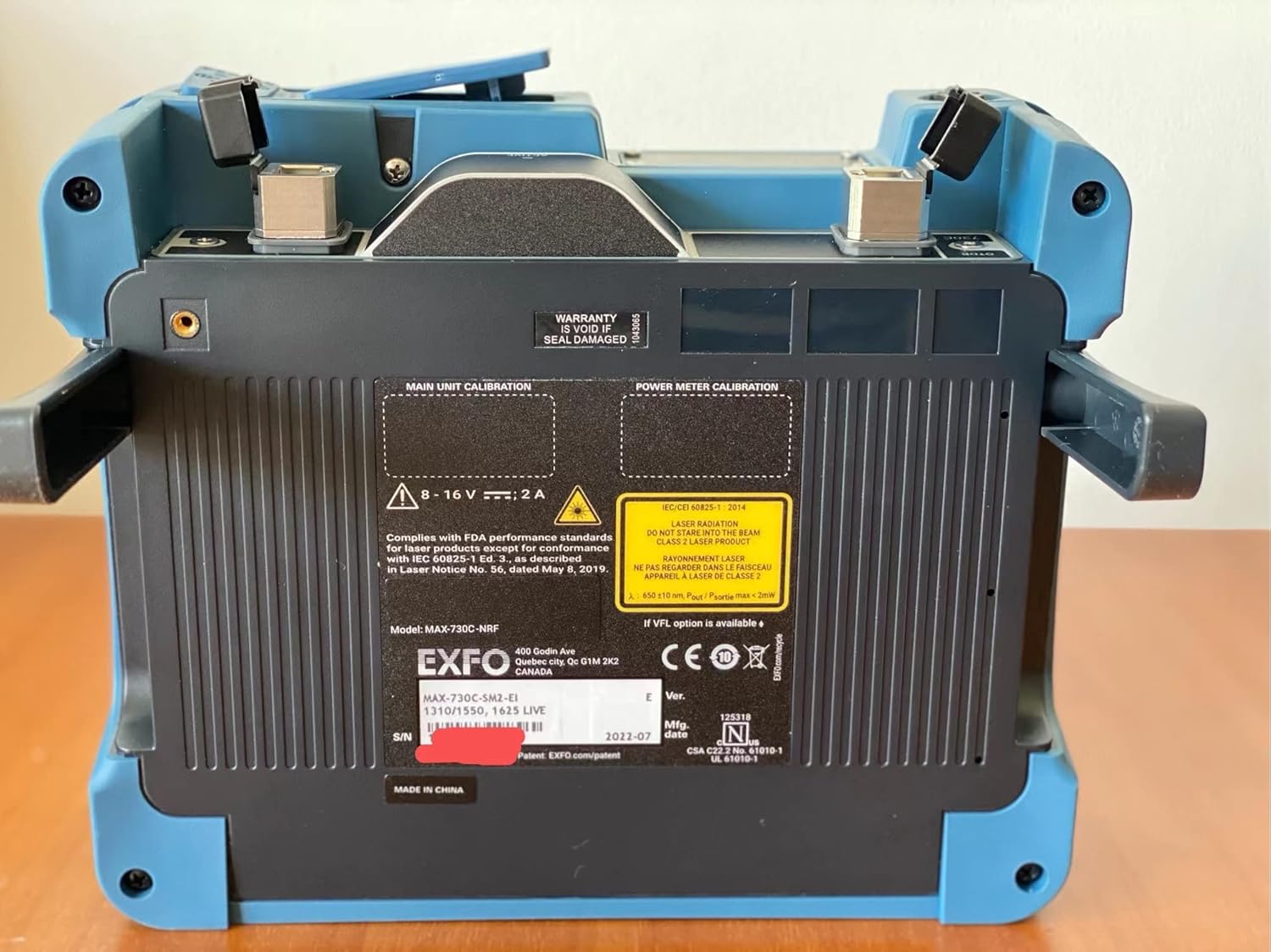
Figure 5: Back view of the EXFO MAX730C-SM2 OTDR, displaying the product label with model number (MAX-730C-SM2-EI), serial number, manufacturing date, and various regulatory compliance marks and warnings.
8. What's in the Box
The standard package for the EXFO MAX730C-SM2 OTDR includes:
- EXFO MAX730C-SM2 OTDR Unit
- Internal Battery
- Power Adapter/Cable
- (Additional accessories may vary by region or specific package)
9. Warranty and Support
EXFO products are designed for reliability and performance. For specific warranty terms and conditions, please refer to the warranty documentation provided with your purchase or visit the official EXFO website. Technical support is available to assist with any operational questions or issues you may encounter.
For support, please visit the official EXFO support portal or contact your local EXFO representative. Ensure you have your product model number (MAX-730C-M2) and serial number ready when contacting support.
Important: The warranty may be void if the seal is damaged or if unauthorized repairs are attempted.