1. Introduction and Safety Information
This manual provides essential instructions for the safe and efficient operation of your OISE ART STORE MXQ Pro 4K Ultra HD TV Box Q-A106. Please read this manual thoroughly before using the device and retain it for future reference.
Safety Precautions:
- Do not expose the device to water, moisture, or extreme temperatures.
- Avoid placing the device near heat sources or in direct sunlight.
- Use only the provided power adapter. Using unauthorized adapters may damage the device and void the warranty.
- Do not attempt to open or repair the device yourself. Refer all servicing to qualified personnel.
- Ensure proper ventilation around the device to prevent overheating.
- Keep the device and accessories out of reach of children.
2. Package Contents
Verify that all items are present in the package:
- OISE ART STORE MXQ Pro 4K Ultra HD TV Box Q-A106
- Remote Control
- Power Adapter
- HDMI Cable
- User Manual (this document)

Figure 2.1: Included accessories for the MXQ Pro TV Box, featuring the power adapter, remote control, and HDMI cable.
3. Product Overview
The OISE ART STORE MXQ Pro 4K Ultra HD TV Box Q-A106 is a high-performance streaming client designed to transform your television into a smart entertainment hub. Running on Android 10.0, it offers access to a wide range of applications and supports 4K Ultra HD video playback. It features 2GB RAM and 16GB internal storage for smooth operation and media storage.

Figure 3.1: The MXQ Pro 4K TV Box and its remote control, illustrating its connection to a television for media streaming.

Figure 3.2: Top view of the MXQ Pro 4K TV Box, highlighting its compact design.
4. Setup Instructions
4.1 Connecting to Your Television
- Locate an available HDMI port on your television.
- Connect one end of the provided HDMI cable to the HDMI OUT port on the MXQ Pro TV Box.
- Connect the other end of the HDMI cable to the HDMI IN port on your television.
- Switch your television's input source to the corresponding HDMI port.
4.2 Power Connection
- Connect the power adapter to the DC 5V port on the MXQ Pro TV Box.
- Plug the power adapter into a wall outlet. The device should automatically power on or enter standby mode.
4.3 Network Connection
The MXQ Pro TV Box supports both Wi-Fi and Ethernet connections.
Wi-Fi Connection:
- Once the device is powered on, navigate to Settings > Network > Wi-Fi.
- Select your desired Wi-Fi network from the list.
- Enter the Wi-Fi password if prompted and select Connect.
Ethernet Connection:
- Connect an Ethernet cable from your router or modem to the LAN port on the MXQ Pro TV Box.
- The device will automatically detect and connect to the wired network.
5. Operating Instructions
5.1 Remote Control Functions
The included remote control allows you to navigate the Android interface and control media playback.
- Power Button: Turns the device on/off or puts it into standby.
- Navigation Buttons (Arrow Keys): Move cursor or selection.
- OK Button: Confirm selection.
- Back Button: Return to the previous screen.
- Home Button: Return to the main home screen.
- Menu Button: Access context-sensitive menus.
- Volume Buttons: Adjust audio volume.
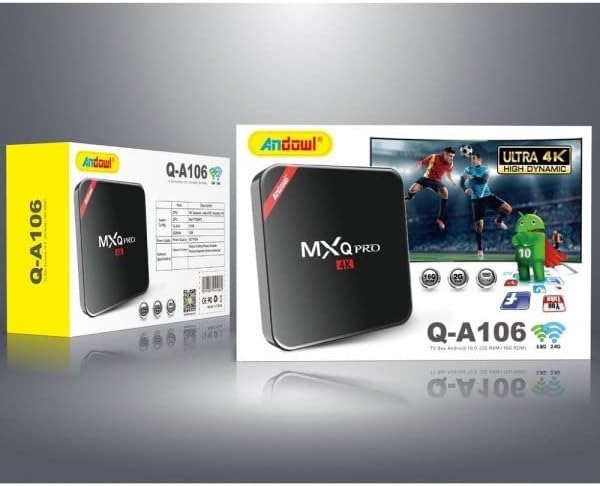
Figure 5.1: The MXQ Pro 4K TV Box and its remote control.
5.2 Navigating the Android Interface
The MXQ Pro TV Box runs on Android 10.0, providing a familiar and intuitive user experience. Use the remote control's navigation buttons to browse through apps, settings, and media content.
5.3 Installing Applications
You can download and install various applications from the Google Play Store:
- Ensure the device is connected to the internet.
- From the home screen, open the Google Play Store app.
- Sign in with your Google account or create a new one.
- Search for desired applications and follow the on-screen instructions to install them.
5.4 Media Playback
The device supports 4K Ultra HD and 3D video playback. You can play media from:
- Streaming services (via installed apps).
- USB storage devices (connected to USB ports).
- Network shares (via file manager apps).
6. Maintenance
6.1 Cleaning the Device
- Ensure the device is powered off and unplugged before cleaning.
- Use a soft, dry, lint-free cloth to wipe the exterior of the device.
- Do not use liquid cleaners, aerosols, or solvents.
6.2 Software Updates
Periodically check for software updates to ensure optimal performance and security:
- Navigate to Settings > About Device > System Update.
- Follow the on-screen prompts to check for and install any available updates.
7. Troubleshooting
If you encounter issues with your MXQ Pro TV Box, refer to the following common problems and solutions:
| Problem | Possible Cause / Solution |
|---|---|
| No Power | Ensure the power adapter is securely connected to the device and a working power outlet. Try a different outlet. |
| No Signal on TV | Verify the HDMI cable is correctly connected to both the TV Box and the television. Ensure the TV input source is set to the correct HDMI port. |
| Wi-Fi Connection Issues | Check if your router is working correctly. Re-enter the Wi-Fi password. Try restarting both the TV Box and your router. Ensure the device is within range of your Wi-Fi signal. |
| Remote Control Not Responding | Replace the batteries in the remote control. Ensure there are no obstructions between the remote and the TV Box. |
| Applications Crashing or Freezing | Close and restart the application. Clear the app's cache (Settings > Apps > [App Name] > Clear Cache). If the problem persists, try uninstalling and reinstalling the app. |
8. Specifications
| Feature | Detail |
|---|---|
| Brand | OISE ART STORE |
| Model | Q-A106 |
| Operating System | Android 10.0 |
| CPU | H6 Quad-Core Cortex-A53 |
| GPU | Mali-T720MP2 |
| RAM | 2 GB |
| Internal Storage | 16 GB eMMC |
| Resolution | 4K Ultra HD |
| Wi-Fi | Dual-band 2.4G/5.8GHZ |
| HDMI Ports | 1 |
| USB Ports | 4 (USB 2.0) |
| Ethernet LAN Ports | 1 |
| Special Features | HDMI Output, Quad Core, USB Port, 3D Video Playback |
| Power Supply | DC 5V/2A |
9. Warranty and Support
This OISE ART STORE product is covered by a standard manufacturer's warranty. Please refer to the warranty card included with your purchase or contact your retailer for specific warranty terms and conditions.
For technical support or further assistance, please contact the seller or manufacturer directly. Provide your model number (Q-A106) and a detailed description of the issue when seeking support.


