
Introduction
The Ottocast PICASOU2 CarPlay AI Box S40 is designed to enhance your in-car entertainment and navigation experience. This device transforms your vehicle's CarPlay-compatible system into a versatile Android tablet, offering seamless access to various applications and multimedia content. Featuring a powerful CPU, HDMI output, 4G-LTE support, and a large 4+64GB capacity, it supports both wireless CarPlay and Android Auto. The device operates on Android 10.0 and allows for convenient split-screen display, enabling simultaneous use of navigation and video streaming. It is certified under Japanese Radio Law (R201-220660) and JATE (TD220164201), ensuring compliance and reliability.
Setup Instructions
Follow these steps to set up your Ottocast PICASOU2 CarPlay AI Box S40:
- Unboxing and Component Identification:
Identify the components included in your package. The package typically contains the AI box, USB Type-C to A cable, SIM pin, USB Type-C to C cable, and a USB power assist cable. Note that an HDMI cable is not included and must be purchased separately if you intend to use the HDMI output feature. - Connecting to Your Vehicle:
Connect the Ottocast PICASOU2 AI Box to your car's CarPlay-compatible USB port using the provided USB cable. This is a plug-and-play installation that requires no professional assistance or additional labor costs. - Inserting SIM/MicroSD Cards (Optional):
The device supports both nanoSIM and MicroSD cards. Insert a nanoSIM card into the designated slot for 3G/4G data communication, enabling online features like navigation and streaming. You can also insert a MicroSD card to play pre-downloaded videos and music offline, saving on data usage. Note that the nanoSIM slot is for data communication only and does not support voice calls. - Smartphone Tethering for Internet Access:
To enable internet access for the AI Box, you can use your smartphone's tethering function. Navigate to your smartphone's settings, enable 'Personal Hotspot' or 'Internet Sharing', and note the Wi-Fi password. Then, on the car's display, go to the AI Box settings, select 'Network and Internet', choose your smartphone's hotspot, and enter the password.

Image: Package contents of the Ottocast PICASOU2, showing the AI box, USB cables, and SIM pin.

Image: The Ottocast PICASOU2 AI Box connected to a car's USB port, illustrating its compact design and key features.

Image: A close-up view of the Ottocast PICASOU2, highlighting the nanoSIM and MicroSD card slots.
Video: Demonstrates how to connect the Ottocast AI Box to a smartphone's tethering hotspot for internet access.
Operating Instructions
Accessing Applications
Once connected to the internet (via nanoSIM or smartphone tethering), you can access a wide range of applications directly on your car's display. This includes popular streaming services like YouTube, Netflix, and Hulu, as well as navigation apps like Google Maps and Yahoo Car Navigation.

Image: The car's infotainment screen displaying various applications such as YouTube, Netflix, and navigation, accessible via the Ottocast PICASOU2.
Split-Screen Display
The PICASOU2 supports a split-screen function, allowing you to display two applications simultaneously. For example, you can have navigation running on one side of the screen while passengers enjoy a video on the other. This eliminates the need to switch between apps, providing a more convenient experience.
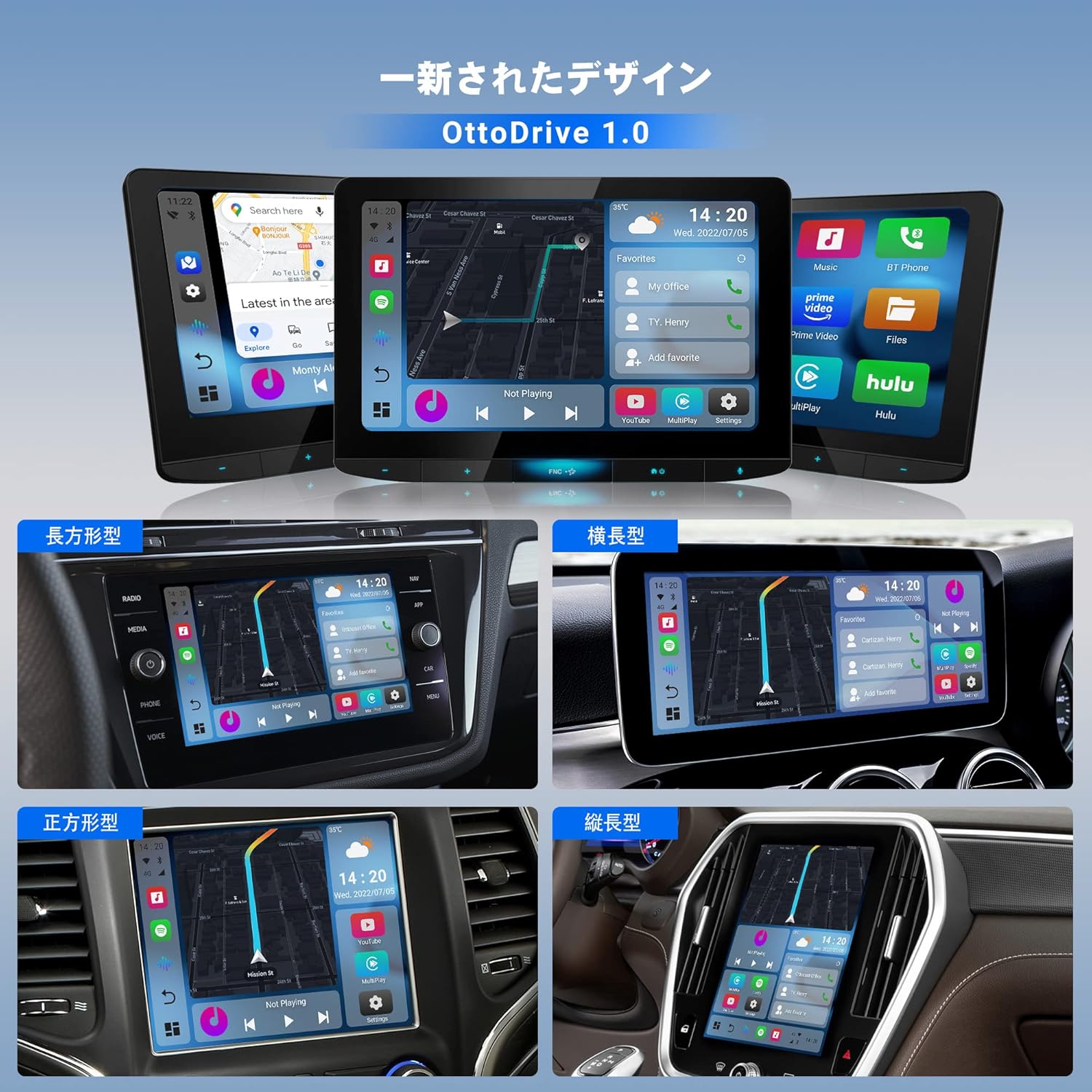
Image: Examples of different screen layouts, including split-screen, showcasing the flexibility of the Ottocast PICASOU2 display options.
HDMI Output
The device features an HDMI output port, allowing you to connect external monitors, such as rear-seat displays. This enables passengers in the back to watch videos while the driver uses the main car display for navigation. Please note that an HDMI cable is not included with the product.

Image: Illustration of the HDMI output capability, allowing content from the Ottocast PICASOU2 to be displayed on rear-seat monitors.
Built-in GPS
The PICASOU2 has a built-in GPS module with a Low Noise Amplifier (LNA) module. This ensures accurate positioning information even in challenging environments like tunnels or mountainous areas, providing reliable navigation performance without the need for external GPS connections.
Ambient Light Function
The device includes an ambient light function, allowing you to change the body color of the AI Box to match your car's interior or personal preference.

Image: The Ottocast PICASOU2 showcasing its ambient light feature with customizable color options.
Safety Notice
Important: It is prohibited by road traffic laws for the driver to watch images or videos displayed on AV equipment or operate navigation while driving. All viewing and operation must be handled by passengers.
Maintenance
To ensure optimal performance and longevity of your Ottocast PICASOU2, regular maintenance is recommended:
- Keep the device clean and free from dust. Use a soft, dry cloth for cleaning.
- Avoid exposing the device to extreme temperatures or direct sunlight for prolonged periods.
- Ensure proper ventilation around the device when in use.
Troubleshooting
If you encounter issues with your Ottocast PICASOU2, consider the following solutions:
- Freezing or Slow Performance: If the device freezes or performs slowly, it may be due to multiple applications running in the background or insufficient memory. In split-screen mode, you can swipe right on the right-side application to kill tasks. Additionally, using a cache clear application can help improve performance.
- Firmware Updates: Many issues can be resolved by updating the device's firmware. Check for available updates through the dedicated 'OttoPilot' app.
- Connectivity Issues: Ensure your smartphone's tethering is active and the password is correctly entered. If using a nanoSIM, verify it is properly inserted and has an active data plan.
For further assistance, refer to the 'OttoPilot' app for detailed troubleshooting guides and support information.
Specifications
| Feature | Detail |
|---|---|
| Brand | OTTOCAST |
| Model Number | PCS40 |
| Connectivity Technology | HDMI |
| Compatible Devices | Smartphone |
| Media Type | SDHC |
| GTIN | 661631001097 |
Warranty and Support
The Ottocast PICASOU2 CarPlay AI Box S40 comes with a 1-year warranty from the date of purchase. Please retain your proof of purchase for warranty claims.
For comprehensive support, including setup guides, troubleshooting tips, and firmware updates, download the dedicated 'OttoPilot' app from the Google Play Store or Apple App Store. This app provides extensive resources and manuals in Japanese to assist you with any questions or issues you may encounter.


