1. Introduction
The ASUS TUF GAMING B650M-PLUS WIFI motherboard is designed to combine essential AM5 Socket features for AMD Ryzen 9000*, 8000*, and 7000 Series processors with robust gaming capabilities. Engineered with military-grade components, an upgraded power solution, and comprehensive cooling, this motherboard ensures rock-solid performance and stability. It undergoes rigorous testing to guarantee endurance in demanding conditions.
*BIOS Update may be required when used with AMD Ryzen Desktop 9000 and 8000 Series CPU Processors.
2. Key Features
- AM5 Socket: Ready for AMD Ryzen Desktop 9000*, 8000*, and 7000 Series Processors.
- Enhanced Power Solution: Features 12+2 teamed power stages, 8+4 ProCool sockets, alloy chokes, and durable capacitors for stable power delivery.
- Next-gen Connectivity: Includes M.2 PCIe 5.0, USB 3.2 Gen2x2 Type-C, front USB 3.2 Gen 1 Type-C, and USB4 support.
- Online Gaming Ready: Equipped with WiFi 6, Realtek 2.5 Gb Ethernet, and TUF LANGuard for reliable network performance.
- Two-way AI Noise Cancelation: Reduces background noise from both microphone and audio output for clear communication.
- Comprehensive Cooling: Features enlarged VRM and PCH heatsinks, M.2 heatsinks, hybrid fan headers, and Fan Xpert 4 utility in Armoury Crate.
- Aura Sync RGB Effects: Offers stylish edge lighting design, addressable RGB headers, and RGB strip header support for customizable aesthetics.
- BIOS FlashBack: Provides the simplest and safest (UEFI) BIOS update method, allowing updates without a memory or CPU installed.
3. Setup and Installation
This section guides you through the initial setup and installation of your ASUS TUF GAMING B650M-PLUS WIFI motherboard.
3.1 Unboxing and Components
Upon opening the package, you will find the motherboard along with essential accessories. Ensure all components are present before proceeding with installation.

Figure 1: ASUS TUF GAMING B650M-PLUS WIFI Motherboard and Packaging. The image displays the motherboard alongside its retail box and the included Wi-Fi antenna.
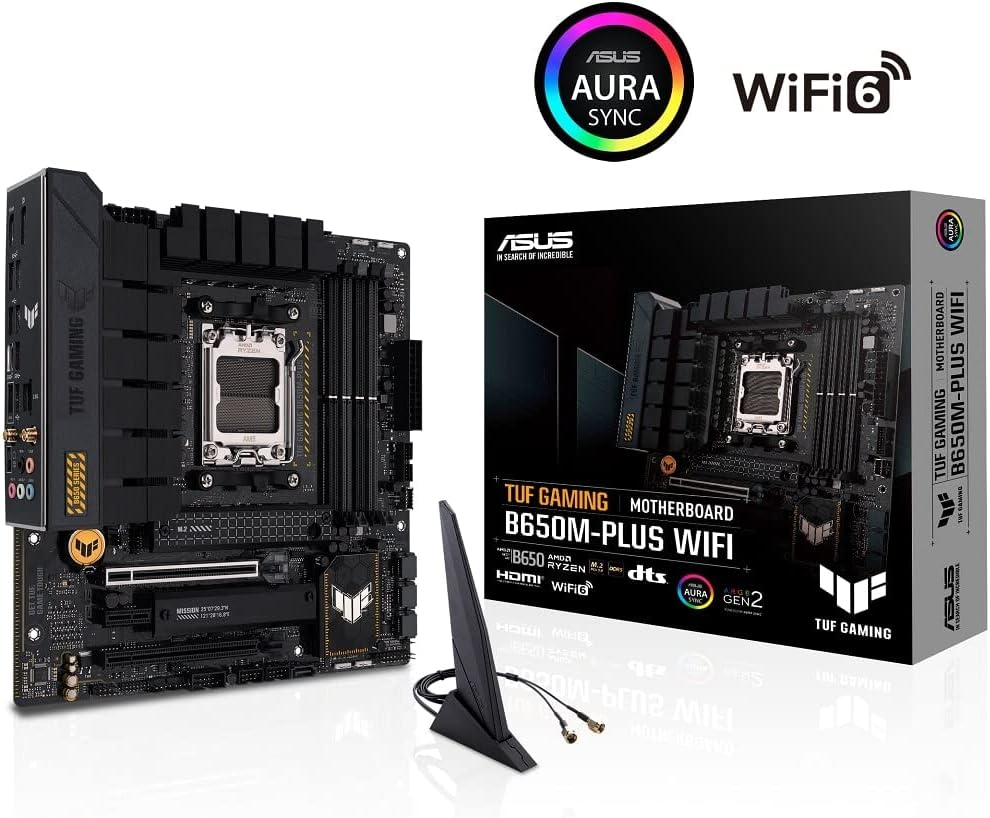
Figure 2: Contents of the ASUS TUF GAMING B650M-PLUS WIFI bundle. This image shows the motherboard, user guide, Wi-Fi antenna, SATA cables, M.2 screws, and M.2 rubber spacers.
3.2 Power and Performance Overview
The motherboard features a robust power delivery system and multiple slots for high-performance components.

Figure 3: Motherboard layout highlighting 12+2 power stages, 4x DIMM DDR5 slots (up to 128GB), one M.2 2280 PCIe 5.0 x4 slot, and one M.2 2280 PCIe 4.0 x4 slot, along with a PCIe 4.0 x16 SafeSlot Core+.
3.3 Cooling System
Effective cooling is crucial for stable performance. This motherboard incorporates several heatsinks and fan headers.
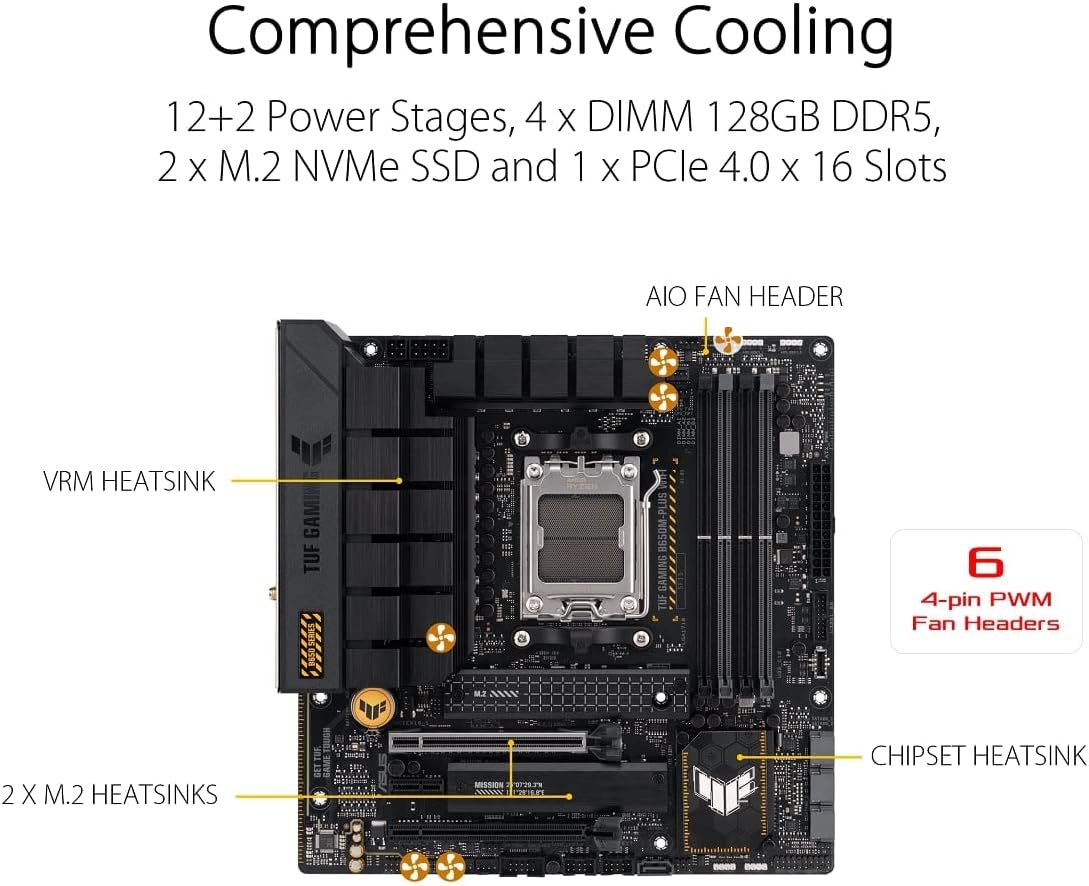
Figure 4: Motherboard cooling components, including VRM heatsinks, 2x M.2 heatsinks, a Chipset heatsink, an AIO Fan Header, and six 4-pin PWM Fan Headers.
3.4 Connectivity Options
The motherboard offers a wide range of connectivity ports for various peripherals and network connections.
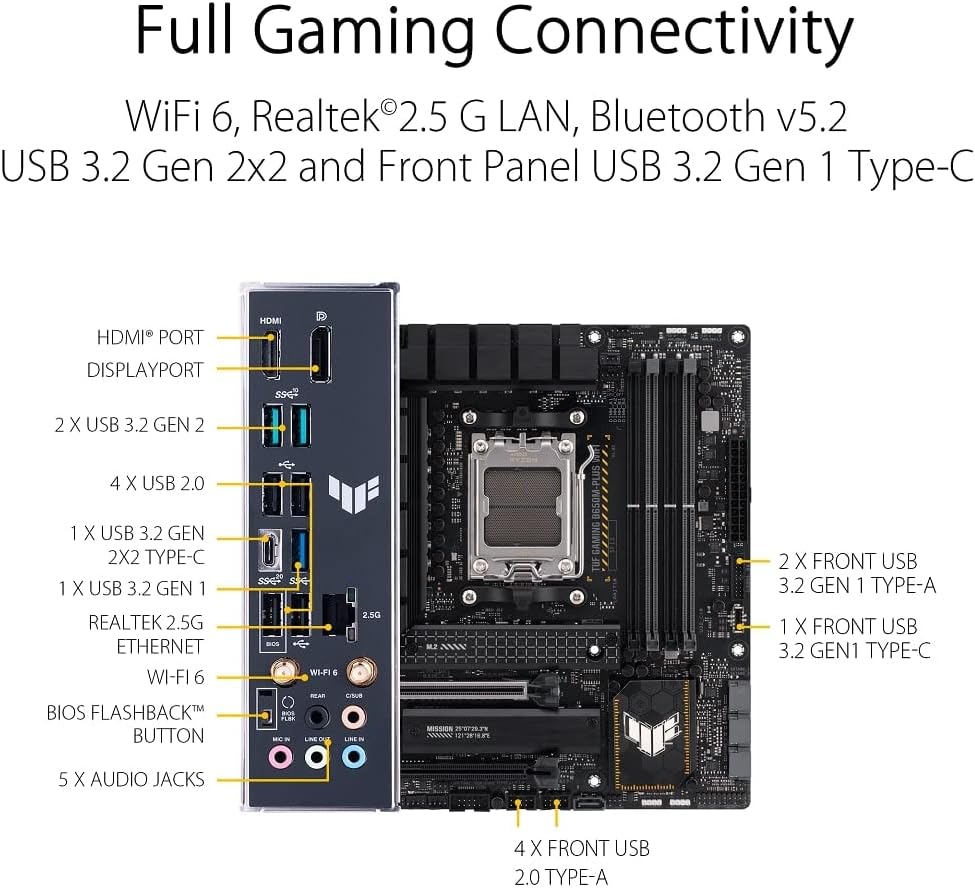
Figure 5: Rear I/O panel and internal headers for comprehensive connectivity, including HDMI, DisplayPort, 2x USB 3.2 Gen 2, 4x USB 2.0, 1x USB 3.2 Gen 2x2 Type-C, 1x USB 3.2 Gen 1, Realtek 2.5G Ethernet, Wi-Fi 6, BIOS FlashBack Button, and 5x Audio Jacks. Also shown are 2x Front USB 3.2 Gen 1 Type-A, 1x Front USB 3.2 Gen 1 Type-C, and 4x Front USB 2.0 Type-A headers.
3.5 Product Overview Video
For a visual guide to the motherboard's features and design, please watch the official product overview video.
Video 1: Product Overview Video. This video provides a general overview of the ASUS TUF GAMING B650M-PLUS WIFI motherboard, showcasing its design and key features.
4. Operating the Motherboard
4.1 BIOS/UEFI Settings
The Unified Extensible Firmware Interface (UEFI) BIOS allows you to configure various system settings. To access the BIOS, press the DEL or F2 key during the Power-On Self-Test (POST) sequence. The BIOS provides options for boot order, hardware monitoring, and overclocking (if applicable).
4.2 Driver Installation
After installing your operating system, it is crucial to install the latest drivers for your motherboard components. These include chipset drivers, audio drivers, LAN drivers, and Wi-Fi/Bluetooth drivers. You can find the latest drivers on the official ASUS support website for your specific model.
4.3 Software Utilities
ASUS provides several software utilities to enhance your experience:
- Armoury Crate: A centralized software suite for managing system settings, lighting effects (Aura Sync), and fan control (Fan Xpert 4).
- AI Suite 3: Offers various utilities for system tuning, power saving, and fan control.
5. Maintenance
5.1 BIOS Updates
Regularly updating your BIOS can improve system stability, compatibility, and performance. The ASUS TUF GAMING B650M-PLUS WIFI supports BIOS FlashBack, allowing you to update the BIOS even without a CPU or memory installed. Refer to the detailed instructions in your user guide for the BIOS FlashBack procedure.
5.2 Cleaning
To ensure optimal performance and longevity, periodically clean your motherboard and PC components. Use compressed air to remove dust from heatsinks, fan blades, and other components. Ensure the system is powered off and unplugged before cleaning.
6. Troubleshooting
This section provides solutions to common issues you might encounter.
6.1 No Display/Boot Issues
- Check Power Connections: Ensure all power cables (24-pin ATX, 8-pin CPU) are securely connected to the motherboard.
- Reseat Components: Reinstall the CPU, RAM modules, and graphics card to ensure they are properly seated in their respective slots.
- Clear CMOS: Refer to your detailed user guide for instructions on how to clear the CMOS, which can resolve incorrect BIOS settings.
- BIOS FlashBack: If the issue persists, consider using the BIOS FlashBack feature to update or re-flash the BIOS.
6.2 Network Connectivity Problems
- Check Cables: For wired connections, ensure the Ethernet cable is properly connected to both the motherboard and the router/modem.
- Install Drivers: Verify that the latest Wi-Fi and Ethernet drivers are installed.
- Antenna Connection: For Wi-Fi, ensure the Wi-Fi antenna is securely connected to the motherboard's I/O panel.
6.3 Audio Issues
- Check Connections: Ensure audio cables are correctly plugged into the appropriate jacks on the rear I/O panel or front panel.
- Install Drivers: Verify that the latest audio drivers are installed.
- Software Settings: Check audio output settings in your operating system and any installed audio management software.
7. Technical Specifications
| Feature | Specification |
|---|---|
| Brand | ASUS |
| Series | TUF GAMING B650M-PLUS WIFI |
| Model Name | TUF GAMING B650M-PLUS WIFI |
| CPU Socket | Socket AM5 |
| Compatible Processors | AMD Ryzen Desktop 9000*, 8000*, and 7000 Series |
| Chipset Type | AMD B650 |
| RAM Memory Technology | DDR5 |
| Memory Speed | 6400 MHz |
| Memory Storage Capacity | 128 GB |
| Wireless Type | 802.11a/b/g/n/ac, 802.11ax (WiFi 6) |
| Ethernet | Realtek 2.5 Gb Ethernet |
| USB Ports | 2x USB 2.0, USB 3.2 Gen2x2 Type-C, Front USB 3.2 Gen 1 Type-C, USB4 support |
| Product Dimensions | 10.83 x 2.65 x 10.83 inches |
| Item Weight | 3.51 pounds |
| Color | BLACK |
| Platform | Windows 10 |
8. Warranty and Support
8.1 Product Warranty
This product is covered by a manufacturer's warranty. For specific details regarding the warranty period and terms, please refer to the warranty card included in your product packaging or visit the official ASUS support website.
8.2 Technical Support
For technical assistance, driver downloads, BIOS updates, and frequently asked questions, please visit the official ASUS support website. You can also find contact information for customer service and technical support there.


