
1. Introduction
This manual provides essential information for the proper setup, operation, and maintenance of your ROADOM 15.6-inch Portable Dual Monitor, Model X90E. Please read this manual thoroughly before using the product to ensure optimal performance and longevity.
2. Important Compatibility Information
Before using this product, please verify the following compatibility requirements for your device:
- Your device must be running Windows 11/Windows 10 or Android 8.0 or higher.
- A full-featured Type-C interface with video output support (DisplayPort Alt Mode/Thunderbolt protocol compatible) is required for single-cable connection.
Confirming these points will ensure you can fully utilize the monitor's capabilities and enjoy an optimal multi-display environment.
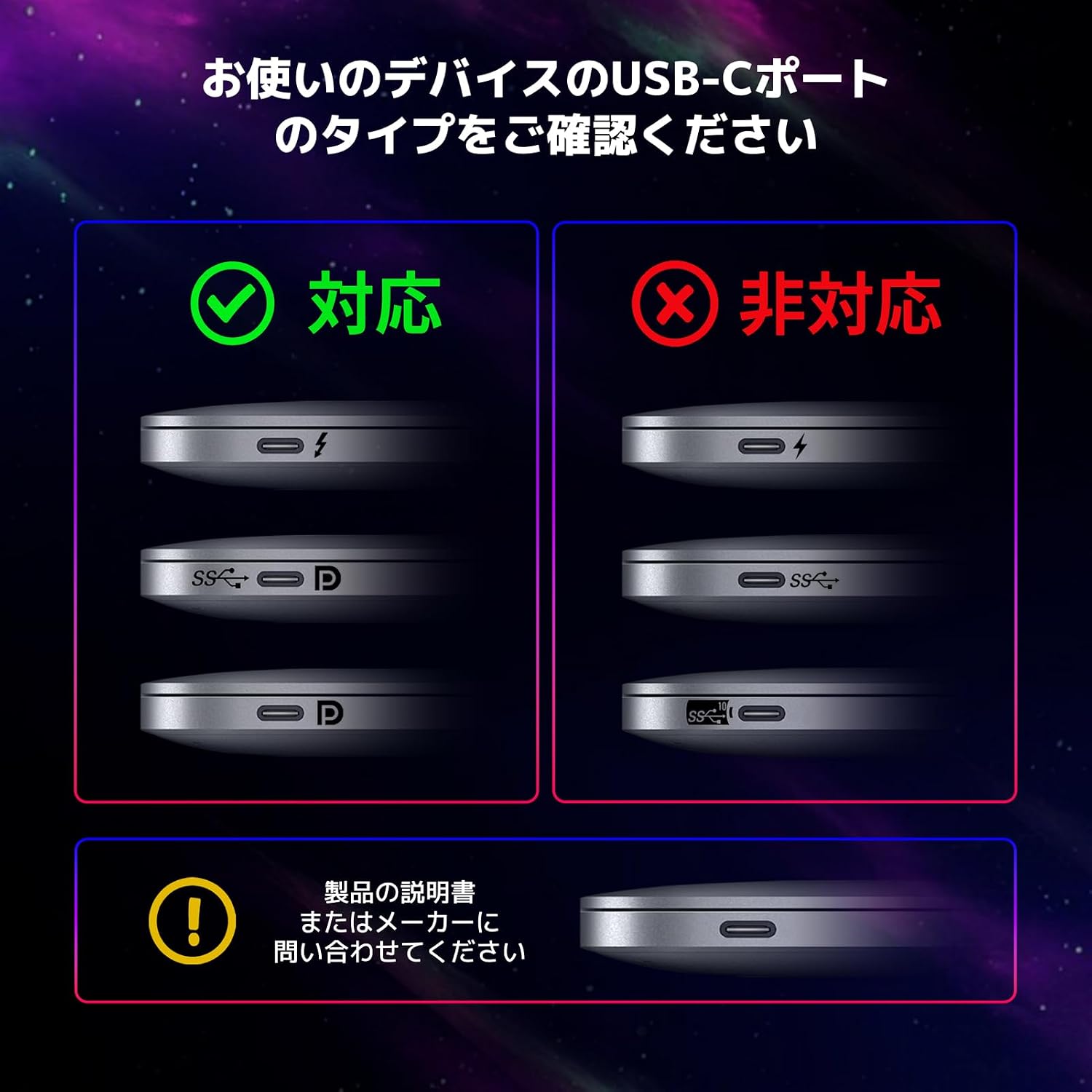
Image: USB-C port compatibility check. Shows examples of compatible (full-featured Type-C) and incompatible (power-only Type-C) ports. Always check your device's port specifications.
3. Product Features
- Next-Generation Multi-Display: This monitor allows for a 3-screen workflow by adding two screens to your laptop, enhancing efficiency for tasks like programming, data analysis, and design.
- Single Type-C Connection: Simplify your setup with a single full-featured Type-C cable that provides both power and high-definition video transmission.
- 360° Flexible Adjustment: Each screen can rotate independently by 360 degrees, allowing for versatile display orientations (vertical or horizontal) and easy sharing in small meetings.
- Premium Metal Body: Constructed from aluminum alloy, the body and stand offer both portability and robust durability. Its foldable design allows for a professional dual monitor setup anywhere.
- Optimized for Professionals: Designed to meet diverse professional needs, from programmers and designers to traders, significantly boosting PC work productivity.

Image: The ROADOM portable monitor highlighting its 15.6-inch 1080P FHD display with features such as 100% sRGB, IPS panel, HDR, 178° viewing angle, and eye protection.

Image: Illustration of the three display modes: Duplicate Mode for sharing, Extend Mode for enhanced productivity, and Single Screen Mode for primary use.
4. Setup Guide
4.1 Connecting to a Laptop/PC (Type-C)
- Ensure your laptop's Type-C port supports video output (DisplayPort Alt Mode/Thunderbolt).
- Connect one end of the provided full-featured Type-C cable to your laptop's Type-C port.
- Connect the other end of the Type-C cable to the monitor's Type-C port (labeled for video/power).
- The monitor should automatically detect the signal and power on. Adjust display settings on your laptop if necessary (e.g., Extend, Duplicate).
4.2 Connecting to a Laptop/PC (HDMI + USB Power)
- Connect one end of the provided Mini-HDMI to HDMI cable to the monitor's Mini-HDMI port.
- Connect the other end of the HDMI cable to your laptop's HDMI port.
- Connect the provided USB-A to Type-C cable from your laptop's USB-A port (or a power adapter) to the monitor's Type-C power input port for power.
- The monitor should display the signal. Adjust display settings on your laptop if necessary.
4.3 Connecting to Other Devices (e.g., Gaming Consoles, Smartphones)
Use the appropriate cables (HDMI or full-featured Type-C) to connect your device to the monitor. Ensure external power is supplied to the monitor if your device cannot provide sufficient power via Type-C.

Image: Connection diagram illustrating Type-C (full-featured and power-only) and Mini-HDMI connections to various devices like laptops.
5. Operating Instructions
5.1 Power On/Off
Press and hold the power button located on the side of the monitor to turn it on or off.
5.2 On-Screen Display (OSD) Menu
Use the control buttons (usually a joystick or a set of buttons) on the monitor to navigate the OSD menu. Here you can adjust settings such as brightness, contrast, color, input source, and display modes.
5.3 Display Modes
The monitor supports various display modes, configurable through your connected device's operating system settings:
- Extend Mode: Expands your desktop across multiple screens, ideal for multitasking.
- Duplicate Mode: Mirrors your primary display, useful for presentations or sharing content.
- Second Screen Only: Displays content only on the portable monitor.
5.4 Screen Rotation
The monitor supports 360-degree rotation for each screen. You can physically rotate the screens to achieve vertical or horizontal orientation. Adjust the display orientation in your operating system settings (e.g., Windows Display Settings) if the rotation does not automatically adjust.

Image: The monitor demonstrating its multi-angle adjustment, including vertical and horizontal modes, with a 0-80 degree tilt capability.
6. Maintenance
- Cleaning: Use a soft, lint-free cloth to gently wipe the screen and body. For stubborn marks, slightly dampen the cloth with water or a mild, non-abrasive screen cleaner. Avoid harsh chemicals.
- Storage: When not in use, fold the monitor and store it in a dry, cool place, away from direct sunlight and extreme temperatures.
- Handling: Avoid dropping the monitor or subjecting it to strong impacts. Do not place heavy objects on top of it.
- Cables: Handle cables carefully. Avoid bending them sharply or pulling them forcefully from the ports.
7. Troubleshooting
7.1 No Display/Black Screen
- Check Power: Ensure the monitor is properly connected to a power source and turned on.
- Check Cable Connection: Verify that the video cable (Type-C or HDMI) is securely connected to both the monitor and your device.
- Input Source: Use the OSD menu to manually select the correct input source (e.g., Type-C, HDMI).
- Device Compatibility: Confirm your device's Type-C port supports video output if using a single Type-C cable.
- Restart Devices: Try restarting your connected device and the monitor.
7.2 Flickering Screen
- Cable Quality: Ensure you are using the provided high-quality cables. Try a different cable if available.
- Power Supply: Ensure the monitor is receiving stable power. If using a USB port for power, try a different port or a dedicated power adapter.
- Refresh Rate: Check your device's display settings to ensure the refresh rate is set correctly (e.g., 60Hz).
7.3 No Sound from Monitor Speakers
- Volume Level: Check the monitor's volume in the OSD menu and your device's volume settings.
- Audio Output: Ensure the monitor is selected as the audio output device in your computer's sound settings.
- Cable Type: Verify that the connected cable (e.g., HDMI, full-featured Type-C) supports audio transmission.
8. Specifications
| Feature | Specification |
|---|---|
| Brand | ROADOM |
| Screen Size | 15.6 inches |
| Resolution | FHD 1080p (1920 x 1080) |
| Aspect Ratio | 16:9 |
| Screen Surface | Non-glare |
| Contrast Ratio | 1500:1 |
| Refresh Rate | 60 Hz |
| Display Type | LCD (IPS Panel) |
| Viewing Angle | 178 degrees |
| Response Time | 2 ms |
| Connectivity | USB Type-C (Full-featured), Mini-HDMI |
| Product Dimensions (D x W x H) | 38.8 x 22.7 x 2.8 cm |
| Additional Features | Pivot (Screen Rotation) |
| Color | Black |
| Model Number | RJP-X90E-156 WIN |
| UPC | 616908985013 |
9. Package Contents
Please check that all items are included in your package:
- Portable Monitor Unit
- Type-C to Type-C Cable
- HDMI to Mini-HDMI Cable
- USB-A to Type-C Cable
- User Manual (Japanese)
- Power Adapter (5V/2.4A)

Image: Contents of the product package, including the monitor, various connection cables, user manual, and power adapter.
10. Warranty and Support
This product comes with a 1-year warranty. In the event of any issues, ROADOM offers prompt support through its dedicated staff and service warehouse located in Japan, available 365 days a year. Please feel free to contact us for any inquiries or support needs regarding your monitor.
