
1. Product Overview
The ROADOM 15.6-inch Portable Monitor is a versatile and lightweight display designed to enhance your productivity and entertainment experience. Featuring a 1920x1080 Full HD IPS panel, it delivers vibrant colors and wide viewing angles. Its slim aluminum alloy body and included protective case make it highly portable, perfect for on-the-go use or expanding your workspace at home.

Image: The ROADOM 15.6-inch portable monitor, highlighting its Full HD, IPS, and Type-C features.
2. Product Features
- 15.6-inch IPS LCD Panel & Amazing Visual Experience: The Roadom 15.6-inch large screen LCD panel combines 1080P Full HD high-quality image quality and supports NTSC 72%, allowing for precise image reproduction. With a wide viewing angle of 178° (up/down, left/right), it displays vivid images from any angle. It weighs only 780g and is 9.3mm thin, making it easy to store and carry.
- High-Quality Aluminum Alloy & Frameless Design: This portable monitor features a durable aluminum alloy material and excellent manufacturing technology, providing a premium feel and high durability. The screen bezel is only 4mm, creating a near full-screen experience.
- Horizontal/Vertical Display Capability: As a PC sub-monitor, it supports both extended and duplicate display modes. It can be easily set up for both horizontal and vertical orientations, enhancing productivity for various tasks like video viewing, game duplication, or dual-screen work setups.
- Easy Connection with a Single Type-C Cable: The monitor features a full-function Type-C port that allows for video, audio, and power supply through a single cable, offering maximum convenience. It also includes multiple input terminals for broad compatibility.
- Built-in Speakers: The monitor comes with integrated speakers, providing audio output without the need for external speakers.

Image: The portable monitor showcasing a vibrant image of a dolphin, emphasizing its visual quality.
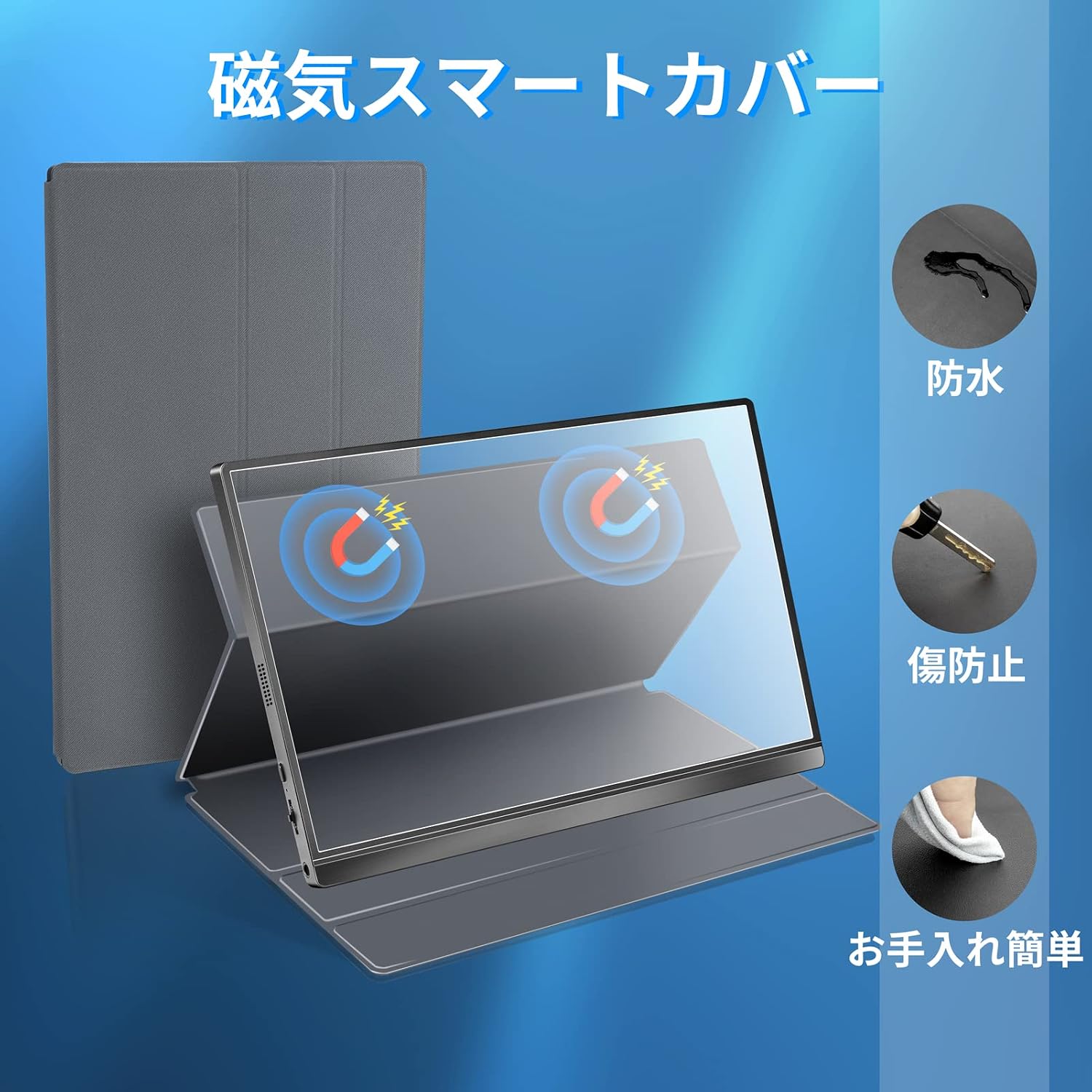
Image: The magnetic smart cover, demonstrating its protective qualities like water resistance and scratch prevention.

Image: A close-up of the monitor in vertical display mode, illustrating its flexible orientation.

Image: A hand connecting a Type-C cable to the monitor, showing the ease of single-cable connection.

Image: An exploded view diagram illustrating the internal speakers of the monitor.
3. Setup Guide
3.1 Connecting to Devices
The ROADOM portable monitor offers flexible connectivity options to various devices. Ensure your device's port type is compatible before connecting.
3.1.1 Type-C Connection (Single Cable Solution)
For devices with a full-function Type-C port (which supports signal transmission and power delivery), you can use the included Type-C to Type-C cable for a single-cable connection. This cable will transmit video, audio, and power simultaneously.
- Connect one end of the Type-C to Type-C cable to the full-function Type-C port on the monitor (the middle Type-C port).
- Connect the other end to the full-function Type-C port on your device (e.g., laptop, smartphone).
- If your device's Type-C port has low power output, external power (e.g., mobile battery or power adapter) may be required for the monitor.

Image: The portable monitor connected to a laptop via a single Type-C cable, demonstrating a dual-screen setup.
3.1.2 HDMI Connection
For devices without a full-function Type-C port, you can use the mini HDMI port for video and audio transmission. In this case, external power supply to the monitor is required.
- Connect one end of a mini HDMI to HDMI cable to the mini HDMI port on the monitor.
- Connect the other end to the HDMI port on your device (e.g., PC, game console).
- Connect the included 5V/2.4A power adapter to the monitor's power input port and a power outlet.
3.1.3 Connecting to Specific Devices
- Nintendo Switch / Smartphones: Due to high power consumption, it is recommended to supply independent power to the monitor when connecting to Switch or smartphones. A mobile battery can also be used for power supply when on the go.
- iPhone: Connecting to an iPhone requires a conversion adapter (e.g., Lightning to HDMI adapter).
- Smartphones (via HDMI): When connecting a smartphone to the display via HDMI, an HDMI adapter for your smartphone is required.

Image: A visual guide to USB-C port compatibility, showing which types are supported for full functionality.

Image: A connection diagram for iOS devices, detailing the use of a Lightning to HDMI cable and external power.
4. Operating Instructions
4.1 Display Modes
- Extended Mode: Extend your desktop across both your primary device and the portable monitor, allowing for more screen real estate.
- Duplicate Mode: Mirror your primary device's display onto the portable monitor, useful for presentations or sharing content.
4.2 Screen Orientation (Horizontal/Vertical)
The monitor supports both horizontal (landscape) and vertical (portrait) display orientations. You can adjust the orientation through your connected device's display settings.

Image: The portable monitor being used in a business meeting for screen sharing, demonstrating its utility in collaborative environments.
4.3 Brightness Adjustment
The monitor features an automatic power-saving mode where brightness may revert to a low setting if not powered externally or connected to a device. You can manually adjust the brightness to your preferred level using the monitor's control buttons.
4.4 Gaming Experience
The 1080P Full HD IPS panel provides a vibrant and immersive gaming experience when connected to consoles like Nintendo Switch, PlayStation, or Xbox.

Image: A person playing a video game on the portable monitor, showcasing its use as an FHD gaming display.
4.5 Product Video
Video: An official product video demonstrating the features and usage of the ROADOM 15.6-inch Portable Monitor, including its connectivity with various devices like laptops, PCs, phones, Xbox, Switch, PS4, and PS5.
5. Maintenance
To ensure the longevity and optimal performance of your ROADOM portable monitor, follow these general maintenance guidelines:
- Cleaning: Use a soft, lint-free cloth to gently wipe the screen and exterior. For stubborn smudges, slightly dampen the cloth with water or a screen-cleaning solution. Avoid harsh chemicals or abrasive materials.
- Storage: When not in use, store the monitor in its protective case to prevent scratches and dust accumulation. Avoid placing heavy objects on top of the monitor.
- Handling: Handle the monitor with care. Avoid dropping it or subjecting it to strong impacts.
- Temperature and Humidity: Operate and store the monitor within recommended temperature and humidity ranges. Avoid extreme conditions.

Image: A person carefully sliding the portable monitor into a protective sleeve, illustrating proper storage and care.
6. Troubleshooting
If you encounter issues with your ROADOM portable monitor, please refer to the following common problems and solutions:
6.1 Power LED is not lit.
- Check if the monitor is in 'On' mode by pressing the power button.
- Ensure the included 5V/2.4A power adapter is correctly connected to the monitor and a power outlet.
6.2 Cannot connect ("No Signal", "Power Saving").
- Verify that the connected device is compatible with the Roadom monitor. (Note: Some USB-C ports only support power output, charging, or data transfer, not video.)
- Ensure both the monitor and your PC/device are in 'On' mode.
- Check that cables are correctly connected. Also, try powering the monitor with the included 5V/2.4A power adapter.
- Confirm you are using the included cables. If using other cables, ensure they are HDMI 2.0 or USB-C 3.0 or higher.
- Check if the signal cable pins are bent.
- Try connecting the monitor to another compatible device.
- Note that the monitor does not have an internal battery, and the HDMI port does not supply power.
6.3 Screen image is too dark.
- Adjust the brightness setting manually.
6.4 Screen image has wave patterns.
- Ensure the USB cable is correctly connected between the monitor and the PC.
- Move any devices that might cause signal interference away from the monitor.
6.5 Screen flickers with various colors during startup.
- Long-press the power button to turn off the monitor, then restart it.
7. Specifications
| Feature | Specification |
|---|---|
| Brand | ROADOM |
| Model Number | F13NA |
| Screen Size | 15.6 inches |
| Panel Type | IPS LCD |
| Resolution | 1920 x 1080 pixels (FHD) |
| Aspect Ratio | 16:9 |
| Color Gamut | 72% NTSC |
| Viewing Angle | 178° (Horizontal/Vertical) |
| Product Dimensions | 36.8 x 22.5 x 0.9 cm |
| Product Weight | 780g (monitor only) / 2.06 kg (packaged) |
| Color | Black |
| Input Ports | Mini HDMI, Dual Type-C (Full-function: video, power, signal) |
| Output Ports | 3.5mm Headphone Jack |
| Built-in Speakers | Yes |
| Power Supply | 5V |
| Screen Surface | Matte |
7.1 Compatible Devices
The monitor is compatible with a wide range of devices. Below is a general list:

Image: A detailed table listing compatible PC brands (Apple, Google, Lenovo, DELL, HP, Microsoft, ASUS, HUAWEI, Razer) and smartphone brands (SAMSUNG, HUAWEI, HONOR, OPPO, Razer, HTC, LG, ASUS) with specific models.
8. Warranty and Support
ROADOM offers a 1-year warranty from the date of purchase for this product. Please purchase with confidence.
If you encounter any problems or have questions regarding your product, please contact us directly via email. Our support team aims to respond within 24 hours.
For further assistance, please visit the official ROADOM store on Amazon: ROADOM Store
