1. Introduction
Thank you for choosing the Beafon SL605 Silverline Flip Phone. This manual provides essential information for setting up, operating, and maintaining your device. The SL605 is designed with ease of use in mind, featuring large buttons, a clear display, and an SOS emergency call function, making it ideal for seniors.

Figure 1.1: Beafon SL605 Silverline Flip Phone (Closed)
This image shows the Beafon SL605 flip phone in its closed state, displaying the external screen with the current time and date. The phone has a sleek black and silver design.
2. Package Contents
Please check the package contents upon unboxing. If any items are missing or damaged, contact your retailer.
- Beafon SL605 Flip Phone
- Rechargeable Lithium-ion Battery
- Charging Cable
- Charging Cradle (if included with your model)
- User Manual (this document)
3. Device Overview
Familiarize yourself with the key components of your Beafon SL605.

Figure 3.1: Beafon SL605 Silverline Flip Phone (Open)
This image displays the Beafon SL605 flip phone in its open position, revealing the internal color display and the large, illuminated keypad. The keypad features clearly marked buttons for easy dialing and navigation.
3.1 Front View (Closed)
- External Display: Shows time, date, battery status, and incoming call information.
- Notification LED: Indicates new messages or missed calls.
3.2 Front View (Open)
- Internal Display: 2.4-inch color screen for menus, contacts, and messages.
- Keypad: Large, illuminated buttons for dialing and navigation. Includes dedicated call, end call, and SOS buttons.
- Navigation Keys: Up, Down, Left, Right, and OK/Confirm buttons.
- Photo Contact Indicator: Feature to display contact photos.
3.3 Rear View

Figure 3.2: Rear View of Beafon SL605
This image shows the back of the Beafon SL605 flip phone, highlighting the prominent SOS emergency call button and the speaker grille at the bottom.
- SOS Emergency Button: Press and hold to activate the emergency call sequence.
- Speaker: For loud ringtones and hands-free calls.
3.4 Side View
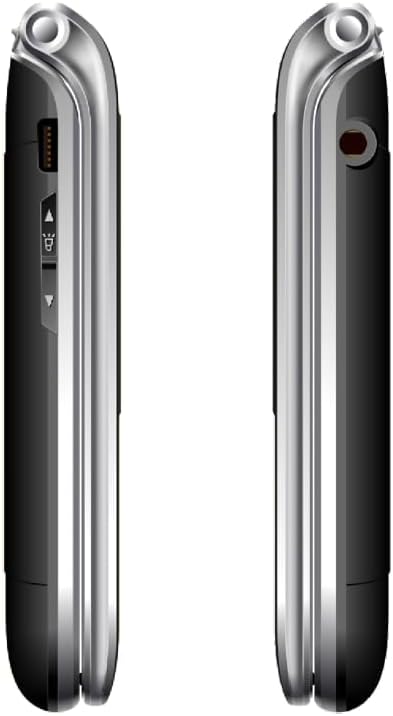
Figure 3.3: Side View of Beafon SL605
This image presents a side view of the Beafon SL605 flip phone, illustrating the charging port and volume control buttons located on the side of the device.
- Charging Port: For connecting the charging cable or placing in the charging cradle.
- Volume Buttons: Adjust call volume and ringtone volume.
- Headphone Jack: 3.5 mm port for headphones.
4. Setup
4.1 Installing the Battery and SIM Card
- Remove the back cover of the phone by gently prying it open from the notch.
- Insert your SIM card into the designated slot. Ensure the gold contacts face downwards and the cut corner aligns with the slot.
- Insert the Lithium-ion battery, aligning the contacts with those in the phone.
- Replace the back cover, pressing firmly until it clicks into place.
4.2 Charging the Battery
Before first use, fully charge the phone's battery.
- Connect the charging cable to the phone's charging port or place the phone in its charging cradle.
- Plug the other end of the cable into a power outlet.
- The battery icon on the display will indicate charging status. A full charge typically takes 2-3 hours.
4.3 Powering On/Off
- To Power On: Press and hold the End Call/Power button until the screen lights up.
- To Power Off: Press and hold the End Call/Power button until a power-off prompt appears, then confirm.
5. Operating Instructions
5.1 Making and Receiving Calls
- To Dial: Open the phone, enter the phone number using the keypad, and press the Call button.
- From Contacts: Navigate to the "Contacts" menu, select a contact, and press the Call button.
- To Answer: When the phone rings, open the flip or press the Call button.
- To End Call: Press the End Call button or close the flip.
5.2 SOS Emergency Call Function
The SOS button is located on the back of the phone. It allows you to quickly contact pre-set emergency numbers.
- Setting SOS Numbers: Go to Menu > SOS Settings to add up to 5 emergency contacts.
- Activating SOS: Press and hold the SOS button on the back of the phone for 3 seconds.
- The phone will automatically call the first number in the SOS list. If unanswered, it will call the next number, and so on, cycling through the list up to 3 times.
- An emergency SMS message will also be sent to all SOS contacts.
5.3 Messaging (SMS)
- To Send: Go to Menu > Messages > Write Message. Enter your message and select a recipient from contacts or enter a number.
- To Read: New messages will be indicated by a notification. Go to Menu > Messages > Inbox to read.
5.4 Phone Settings
Access various settings via the Menu button.
- Ringtone Volume: Adjust using the side volume buttons or in Menu > Settings > Profiles.
- Number Announcement: Enable or disable the feature that announces dialed numbers by button press in Menu > Settings > Call Settings.
- Language: The device supports multiple languages. Change the interface language in Menu > Settings > Phone Settings > Language. (Note: Some models may have limited language options, such as German as a primary language.)

Figure 5.1: Beafon SL605 Photo Contact Feature
This image shows two open Beafon SL605 phones side-by-side. The phone on the right demonstrates the photo contact feature, where a contact's picture is displayed on the screen, making it easier to identify callers.
6. Maintenance and Care
- Keep the phone dry. Liquids can corrode electronic circuits.
- Do not use harsh chemicals, cleaning solvents, or strong detergents to clean the phone. Wipe it with a soft, damp cloth.
- Do not store the phone in high temperatures, as this can shorten the life of electronic devices, damage batteries, and warp or melt certain plastics.
- Do not store the phone in cold temperatures, as moisture can form inside the phone when it returns to normal temperature, which could damage the electronic circuit boards.
- Do not drop, knock, or shake the phone. Rough handling can break internal circuit boards and fine mechanics.
- The phone has IP54 protection against dust and splashes. While it offers some protection, it is not waterproof and should not be submerged in water.
7. Troubleshooting
| Problem | Possible Cause | Solution |
|---|---|---|
| Phone does not power on. | Battery is depleted or not installed correctly. | Charge the battery. Ensure the battery is correctly inserted. |
| Cannot make or receive calls. | No SIM card, SIM card not inserted correctly, or no network signal. | Ensure SIM card is properly inserted. Check network signal strength. Contact your service provider if issues persist. |
| Sound is too low/high. | Volume settings are incorrect. | Adjust volume using the side buttons during a call or in the phone's settings. |
| SOS button not working. | SOS numbers not set or incorrect. | Verify that SOS emergency numbers are correctly configured in the settings. |
| External display is blank or white. | Possible software glitch or hardware issue. | Try restarting the phone. If the problem persists, contact customer support. |
8. Specifications
- Model: Beafon SL605
- Product Type: Foldable Mobile Phone
- Color: Black
- Operating System: Beafon OS
- Internal Display: 2.4 inches (6.09 cm) Color LCD
- External Display: 1.44 inches (3.65 cm) Color LCD
- Cellular Technology: 2G
- Connectivity: Bluetooth, 3.5 mm Jack
- Special Features: IP54 Dust and Splash Protection, Rubberized Surface, Ergonomic Design, Extra Large Illuminated Buttons, Extra Loud Ringtone, Photo Contact Indicator, Number Announcement (optional)
- Battery: Lithium-ion (included)
- Memory Storage Capacity: 32 GB
- Manufacturer: Beafon
- Country of Origin: China
9. Warranty and Support
For warranty information, please refer to the warranty card included in your product packaging or contact your point of purchase. Beafon provides customer support for product inquiries and technical assistance.
Online Support: Visit the official Beafon website for FAQs, software updates, and contact information.
Customer Service: Contact details for customer service can typically be found on the manufacturer's website or in your purchase documentation.
10. Important Safety Information
- Do not attempt to disassemble or modify the phone. This can void the warranty and cause damage.
- Use only approved batteries, chargers, and accessories.
- Dispose of the phone and battery responsibly according to local regulations. Do not dispose of them in household waste.
- Avoid using the phone in extreme temperatures or highly humid environments.
- Keep the phone away from pacemakers and other medical devices.
- Do not use the phone while driving or operating heavy machinery.
11. Official Product Videos
No official product videos from the seller were found for this model in the provided data.


