
PNY VCG409024TFXPB1
PNY GeForce RTX 4090 24GB VERTO Triple Fan Graphics Card User Manual
Model: VCG409024TFXPB1
Introduction
This manual provides essential information for the installation, operation, and maintenance of your PNY GeForce RTX 4090 24GB VERTO Triple Fan Graphics Card. Please read this manual thoroughly before installation to ensure proper setup and optimal performance.
The PNY GeForce RTX 4090 is designed to deliver high-performance graphics for gaming and creative applications, powered by the NVIDIA Ada Lovelace architecture.
Package Contents
Verify that all items are present in your product package:
- PNY GeForce RTX 4090 24GB VERTO Triple Fan Graphics Card
- Support Bracket
- One 16-pin to Four 8-pin Power Cable

Image: The PNY GeForce RTX 4090 graphics card displayed alongside its retail packaging. The box highlights key features such as 24GB GDDR6X memory and GeForce RTX 4090 branding.
System Requirements
- PCI Express-compliant motherboard with one dual-width x16 graphics slot
- Minimum 850W or greater system power supply with one 16-pin power connector (or four 8-pin PCIe power connectors using the included adapter)
- Minimum 45GB of available hard-disk space
- 8GB system memory (16GB recommended)
- Microsoft Windows 10 64-bit (April 2018 Update or later) or Linux 64-bit
- Internet connection for driver installation
Setup and Installation
Important: Ensure your computer is powered off and unplugged from the wall outlet before beginning installation. Wear an anti-static wrist strap or frequently touch a grounded metal object to prevent electrostatic discharge (ESD) damage.
1. Prepare Your System
- Power down your computer and disconnect all cables.
- Open your computer case.
- Locate an available PCI Express x16 slot on your motherboard. This graphics card requires a dual-width slot.
- Remove any existing graphics card and its drivers if applicable.
2. Install the Graphics Card
- Carefully align the graphics card with the PCI Express x16 slot.
- Press down firmly until the card is securely seated in the slot. You may hear a click from the retention clip.
- Secure the card to the chassis using the screw(s) from your computer case.

Image: An angled view of the PNY GeForce RTX 4090 graphics card, showcasing its triple-fan design and overall length, which is important for checking case compatibility.
3. Connect Power
- Connect the included 16-pin to four 8-pin power cable to the graphics card's power connector.
- Connect the four 8-pin connectors to your power supply's PCIe power cables. Ensure all connections are secure.

Image: A side view of the PNY GeForce RTX 4090 graphics card, highlighting the location of the 16-pin power connector. Proper connection of this cable is crucial for the card's operation.
4. Install the Anti-Sag Bracket (Recommended)
Due to the size and weight of the RTX 4090, installing the included anti-sag bracket is highly recommended to prevent stress on the PCIe slot and motherboard.
- Refer to the bracket's specific instructions for installation, as designs may vary.
- Typically, it attaches to the motherboard or case to support the far end of the graphics card.
5. Close Case and Connect Peripherals
- Close your computer case.
- Connect your monitor(s) to the DisplayPort or HDMI outputs on the graphics card.
- Reconnect all other peripherals and power cable.
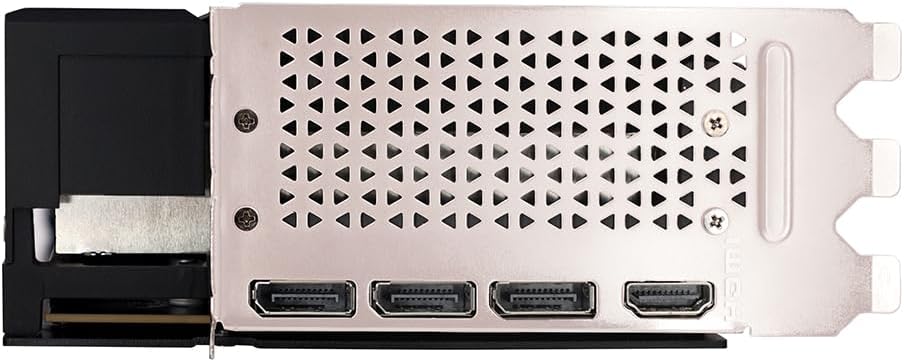
Image: The rear input/output panel of the PNY GeForce RTX 4090 graphics card, showing multiple DisplayPort and HDMI connections for connecting displays.
6. Install Drivers
- Power on your computer.
- Once Windows or Linux loads, download the latest drivers from the official NVIDIA website: www.nvidia.com/drivers.
- Follow the on-screen instructions to complete the driver installation.
Operating Your Graphics Card
After successful installation and driver setup, your PNY GeForce RTX 4090 graphics card is ready for use. It will automatically handle graphics processing for your applications and games.
NVIDIA GeForce Experience
NVIDIA GeForce Experience is a companion application that enhances your PC gaming experience. It allows you to:
- Optimize game settings for the best performance and visual quality.
- Keep your graphics drivers up to date.
- Capture and share videos, screenshots, and livestreams.
Download GeForce Experience from the NVIDIA website: www.nvidia.com/geforce/geforce-experience/.
Display Configuration
You can configure your display settings (resolution, refresh rate, multiple monitors) through your operating system's display settings or the NVIDIA Control Panel (accessible via right-click on your desktop).
Maintenance
Proper maintenance ensures the longevity and optimal performance of your graphics card.
Dust Removal
Over time, dust can accumulate on the fans and heatsink, reducing cooling efficiency. It is recommended to:
- Periodically (e.g., every 3-6 months) power off and unplug your computer.
- Open the case and use compressed air to gently clear dust from the graphics card's fans and heatsink fins. Hold the fan blades to prevent them from spinning rapidly during cleaning.
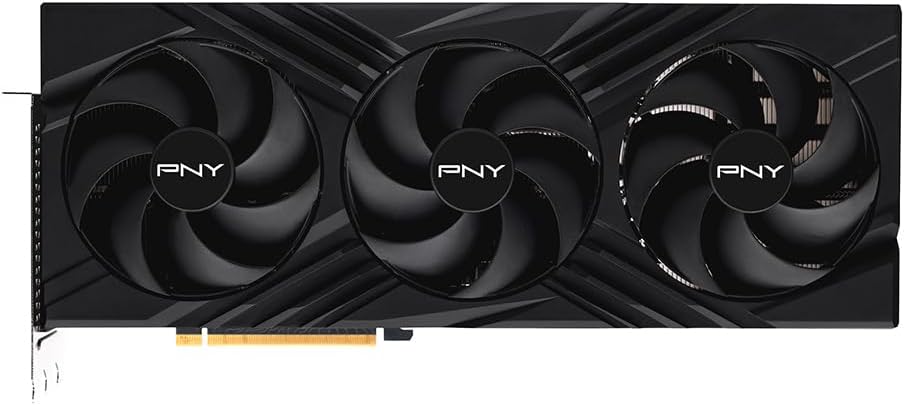
Image: A direct top view of the PNY GeForce RTX 4090 graphics card, clearly showing its three large cooling fans. Keeping these fans and the underlying heatsink free of dust is essential for efficient cooling.
Driver Updates
Regularly update your graphics drivers to benefit from performance improvements, bug fixes, and new features. Use NVIDIA GeForce Experience or visit the NVIDIA driver download page.
Troubleshooting
If you encounter issues with your graphics card, refer to the following common problems and solutions:
No Display Output
- Check Cables: Ensure the monitor cable is securely connected to both the graphics card and the monitor.
- Power Connections: Verify that the 16-pin power cable is fully seated in the graphics card and that all 8-pin connectors are properly connected to the power supply.
- PCIe Seating: Confirm the graphics card is fully seated in the motherboard's PCIe slot.
- Monitor Input: Ensure your monitor is set to the correct input source (DisplayPort, HDMI).
Driver Installation Issues
- Download Source: Always download drivers directly from the official NVIDIA website.
- Clean Installation: During driver installation, select the "Custom" option and check "Perform a clean installation" to remove previous driver files.
- Operating System: Ensure your operating system is up to date.
Performance Problems (Low FPS, Stuttering)
- Driver Updates: Ensure you have the latest graphics drivers installed.
- Cooling: Check for dust buildup on the graphics card and ensure adequate airflow within your PC case. Monitor GPU temperatures using software.
- Power Supply: Verify your power supply meets the minimum wattage requirement (850W recommended for RTX 4090).
- Game Settings: Adjust in-game graphics settings to match your system's capabilities.
Specifications
| Feature | Detail |
|---|---|
| Model Number | VCG409024TFXPB1 |
| Graphics Processor | NVIDIA GeForce RTX 4090 |
| Architecture | NVIDIA Ada Lovelace |
| CUDA Cores | 16384 |
| Video Memory | 24GB GDDR6X |
| Memory Interface | 384-bit |
| Memory Speed | 21 Gbps (Effective 1.4E+4 MHz) |
| Boost Clock | 2520 MHz |
| Interface | PCI Express 4.0 x16 |
| Display Outputs | 3x DisplayPort 1.4a, 1x HDMI 2.1a |
| Max Digital Resolution | 7680x4320 (4K at 240Hz or 8K at 60Hz with DSC) |
| Multi-Display Support | Up to 4 monitors |
| Power Connectors | 1x 16-pin (12VHPWR) |
| Recommended PSU | 850W or greater |
| Card Dimensions (LxWxH) | 13.26 x 5.63 x 2.33 inches (33.68 x 14.30 x 5.92 cm) |
| Item Weight | 1.32 pounds (0.6 kg) |
Warranty Information
PNY offers a limited warranty for this product. Based on information from the product packaging, this product typically comes with a Three-year limited warranty.
For detailed warranty terms and conditions, please visit the official PNY website or contact PNY customer support. Keep your proof of purchase for warranty claims.
Support and Contact Information
For technical assistance, driver downloads, or further information, please visit the PNY support website:
- PNY Website: www.pny.com
- Product Page: PNY GeForce RTX 4090 24GB VERTO Triple Fan LED
- NVIDIA Driver Downloads: www.nvidia.com/drivers
You can also find contact information for PNY customer service on their official website.
Related documentsVCG409024TFXPB1


Ask a question about this manual
Ask about setup, troubleshooting, compatibility, parts, safety, or missing instructions. Manuals+ will review the question and use this page’s manual context to help answer it.