1. Introduction
This user manual provides comprehensive instructions for the setup, operation, maintenance, and troubleshooting of your JVC 65-inch 4K Frameless Roku TV, model SI65URF. Please read this manual thoroughly before using your television to ensure proper and safe operation.
The JVC SI65URF is a state-of-the-art 65-inch 4K UHD television featuring a sleek frameless design and integrated Roku TV smart platform. Enjoy stunning visuals with 4K resolution and a wide array of streaming content.

Image: Front view of the JVC 65-inch 4K Frameless Roku TV, showcasing its slim bezels and vibrant display.
2. Safety Information
To reduce the risk of electric shock, fire, or damage to the television, always observe the following safety precautions:
- Power Source: Connect the TV only to an AC power outlet of the specified voltage.
- Ventilation: Ensure adequate ventilation. Do not block ventilation openings or install the TV in a confined space.
- Moisture: Do not expose the TV to rain or moisture. Do not place objects filled with liquids, such as vases, on the TV.
- Cleaning: Unplug the TV from the power outlet before cleaning. Use a soft, dry cloth. Do not use liquid cleaners or aerosol cleaners.
- Placement: Place the TV on a stable, level surface. Avoid placing it in direct sunlight or near heat sources.
- Servicing: Do not attempt to service this product yourself. Refer all servicing to qualified service personnel.
3. Package Contents
Please check that all items listed below are included in your package. If any items are missing or damaged, contact your retailer.
- JVC 65-inch 4K Frameless Roku TV
- Remote Control
- Table Stand (2 pieces)
- Screws for Table Stand
- Power Cord
- Warranty Card
- Quick Start Guide (this document serves as the full manual)
4. Setup
4.1 Unpacking
Carefully remove the television from its packaging. It is recommended to keep the original packaging for future transportation or servicing needs.
4.2 Installing the Table Stand
If you plan to place the TV on a table or cabinet, attach the included table stands. Place the TV face down on a soft, clean surface to prevent screen damage. Align each stand with the corresponding screw holes on the bottom of the TV and secure them with the provided screws.

Image: Diagram showing the dimensions of the JVC 65-inch TV, which also illustrates the placement of the table stands.
4.3 Wall Mounting (Optional)
If you prefer to wall mount your TV, you will need a VESA-compatible wall mount kit (sold separately). Refer to the wall mount kit's instructions for proper installation. Ensure the wall can support the weight of the TV and the mount.
4.4 Connecting Power
After securing the TV in its desired location, connect the power cord to the TV's power input and then plug the other end into a wall outlet.
4.5 Initial Setup and Network Connection
Upon first power-on, the TV will guide you through the initial setup process. This includes selecting your language, connecting to your Wi-Fi network, and activating your Roku account. Follow the on-screen prompts for a smooth setup.

Image: Screenshot of the Roku TV home screen, displaying various streaming channels and menu options.
5. Operating the TV
5.1 Remote Control Overview
The included remote control allows you to navigate the Roku TV interface and control your television's functions. Familiarize yourself with the button layout:
- Power Button: Turns the TV on or off.
- Directional Pad (D-Pad): Navigates menus and selects items.
- OK Button: Confirms selections.
- Home Button: Returns to the Roku TV home screen.
- Back Button: Returns to the previous screen.
- Volume Up/Down: Adjusts the volume.
- Mute Button: Mutes or unmutes the sound.
- Channel Buttons: Changes channels (for antenna/cable TV).
- Playback Controls: Play, Pause, Fast Forward, Rewind.
- Shortcut Buttons: Direct access to popular streaming services.
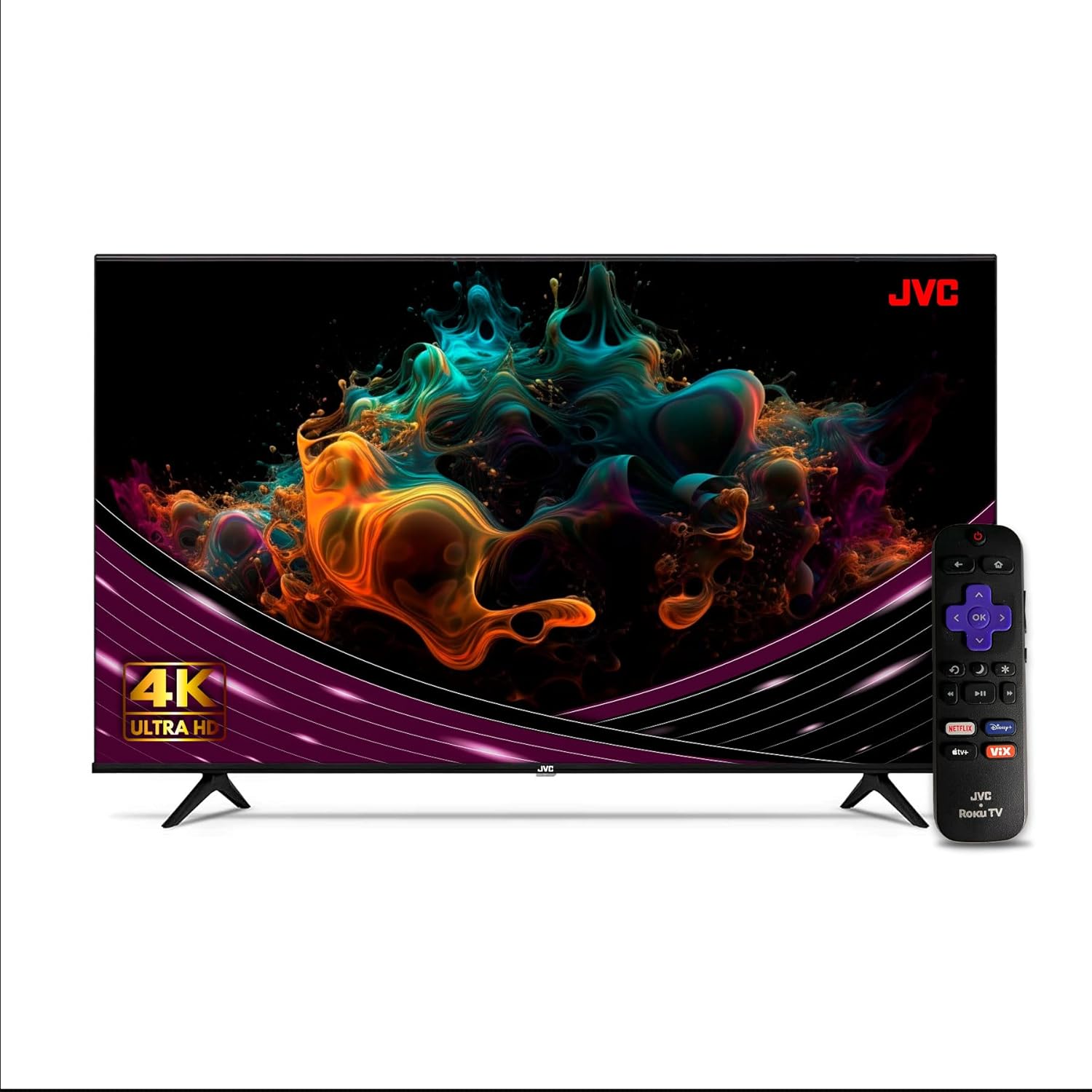
Image: The JVC 65-inch TV displayed alongside its remote control, highlighting the remote's design and button layout.
5.2 Roku TV Interface
The Roku TV interface is designed for simplicity and ease of use. From the Home screen, you can:
- Access Streaming Channels: Browse and launch your favorite apps like Netflix, Disney+, and more.
- Switch Inputs: Easily switch between connected devices (HDMI, USB).
- Search: Find movies, TV shows, and channels across various services.
- Settings: Adjust picture, sound, network, and system settings.
5.3 Connecting External Devices
Your JVC Roku TV is equipped with multiple input ports for connecting external devices such as Blu-ray players, game consoles, soundbars, and USB drives.
- HDMI Ports: Connect devices like cable boxes, game consoles, or streaming sticks using HDMI cables. The TV features multiple HDMI inputs for convenience.
- USB Port: Connect a USB drive to view photos, play music, or watch videos stored on the drive.
- Other Inputs: Refer to the TV's back panel for additional input options like optical audio out.
6. Maintenance
6.1 Cleaning the TV
Always unplug the TV before cleaning. Use a soft, lint-free cloth to gently wipe the screen and cabinet. For stubborn marks on the screen, lightly dampen the cloth with water or a specialized screen cleaner (never spray directly onto the screen). Avoid using abrasive cleaners, waxes, or solvents.
6.2 Storage
If you need to store the TV for an extended period, unplug it and store it in a cool, dry place. It is recommended to use the original packaging for protection during storage or transport.
7. Troubleshooting
If you encounter any issues with your JVC Roku TV, refer to the following common problems and solutions:
| Problem | Possible Cause | Solution |
|---|---|---|
| No power | Power cord not connected; outlet not working | Ensure power cord is securely plugged in. Test the outlet with another device. |
| No picture, but sound is present | Incorrect input selected; external device off or disconnected | Press the Input button on the remote to select the correct input. Check connections to external devices. |
| No sound, but picture is present | Volume muted or too low; incorrect audio settings | Press the Volume Up button or Mute button. Check audio output settings in the TV menu. |
| Cannot connect to Wi-Fi | Incorrect password; router issues; TV too far from router | Double-check Wi-Fi password. Restart your router. Move the TV closer to the router or use a Wi-Fi extender. |
| Remote control not working | Dead batteries; obstruction; remote not paired | Replace batteries. Remove any obstructions between the remote and TV. If it's a paired remote, re-pair it according to Roku TV instructions. |
8. Specifications
Detailed technical specifications for the JVC 65-inch 4K Frameless Roku TV (Model: SI65URF):
| Feature | Specification |
|---|---|
| Model Name | SI65URF |
| Screen Size | 65 Inches (166 cm) |
| Display Technology | LED-LCD |
| Resolution | 3840 x 2160 Pixels (4K UHD) |
| Refresh Rate | 60 Hz |
| Aspect Ratio | 16:9 |
| Connectivity | HDMI, USB, Wi-Fi |
| Mounting Type | Table Stand (VESA compatible for wall mount, mount sold separately) |
| Dimensions (with stand) | 158 cm (L) x 15 cm (W) x 94 cm (H) |
| Weight | 20 kg |
| Included Components | Television, Remote Control, Warranty, User Manual |
9. Warranty and Support
Your JVC 65-inch 4K Frameless Roku TV comes with a manufacturer's warranty. Please refer to the included Warranty Card for detailed terms and conditions, including the warranty period and coverage.
For technical support, service inquiries, or to obtain replacement parts, please visit the official JVC support website or contact their customer service hotline. Contact information can typically be found on the Warranty Card or the JVC official website.
Keep your purchase receipt as proof of purchase for warranty claims.