
Introduction
This manual provides essential information for the installation, operation, maintenance, and troubleshooting of your Gigabyte GeForce RTX 4090 Gaming OC 24GB Graphics Card. Please read this manual thoroughly before using the product to ensure proper functionality and longevity.
The Gigabyte GeForce RTX 4090 Gaming OC 24GB Graphics Card is designed for high-performance computing, featuring the NVIDIA Ada Lovelace architecture, 24GB GDDR6X memory, and a WINDFORCE Cooling System. Key features include a 2535MHz core clock, Dual BIOS, protective metal back plate, and an anti-sag bracket.
What's in the Box
- Quick start guide & warranty card
- Anti-sag bracket & installation guide
- 1x 16-pin to 4x 8-pin power adapter

Image: The Gigabyte GeForce RTX 4090 Gaming OC 24GB Graphics Card shown alongside its retail packaging.
Setup and Installation
1. Pre-Installation Considerations
- Power Supply Unit (PSU) Requirement: Ensure your system has at least a 1000W PSU with the correct 12VHPWR connector. An insufficient PSU can lead to system instability or damage.
- Case Compatibility: Verify that your computer case has sufficient space for the graphics card (dimensions: 13.39 x 5.91 x 0.1 inches) and adequate clearance for the power connector.
- Motherboard Compatibility: Ensure your motherboard has a PCI-E 4.0 x16 slot available.
- Static Electricity: Take precautions against static electricity by grounding yourself before handling the card.
2. Physical Installation
- Prepare Your System: Power off your computer and unplug all cables. Open your computer case.
- Locate PCI-E Slot: Identify an available PCI-E 4.0 x16 slot on your motherboard. Remove any expansion slot covers from your case that correspond to the card's size.
- Install Graphics Card: Carefully align the graphics card with the PCI-E slot and press it firmly until it is securely seated. Secure the card to the case with screws.
- Connect Power: Connect the 16-pin power connector from your PSU (or the included 16-pin to 4x 8-pin adapter) to the graphics card. Ensure the connection is firm and fully seated to prevent issues.
- Install Anti-Sag Bracket: Due to the card's weight, it is highly recommended to install the included anti-sag bracket to prevent GPU sag and potential damage to the PCI-E slot. Follow the separate installation guide provided with the bracket.

Image: Side view of the graphics card, illustrating its length and cooling components, important for case compatibility.
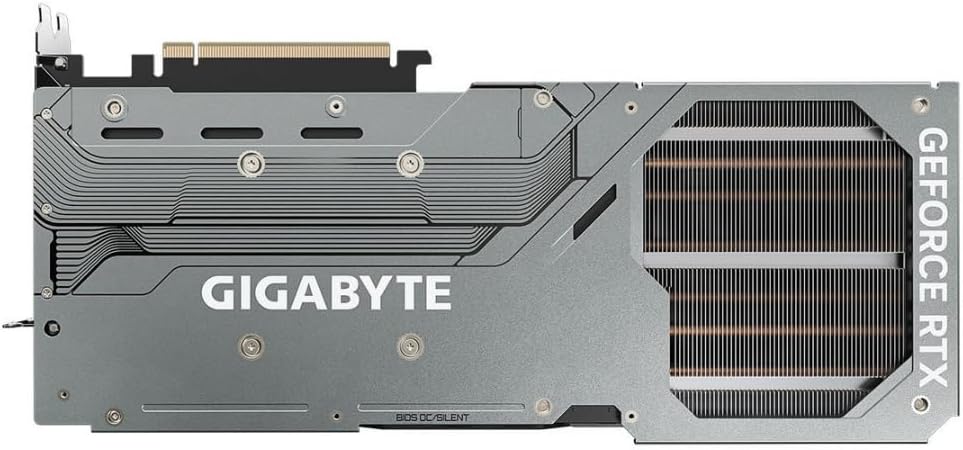
Image: The metal backplate of the graphics card, which provides structural support and heat dissipation.
3. Driver Installation
- Power On: Close your computer case, reconnect all cables, and power on your system.
- Download Drivers: Navigate to the official NVIDIA website (www.nvidia.com/drivers) or the GIGABYTE support page (www.gigabyte.com/Support) to download the latest drivers for your GeForce RTX 4090 graphics card.
- Install Drivers: Follow the on-screen instructions to complete the driver installation. A system restart may be required.
Operation
Display Connection
Connect your display(s) to the graphics card's output ports (DisplayPort or HDMI). The card supports multiple displays and resolutions up to 7680x4320 pixels.
WINDFORCE Cooling System
The WINDFORCE cooling system features three large fans designed for efficient heat dissipation. These fans operate intelligently, often remaining off during low-load scenarios for silent operation.

Image: Top view of the graphics card, highlighting the three WINDFORCE cooling fans.
Dual BIOS Functionality
The card features a Dual BIOS switch, typically allowing users to select between an OC (Overclocking) mode and a Silent mode. Refer to the GIGABYTE software or detailed product documentation for specific instructions on switching BIOS modes and their implications on performance and fan profiles.
RGB Fusion
The integrated RGB Fusion lighting can be customized using GIGABYTE's control software. This allows for personalization of lighting effects and synchronization with other compatible components.
Maintenance
- Dust Removal: Periodically clean dust from the heatsink fins and fan blades using compressed air. Ensure the system is powered off and unplugged before cleaning. Hold the fan blades gently to prevent them from spinning rapidly during cleaning, which can damage the bearings.
- Environmental Conditions: Operate the graphics card in a well-ventilated environment to ensure optimal cooling performance. Avoid extreme temperatures and humidity.
Troubleshooting
- No Display Output:
- Ensure the graphics card is fully seated in the PCI-E slot.
- Verify that all power connectors are securely attached to the graphics card and PSU.
- Check that your display cable is correctly connected to both the graphics card and the monitor.
- Confirm your monitor is set to the correct input source.
- System Instability or Crashes:
- Ensure your PSU meets the recommended 1000W requirement. Insufficient power can cause instability.
- Update your graphics drivers to the latest version.
- Monitor GPU temperatures to ensure it is not overheating.
- Performance Issues:
- Verify that the latest graphics drivers are installed.
- Check background applications that might be consuming system resources.
- Ensure your system's cooling is adequate to prevent thermal throttling.
- RGB Lighting Not Working:
- Install or update the GIGABYTE RGB Fusion software.
- Check software settings to ensure lighting is enabled and configured correctly.
If you continue to experience issues, please refer to the GIGABYTE support website or contact their customer service.
Specifications
| Feature | Specification |
|---|---|
| Model Number | GV-N4090GAMING OC-24GD |
| Graphics Coprocessor | NVIDIA GeForce RTX 4090 |
| Chipset Brand | NVIDIA |
| Graphics Card Ram Size | 24 GB GDDR6X |
| Memory Speed | 21000 MHz |
| Core Clock | 2535 MHz |
| Max Screen Resolution | 7680x4320 Pixels |
| Video Output Interface | DisplayPort, HDMI |
| Product Dimensions (LxWxH) | 13.39 x 5.91 x 0.1 inches |
| Item Weight | 4.49 pounds |
| Cooling System | WINDFORCE Cooling System |
| Features | Dual BIOS, RGB Fusion, Anti-sag bracket, Metal Back Plate |
Warranty Information
The Gigabyte GeForce RTX 4090 Gaming OC 24GB Graphics Card comes with a 4-year warranty. Online registration is required to activate and validate this warranty. Please visit the official GIGABYTE website for warranty registration details and terms and conditions.
Keep your proof of purchase for warranty claims.
Support
For further assistance, technical support, or to download the latest drivers and utilities, please visit the official GIGABYTE support website:
You can also find FAQs and community forums on the support page for common issues and solutions.