Introduction
Welcome to the user manual for your new ATOZEE 10-inch Android 14 Tablet. This high-performance tablet features a quad-core processor, 8GB RAM (including 6GB expandable memory), and 64GB of built-in storage, expandable up to 1TB via micro SD card. It is designed for a smooth user experience, perfect for watching videos, learning, reading e-books, and staying connected. This manual provides essential information on setting up, operating, maintaining, and troubleshooting your device to ensure optimal performance and longevity.
What's in the Box
Upon opening your ATOZEE Tablet package, please verify that all items listed below are present:
- ATOZEE 10-inch Android 14 Tablet (Model: ATCP20)
- TYPE-C Cable
- User Manual (this document)
If any items are missing or damaged, please contact customer support.
Product Overview
Familiarize yourself with the physical components and features of your ATOZEE Tablet.
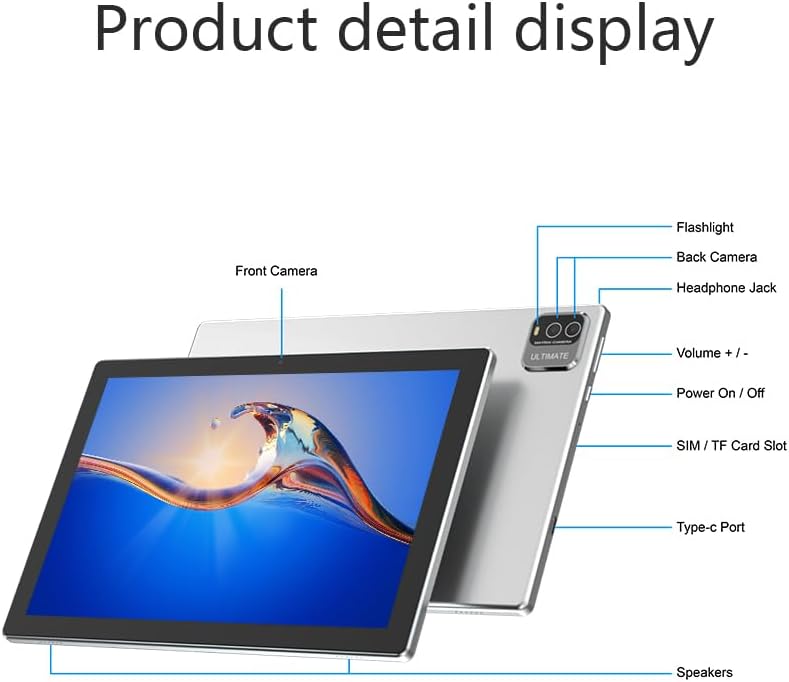
Figure 1: Product detail display highlighting the various ports and buttons on the ATOZEE Tablet, including the front and back cameras, volume controls, power button, headphone jack, Type-C port, and SIM/TF card slot.
Video 1: An official product video showcasing the physical design, ports, and screen of the ATOZEE ATCP20 Tablet, including its 10.1-inch display and stereo surround sound capabilities.
Setup
1. Initial Charging
Before first use, fully charge your tablet. Connect the provided TYPE-C cable to the tablet's charging port and the other end to a compatible USB power adapter (not included). The battery indicator on the screen will show charging progress. A full charge provides approximately 8-12 hours of battery life.

Figure 2: Visual representation of the tablet's fast charging capability and its long-lasting 6000mAh battery, offering up to 12 hours of video playback and 10 hours of gaming.
2. Power On/Off
- To Power On: Press and hold the Power On/Off button (refer to Figure 1) until the ATOZEE logo appears on the screen.
- To Power Off: Press and hold the Power On/Off button until a power-off menu appears. Select "Power off" to shut down the device.
- To Restart: From the power-off menu, select "Restart" to reboot the device.
3. Initial Setup Wizard
Upon first power-on, the Android 14 setup wizard will guide you through essential configurations:
- Select your preferred language.
- Connect to a Wi-Fi network. This is crucial for downloading updates and accessing online services.
- Sign in with your Google account or create a new one. This is necessary for accessing the Google Play Store and other Google services.
- Review and accept the terms and conditions.
- Set up screen lock (PIN, pattern, or password) for security.
- Configure other settings as prompted.
4. Inserting a Micro SD Card
To expand storage up to 1TB, locate the SIM/TF Card Slot (refer to Figure 1). Gently insert a compatible micro SD card into the slot until it clicks into place. The tablet will recognize the new storage, and you can format it for use as portable or internal storage.
Operating Your Tablet
1. Basic Navigation
The ATOZEE Tablet uses a capacitive touchscreen for navigation. Common gestures include:
- Tap: To select an item or open an app.
- Tap & Hold: To access contextual menus or move icons.
- Swipe: To scroll through pages or lists.
- Pinch-to-Zoom: To zoom in or out on images or web pages.
2. Display Features
Your tablet features a 10.1-inch 1280x800 HD IPS display, offering vivid colors and wide viewing angles. The built-in Reading Mode automatically adjusts backlight settings to reduce eye strain, enhancing comfort during extended reading sessions.

Figure 3: The tablet's Super HD screen with 1280x800 resolution, providing clear and vibrant visuals for an enhanced viewing experience.
3. Using the Cameras
The tablet is equipped with a 2MP front camera and an 8MP rear camera, allowing you to capture photos and videos. Open the "Camera" app to access these features. The camera supports smart focus for clear images and can reject ambiguity for better photo quality.

Figure 4: The tablet's camera capabilities, demonstrating smart focus for sharp images and the ability to reduce blur for clearer photos.

Figure 5: Illustrates the tablet's lossless image quality, ensuring clear photos day and night, suitable for capturing family moments.
4. Connectivity
- Wi-Fi 6: Connect to high-speed wireless networks for internet access. Go to Settings > Network & internet > Wi-Fi.
- Bluetooth: Pair with Bluetooth devices like headphones or speakers. Go to Settings > Connected devices > Connection preferences > Bluetooth.
- GPS: Utilize the built-in GPS sensor for navigation. You can download offline maps for use without an internet connection.
- FM Radio: Listen to FM radio stations directly on your tablet.
5. Applications and Software
The ATOZEE Tablet runs on Android 14 and is GMS certified, ensuring compatibility with a wide range of applications available on the Google Play Store. This includes popular social media apps like Facebook, Twitter, YouTube, TikTok, Line, Instagram, and various Office software for productivity.

Figure 6: The tablet's user interface showing a selection of pre-installed and downloadable applications, highlighting its compatibility with the Google ecosystem.
Maintenance
1. Cleaning Your Tablet
To clean the screen, use a soft, lint-free cloth specifically designed for electronics. For the body, a slightly damp cloth can be used. Avoid using harsh chemicals, abrasive cleaners, or excessive moisture.
2. Software Updates
Regularly check for and install system updates to ensure your tablet has the latest features, security patches, and performance improvements. Go to Settings > System > System update.
3. Battery Care
To maximize battery lifespan, avoid extreme temperatures. It is recommended to keep the battery charge between 20% and 80% for daily use. Avoid completely draining the battery or leaving it fully charged for extended periods.
Troubleshooting
| Problem | Possible Cause | Solution |
|---|---|---|
| Tablet does not turn on. | Low battery; system crash. | Charge the tablet for at least 30 minutes. If still unresponsive, press and hold the power button for 10-15 seconds to force a restart. |
| Wi-Fi connection issues. | Incorrect password; router issues; tablet Wi-Fi disabled. | Ensure Wi-Fi is enabled. Re-enter password. Restart your Wi-Fi router. Try connecting to another network. |
| Slow performance. | Too many apps running; low storage; outdated software. | Close unused apps. Clear cache. Uninstall unnecessary apps. Check for system updates. |
| Apps crashing or freezing. | App specific issue; insufficient RAM. | Force close the app and reopen. Clear the app's cache/data (Settings > Apps). Update the app. Restart the tablet. |
For issues not listed here, please refer to the online support resources or contact customer service.
Specifications
| Feature | Detail |
|---|---|
| Brand | ATOZEE |
| Model Name | ATCP20 |
| Operating System | Android 14 |
| Screen Size | 10.1 Inches |
| Screen Resolution | 1280 x 800 pixels (HD IPS) |
| Processor | Quad-Core, 2 GHz |
| RAM | 8GB (including 6GB expandable memory) |
| Internal Storage | 64 GB |
| Expandable Storage | Up to 1TB via Micro SD Card |
| Rear Camera | 8 MP |
| Front Camera | 2 MP |
| Battery Capacity | 6000mAh |
| Average Battery Life | 12 Hours |
| Connectivity | WiFi6, Bluetooth, GPS, FM Radio |
| Color | Silver |
| Item Weight | 1.59 pounds |
| Product Dimensions | 10.1 x 7 x 1 inches |
Warranty and Support
Your ATOZEE Tablet comes with a standard manufacturer's warranty. For detailed warranty information, technical support, or service inquiries, please refer to the contact information provided on the product packaging or the official ATOZEE website. Please retain your proof of purchase for warranty claims.
For common questions and troubleshooting, you may also visit the product page on Amazon.

