
Introduction
Thank you for choosing the Huleo P03 Wireless VOIP Phone. This device is a versatile communication terminal designed for various environments, including government, enterprise, banking, and educational institutions. It supports 4G connectivity, VOIP functionality with two SIP lines, and features a 2.4-inch color screen for enhanced user experience. This manual provides detailed instructions for setup, operation, maintenance, and troubleshooting to ensure optimal performance of your device.
Package Contents
- Huleo P03 Wireless VOIP Phone
- Handset and coiled cord
- Power Adapter (US Plug)
- USB Charging Cable (Micro USB)
- Antenna
- 1000mAh Li-ion Battery (pre-installed or separate)

Huleo P03 Wireless VOIP Phone with handset, antenna, power adapter, and USB cable.
Setup
1. SIM Card Installation
- Locate the SIM card slot on the phone.
- Carefully insert a standard SIM card (not included) into the slot until it clicks into place.
2. Battery Installation and Charging
- If the 1000mAh Li-ion battery is not pre-installed, open the battery compartment and insert the battery, ensuring correct polarity.
- Connect the Micro USB charging cable to the phone's charging interface and the power adapter.
- Plug the power adapter into a standard electrical outlet. The phone will begin charging.

Close-up of the Micro USB charging port located on the side of the Huleo P03 Wireless VOIP Phone.

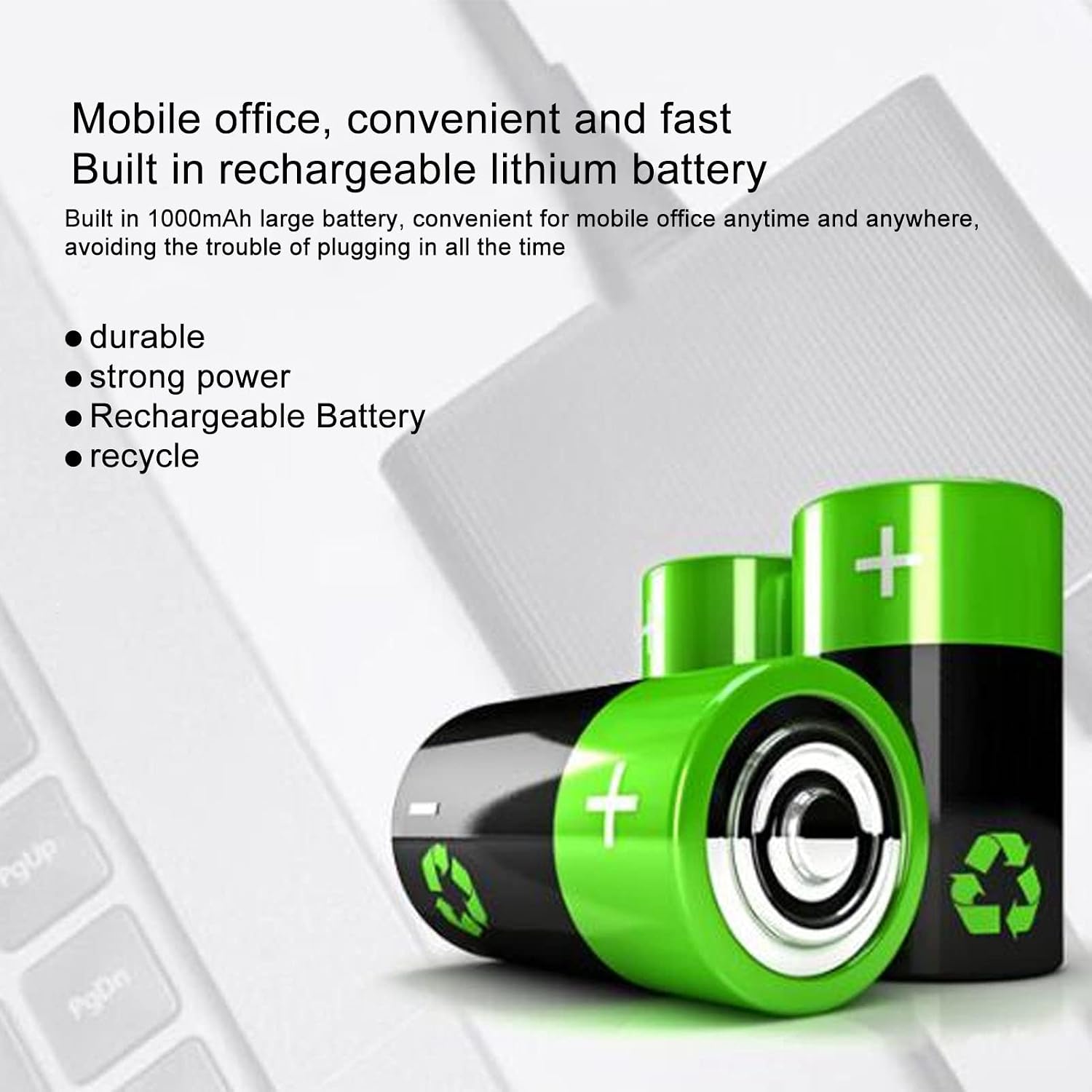
Graphic illustrating the built-in 1000mAh rechargeable lithium battery, emphasizing its durability, strong power, and recyclability.
3. Power On/Off
- To power on, press and hold the power button (if available, otherwise it powers on when connected to power or battery is inserted).
- To power off, navigate to the power options in the menu or press and hold the power button.
4. Network Connection
The Huleo P03 supports both 4G and WiFi for network connectivity.
- 4G Network: Once a SIM card is installed, the phone will automatically attempt to connect to the 4G network. Ensure your SIM card has an active data plan.
- WiFi Network: To connect to WiFi, navigate to the network settings on the 2.4-inch color screen. Turn on WiFi, select your desired network, and enter the password if prompted.

Image depicting the Huleo P03 phone connected wirelessly to a router, highlighting its WiFi and 4G network capabilities.
5. VOIP Account Registration
The phone supports 2 SIP lines, allowing you to register two SIP accounts.
- Access the VOIP settings through the phone's menu.
- Enter the required SIP account details (SIP server, username, password) for each of the two lines.
- Save the settings. The phone will attempt to register with the VOIP server.
Operating Instructions

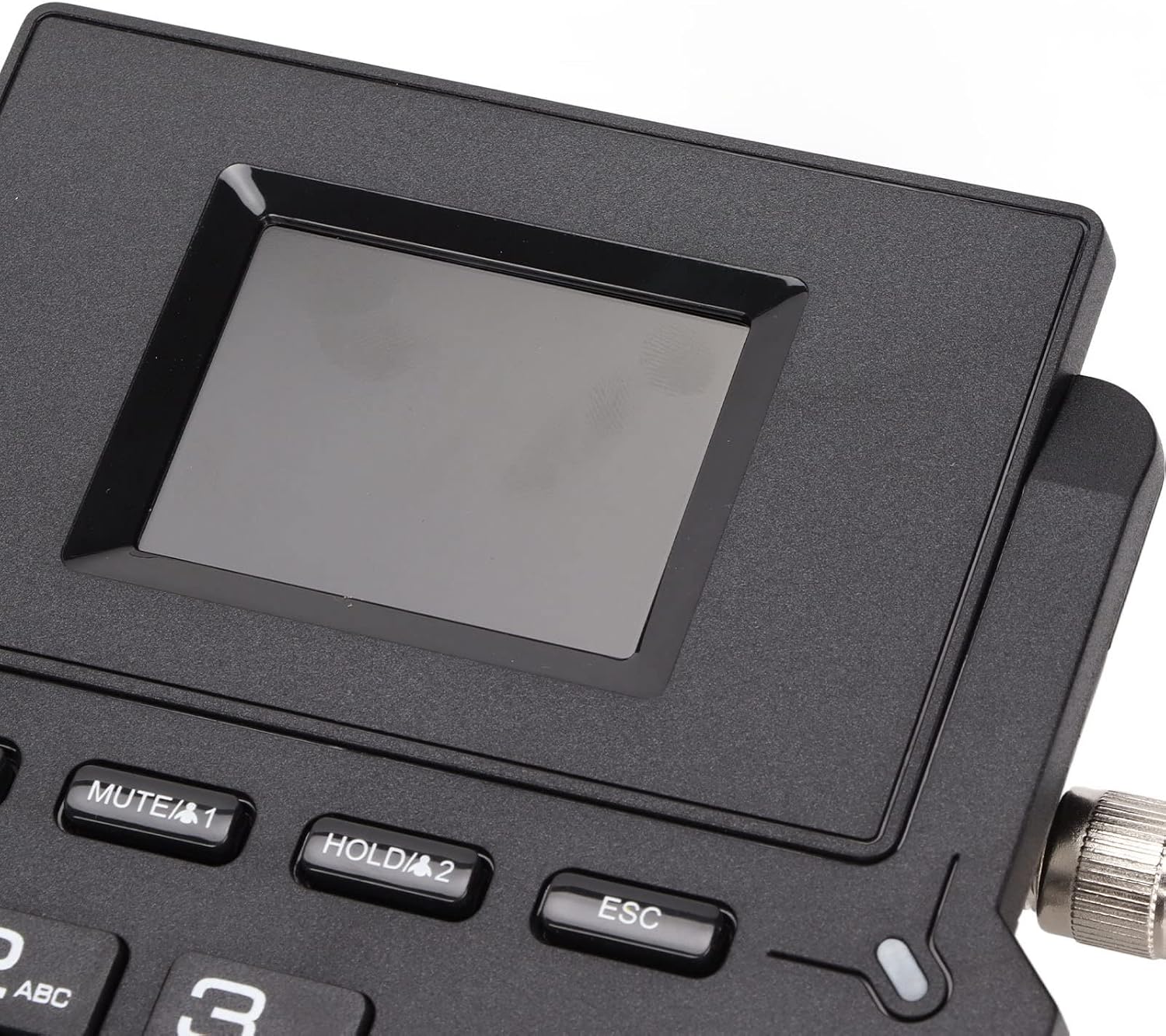
Close-up of the phone's keypad, showing numerical keys, navigation buttons, and function keys like MENU, MUTE, HOLD, ESC, and REDIAL.
Close-up of the 2.4-inch color screen on the Huleo P03 phone, displaying time and date.
1. Basic Call Functions
- Making a Call: Dial the desired number using the keypad and press the green call button.
- Answering a Call: When the phone rings, press the green call button to answer.
- Ending a Call: Press the red hang-up button to end an active call.
2. Contact Management
- Adding Contacts: Navigate to the 'Contacts' menu, select 'Add New Contact', and enter the name and phone number.
- Deleting Contacts: In the 'Contacts' menu, select the contact you wish to delete and choose the 'Delete' option.
3. Advanced Call Features
- 3-Party Audio Conference: During an active call, use the menu options to add another participant to create a three-way conference call.
- Call Transfer: The phone supports busy transfer, unconditional transfer, and call transfer during an active call. Refer to the on-screen menu for specific steps.
- Do Not Disturb (DND): Activate DND mode from the settings menu to silence incoming calls.
- Automatic Answer: Enable this feature in the settings to automatically answer incoming calls, useful when busy.

Illustration demonstrating the automatic answer feature of the Huleo P03 phone, showing an incoming call being answered automatically.
4. SIP Account Switching
If you have registered two SIP accounts, you can switch between them via the phone's menu to select which line to use for outgoing calls or to manage incoming calls.
Maintenance
- Cleaning: Use a soft, dry cloth to clean the phone's surface and screen. Avoid using liquid cleaners or abrasive materials.
- Battery Care: To prolong battery life, avoid extreme temperatures and fully discharge and recharge the battery periodically.
- Storage: If storing the phone for an extended period, ensure it is fully charged and stored in a cool, dry place.
Troubleshooting
- Phone Not Powering On: Ensure the battery is charged and correctly installed, or the power adapter is properly connected.
- No Network Connection (4G/WiFi): Check SIM card installation and data plan. For WiFi, verify network settings and password. Ensure the antenna is securely attached.
- Cannot Make/Receive Calls: Verify that your SIP accounts are registered and active. Check network connectivity. Ensure 'Do Not Disturb' is not enabled.
- Poor Audio Quality: Check network signal strength. Ensure the handset cord is securely connected.
Specifications
| Feature | Specification |
|---|---|
| Model | P03 |
| Material | ABS Plastic |
| SIM Card Support | 1 Standard SIM Card Slot (SIM card not included) |
| LCD Display | 2.4-inch Color Screen |
| Charging Interface | Micro USB |
| Input | 5V/1A |
| Network | 4G Full Netcom (FDD LTE: B1, B3, B7, B20, B28A; TDD LTE: B38, B39, B40, B41; WCDMA: B1, B2, B5, B8; GSM: B2, B3, B5, B8) |
| Bluetooth | 4.0 |
| Battery | 1000mAh Li-ion Battery (Included) |
| SIP Protocol | SIP 2.0 (RFC3261) |
| Transport Protocol | UDP, TCP, TLS |
| DTMF | In band, Out of band (RFC 2833) and SIP INFO |
| Audio Codecs | G.722, G.729, AMR, AMRWB, GSM, PCMA, PCMU, SPE EX, ILBC, DTMF, ISACWB, OPUS |
| Audio Functions | AEC, VAD, CNG, AGC, ANS |
| SRTP | NONE, FORCE, PREFER |
| SIP Lines | 2 Lines |
| Call Transfer | Support |
| STUN | Support |
Application Scenarios
The Huleo P03 Wireless VOIP Phone is suitable for a variety of professional environments, offering reliable communication solutions.
Four images showing various application scenarios for the Huleo P03 phone, including government offices, enterprises, banks, and schools.
Warranty and Support
The Huleo P03 Wireless VOIP Phone comes with a manufacturer's warranty. Please refer to the warranty card included in your package or contact Huleo customer support for detailed warranty terms and conditions.
For technical assistance, troubleshooting, or any product-related inquiries, please contact Huleo customer support through the contact information provided on the official Huleo website or your purchase documentation.