
1. Introduction
The Everest EWR-674N is a versatile 2.4GHz Wireless-N router designed to provide reliable internet connectivity and network expansion. It supports multiple operating modes including Router, Repeater, Access Point (AP), and Wireless Internet Service Provider (WISP), making it suitable for various networking needs. With 300Mbps wireless speed and three 5dBi external antennas, it offers enhanced coverage and performance for your home or office network.
2. Package Contents
Please verify that all items are present in your package:
- Everest EWR-674N Wireless Router
- Power Adapter
- Ethernet Cable
- Quick Installation Guide (This Manual)
3. Product Overview
Familiarize yourself with the physical components of your Everest EWR-674N router.
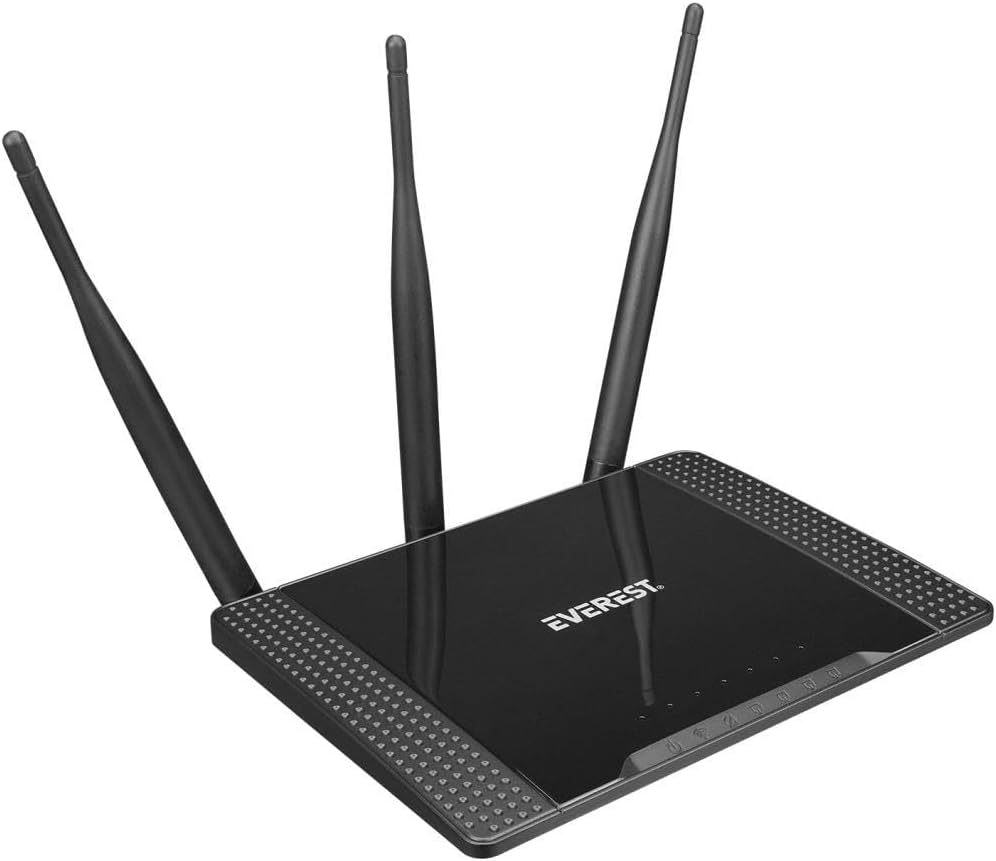
Figure 3.1: Angled view of the Everest EWR-674N Wireless Router, showcasing its top panel with the 'EVEREST' logo and three external antennas.

Figure 3.2: Frontal view of the Everest EWR-674N Wireless Router with antennas in an upright position, highlighting the brand logo and LED indicators for power, internet, and LAN activity.

Figure 3.3: Rear angled view of the Everest EWR-674N Wireless Router, clearly displaying the WAN port, LAN ports, power input, and reset button.
3.1. LED Indicators
- Power LED: Indicates the power status of the device.
- WAN LED: Indicates activity on the WAN (Internet) port.
- LAN LEDs: Indicate activity on the LAN ports.
- WLAN LED: Indicates wireless network activity.
3.2. Ports and Buttons
- WAN Port: Connects to your modem or internet service provider's network.
- LAN Ports: Connect to wired devices such as computers, smart TVs, or gaming consoles.
- Power Input: Connects to the included power adapter.
- Reset Button: Used to restore the router to factory default settings. Press and hold for 5-10 seconds while the device is powered on.
4. Setup
Follow these steps to set up your Everest EWR-674N router.
4.1. Hardware Connection
- Position the Router: Place the router in a central location to maximize wireless coverage. Avoid placing it near obstructions or electronic devices that may cause interference.
- Connect the Antennas: Ensure the three external antennas are securely attached and oriented vertically for optimal signal.
- Connect to Power: Plug the power adapter into the router's power input and then into a wall outlet. The Power LED should illuminate.
- Connect to Modem (Router Mode): Connect one end of the Ethernet cable to your modem's LAN port and the other end to the router's WAN port.
- Connect to Computer (Optional): For initial configuration, you may connect your computer directly to one of the router's LAN ports using an Ethernet cable.
4.2. Initial Configuration
- Access the Web Interface: Open a web browser on a computer connected to the router (either wired or wirelessly). In the address bar, type the default IP address (usually
192.168.1.1or192.168.0.1) and press Enter. Refer to the label on the bottom of your router for the exact IP address. - Log In: Enter the default username and password. These are typically
adminfor both. Refer to the router's label if different. - Run Quick Setup Wizard: Upon successful login, you will likely be prompted to run a Quick Setup Wizard. Follow the on-screen instructions to configure your internet connection and wireless network settings.
- Set Wireless Network Name (SSID) and Password: Choose a unique name for your Wi-Fi network and a strong password to secure it.
- Change Admin Password: For security, it is highly recommended to change the default administrator password for the router's web interface.
5. Operating Modes
The Everest EWR-674N supports four main operating modes:
5.1. Router Mode
In Router Mode, the device acts as a central hub for your network, connecting to your modem to provide internet access to all connected wired and wireless devices. It creates a private local area network (LAN).
5.2. Repeater Mode
Repeater Mode extends the coverage of an existing wireless network. The EWR-674N connects wirelessly to your main router and re-broadcasts the signal, eliminating Wi-Fi dead zones.
5.3. Access Point (AP) Mode
In AP Mode, the router converts a wired network connection into a wireless one. It connects to an existing wired network via an Ethernet cable and broadcasts a Wi-Fi signal, allowing wireless devices to connect.
5.4. WISP Mode
WISP (Wireless Internet Service Provider) Mode allows the router to connect to a wireless ISP network and share that internet connection with multiple devices, both wired and wireless, within your local network.
6. Maintenance
Regular maintenance helps ensure optimal performance and security of your router.
6.1. Firmware Updates
Periodically check the Everest official website for firmware updates. Firmware updates can improve performance, add new features, and fix security vulnerabilities. Follow the instructions provided with the firmware update carefully.
6.2. Factory Reset
If you encounter persistent issues or forget your login credentials, you can perform a factory reset. With the router powered on, press and hold the Reset button (typically located on the rear panel) for 5-10 seconds until the LEDs flash. The router will restart with default settings.
6.3. Cleaning
Clean the router periodically with a soft, dry cloth. Do not use liquid cleaners or aerosols. Ensure ventilation openings are free from dust to prevent overheating.
7. Troubleshooting
This section addresses common issues you might encounter.
- No Internet Access:
- Check if the WAN LED is lit. If not, ensure the Ethernet cable from your modem is securely connected to the router's WAN port.
- Restart your modem and then your router.
- Verify your internet connection settings in the router's web interface.
- Contact your Internet Service Provider (ISP) to confirm service status.
- Weak or Unstable Wi-Fi Signal:
- Relocate the router to a more central position, away from walls, metal objects, and other electronic devices.
- Ensure antennas are properly oriented.
- Check for interference from other 2.4GHz devices (e.g., cordless phones, microwaves).
- Consider changing the wireless channel in the router's settings.
- Cannot Access Router's Web Interface:
- Ensure your device is connected to the router (wired or wirelessly).
- Verify you are using the correct IP address (e.g.,
192.168.1.1). - Clear your browser's cache or try a different browser.
- If you forgot the password, perform a factory reset (see Section 6.2).
8. Specifications
| Brand | Everest |
| Model | EWR-674N |
| Wireless Standard | Wireless-N (2.4GHz) |
| Wireless Speed | 300Mbps |
| Antennas | 3 x 5dBi External Antennas |
| Operating Modes | Router, Repeater, AP, WISP |
| Security Protocol | WEP |
| Compatible Devices | Router |
| Package Dimensions | 30.4 x 22.8 x 6.2 cm |
| Product Weight | 580 g (0.58 Kilogram) |
| Color | Grey |
| ASIN | B0BGYD3B8C |
9. Warranty and Support
For warranty information and technical support, please refer to the warranty card included with your product or visit the official Everest website. You may also contact your retailer for assistance.
Please retain your proof of purchase for warranty claims.
