
1. Introduction
Thank you for choosing the CiBest G1 Projector. This manual provides essential information for the safe and efficient operation of your device. Please read this manual thoroughly before use and retain it for future reference. The CiBest G1 Projector offers a high-definition viewing experience with 4K support, Android TV 10.0, 5G WiFi, Bluetooth connectivity, and native 1080P resolution.
2. Safety Instructions
- Do not block ventilation openings. Ensure adequate space around the projector for proper airflow.
- Use only the power adapter supplied with the projector.
- Avoid direct exposure to the projector lens light.
- Do not disassemble the projector. Refer all servicing to qualified personnel.
- Keep the projector away from water, moisture, and extreme temperatures.
3. Product Overview
3.1 Package Contents
- CiBest G1 Projector
- Remote Control
- Power Adapter
- HDMI Cable
- User Manual
3.2 Projector Components
Familiarize yourself with the various parts of your CiBest G1 Projector.
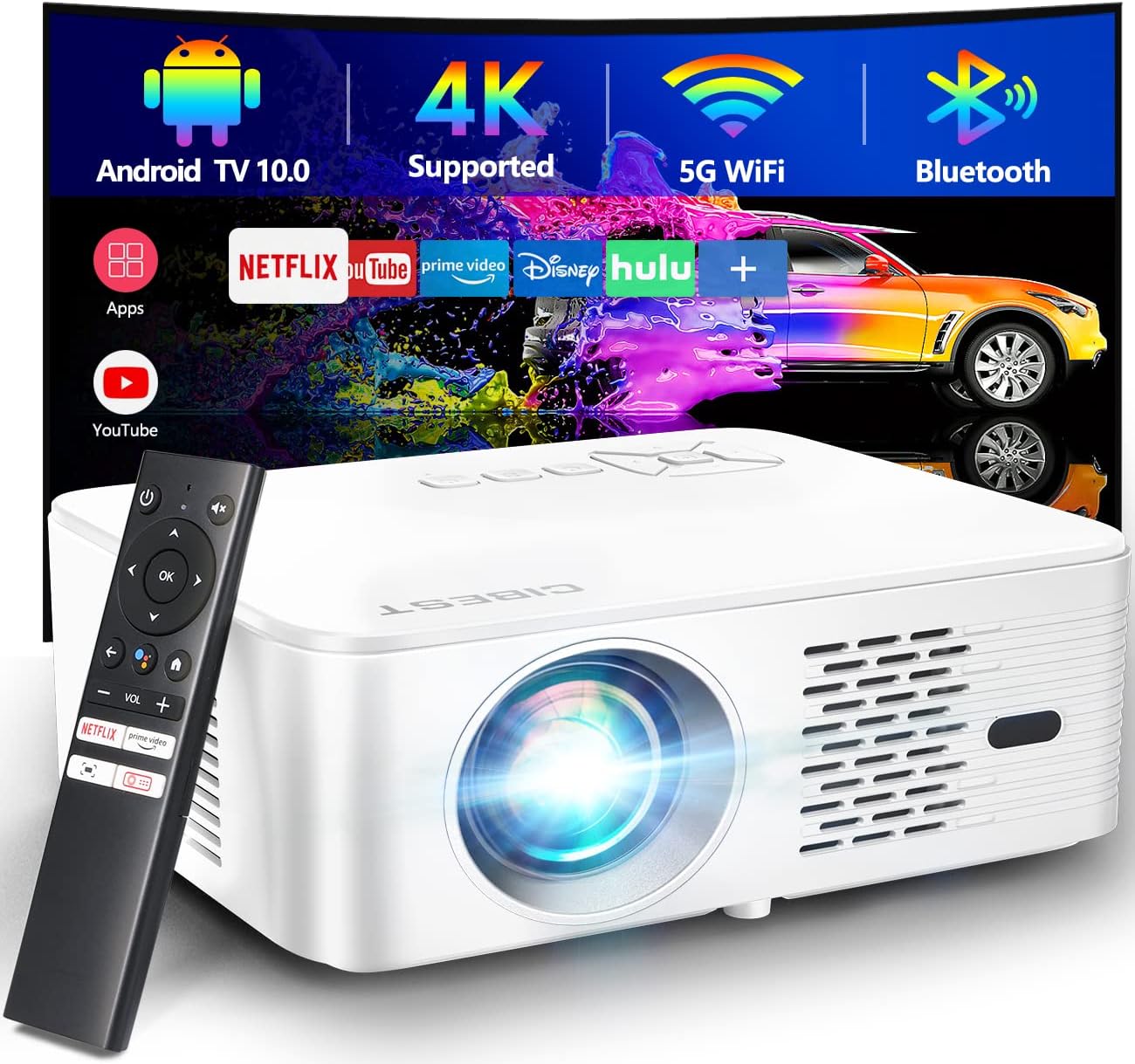
The image above displays the projector's front, including the lens and ventilation, alongside the remote control. Icons indicate key features such as Android TV 10.0, 4K support, 5G WiFi, and Bluetooth connectivity.
4. Setup
4.1 Placement
Place the projector on a stable, flat surface. Ensure the lens is perpendicular to the projection surface for optimal image geometry. The projection distance will determine the screen size.
4.2 Power Connection
Connect the power adapter to the projector's power input port, then plug the adapter into a power outlet.
4.3 Initial Power On
Press the power button on the projector or the remote control to turn on the device. The projector will boot up and display the Android TV interface.
4.4 Focus Adjustment
The CiBest G1 Projector features autofocus for quick image clarity. If manual adjustment is needed, use the remote control to fine-tune the focus.

This image illustrates the projector's autofocus function, which automatically adjusts the lens to achieve a clear picture, eliminating manual focusing efforts.
4.5 Network Connection (5G WiFi)
- Navigate to the 'Settings' menu on the Android TV interface.
- Select 'Network & Internet'.
- Choose your desired 5G or 2.4G WiFi network from the list.
- Enter the password if prompted and connect.
4.6 Bluetooth Pairing
- Go to 'Settings' and select 'Connected Devices'.
- Turn on Bluetooth and put your Bluetooth device (e.g., headphones, speaker) into pairing mode.
- Select your device from the list to pair.
5. Operating Instructions
5.1 Android TV 10.0 Interface
The projector runs on Android TV 10.0, providing access to a wide range of applications and content. Use the remote control's directional pad and 'OK' button to navigate the interface.

This image illustrates the user-friendly Android TV 10.0 interface, showcasing various pre-installed and downloadable applications for entertainment.
5.2 Streaming Applications
Access popular streaming services such as Netflix, Prime Video, Disney+, and more directly from the Android TV interface. Ensure you are logged into your respective accounts.
5.3 Input Sources
The projector supports multiple input sources:
- HDMI: Connect external devices like gaming consoles, Blu-ray players, or laptops.
- USB: Play media files directly from a USB drive.
- AV: Connect older devices using the included 3-in-1 AV cable.
5.4 Screen Mirroring (Chromecast Built-in)
The projector has Chromecast built-in, allowing you to cast content from your Android or iOS devices. Download the Chromecast app on your mobile device for effortless screen mirroring.
5.5 Voice Assistant
Utilize the built-in voice assistant for quick searches and commands. Press the dedicated assistant button on your remote control and speak your query.
6. Maintenance
6.1 Dust-proof Optical Engine
The CiBest G1 Projector features a full-sealed optical engine designed to prevent dust from entering the lens and internal components. This design minimizes maintenance and extends the projector's lifespan.

This diagram shows the internal structure of the projector's optical engine, emphasizing its sealed design for dust protection, which helps maintain image quality and longevity.
6.2 Cleaning
- Lens: Use a soft, lint-free cloth specifically designed for optical lenses. Do not use abrasive cleaners.
- Exterior: Wipe the projector's exterior with a soft, dry cloth. Avoid using harsh chemicals.
6.3 Storage
When not in use for extended periods, store the projector in a cool, dry place, protected from dust and direct sunlight. Use the original packaging or a protective case if available.
7. Troubleshooting
| Problem | Possible Cause | Solution |
|---|---|---|
| No image displayed | Power cable disconnected; Incorrect input source; Lens cap on. | Check power connection; Select correct input source; Remove lens cap. |
| Image is blurry | Focus not adjusted; Projector too close/far. | Adjust focus using remote; Adjust projection distance. |
| No sound | Volume too low; External audio device not connected; Muted. | Increase volume; Check Bluetooth connection or audio cable; Unmute. |
| WiFi connection unstable | Weak signal; Router issues. | Move projector closer to router; Restart router; Ensure 5G network is selected if available. |
If problems persist after attempting these solutions, please contact customer support.
8. Specifications
| Feature | Detail |
|---|---|
| Model Number | G1 |
| Display Resolution | Native 1920 x 1080 (1080P), 4K Support |
| Connectivity Technology | HDMI, USB, 3-in-1 AV, 3.5mm Audio, Android TV box, 5G WiFi, Bluetooth |
| Special Feature | Built-in Speakers, Autofocus, Android TV 10.0, Full-Sealed Optical Engine |
| Recommended Uses | Indoor/Outdoor Home Entertainment |
| Product Dimensions | 12 x 6 x 17 inches |
| Item Weight | 8.62 pounds |
9. Warranty and Support
For warranty information and technical support, please refer to the warranty card included with your product or visit the official CiBest website. Keep your purchase receipt as proof of purchase.
