
Introduction
This user manual provides comprehensive instructions for the installation, operation, and maintenance of your Hikvision K5 Car Dash Camera. The K5 is a 2K dual-channel dashcam featuring a 3-inch touchscreen, G-Sensor, voice recognition, loop recording, and parking monitoring capabilities. Please read this manual thoroughly before using the device to ensure proper functionality and safety.
Package Contents
Verify that all items listed below are included in your package:
- Hikvision K5 Dash Camera (Front & Rear)
- Charging Cable
- User Manual
- 3M Tape for mounting
- Quick Guide
- Installation Tool
Product Overview
The Hikvision K5 dash camera is designed to provide reliable recording of your journeys with advanced features for enhanced safety and convenience.

Figure 1: Hikvision K5 Dash Camera Key Features. This image displays the Hikvision K5 dash camera and highlights its main functionalities including a 3-inch touchscreen, dual HD channels, up to 256GB storage support, F1.55 super large aperture, smart voice recognition, loop recording, parking monitoring, and mobile app connectivity.
Key Features:
- Dual Channel Recording: Front 2K HD (4MP) camera and Rear 1080P HD camera provide comprehensive coverage. The front camera offers a 135° wide-angle view, and the rear camera offers a 124° wide-angle view.
- Enhanced Night Vision: F1.55 super large aperture lens gathers more light for clearer images in low-light conditions.
- 3-inch Touchscreen: Intuitive IPS touchscreen for direct control, playback, and settings adjustment.
- Smart App Control: Connect via the "Hik Dash Cam" app for live viewing, video playback, downloading, sharing, and parameter settings.
- G-Sensor Emergency Lock: Automatically detects collisions or sudden impacts and locks critical footage to prevent overwriting.
- Loop Recording: Ensures continuous video recording by overwriting the oldest unlocked files when the memory card is full.
- Voice Recognition: Supports 9 voice commands for hands-free operation (e.g., "open screen", "video lock", "take a photo").
- Parking Monitoring: Supports 12, 24, or 48-hour parking monitoring to record events while the vehicle is parked.
- Micro SD Card Support: Supports up to 256GB Micro SD cards for video storage.
- Built-in Wi-Fi: Creates a Wi-Fi hotspot for seamless connection to your smartphone via the app.

Figure 2: Dual Channel Recording. This illustration shows the front 4MP camera and rear 1080P camera, emphasizing their wide-angle coverage for comprehensive vehicle monitoring and evidence collection.

Figure 3: F1.55 Super Large Aperture. This image compares the night vision performance of an F1.55 lens against an F1.8 lens, demonstrating the superior clarity and detail captured by the K5's F1.55 lens in low-light conditions.

Figure 4: WDR Image Synthesis Technology. This graphic explains how Wide Dynamic Range (WDR) technology enhances image clarity by separately processing bright and dark areas, ensuring balanced exposure in challenging lighting environments.
Setup
1. Inserting the Micro SD Card
- Ensure the dash camera is powered off.
- Locate the Micro SD card slot on the device.
- Insert a compatible Micro SD card (Class 10 or higher, up to 256GB) into the slot until it clicks into place.
- Important: Format the SD card within the dash camera settings upon first use and periodically thereafter to ensure optimal performance. Recommended SD cards include Samsung EVO Plus microSDXC UHS-1 A2 V30, HP (MicroSDXC mx310), WDD256G1P0C, Kingston (SDCS2/256GBIN), and Transcend (TS256USD350V).
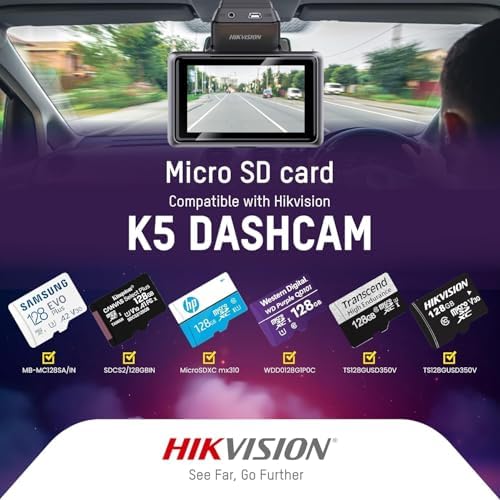
Figure 5: Micro SD Card Compatibility. This image illustrates various compatible Micro SD card brands and types recommended for use with the Hikvision K5 dash camera, highlighting the importance of using suitable storage for reliable recording.
2. Mounting the Dash Camera
- Clean the chosen area on your windshield thoroughly.
- Attach the dash camera to the windshield using the provided 3M tape. Ensure the camera has a clear view of the road.
- Connect the rear camera (if applicable) and route its cable discreetly.
- Adjust the camera angle to capture the desired field of view.
3. Power Connection
- Connect the charging cable to the dash camera and plug the other end into your vehicle's 12V power outlet (cigarette lighter socket).
- The camera will automatically power on and begin recording when the vehicle's ignition is turned on.
Operating Instructions
1. Basic Recording
- Once powered on, the dash camera automatically starts loop recording. Videos are saved in segments (e.g., 3 minutes long).
- When the SD card is full, the oldest unlocked files are overwritten by new recordings.
2. Touchscreen Operation
- The 3-inch IPS touchscreen allows direct interaction with the device.
- Tap icons to navigate menus, adjust settings, view recorded footage, and initiate specific functions.

Figure 6: 3-Inch Touch Screen. This image demonstrates the user-friendly 3-inch touchscreen interface of the dash camera, allowing for easy control and viewing of live footage or recorded videos directly on the device.
3. Voice Recognition
The K5 supports hands-free control using voice commands. Speak clearly to activate functions:
- "Open screen"
- "Close screen"
- "Display pre-recording"
- "Display post-recording"
- "View all"
- "Video lock"
- "I want to take a photo"
- "Open recording"
- "Close recording"
4. G-Sensor Emergency Recording
- The built-in G-Sensor automatically detects sudden movements, impacts, or collisions.
- When triggered, the current video segment is automatically locked and saved to a protected folder, preventing it from being overwritten by loop recording.

Figure 7: Built-in G-Sensor. This image visually represents the G-Sensor's function, showing how it detects impacts and automatically locks emergency video footage to secure critical evidence.
5. Parking Monitoring
- The K5 supports parking monitoring for 12, 24, or 48 hours. This feature requires a continuous power supply (e.g., via a hardwire kit, sold separately).
- When parking monitoring is active, the camera will record events such as impacts or motion detected around your parked vehicle.
6. Mobile App Connection (Hik Dash Cam App)
- Download the "Hik Dash Cam" app from your smartphone's app store.
- Enable Wi-Fi on your smartphone and connect to the dash camera's Wi-Fi hotspot (SSID and password can be found in the camera settings).
- Open the app to access features such as:
- Live view of front and rear cameras.
- Playback of recorded videos.
- Downloading videos to your phone.
- Sharing videos to social media.
- Adjusting camera settings.
Maintenance
1. SD Card Management
- Regularly format the Micro SD card (at least once a month) through the camera's settings to prevent data corruption and ensure smooth recording.
- Replace the SD card if you experience frequent recording errors or data loss.
2. Cleaning the Device
- Use a soft, dry cloth to clean the camera lens and screen.
- Do not use abrasive cleaners or solvents, as they may damage the device.
- Keep the device free from dust and moisture.
Troubleshooting
If you encounter issues with your Hikvision K5 dash camera, refer to the following common problems and solutions:
| Problem | Possible Solution |
|---|---|
| Camera does not power on. |
|
| Recording stops or footage is corrupted. |
|
| Display screen does not show video. |
|
| Voice commands are not recognized. |
|
| Cannot connect to the "Hik Dash Cam" app. |
|
Specifications
| Feature | Detail |
|---|---|
| Model Name | K5 |
| Front Camera Resolution | 2K HD (4MP) |
| Rear Camera Resolution | 1080P HD |
| Display | 3-inch IPS Touch Screen |
| Front Field of View | 135 Degrees |
| Rear Field of View | 124 Degrees |
| Aperture | F1.55 Super Large Aperture |
| Storage Support | Micro SD card up to 256GB (Class 10 or higher) |
| Connectivity | Built-in Wi-Fi |
| Special Features | G-Sensor, Loop Recording, Parking Monitoring, Voice Control, App Control |
| Mounting Type | Adhesive Mount |
| Item Weight | 110 g |
| Product Dimensions | 3.5 x 1.65 x 2.16 cm |
| Manufacturer | Hikvision |
| Country of Origin | China |
Warranty and Support
For warranty information and technical support, please refer to the official Hikvision website or contact your local Hikvision distributor. Keep your purchase receipt as proof of purchase for warranty claims.