Introduction
This manual provides detailed instructions for the installation, operation, and maintenance of your EMPIRE GAMING Crystal ARGB Mid-Tower PC Gaming Case. Please read this manual thoroughly before beginning installation to ensure proper setup and optimal performance.

Image: Front and side view of the EMPIRE GAMING Crystal ARGB PC Case, showcasing its design and ARGB lighting.
Product Features
The EMPIRE GAMING Crystal ARGB Mid-Tower PC Gaming Case offers a blend of aesthetic design and functional features for PC builders:
- Mid-Tower Design: Supports ATX, Micro-ATX, and ITX motherboard form factors.
- Advanced Cooling: Equipped with one 120mm ARGB front fan and one 120mm standard rear fan. Extensive support for liquid cooling radiators up to 360mm.
- Addressable RGB (ARGB): Integrated ARGB lighting with a 3-pin 5V connector, compatible with popular motherboard synchronization software such as ASUS Aura Sync, GIGABYTE RGB Fusion, and MSI Mystic Light Sync.
- Spacious Interior: Designed to accommodate CPU coolers up to 160mm in height and graphics cards (GPUs) up to 345mm in length.
- Flexible Storage: Provides 4 dedicated slots for either 3.5" Hard Disk Drives (HDDs) or 2.5" Solid State Drives (SSDs).
- Front Panel Connectivity: Conveniently located ports including 2x USB 2.0, 1x USB 3.0, 1x HD Audio jack, and a dedicated LED control button.
- Distinctive Aesthetics: Features a unique 3D effect front panel and a tempered glass side panel to showcase your build.
Setup and Installation
1. Component Compatibility and Clearance
Before installing components, verify their compatibility with the case dimensions:
- Motherboard Support: ATX, Micro-ATX, ITX.
- Maximum CPU Cooler Height: 160mm.
- Maximum GPU Length: 345mm.
- Storage Drive Bays: 4 bays for 3.5" HDDs or 2.5" SSDs.

Image: Internal view of the case, illustrating the maximum CPU cooler height (160mm), maximum GPU length (345mm), and compatible motherboard form factors (ITX, mATX, ATX) with their respective dimensions.
2. Fan and Water Cooling Configuration
The case includes one 120mm ARGB fan at the front and one 120mm standard fan at the rear. Additional cooling options are available:
| Location | Fan Support | Radiator Support |
|---|---|---|
| Front | 1x 200mm (not included) | 120mm, 240mm, 360mm |
| Rear | 1x 120mm (included) | 120mm |
| Top | 2x 120mm (not included) | 120mm, 240mm |

Image: Diagram illustrating optimal airflow paths within the case, indicating recommended fan and radiator placements for efficient cooling.
3. Front Panel I/O Connections
Connect the front panel cables to the corresponding headers on your motherboard. Refer to your motherboard's manual for specific header locations.
- USB 2.0: Connect the USB 2.0 header cable to your motherboard's USB 2.0 header.
- USB 3.0: Connect the USB 3.0 header cable to your motherboard's USB 3.0 header.
- HD Audio: Connect the HD Audio cable to your motherboard's audio header.
- LED Button: Connect the LED button cable to the appropriate header for ARGB control, if not integrated with the ARGB controller.

Image: Close-up view of the case's top front panel, detailing the accessible USB 2.0, USB 3.0, HD Audio, and LED control button ports.
Operating Instructions
ARGB Lighting Control
The EMPIRE GAMING Crystal case features vibrant addressable RGB (ARGB) lighting on its front panel and included front fan. You can manage these lighting effects using two primary methods:
- Using the Case's LED Button: Press the dedicated LED button located on the front I/O panel to cycle through more than 10 distinct pre-programmed lighting effects.
- Motherboard Software Synchronization: For advanced customization and system-wide synchronization, connect the case's 3-pin 5V ARGB cable to a compatible ARGB header on your motherboard. Utilize your motherboard's proprietary RGB software, such as ASUS Aura Sync, GIGABYTE RGB Fusion, or MSI Mystic Light Sync, to control and personalize the lighting.

Image: An ARGB fan is shown with its 3-pin connection cables, highlighting its compatibility with leading motherboard RGB synchronization technologies.

Image: The Crystal ARGB case displaying a dynamic array of RGB lighting effects across its front panel and internal components.
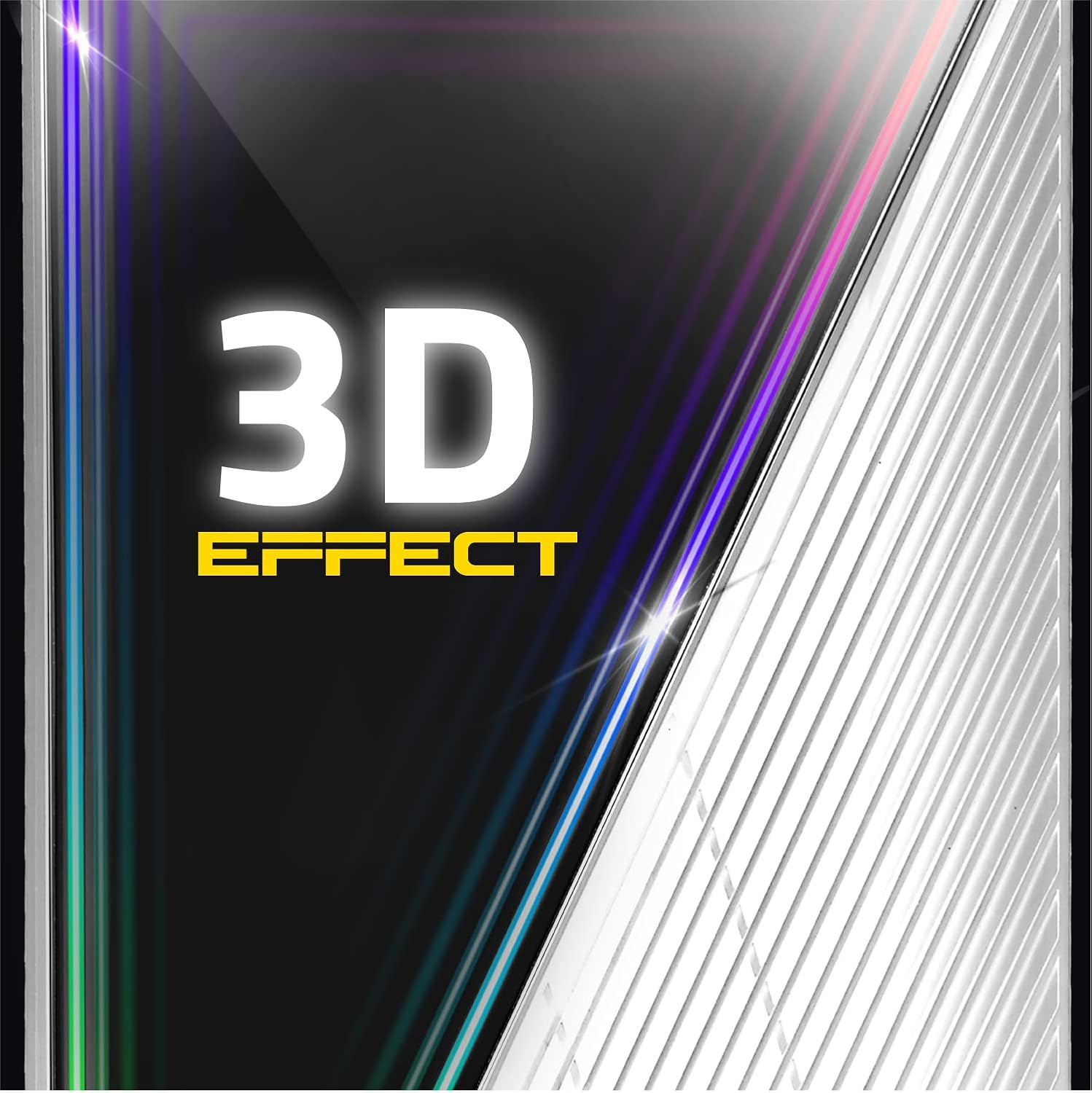
Image: A detailed close-up of the case's front panel, emphasizing its distinctive 3D effect design.
Maintenance
Dust Filter Cleaning
To ensure optimal airflow and prevent dust accumulation within your system, regular cleaning of the removable dust filter is essential. This helps maintain efficient cooling performance and prolongs the lifespan of your components.
- Locate the Filter: The dust filter is typically found on the top or bottom panel of the case.
- Remove the Filter: Gently slide out or detach the dust filter from its housing.
- Clean the Filter: Use compressed air, a soft brush, or rinse it with water. If using water, ensure the filter is completely dry before re-installation to prevent electrical damage.
- Re-install the Filter: Securely place the cleaned dust filter back into its original position.
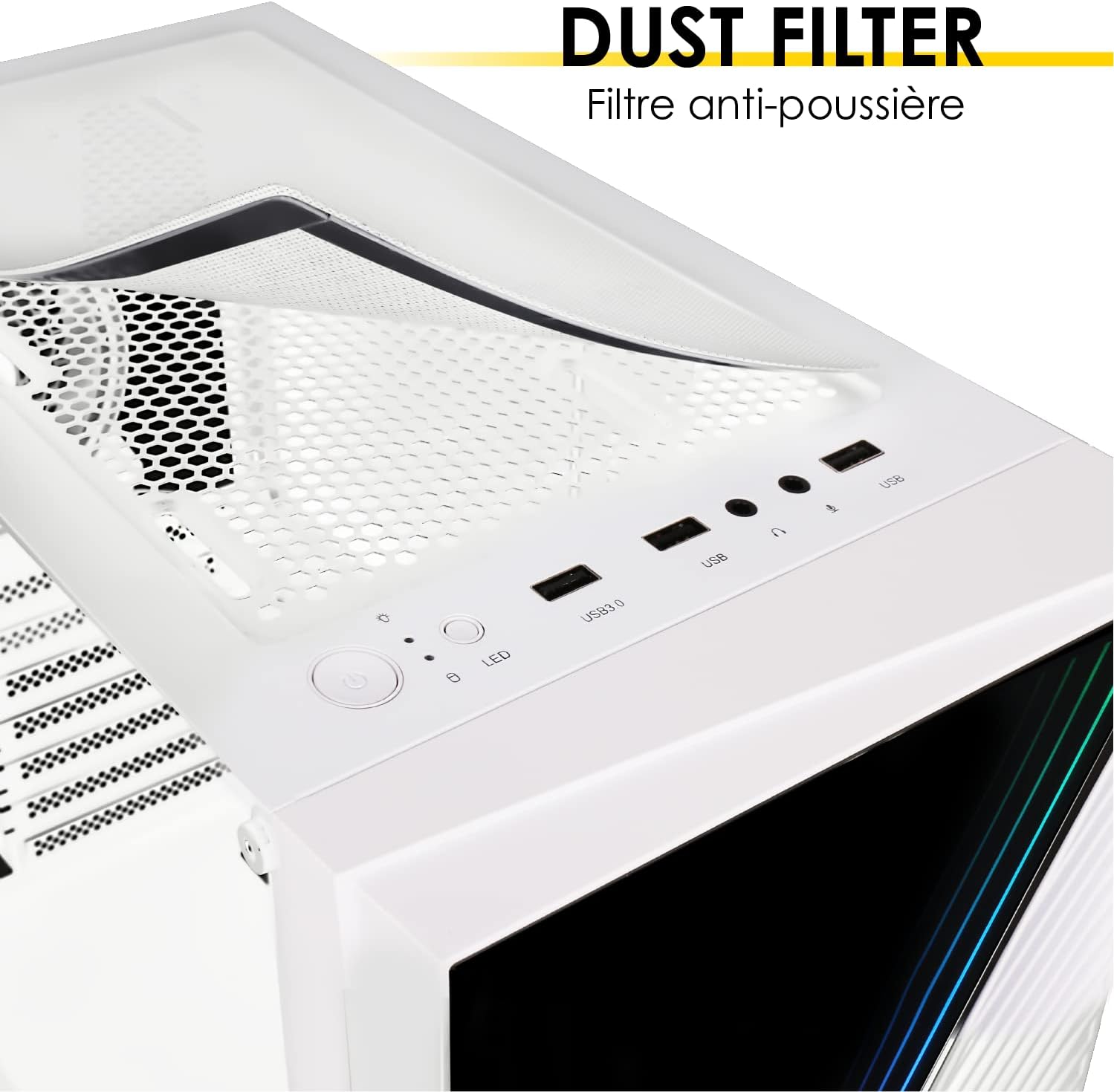
Image: A view of the case's top panel, demonstrating the easy removal of the dust filter for cleaning.
Troubleshooting
If you encounter any issues with your EMPIRE GAMING Crystal ARGB PC Case, the following general troubleshooting steps may help resolve common problems:
- System Not Powering On:
- Ensure all power supply cables are firmly connected to the motherboard, graphics card, and other components.
- Verify that the power button cable from the case is correctly connected to the motherboard's front panel header.
- Fans Not Spinning or RGB Not Functioning:
- Check that all fan power cables and ARGB cables are securely connected to the motherboard or any dedicated ARGB controller.
- Review your motherboard's BIOS/UEFI settings or the installed RGB software for fan speed and lighting control configurations.
- Overheating Concerns:
- Confirm that all case fans are oriented correctly for optimal intake and exhaust airflow.
- Regularly clean dust filters and internal components to prevent dust buildup, which can impede cooling.
- Ensure your CPU cooler and GPU fans are operating as expected.
- Front Panel Ports (USB/Audio) Not Working:
- Inspect the internal USB and HD Audio header connections from the case to the motherboard.
- Ensure that the latest drivers for your motherboard's chipset and audio controller are installed.
For more detailed troubleshooting or specific component-related issues, consult the respective manuals for your motherboard and other hardware. If problems persist after attempting these steps, please contact EMPIRE GAMING customer support for further assistance.
Specifications
| Feature | Detail |
|---|---|
| Brand | EMPIRE GAMING |
| Model Name | Crystal ARGB |
| Model Number | OE-CA-21WT |
| Case Type | Mid-Tower |
| Motherboard Compatibility | ATX, Micro-ATX, ITX |
| Dimensions (L x W x H) | 405 x 210 x 445 mm (15.9 x 8.2 x 17.5 inches) |
| Weight | 5.2 kg |
| Material | Metal, Plastic, Tempered Glass |
| Pre-installed Fans | 1x 120mm ARGB Front, 1x 120mm Standard Rear |
| Fan Support (Front) | 1x 200mm (not included) |
| Fan Support (Rear) | 1x 120mm (included) |
| Fan Support (Top) | 2x 120mm (not included) |
| Radiator Support (Front) | 120mm, 240mm, 360mm |
| Radiator Support (Rear) | 120mm |
| Radiator Support (Top) | 120mm, 240mm |
| Max CPU Cooler Height | 160mm |
| Max GPU Length | 345mm |
| Drive Bays | 4x (3.5" HDD or 2.5" SSD) |
| Front I/O Ports | 2x USB 2.0, 1x USB 3.0, 1x HD Audio, 1x LED Button |
| Special Features | Addressable RGB Lighting, Liquid Cooling Support, 3D Effect Front Panel |

Image: Detailed dimensions of the PC case, showing length, width, and height in both centimeters and inches for planning your build.
Warranty and Support
Information regarding product warranty terms and conditions, as well as specific customer support contact details, is not provided within this instruction manual. For comprehensive warranty information and technical assistance, please refer to the following resources:
- The original product packaging.
- The website of the retailer from whom you purchased the product.
- The official EMPIRE GAMING website.
You may also visit the EMPIRE GAMING Brand Store for additional product information and resources.


