
1. Introduction
The DIERYA M1SE Wired Gaming Mouse is designed for precision and comfort, featuring a lightweight honeycomb shell, a high-precision optical sensor, and customizable RGB lighting. This manual provides detailed instructions for setup, operation, customization, and maintenance to ensure optimal performance.

Image 1: Top-down view of the DIERYA M1SE Wired Gaming Mouse, showcasing its honeycomb shell and RGB lighting.
2. Package Contents
- DIERYA M1SE Honeycomb Gaming Mouse x 1
- User Manual x 1
3. Setup
- Connect the Mouse: Plug the USB cable of the DIERYA M1SE mouse into an available USB port on your computer. The mouse will typically be recognized automatically by your operating system.
- Driver Installation (Optional but Recommended): For full customization of DPI, macros, and RGB settings, download and install the DIERYA X TMKB driver software from the official DIERYA website. Refer to the website for the latest software version and installation instructions.
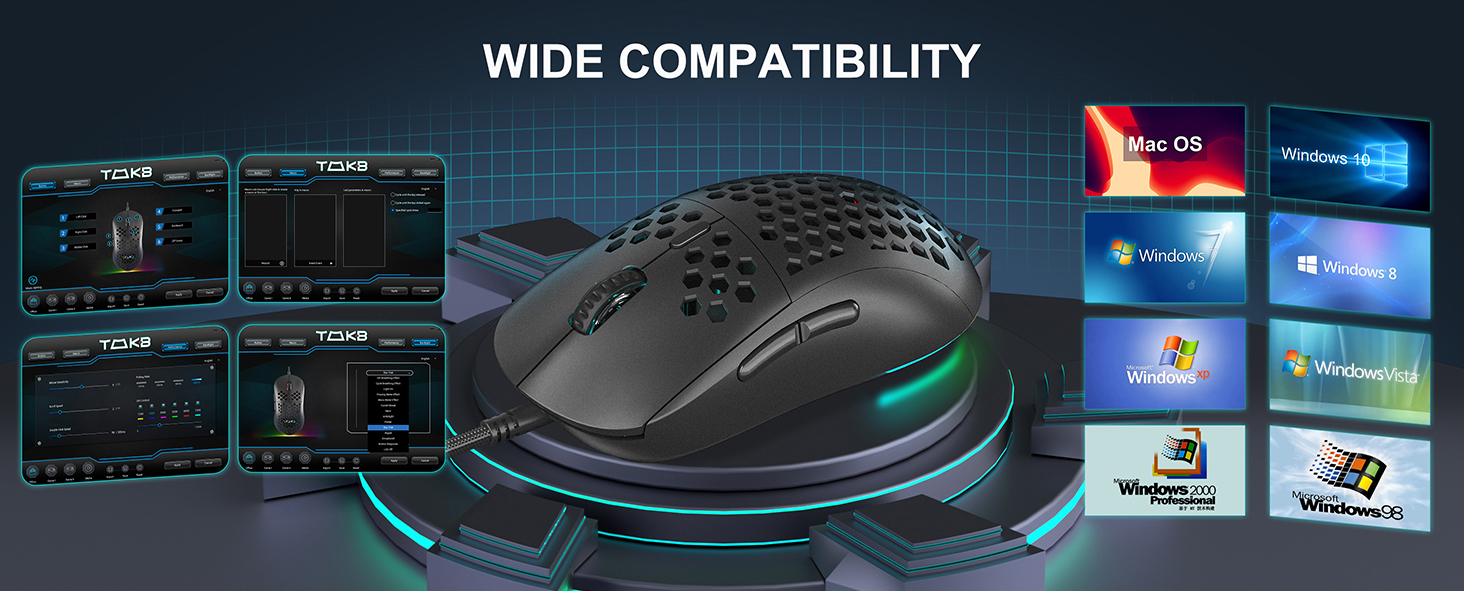
Image 2: Diagram illustrating the wide compatibility of the DIERYA M1SE mouse with various operating systems, including Windows 7/8/10/XP, Vista, and Linux.
4. Operating Instructions
4.1 DPI Adjustment
The DIERYA M1SE features a high-precision optical sensor with adjustable DPI settings from 200 to 12800 DPI. The polling rate can also be adjusted between 125Hz, 250Hz, 500Hz, and 1000Hz.
- Default DPI Levels: The mouse comes with preset DPI levels that can be cycled through using the DPI adjustment button located behind the scroll wheel.
- Custom DPI Settings: Use the DIERYA X TMKB driver software to customize specific DPI values and assign them to different profiles.

Image 3: Visual representation of the 23 adjustable DPI levels and polling rates available on the DIERYA M1SE mouse, ranging up to 12800 DPI.
4.2 RGB Lighting Control
The mouse features 13 vibrant RGB lighting effects with 16.8 million customizable colors. The lighting can dynamically sync with in-game sounds and music rhythms.
- Cycle Effects: Use the dedicated RGB button (if available, or a programmable button) or the software to cycle through different lighting modes.
- Software Customization: The DIERYA X TMKB software allows for in-depth customization of RGB colors, effects, and synchronization options.

Image 4: Multiple DIERYA M1SE mice displaying various RGB lighting effects, highlighting the 14 bright RGB color modes and 16.8 million color palette.
4.3 Programmable Buttons
The DIERYA M1SE is equipped with 6 programmable buttons, ergonomically designed for both left and right-handed users.
- Default Functions: Left Click, Right Click, Mouse Wheel (Scroll Up/Down, Middle Click), DPI Adjustment Key, Forward, Backward.
- Customization: All 6 buttons can be remapped using the DIERYA X TMKB driver software to perform various functions, including rapid firing, macro recording, and shortcut key operations.

Image 5: Diagram illustrating the location and default functions of the 6 programmable buttons on the DIERYA M1SE mouse: Left Key, Right Key, Mouse Wheel, DPI Adjustment Key, Forward, and Backward.
5. Customization (Software Support)
The DIERYA X TMKB powerful driver software allows for extensive customization of your M1SE gaming mouse.
- Download Software: Visit the official DIERYA website to download the latest version of the DIERYA X TMKB driver software.
- Install and Launch: Follow the on-screen instructions to install the software. Once installed, launch the application.
- Button Remapping: Within the software, you can remap the functions of each mouse button to suit your preferences for different games or applications.
- Macro Recording: Create and record complex macros to execute multiple commands with a single button press.
- DPI Settings: Fine-tune DPI levels, adjust polling rates, and create multiple DPI profiles.
- RGB Customization: Personalize the RGB lighting effects, colors, brightness, and speed.
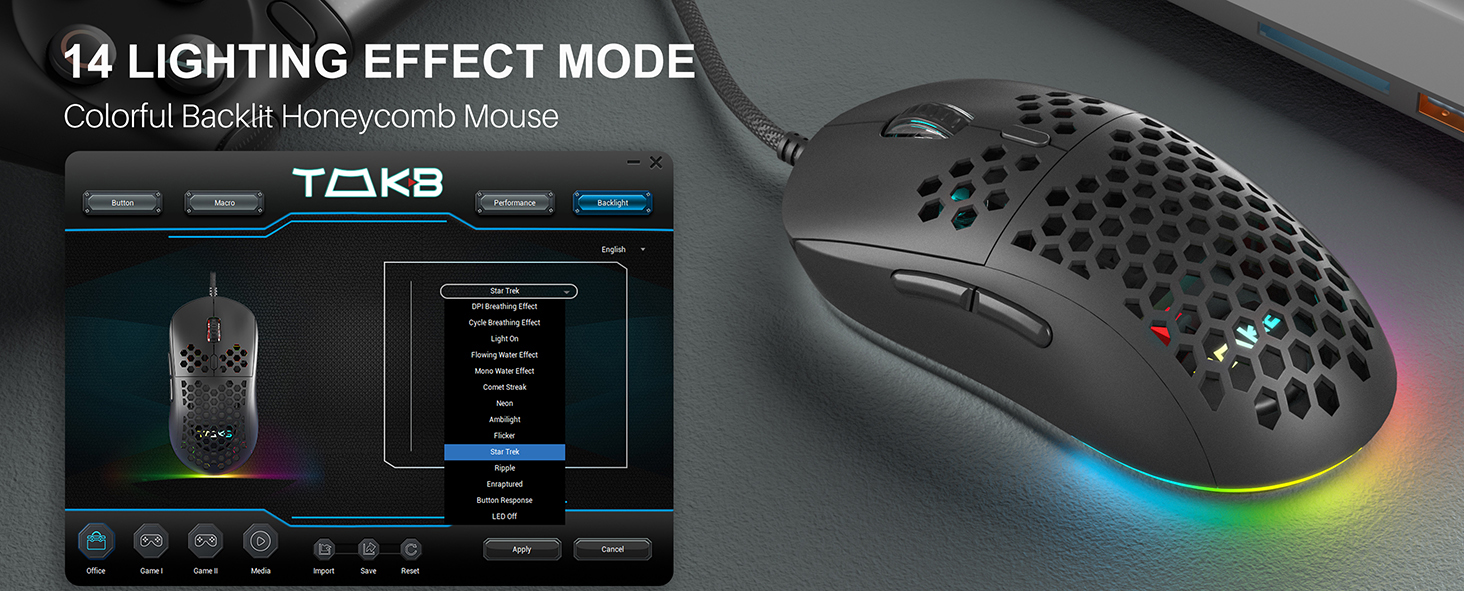
Image 6: Screenshot of the DIERYA X TMKB driver software interface, showing options for button configuration, macro recording, performance settings, and backlight customization.
6. Maintenance
- Cleaning: Use a soft, dry cloth to clean the exterior of the mouse. For the honeycomb shell, a can of compressed air can help remove dust and debris. Avoid using harsh chemicals or abrasive materials.
- Cable Care: Avoid sharp bends or excessive pulling on the USB cable to prevent damage. The ultra-flexible braided cable is designed for durability but proper care extends its lifespan.
- Storage: When not in use, store the mouse in a clean, dry environment away from extreme temperatures.

Image 7: Underside view of the DIERYA M1SE mouse, highlighting the TPU material anti-slip foot pads for smoother glide and the honeycomb structure for reduced weight.
7. Troubleshooting
- Mouse Not Responding:
- Ensure the USB cable is securely plugged into a working USB port.
- Try plugging the mouse into a different USB port or another computer to rule out port issues.
- Restart your computer.
- DPI Settings Not Changing:
- Ensure the DPI adjustment button is functioning correctly.
- Check the DIERYA X TMKB software to verify DPI profiles and settings.
- RGB Lighting Not Working/Flickering:
- Verify RGB settings in the DIERYA X TMKB software.
- Ensure the mouse firmware is up to date (check software for updates).
- If flickering persists, try a different USB port or contact support.
- Software Not Detecting Mouse:
- Reinstall the DIERYA X TMKB driver software.
- Ensure your operating system is compatible with the software.
- Temporarily disable any antivirus or firewall software that might be interfering with the installation or operation.
8. Specifications
| Feature | Detail |
|---|---|
| Model | M1SE |
| Connectivity Technology | USB Wired |
| Movement Detection Technology | Optical |
| DPI Range | 200-12800 DPI |
| Polling Rate | 125-1000Hz |
| Programmable Buttons | 6 |
| RGB Lighting | 13 Effects, 16.8 Million Colors |
| Design | Ultralight Honeycomb Shell |
| Weight | 75g (approx. 3.7 ounces) |
| Product Dimensions | 4.91 x 2.48 x 1.6 inches |

Image 8: Detailed graphic showing the dimensions (4.91 x 2.48 x 1.6 inches) and key features of the DIERYA M1SE mouse, including its 75g weight, ergonomic design, and honeycomb structure.
9. Warranty and Support
DIERYA products are manufactured to high-quality standards. For warranty information, technical support, or any product-related inquiries, please visit the official DIERYA website or contact their customer service directly. Keep your purchase receipt for warranty claims.
Official Website: DIERYA Store on Amazon


