
NEARITY HP20
NEARITY HP20 Wired Headset User Manual
Model: HP20
1. Introduction
Thank you for choosing the NEARITY HP20 Wired Headset. This manual provides detailed instructions on how to set up, operate, and maintain your headset, ensuring optimal performance and longevity. The HP20 is designed for clear communication and comfortable use across various platforms, including PC, Mac, and laptops.

Image: The NEARITY HP20 Wired Headset, showcasing its design and in-line controls.
2. Product Overview
2.1 Package Contents
- NEARITY HP20 Wired Headset
- USB-A to USB-C Adapter (integrated with cable)
2.2 Key Features
- ECM+MEMS Noise Cancelling Microphones: Dual microphone system designed to isolate your voice and reduce background noise for clear communication.
- All-Day Comfort: Features pillow-soft ear cushions and a padded headband for extended wear without discomfort.
- In-Line Controls: Easy access to volume adjustment, mute function, and call management directly on the cable.
- USB-C/USB-A Plug and Play: Simple connectivity to various devices via USB-A or USB-C (with adapter).
- Wide Compatibility: Works seamlessly with PC, Mac, laptops, tablets, and other USB-compatible devices.

Image: The HP20 headset showing the integrated USB-A and USB-C connectors for flexible connectivity.
3. Setup
3.1 Connecting the Headset
- Identify the correct USB port on your device (PC, Mac, laptop, tablet). The HP20 features a USB-A connector with an integrated USB-C adapter.
- For USB-A ports: Plug the USB-A connector directly into an available USB-A port.
- For USB-C ports: Ensure the USB-C adapter is engaged and plug the USB-C connector into an available USB-C port.
- The headset is plug-and-play and should be automatically recognized by your operating system.

Image: The HP20 headset demonstrating flexible connectivity options with laptops, tablets, and smartphones via USB-C and USB-A.
3.2 Initial Audio Setup (Windows/macOS)
While the headset is plug-and-play, you may need to select it as the default audio device in your system settings or communication application.
- Windows: Go to Sound Settings (right-click on speaker icon in taskbar) and ensure "NEARITY HP20" is selected as the default Playback and Recording device.
- macOS: Go to System Settings > Sound > Output/Input and select "NEARITY HP20" for both.
- Communication Apps (Zoom, Teams, Skype): Within the application's audio settings, select "NEARITY HP20" for both your speaker and microphone.
4. Operating Instructions
4.1 Wearing the Headset
- Place the headset over your head with the ear cushions covering your ears.
- Adjust the headband by sliding the earcups up or down until they fit comfortably.
- Position the microphone boom on the left side of your face, approximately 1-2 inches from your mouth.

Image: The adjustable headband of the HP20 headset, allowing for a customized and comfortable fit.
4.2 Microphone Adjustment
The microphone boom can pivot up to 150 degrees, allowing you to position it optimally for voice capture or swing it out of the way when not in use.

Image: Illustration of the microphone's 150-degree pivoting capability for flexible positioning.
4.3 In-Line Controls
The HP20 headset features convenient in-line controls for easy management of audio and calls:
| Button/Action | Function |
|---|---|
| Play/Pause (1x press) | Play or pause audio playback. |
| Next Track (2x press) | Skip to the next audio track. |
| Previous Track (3x press) | Go back to the previous audio track. |
| Answer/End Call (1x press) | Answer an incoming call or end an active call. |
| Reject Call (2 sec press) | Reject an incoming call. |
| Volume +/- | Adjust the listening volume up or down. |
| Mute On/Off (1x press) | Mute or unmute the microphone. |

Image: Detailed diagram illustrating the functions of each button on the in-line control unit.
5. Maintenance
- Cleaning: Use a soft, dry cloth to wipe down the headset and ear cushions. For stubborn dirt, a slightly damp cloth can be used, but ensure no moisture enters the speaker grilles or microphone.
- Storage: When not in use, store the headset in a clean, dry place away from extreme temperatures and direct sunlight.
- Cable Care: Avoid sharp bends or kinks in the cable to prevent internal damage. Do not pull the cable to disconnect the headset; always grasp the plug.
6. Troubleshooting
| Problem | Possible Solution |
|---|---|
| No sound from headset. |
|
| Microphone is not working. |
|
| In-line controls are unresponsive. |
|
| Background noise is still audible. |
|
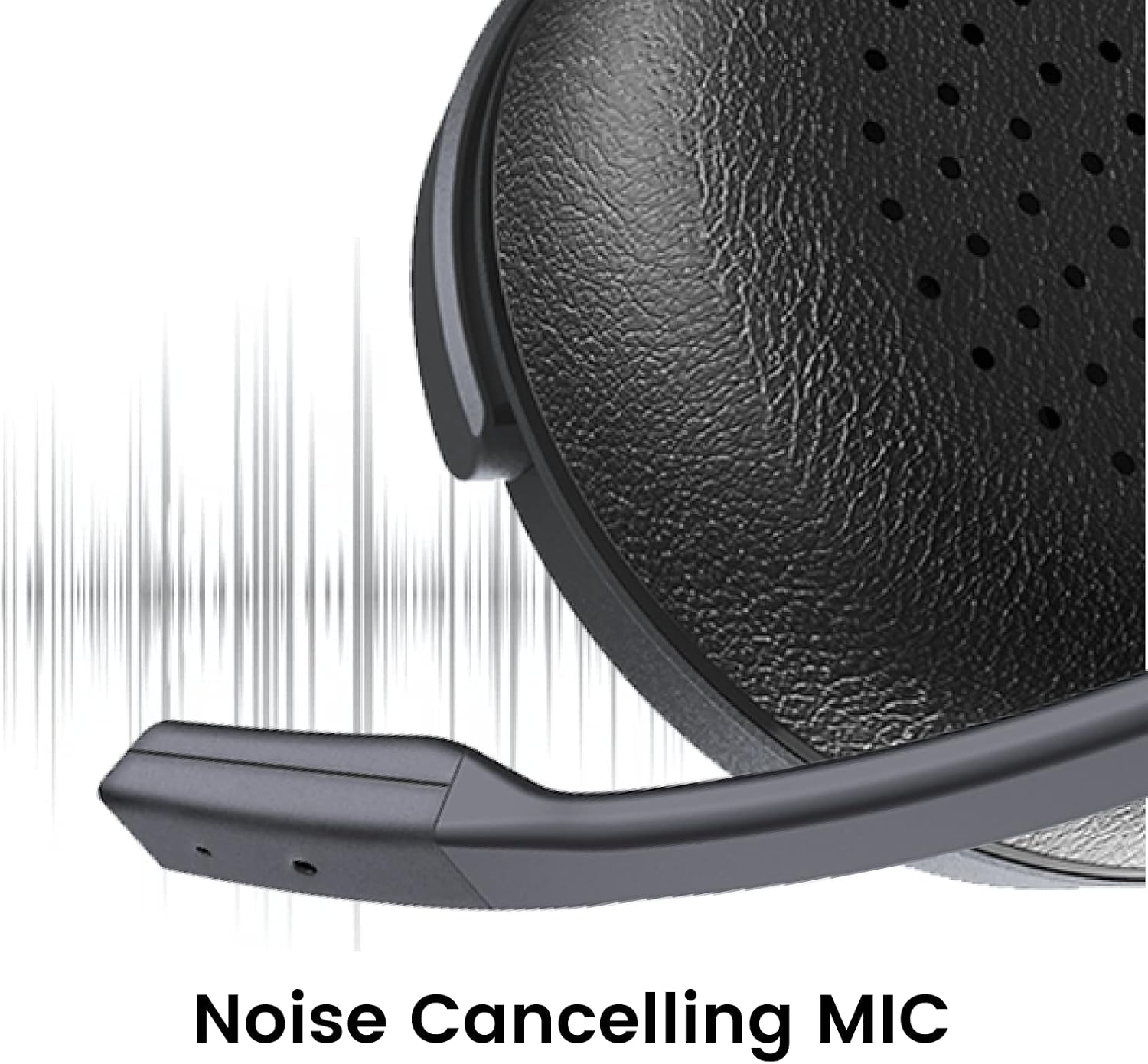
Image: Visual representation of the noise-cancelling microphone effectively reducing background sound.
7. Specifications
| Category | Specification |
|---|---|
| Model | HP20 |
| Dimensions (H x W x D) | 180 mm x 165 mm x 70 mm (7 in x 6.5 in x 2.7 in) |
| Net Weight | 194 g (6.8 oz) / 13.6 ounces |
| Connectivity | USB-A, USB-C (via adapter) |
| Compatibility | Windows, macOS, Linux, PC, Mac, Laptop, Tablet, iOS (via USB-C) |
| Microphone Features | |
| Microphone Type | Dual microphone (One-element ECM omnidirectional & One-element MEMS omnidirectional) |
| Noise Cancellation | Enhanced algorithm noise-cancellation |
| Microphone Sensitivity | -40dB@f=1kHz, Pin=1Pa, 0dB=1V/Pa + -38dBV/Pa 94dB SPL@1kHz |
| Microphone SNR | 60dB@f=1kHz, Pin=1Pa, A-Weighted + 63dBV/Pa 94dB SPL@1kHz, A-weighted |
| Microphone Frequency Response | 100Hz-10kHz + 20Hz-20kHz |
| Speaker Characteristics | |
| Rated Output Power | 32Ω/10mW |
| Effective Frequency Range | 20Hz~20kHz |
| Volume | 118±2dB@1mW, 1kHz |
| THD | ≤3%@1mW, 50Hz~10KHz |

Image: The HP20 headset being used in different scenarios, including conference calls, call centers, online courses, and live streaming.
8. Warranty and Support
For warranty information and technical support, please refer to the NEARITY official website or contact their customer service directly. Keep your purchase receipt as proof of purchase for any warranty claims.
You can also visit the NEARITY Store on Amazon for more product information and support resources.
Ask a question about this manual
Ask about setup, troubleshooting, compatibility, parts, safety, or missing instructions. Manuals+ will review the question and use this page’s manual context to help answer it.