
Mobility Lab ML306124
Mobility Lab KP410W Foldable Wireless Keyboard User Manual
Model: ML306124
Introduction
Thank you for choosing the Mobility Lab KP410W Foldable Wireless Keyboard. This compact and lightweight keyboard is designed for portability and seamless connectivity across multiple devices. It features a durable, foldable design, Bluetooth 5.0 connectivity for up to three devices, and a long-lasting rechargeable battery. This manual provides essential information for setting up, operating, and maintaining your keyboard.
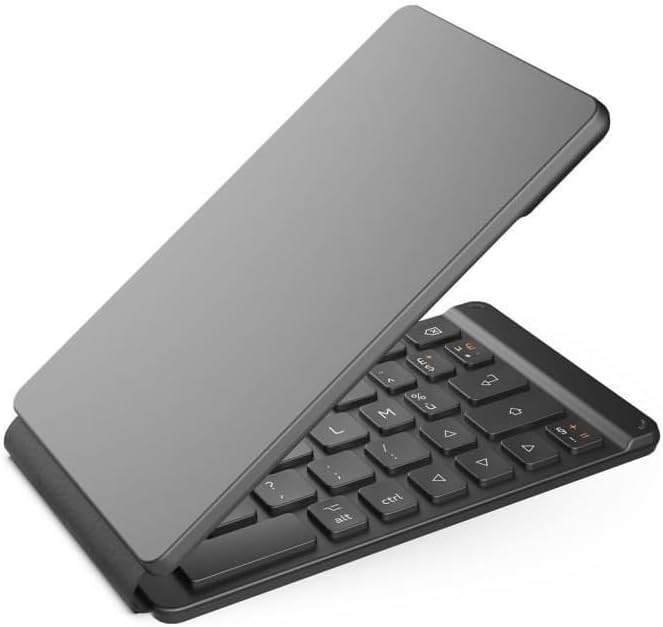
Image: The Mobility Lab KP410W Foldable Wireless Keyboard in its compact, folded state, highlighting its portability.
Package Contents
Please ensure all items are present in the package:
- Mobility Lab KP410W Foldable Wireless Keyboard
- USB-C Charging Cable
- User Manual
Setup
1. Charging the Keyboard
Before first use, fully charge the keyboard. Connect the supplied USB-C cable to the charging port on the keyboard and the other end to a USB power source (e.g., computer USB port, USB wall adapter).

Image: A close-up view of the USB-C charging port on the keyboard, with a charging cable connected.
2. Powering On/Off
The keyboard automatically powers on when unfolded and powers off when folded due to its magnetic closure mechanism.
3. Bluetooth Pairing
The Mobility Lab KP410W keyboard supports pairing with up to three devices simultaneously. Follow these steps to pair your device:
- Unfold the keyboard to power it on.
- Press and hold the Fn key and one of the Bluetooth channel keys (A, Z, or E) for 3-5 seconds until the corresponding indicator light flashes, indicating pairing mode.
- On your device (tablet, PC, smartphone), go to Bluetooth settings and search for new devices.
- Select "Mobility Lab Keyboard" or similar from the list of available devices.
- If prompted, enter the pairing code displayed on your device using the keyboard and press Enter.
- Once paired, the indicator light will stop flashing and remain solid for a few seconds before turning off.

Image: A close-up of the A, Z, and E keys, which are used for Bluetooth channel selection and pairing.
Operating Instructions
Switching Between Devices
To switch between paired devices, simply press the Fn key along with the corresponding Bluetooth channel key (Fn + A for device 1, Fn + Z for device 2, Fn + E for device 3). The keyboard will quickly connect to the selected device.
Using Shortcut Keys
The keyboard features several shortcut keys to enhance productivity. These are typically accessed by pressing the Fn key in combination with other function keys (F1-F12) or specific multimedia keys. Refer to the key legends for specific functions such as volume control, media playback, and screen brightness.

Image: A full view of the unfolded AZERTY keyboard layout, illustrating the placement of all keys and their shortcut functions.

Image: A close-up of the Function (Fn) and Alt keys, which are used in combination with other keys for various shortcuts.
Compatibility
The keyboard is compatible with a wide range of operating systems, including Windows, iOS, and Android. This allows for seamless use with laptops, tablets, and smartphones.
Maintenance
Cleaning
To clean the keyboard, gently wipe the surface with a soft, dry, or slightly damp cloth. Avoid using harsh chemicals, abrasive cleaners, or excessive moisture, as these can damage the keyboard.
Storage
When not in use, fold the keyboard to protect the keys and conserve battery life. Store it in a cool, dry place away from direct sunlight and extreme temperatures.

Image: The keyboard shown partially folded, illustrating its compact design and the central hinge for storage.
Troubleshooting
| Problem | Possible Cause | Solution |
|---|---|---|
| Keyboard does not power on. | Low battery or not unfolded correctly. | Charge the keyboard fully. Ensure the keyboard is fully unfolded to activate. |
| Unable to pair via Bluetooth. | Keyboard not in pairing mode, device Bluetooth off, or interference. | Ensure keyboard is in pairing mode (indicator flashing). Check if Bluetooth is enabled on your device. Move closer to the device. Forget previous pairings and try again. |
| Keys are unresponsive or typing incorrectly. | Low battery, connection issue, or incorrect operating system mode. | Recharge the keyboard. Re-establish Bluetooth connection. Ensure the correct operating system mode is selected if applicable (though this model auto-detects). |
| Cannot switch between devices. | Devices not properly paired to different channels. | Ensure each device is paired to a distinct Bluetooth channel (Fn+A, Fn+Z, Fn+E). |
Specifications
| Feature | Detail |
|---|---|
| Brand | Mobility Lab |
| Model Number | ML306124 |
| Color | Black |
| Connectivity Technology | Bluetooth 5.0 |
| Compatible Devices | Android, Windows, iOS (Tablets, PCs, Smartphones) |
| Keyboard Layout | AZERTY (Multifunctional) |
| Number of Keys | 67 |
| Power Source | Battery Powered (Rechargeable via USB-C) |
| Battery Life | Up to 140 hours of continuous work |
| Dimensions (Unfolded) | 31.3 x 8.6 x 0.7 cm (L x W x H) |
| Product Weight | 132 Grams |
| Special Features | Foldable design, Magnetic closure, Anti-slip pads, Flat and responsive scissor keys, Multi-device pairing (up to 3) |
Warranty Information
The Mobility Lab KP410W Foldable Wireless Keyboard comes with a manufacturer's warranty of 2 years from the date of purchase. This warranty covers defects in materials and workmanship under normal use. It does not cover damage caused by misuse, accident, unauthorized modification, or external causes.
Please retain your proof of purchase for warranty claims. For detailed warranty terms and conditions, refer to the official Mobility Lab website or contact customer support.
Support
For further assistance, technical support, or warranty inquiries, please visit the official Mobility Lab website or contact their customer service department. Contact information can typically be found on the product packaging or the brand's official website.
You can also visit the Mobility Lab Store on Amazon for more product information and support resources.
Related documentsML306124


Ask a question about this manual
Ask about setup, troubleshooting, compatibility, parts, safety, or missing instructions. Manuals+ will review the question and use this page’s manual context to help answer it.