Introduction
This manual provides essential information for the safe and efficient operation of your Optoma CinemaX D2 Smart White 4K UHD Laser Projector. Please read this manual thoroughly before using the product and retain it for future reference.
Safety Information
Always observe the following safety precautions to prevent fire, electric shock, or injury:
- Do not block ventilation openings.
- Do not expose the projector to rain or moisture.
- Do not open the projector casing; refer all servicing to qualified personnel.
- Avoid direct eye exposure to the projector lens when the lamp is on.
- Use only attachments/accessories specified by the manufacturer.
Package Contents
Verify that all items are present in the package:
- CinemaX D2 Smart White Projector
- AC power cord
- 2x AAA batteries
- Basic user manual (this document)
- Android TV stick
- Android TV stick remote
Product Overview
Familiarize yourself with the components of your Optoma CinemaX D2 Smart White projector.

Figure 1: Front View. This image shows the front of the Optoma CinemaX D2 Smart White projector, featuring its sleek, minimalist design with a white top panel and a grey fabric-covered front speaker grille.

Figure 2: Rear Panel. This image displays the rear panel of the projector, highlighting various connectivity ports including HDMI inputs, USB ports, audio output, and the power input. Ventilation grilles are also visible.

Figure 3: Android TV Stick and Remote. This image shows the compact black Android TV streaming stick alongside its dedicated remote control, which features dedicated buttons for popular streaming services like Netflix and Prime Video.
Ports and Connectors:
- HDMI Inputs: Connect external devices such as Blu-ray players, gaming consoles, or laptops.
- USB Ports: For connecting the Android TV stick, external storage, or firmware updates.
- Audio Output (eARC): For connecting to external sound systems.
- Power Input: For connecting the AC power cord.
Setup
Follow these steps for initial setup of your projector:
- Placement: Place the projector on a stable, flat surface a few inches away from the projection surface (wall or screen). The ultra-short throw design allows for a large image from a very short distance.
- Power Connection: Connect the AC power cord to the projector's power input and then to a power outlet.
- Android TV Stick Installation: Insert the Hako mini Android TV streaming adapter into an available HDMI port on the projector. Power the stick if required (usually via a USB port on the projector or a separate power adapter).
- Initial Power On: Press the power button on the projector or the remote control to turn on the unit.
- Image Adjustment:
- Focus: Adjust the focus to achieve a clear image.
- Keystone Correction: Use the 4-corner adjustment and 2D keystone correction features in the projector's menu to square the image if it appears trapezoidal.
- Digital Zoom: Adjust the image size if needed.
- SmartFIT: Utilize the SmartFIT app (if available for your device) for automated image alignment.

Figure 4: Ultra-Short Throw Placement. This image illustrates how the projector can be placed very close to a wall (less than 1 foot) to project a large 100-inch image, demonstrating its ultra-short throw capability.

Figure 5: SmartFIT Alignment. This image shows a smartphone screen displaying the Optoma SmartFIT app interface, used to assist in automatically aligning the projected image to the screen or wall.
- Network Connection: Connect the Android TV stick to your Wi-Fi network to access streaming services and updates.
- Account Setup: Log in to your Google account on the Android TV interface to access the Google Play Store and various streaming applications.
Operating Instructions
Basic Operation:
- Power On/Off: Use the power button on the projector or the remote.
- Input Source Selection: Use the remote to select the desired HDMI input for external devices or the Android TV stick.
- Navigation: Use the directional buttons and OK button on the remote to navigate menus and select options.
- Volume Control: Adjust audio volume using the volume buttons on the remote.
Smart Features (via Android TV Stick):
- Streaming Apps: Access pre-installed apps like Netflix, HBO Max, Disney+, Paramount+, and YouTube. Download more from the Google Play Store.
- Voice Control: Use the voice assistant feature on the Android TV remote for hands-free control and content search.
- Chromecast Built-in: Cast content directly from your compatible smartphone or tablet to the projector.

Figure 6: Cinematic Experience. This image visually compares the large screen size achievable with the D2 Smart Laser TV (100 inches) against a standard 50-inch television, emphasizing the immersive home theater experience.
Enhanced Gaming Mode:
The projector features an Enhanced Gaming mode for optimal performance with video games.
- Activation: Navigate to the projector's settings menu and enable "Enhanced Gaming Mode."
- Benefits: This mode reduces input lag to as low as 4ms and supports a 240Hz refresh rate at 1080p, providing a smoother and more responsive gaming experience.
HDR Content:
The CinemaX D2 Smart supports HDR10 content for enhanced contrast and color depth.
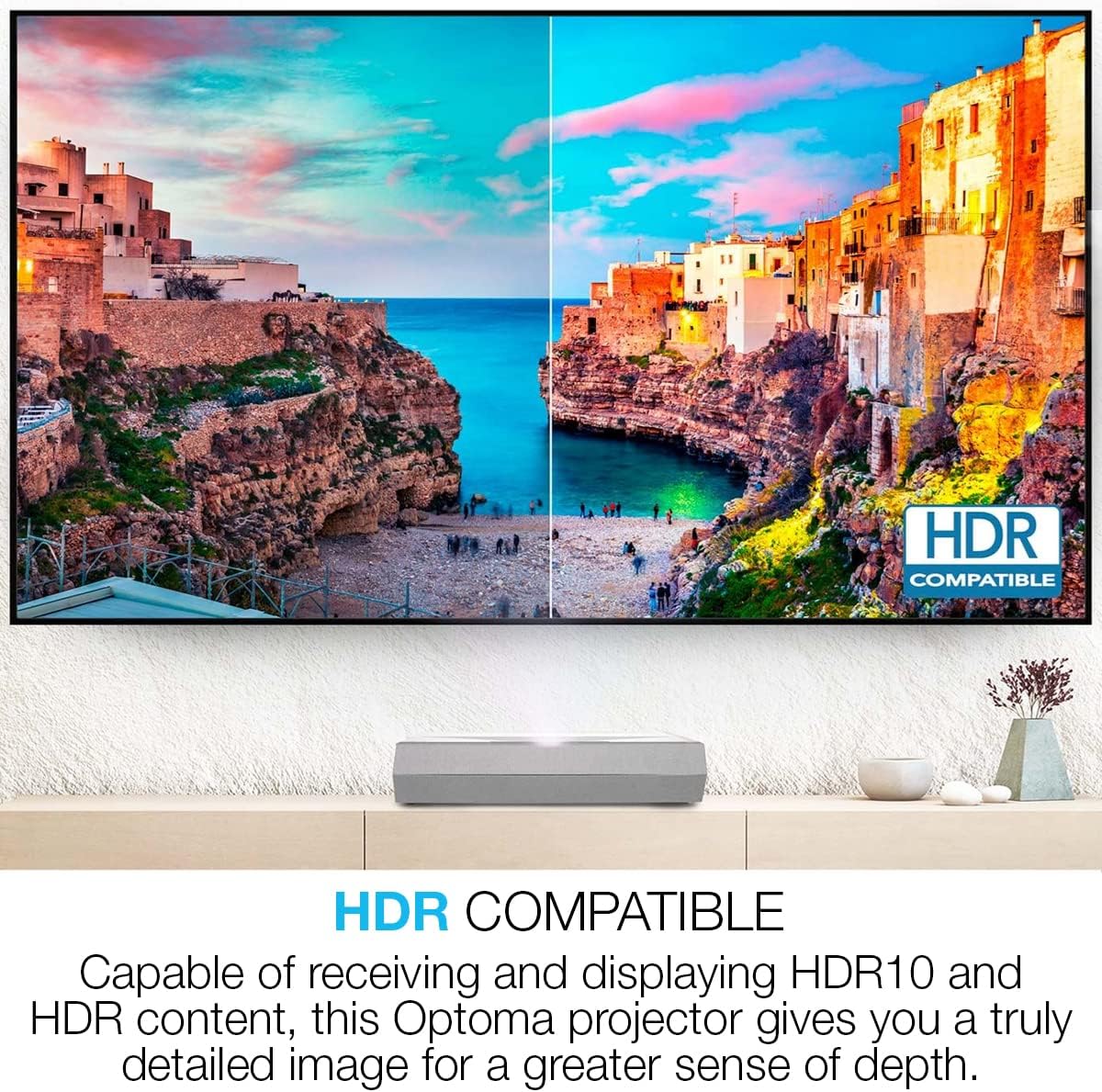
Figure 7: HDR Compatibility. This image demonstrates the visual difference with HDR content, showing a split screen where one side displays standard dynamic range and the other displays the richer colors and contrast of HDR10.
Maintenance
Proper maintenance ensures the longevity and optimal performance of your projector.
- Cleaning the Lens: Use a soft, lint-free cloth specifically designed for optical lenses. Do not use abrasive cleaners.
- Cleaning the Casing: Wipe the projector's exterior with a soft, damp cloth. Avoid harsh chemicals.
- Ventilation: Ensure that the ventilation openings are clear of dust and obstructions to prevent overheating.
- Laser Light Source: The laser light source has a long lifespan (up to 30,000 hours) and does not require replacement under normal use.
Troubleshooting
If you encounter issues, refer to the following common problems and solutions:
| Problem | Possible Cause / Solution |
|---|---|
| No image displayed |
|
| Image is blurry |
|
| Image is trapezoidal or distorted |
|
| No sound |
|
| Remote control not working |
|
Specifications
| Feature | Detail |
|---|---|
| Model Number | CinemaX D2 Smart White |
| Display Resolution | 3840 x 2160 (4K UHD) |
| Brightness | 3,000 Lumens |
| Contrast Ratio | 1,800,000:1 |
| Light Source | Laser (up to 30,000 hours lifespan) |
| Throw Type | Ultra-Short Throw |
| HDR Support | HDR10 |
| Audio | eARC Audio support |
| Gaming Features | 4ms input lag (1080p), 240Hz refresh rate (1080p) |
| Smart Features | Android TV (via Hako mini adapter), Google and Netflix certified |
| Connectivity | USB, HDMI |
| Product Dimensions | 15 x 22.1 x 5.1 inches |
| Item Weight | 18.52 pounds |
Warranty and Support
For detailed warranty information and technical support, please refer to the official Optoma website or contact Optoma customer service. Keep your purchase receipt as proof of purchase for warranty claims.
Online Resources: www.optoma.com


