
OTTOCAST A2Air
Contents
OTTOCAST A2Air Wireless Android Auto Adapter User Manual
Model: A2Air
1. Introduction
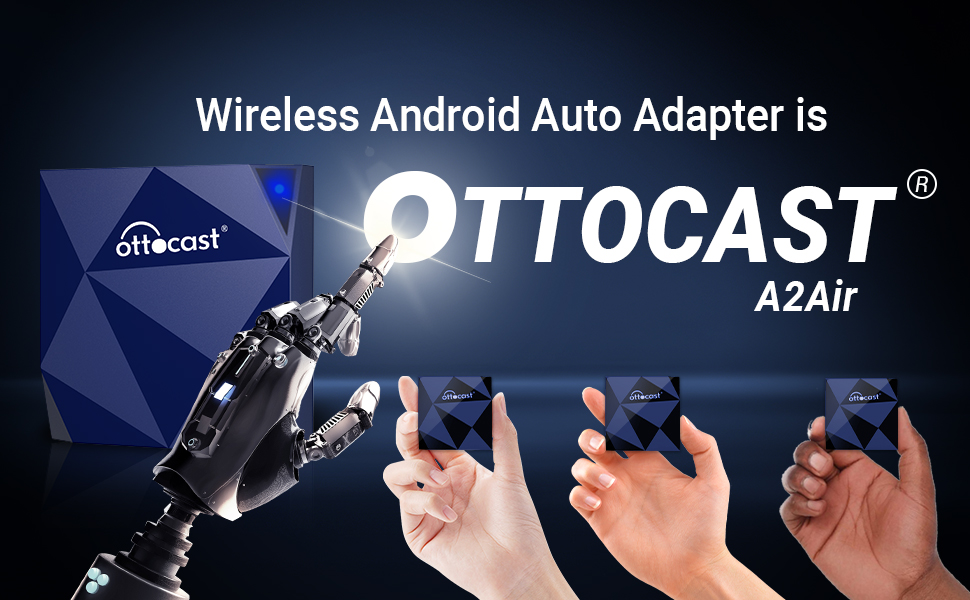
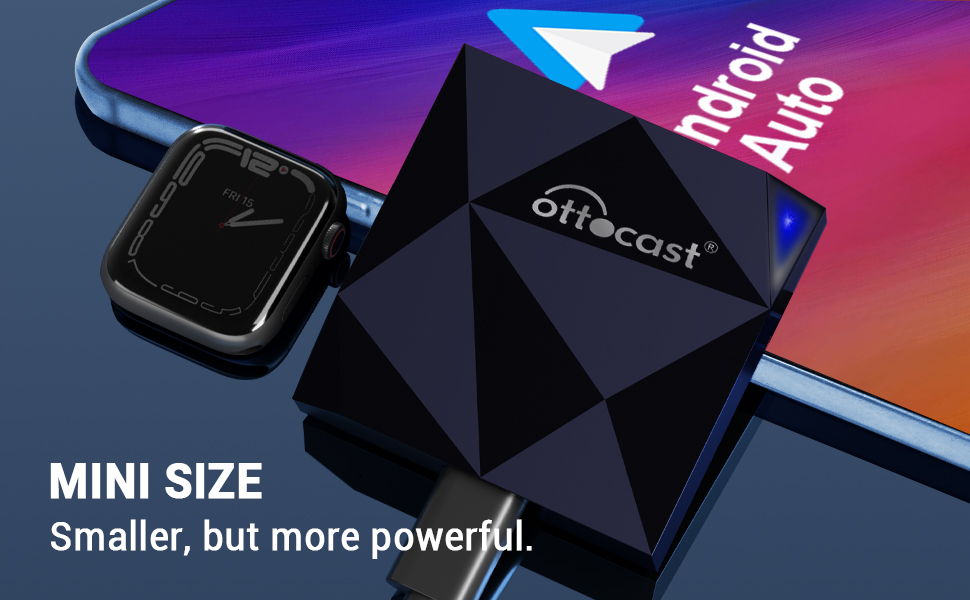
The OTTOCAST A2Air Wireless Android Auto Adapter is designed to convert your car's factory-wired Android Auto system into a wireless one. Enjoy seamless connectivity, fast auto-connection in under 10 seconds, and access to all your favorite Android Auto features without the need for messy cables. This manual provides detailed instructions for setup, operation, and troubleshooting to ensure an optimal user experience.

This adapter features a built-in 5G chip for stable and fast connections, automatically switches between day and night modes, and supports hands-free Google Assistant, navigation, calls, and music playback.
Product Overview Video
This video provides a comprehensive overview of the OTTOCAST A2Air Wireless Android Auto Adapter, highlighting its key features and benefits.
2. What's in the Box
Upon opening your OTTOCAST A2Air package, you will find the following items:
- A2Air Wireless Android Auto Adapter
- USB C to USB C Cable
- USB A to USB C Cable
- User Manual

Unboxing Video
This video demonstrates the unboxing process and shows all items included with the A2Air adapter.
3. Setup Guide
Setting up your OTTOCAST A2Air adapter is a simple two-step process:
- Plug and Play: Connect the A2Air adapter to your car's USB port that supports wired Android Auto. Use the provided USB-C to USB-C or USB-A to USB-C cable depending on your car's port type.
- Connect to Phone: On your Android phone, turn on Bluetooth and Wi-Fi. Pair your phone with the A2Air adapter via Bluetooth. Once paired, the adapter will automatically connect to your phone via Wi-Fi for wireless Android Auto.

After the initial pairing, the A2Air will automatically connect to your Android phone whenever you enter the car, typically in less than 10 seconds.

4. Operating Instructions
The A2Air adapter enables a full wireless Android Auto experience, allowing you to use your car's display for navigation, music, communication, and more.
Key Features:
- Google Assistant: Use voice commands for hands-free operation.
- Navigation: Access Google Maps and other navigation apps directly on your car's screen.
- Music & Media: Stream music from Spotify, YouTube Music, and other apps with minimal lag.
- Hands-free Calls: Make and receive calls safely while driving.
- Automatic Day/Night Mode: The display automatically adjusts brightness and color based on your car's headlights.


Product Demonstration Videos:
This video defines what a true wireless Android Auto adapter is and showcases its core functionalities.
A demonstration of the OTTOCAST A2Air in action, highlighting its smooth performance and user interface.
Quality Assurance:
This video illustrates the individual testing process each adapter undergoes to ensure stability and reliability.
5. Compatibility
The A2Air adapter is designed for high compatibility, working with approximately 98% of cars that have factory-wired Android Auto and any phone running Android 10 or above.
Compatible Car Brands:
- Ford, Chevrolet, Mercedes, Toyota, Subaru, Jeep, Honda, Nissan, Cadillac, Peugeot, Lincoln, Volkswagen, Volvo, Mazda, Porsche, Audi, Lexus, and many more.
Important: Your car's Android Auto must be factory-wired and enabled for the A2Air to function.
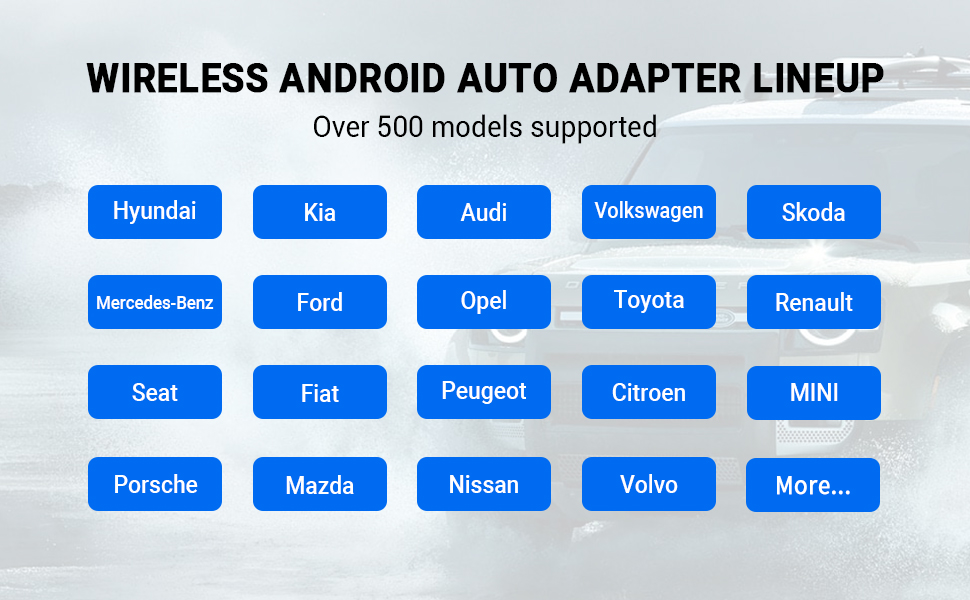
For detailed compatibility information, please visit our official compatibility checker: check.adaptermanual.com
6. Specifications
| Product Dimensions | 2.28 x 2.28 x 0.63 inches |
| Item Weight | 1.6 ounces |
| Model Number | A2Air |
| Connectivity Technology | Wireless (5Ghz Wi-Fi module) |
| Power Source | Corded Electric (USB) |
| Special Feature | Auto re-connection |

7. Troubleshooting
If you encounter issues with your A2Air adapter, please refer to the following common solutions:
Issue 1: Bluetooth shows connected but Android Auto won't connect.
This issue often arises when your phone's Bluetooth is connected to the car directly, preventing the adapter from establishing the Android Auto connection.
- Clear Cache: Go to your phone's Settings > Apps > Android Auto > Storage & Cache, then select 'Clear Cache'. This can resolve temporary data conflicts.
- Forget Bluetooth Device: In your phone's Bluetooth settings, find your car's Bluetooth profile and select 'Forget' or 'Unpair'. Then, reconnect only to the A2Air adapter's Bluetooth.
- Update Adapter Software: Ensure your A2Air adapter's software is updated to the latest version. This can be done via the adapter's web interface (usually accessed by connecting to the adapter's Wi-Fi and navigating to 192.168.1.101 in a web browser).
This video provides steps to resolve Bluetooth connectivity issues preventing Android Auto access.
Issue 2: Adapter needs to be unplugged/replugged to access Android Auto.
If you frequently need to unplug and replug the adapter, consider these solutions:
- Replace Data Cable: Try using a different USB cable, preferably the one provided in the box. If your car doesn't have a USB-C port, ensure you're using a high-quality Android-compatible cable.
- Change USB Port: If your car has multiple USB ports, try connecting the adapter to a different port. Some ports may provide more stable power or data transfer. Avoid using ports that are already occupied by other high-power devices.
- Adjust 'Delay Start' Mode: Access the adapter's web interface (192.168.1.101) and navigate to the 'Settings' section. Look for 'Delayed Start' and try setting it to Mode 1 or Mode 2. This adjusts the adapter's startup timing to better synchronize with your car's system.
- Update Adapter Software: As with other issues, ensuring the adapter's software is up-to-date can resolve underlying compatibility or performance problems.
This video explains solutions for when the adapter requires frequent unplugging and replugging to function correctly.
8. Warranty and Support
OTTOCAST is committed to providing high-quality products and excellent customer service.
Warranty Information:
The OTTOCAST A2Air Wireless Android Auto Adapter comes with a one-year global warranty.
Technical Support:
We offer lifetime product technical service support. If you have any questions or encounter problems while using your A2Air adapter, please do not hesitate to contact us.
- Email Support: You can reach our technical support team via Amazon email at any time.
- Online Resources: Refer to the troubleshooting section of this manual or visit our website for additional support resources.
We are always working for you!
About OTTOCAST:
OTTOCAST is a global provider of niche wireless car video solutions, dedicated to creating products that offer unique and high-quality driving experiences. Our mission is to meet consumer needs by designing devices that enhance in-car connectivity and entertainment.
Ask a question about this manual
Ask about setup, troubleshooting, compatibility, parts, safety, or missing instructions. Manuals+ will review the question and use this page’s manual context to help answer it.