
Introduction
This manual provides instructions for the NEWQ 1 TB Fingerprint Biometric External Solid State Drive (SSD). This device offers secure, portable storage with advanced biometric and password protection, ensuring your data remains confidential. Its compact design and high-speed data transfer capabilities make it suitable for various computing environments.
The NEWQ SSD is designed to protect your files from unauthorized access through its integrated fingerprint sensor and optional password unlock feature. It is compatible with Apple and Windows laptops, Mac, PC, and iPad Pro devices.
What's Included
Verify that all items are present in the package:
- NEWQ Fingerprint Biometric External SSD (1 TB)
- USB Cable

Setup Guide
1. Initial Connection
Connect the NEWQ SSD to your computer or compatible device using the provided USB cable. The device should be recognized by your operating system.
2. Software Installation
To utilize the fingerprint and password security features, you must install the dedicated NEWQ management software. This software is typically pre-loaded on the drive or available for download from the official NEWQ support website. Follow the on-screen instructions for installation.
Note: Some users have reported initial challenges with software installation. If you encounter difficulties, please refer to the Troubleshooting section or contact NEWQ support.
3. Registering Fingerprints
After installing the software, open the application to begin registering your fingerprints. You will be prompted to place your finger on the sensor multiple times to capture a complete scan. The device supports up to 10 unique fingerprints, allowing for shared access among authorized users.

4. Setting a Password
Within the NEWQ management software, you can also set up a password as an alternative unlocking method. This provides a backup access option if fingerprint recognition is unavailable or preferred.

Operating Your NEWQ SSD
Unlocking the Device
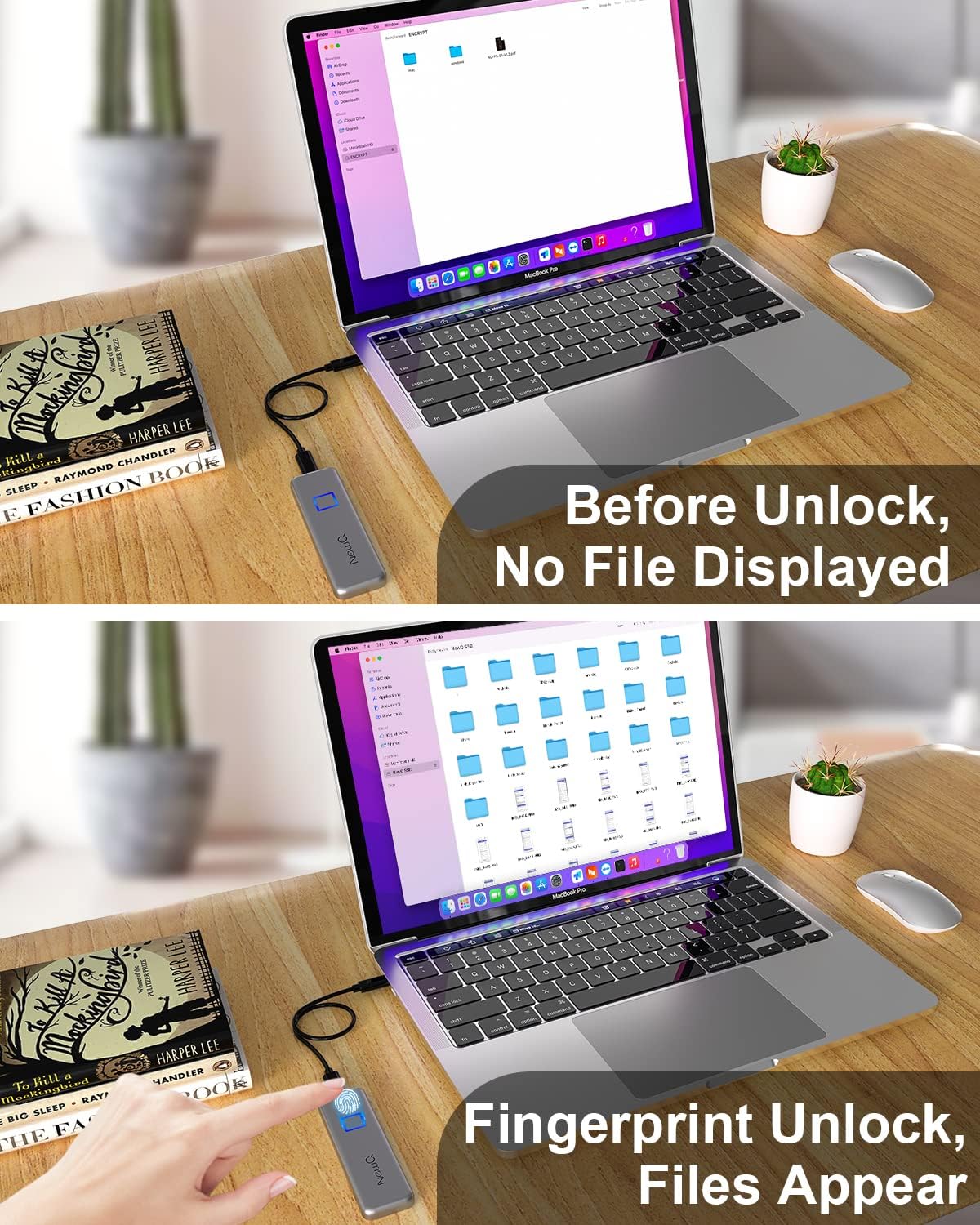
To access your stored files, the SSD must first be unlocked. Place a registered finger on the fingerprint sensor, or open the NEWQ software and enter your password. Once unlocked, the drive will appear as a standard storage device on your computer.
Accessing Files
After successful unlocking, navigate to the drive through your operating system's file explorer (e.g., File Explorer on Windows, Finder on Mac). You can then drag and drop files, copy, paste, or manage them as you would with any other external drive.
Security Features
Fingerprint Biometric Lock
The integrated fingerprint sensor provides a quick and secure method for unlocking your SSD. Only registered fingerprints can access the stored data, preventing unauthorized individuals from viewing your confidential files.

Password Protection
In addition to fingerprint access, the SSD can be secured with a password. This offers a flexible security option and an alternative unlocking method.
Data Protection Mechanism
For enhanced security, the NEWQ SSD incorporates a robust data protection mechanism. If unauthorized attempts to access or reset the password are detected, the SSD will initiate a forced format, permanently deleting all stored data. This ensures that your sensitive information cannot be compromised.

Data Transfer
The NEWQ SSD offers a fast data transfer speed of up to 540 MB/s. This allows for rapid transfer of large files, such as 1 GB videos, in a matter of seconds. Ensure you are using a compatible USB 3.0 or higher port on your device for optimal performance.

Maintenance
- Proper Disconnection: Always safely eject the SSD from your operating system before physically disconnecting it to prevent data corruption.
- Physical Care: Avoid dropping the device or exposing it to extreme temperatures, moisture, or strong magnetic fields.
- Sensor Cleaning: If the fingerprint sensor becomes less responsive, gently clean it with a soft, dry, lint-free cloth.
- Software Updates: Periodically check the NEWQ support website for software updates to ensure optimal performance and security.
Troubleshooting
Common Issues and Solutions
- Issue: Software Installation Problems
Solution: Ensure your operating system is up to date. Download the latest software directly from the official NEWQ support website. If issues persist, consult the online FAQs or contact customer support. - Issue: Fingerprint Scanner Not Responding
Solution: Ensure your finger is clean and dry. Try re-registering your fingerprint through the software. As an alternative, use the password unlock method. - Issue: Files Not Appearing After Connection
Solution: Verify that the SSD has been successfully unlocked using either your fingerprint or password. The drive will not display files until it is authenticated. - Issue: Slow Transfer Speeds
Solution: Confirm that you are connected to a USB 3.0 (or higher) port on your computer. Ensure the USB cable is not damaged and is fully inserted. Close any unnecessary applications that might be consuming system resources. - Issue: Device Not Recognized by Computer
Solution: Try disconnecting and reconnecting the SSD. Use a different USB port or a different computer to rule out port or system-specific issues. Ensure the USB cable is functioning correctly.
Product Specifications
| Feature | Specification |
|---|---|
| Digital Storage Capacity | 1 TB |
| Hard Disk Interface | USB 1.1 (Note: Actual transfer speeds require USB 3.0 or higher) |
| Connectivity Technology | USB |
| Brand | NEWQ |
| Special Features | Biometric Unlocking Technology, Encryption SSD, Fingerprint lock, Privacy Protection |
| Hard Disk Form Factor | 2.5 Inches |
| Hard Disk Description | Solid State Drive (SSD) |
| Compatible Devices | Desktop, Laptop |
| Installation Type | External Hard Drive |
| Color | Black |
| Read Speed | 540 Megabytes Per Second |
| Data Transfer Rate | 540 Megabytes Per Second |
| Form Factor | Portable |
| Model Number | NewQ SSD Touch |
| Manufacturer | NEWQ |
Warranty and Support
The NEWQ Fingerprint Biometric External SSD comes with a 2-year manufacturer's warranty. This warranty covers defects in materials and workmanship under normal use.
For technical assistance, troubleshooting, or warranty claims, please visit the official NEWQ support website or contact their customer service department. Keep your purchase receipt as proof of purchase for warranty services.
Online Support: Visit the NEWQ Store on Amazon