
LIMENAMICS RC1110
LIMENAMICS 64GB Smart Digital Voice Recorder User Manual
Model: RC1110
Introduction
This manual provides detailed instructions for the operation and maintenance of your LIMENAMICS 64GB Smart Digital Voice Recorder, Model RC1110. Please read this manual thoroughly before using the device to ensure proper functionality and to maximize its performance.
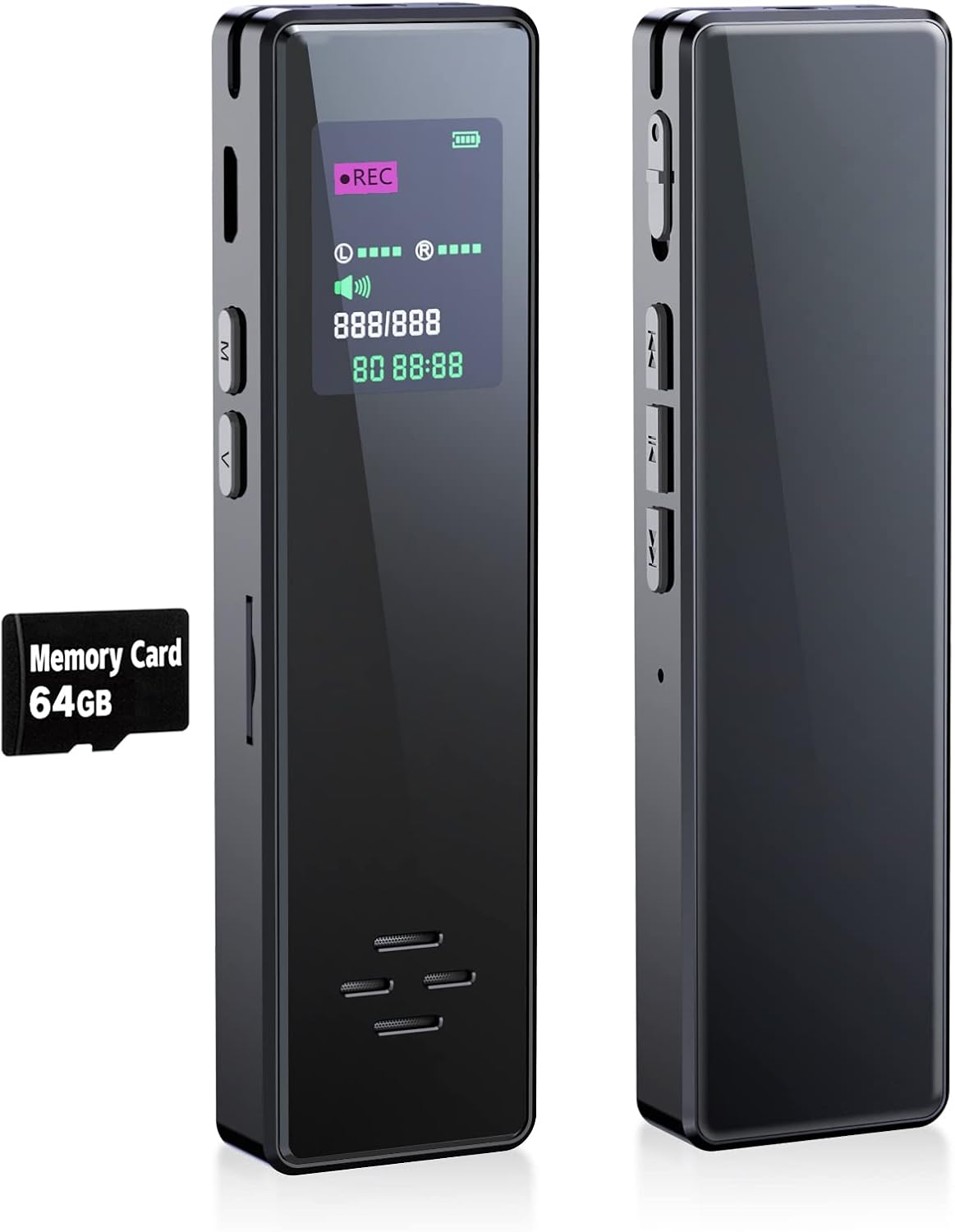
Image: The LIMENAMICS 64GB Smart Digital Voice Recorder, showcasing its sleek black design and compact form factor, alongside a 64GB memory card.
Package Contents
Upon opening the package, please verify that all items listed below are present:
- Smart digital voice recorder x1
- 64G memory card x1
- Headphones x1
- Mini card reader x1
- User manual x1
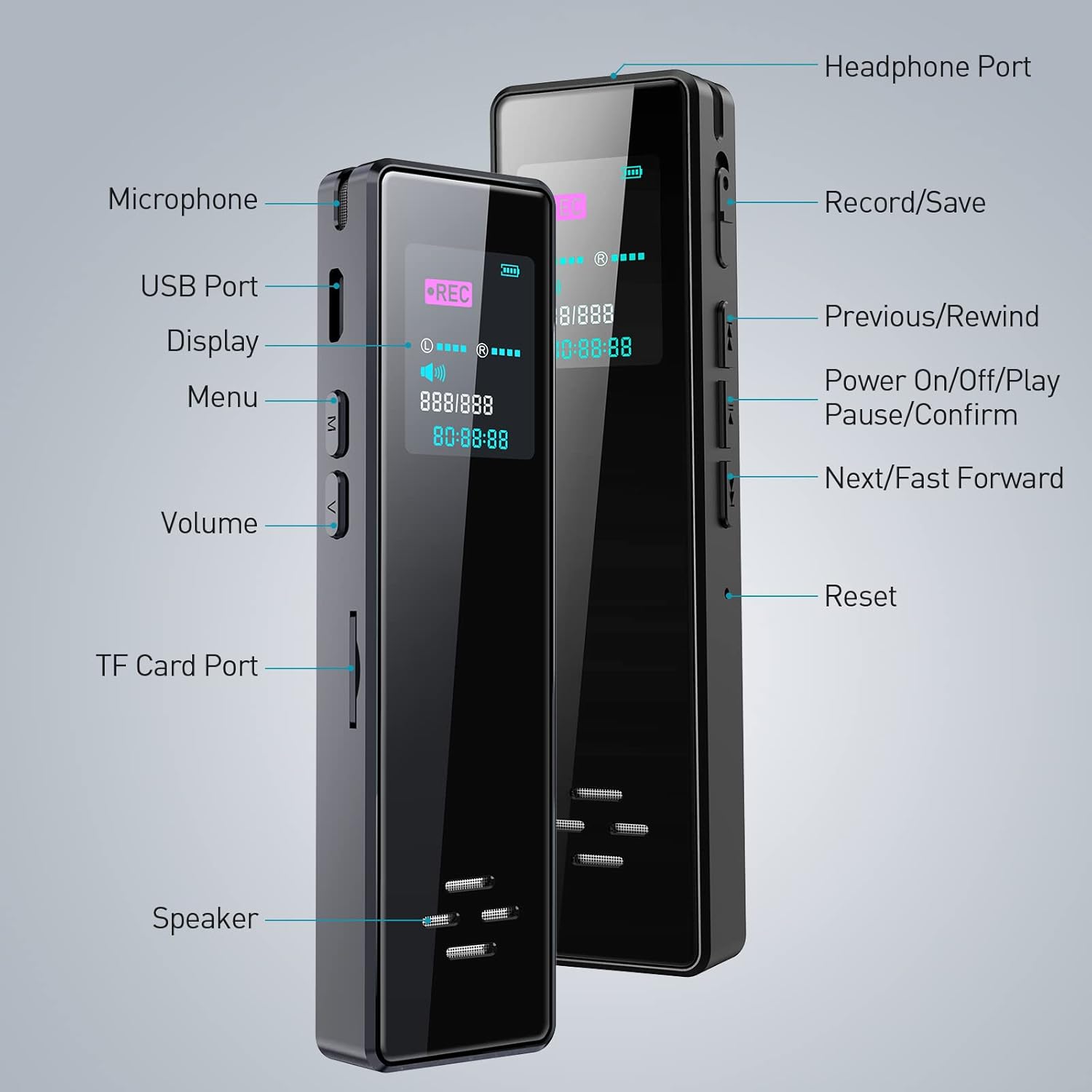
Image: Detailed diagram illustrating the various components and controls of the voice recorder, including the headphone port, USB port, microphone, display, menu, volume controls, TF card port, speaker, record/save button, previous/rewind, power on/off/play/pause/confirm, next/fast forward, and reset button.
Setup
Charging the Device
Before initial use, fully charge the voice recorder. Connect the device to a computer or a USB power adapter using the provided USB cable. The battery indicator on the display will show charging status. A full charge provides up to 20 hours of continuous recording.
Inserting the Memory Card
Locate the TF Card Port on the side of the device. Gently insert the 64GB memory card into the slot until it clicks into place. Ensure the card is inserted in the correct orientation to avoid damage.
Initial Power On
To power on the device, slide the Power On/Off switch. The display will illuminate, indicating the device is ready for use.
Operating Instructions
One-Touch Recording
The device features a convenient one-touch recording function:
- To start recording, push the Record/Save button (located on the side) up. The display will show a recording indicator.
- To save the recording and stop, push the Record/Save button down.

Image: Illustration demonstrating the one-button operation for recording, with arrows indicating "Push up: Start Recording" and "Push down: Save Recording".
Playback
To play back recordings:
- Ensure the device is powered on.
- Navigate through your saved files using the Previous/Rewind and Next/Fast Forward buttons.
- Press the Power On/Off/Play/Pause/Confirm button to start playback. Press again to pause.
- Adjust volume using the Volume buttons.
The device supports A-B repeat and cyclic playback functions. It also supports WAV, WMA, and MP3 music formats.
Noise Reduction Technology
The recorder incorporates DSP digital intelligent noise reduction technology. This feature automatically adjusts to receive sound waves, filtering and attenuating background noise to produce clearer and more original recordings.

Image: Visual representation of the DSP digital noise reduction feature, demonstrating how it cleans up audio by reducing background interference.
Automatic Save Function
The device is equipped with an automatic save feature that activates when the battery is low. This ensures that your recording files are not lost due to power depletion.

Image: Diagram illustrating the auto-save function, which automatically saves recording files when the battery level is low to prevent data loss.
File Management
Recorded files can be easily transferred to a computer or laptop. Connect the voice recorder using the USB cable. The device will appear as a removable storage device, allowing you to copy, move, or delete files. The included mini card reader can also be used for direct file transfer from the memory card.
Maintenance
- Keep the device clean by wiping it with a soft, dry cloth. Avoid using liquid cleaners or abrasive materials.
- Store the recorder in a cool, dry place away from direct sunlight, extreme temperatures, and high humidity.
- Avoid dropping the device or subjecting it to strong impacts.
- Regularly back up important recordings to a computer or other storage device.
Troubleshooting
| Problem | Possible Cause | Solution |
|---|---|---|
| Device does not power on. | Low battery; device frozen. | Charge the device. If unresponsive, press the Reset button with a thin object. |
| Cannot record. | Memory full; memory card not inserted or faulty. | Delete old files to free space. Ensure memory card is properly inserted. Try a different memory card. |
| Poor recording quality. | Excessive background noise; microphone obstructed. | Ensure microphone is clear. Record in a quieter environment. |
| Computer does not recognize device. | Loose USB connection; driver issue. | Reconnect USB cable. Try a different USB port or computer. |
Specifications
| Feature | Detail |
|---|---|
| Model Number | RC1110 |
| Memory Storage Capacity | 64 GB (expandable up to 128GB) |
| Battery Type | 1 Lithium Ion battery (included) |
| Battery Life (Recording) | Up to 20 hours |
| Audio Formats Supported | WAV, WMA, MP3 |
| Microphone | Built-In, 360° Omnidirectional, High Sensitivity Condenser |
| Noise Reduction | DSP Digital Intelligent Noise Reduction Technology |
| Interface | USB, Headphone (3.5mm), Media Card (TF Card Port) |
| Compatible Devices | Laptop, Personal Computer |
| Dimensions | 14.5 x 9.1 x 3.9 cm |
| Weight | 170 g |
Warranty and Support
For warranty information or technical support, please contact LIMENAMICS customer service. You may also reach out to the after-sales service provider:
evatmaster Consulting GmbH
Email: contact@evatmaster.com
Please retain your proof of purchase for warranty claims.
Official Product Videos
No official product videos from the seller were found for this product.
Ask a question about this manual
Ask about setup, troubleshooting, compatibility, parts, safety, or missing instructions. Manuals+ will review the question and use this page’s manual context to help answer it.