
Introduction
The CiBest G1 Projector is a versatile home theater device designed for both indoor and outdoor use. It features built-in Google TV, WiFi, Bluetooth, and Dolby Audio for an immersive audio-visual experience. This manual provides essential information for setting up, operating, maintaining, and troubleshooting your projector.
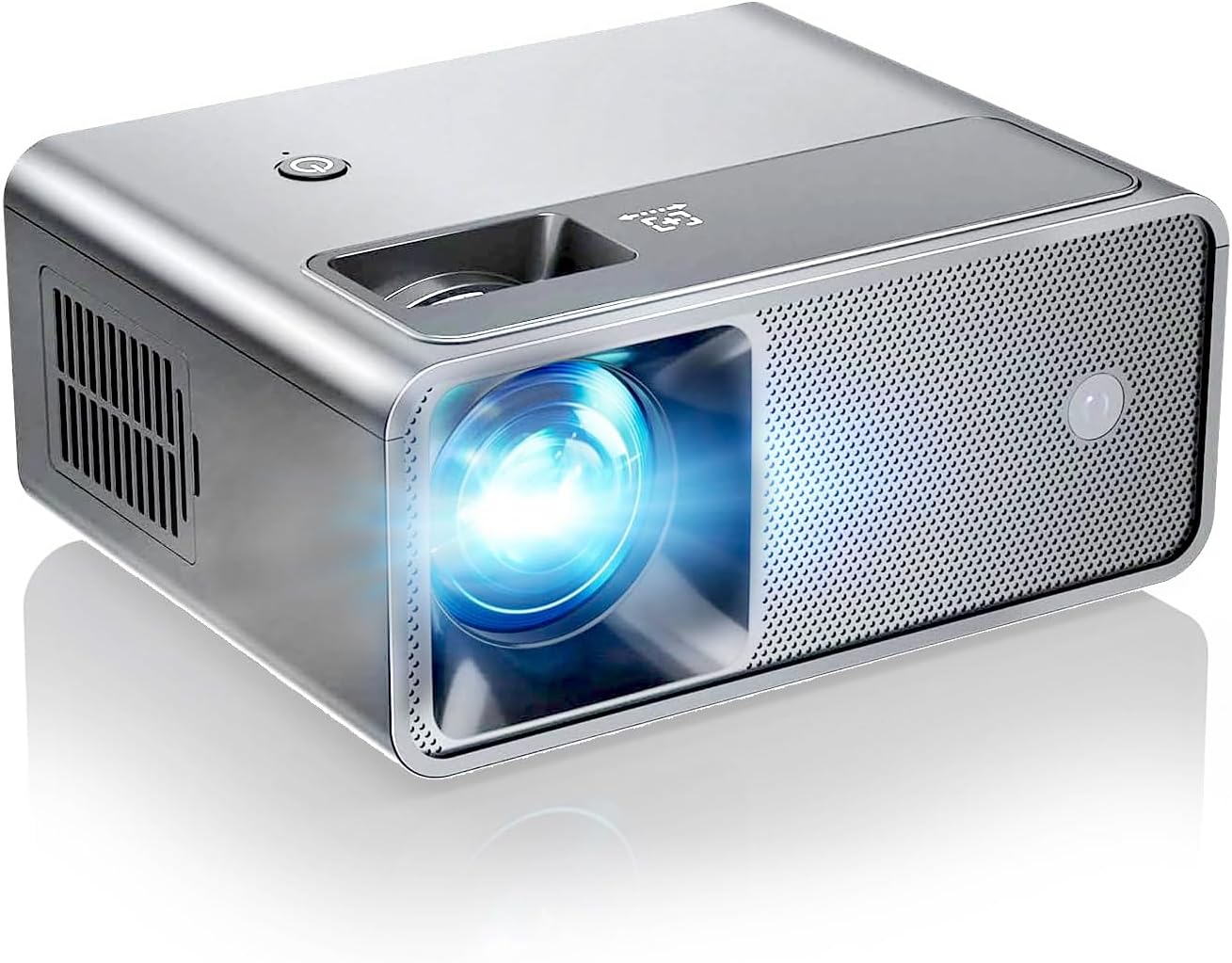
Figure 1: CiBest G1 Projector, a compact and powerful device for home entertainment.
What's in the Box
Upon unboxing your CiBest G1 Projector, ensure all the following items are present:
- CiBest G1 Projector
- ATV Box (Android TV module)
- Remote Control
- HDMI Cable
- AV Cable
- Power Cable
- Micro USB Cable
- Mini HDMI Cable
- User Manual
- Quick Start Guide
- Lens Cleaning Kit (sticks and wipes)
- Carrying Bag
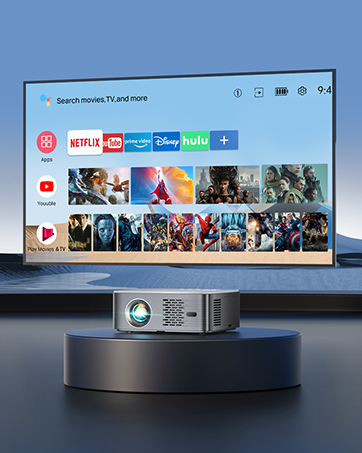
Figure 2: The CiBest G1 Projector comes with a comprehensive set of accessories, including a carrying bag for portability.
Setup and Installation
Follow these steps to set up your CiBest G1 Projector for the first time:
1. Installing the ATV Box
- Locate the opening on the side of the projector and remove its cover.
- Plug the connectors of the HDMI cable and the USB cable into the ATV box.
- Insert the ATV box into the corresponding connection port within the projector.
- Cover the compartment with the lid to complete the installation.
Video 1: Demonstrates the initial setup of the CiBest G1 Projector, including ATV box installation and power connection.
2. Power Connection
- Connect the power cord to the projector's power socket.
- Plug the other end of the power cord into an electrical outlet.
- Press the power button on the projector or remote control to turn it on.
3. Remote Control Pairing
After installing the ATV box, pair the remote control according to the on-screen prompts. Typically, this involves holding the "Volume-" and "OK" keys simultaneously for about 10 seconds near the projector.
4. Network and Google Account Setup
Follow the on-screen prompts to connect to your Wi-Fi network and log in to your Google account. This will enable access to Google TV features and apps.
5. Placement and Mounting
- The projector can be placed on a table or shelf. Use the kickstand at the bottom to adjust the projection angle if needed.
- For ceiling installation, the projector includes an M6 mounting hole. Ensure the mount is securely attached to the ceiling.
Video 2: Instructions on how to install the CiBest G1 Projector using a ceiling mount.
Operating Instructions
The CiBest G1 Projector offers a user-friendly interface with various settings and connectivity options.
1. Navigation and Interface
- Use the included remote control for navigation. It features dedicated buttons for Netflix, Prime Video, Google Assistant, and projector focus.
- The projector also has control buttons on its top panel for basic navigation (OK, Up/Down, Left/Right, Return, Source, Power On/Off).
- The Android TV operating system provides access to over 80,000 apps, including Netflix, YouTube, and Prime Video, available through the Google Play Store.

Figure 3: The Google TV interface on the CiBest G1 Projector, showing access to popular streaming applications.
2. Picture Settings
Adjust the projection quality through the Picture Settings menu:
- Picture Mode: Select from various presets or customize contrast, brightness, color, sharpness, and hue.
- Color Temperature: Adjust the warmth or coolness of the colors.
- Aspect Ratio: Choose between Auto, 4:3, or 16:9.
- Color Range: Set the color output range.
- Mirror Mode: Configure for front, rear, ceiling, or rear ceiling projection.
- Image Scale: Adjust the size of the projected image (50%-100% zoom).
- Focus Mode: Select Auto Focus or Manual adjustment.
- Focus Calibration: Calibrate the focus for optimal clarity.

Figure 4: Key features of the CiBest G1 Projector, including image adjustment options like keystone correction and zoom.
3. Sound Settings
The projector features built-in HiFi speakers. Adjust sound preferences:
- Sound Mode: Select different audio presets.
- Balance: Adjust audio balance.
- Surround Sound: Enable or disable surround sound.
4. System Settings
Manage general projector settings:
- Language: Change the system language.
- Factory Reset: Restore the projector to its default settings.
- Software Update: Check for and install software updates.
- Display Time: Adjust display time settings.
5. External Device Connectivity
The CiBest G1 Projector offers multiple ports for connecting external devices:
- USB Port: For USB drives (supports Movie, Music, Photo, Text files). Note: The USB port does not support mirroring phones and computers.
- HDMI Port: Connect gaming consoles (PS5, Switch), laptops, TV sticks, etc.
- AV Port: For older devices using AV cables.
- 3.5mm Audio Port: Connect external speakers or headphones.
- Bluetooth 5.2: For wireless audio connections to speakers or headphones.
- 6G Dual-Band WiFi: For fast and stable internet connection, supporting Google Cast, AirPlay, and screen mirroring.

Figure 5: Multi-device connection options on the CiBest G1 Projector.
Maintenance
Proper maintenance ensures the longevity and optimal performance of your projector.
- Dust-Proof Design: The CiBest G1 features a full-sealed optical engine, preventing dust from entering the internal components. This design helps maintain image quality and extends the projector's lifespan.
- Lens Cleaning: Use the provided lens cleaning kit (sticks and wipes) to gently clean the projector lens as needed. Avoid harsh chemicals or abrasive materials.
- Cooling System: The built-in cooling system ensures low noise operation. Ensure proper ventilation around the projector to prevent overheating.
- Lamp Life: The projector lamp has an operating life of up to 100,000 hours.

Figure 6: The full-sealed optical engine of the CiBest G1 Projector prevents dust accumulation, enhancing durability and image quality.
Troubleshooting
This section addresses common issues you might encounter with your CiBest G1 Projector.
- Blurry Picture: If the picture appears blurry, especially at larger screen sizes, ensure the projector is within the recommended throw distance. The manual states a maximum distance of 8 feet for a clear 90-inch image. Use the focus adjustment (auto or manual) and keystone correction to optimize clarity.
- Low Brightness in Lit Rooms: The projector delivers vivid images in dark rooms. In moderately lit rooms, the image may appear less vibrant. For optimal viewing, use the projector in a dark environment.
- No 4K Support: While the product supports 4K playback, the native resolution is 1920x1080. 4K content will be downscaled to 1080p.
- Remote Control Issues: The remote control must be pointed directly at the projector to function effectively.
- No Horizontal Keystone Adjustment: The projector does not have horizontal keystone adjustment. Ensure the projector is placed directly perpendicular to the screen to avoid skewed images. Vertical keystone adjustment is available via a physical dial.
- Noise Level: The projector is designed for low noise operation, typically around 42 dB near the unit and 37 dB at 1 meter. If you experience unusually high noise, ensure proper ventilation.
Specifications
| Feature | Specification |
|---|---|
| Brand | CiBest |
| Model Name | G1 |
| Recommended Uses | Indoor/Outdoor |
| Special Feature | Speakers |
| Connectivity Technology | HDMI, USB, 3 in1 AV, 3.5mm Audio, Android TV box |
| Native Display Resolution | 1920 x 1080 (Full HD) |
| Display Resolution Maximum | 1920 x 1080 Lines Per Inch |
| Brightness | 1000 ANSI lumens |
| Contrast Ratio | 20000:1 |
| Maximum Image Size | 300 Inches |
| Minimum Image Size | 19.7 Inches |
| Light Source Operating Life | 100000 Hours |
| Dimensions (L x W x H) | 6"L x 12"W x 16.8"H |
| Weight | 2450 Grams |
| Color | Sliver & White |
Warranty and Support
The CiBest G1 Projector comes with a 24-month warranty. For any support inquiries, troubleshooting assistance, or warranty claims, please contact CiBest customer service through their official channels.
Visit the CiBest Store for more information and support resources.

